Alert Correlation in ObserveOps: Investigate Metric Alerts in Context
Alert Correlation in ObserveOps (formerly known as AIOps) lets you investigate a triggered metric alert alongside its related metrics, logs, other simultaneous alerts, and recurring log patterns. You open it directly from the alert detail screen, no context switching needed.
How Alert Correlation Works
When you trigger Alert Correlation on a metric alert, ObserveOps queries the same monitor for correlated data within the alert's active time window. It surfaces related metric counters, ingested logs, simultaneous alerts, and detected log patterns in four tabs. Each tab narrows the root-cause investigation without leaving the alert context.
Prerequisites
- At least one metric alert must be active or recently fired.
- The monitor must be instrumented and sending data to ObserveOps.
- To see correlated logs and log patterns, logs must be forwarded from the source monitor.
Navigation
Go to Menu and select Alerts. The Alerts screen opens showing a severity summary strip (Down, Unreachable, Critical, Major, and Warning) across the top.
Select the Metric tab to view metric alerts. The screen shows:
- Metric Alert Overview: a donut chart breaking down alerts by Availability and Metric Threshold policy types.
- Metric Alert By Policy Type: a bar chart comparing counts across policy types and severities.
- Today Alert Trend: a time-series bar chart showing alert distribution across the current day.
- Device category rings: per-category counts for Server, Database, Service Check, and other monitor types.
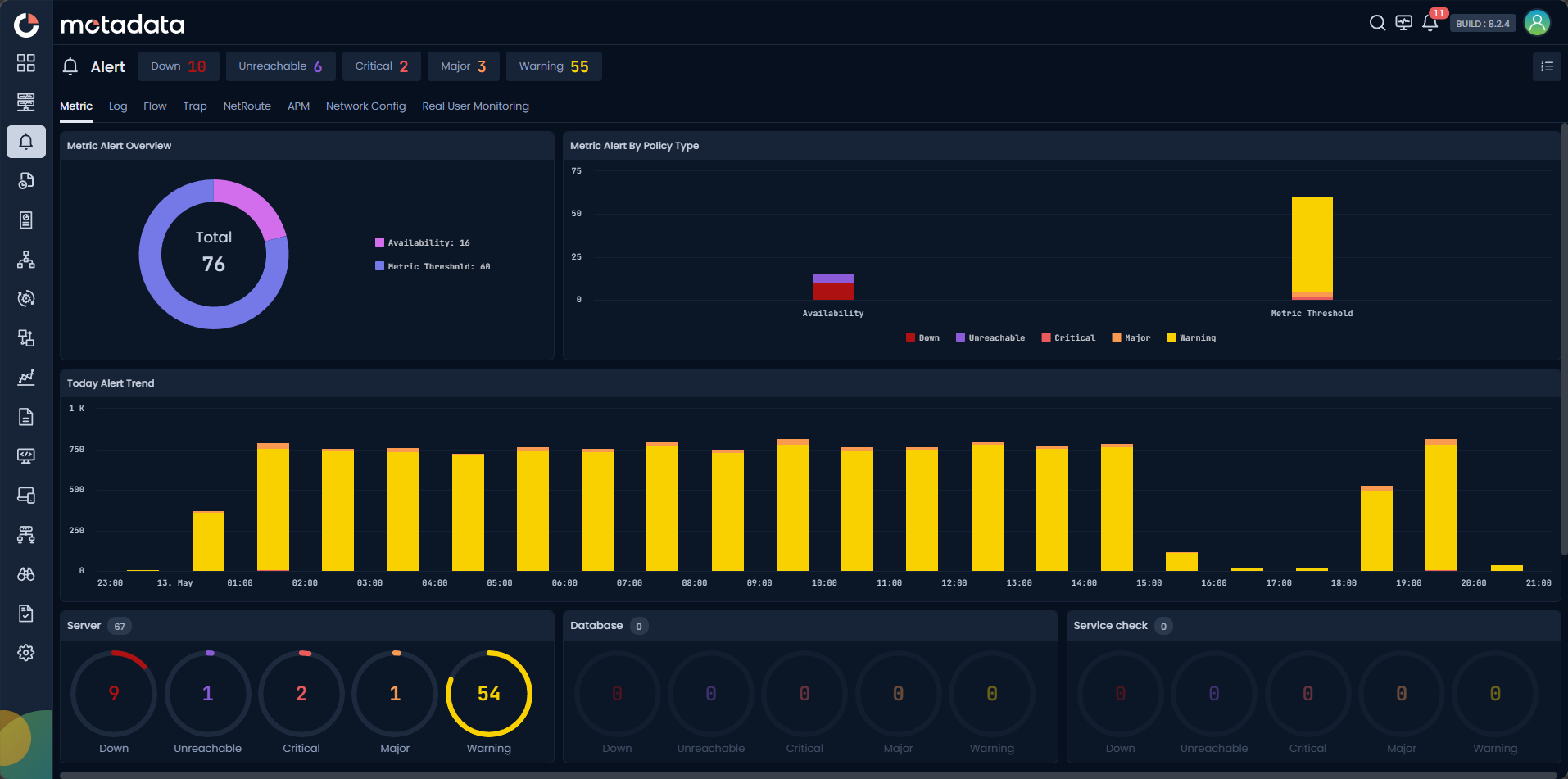
Click any chart segment or device ring to filter the alert list. You can also click the grid view icon in the top-right corner to switch to the full alert list directly.
Alert Correlation List
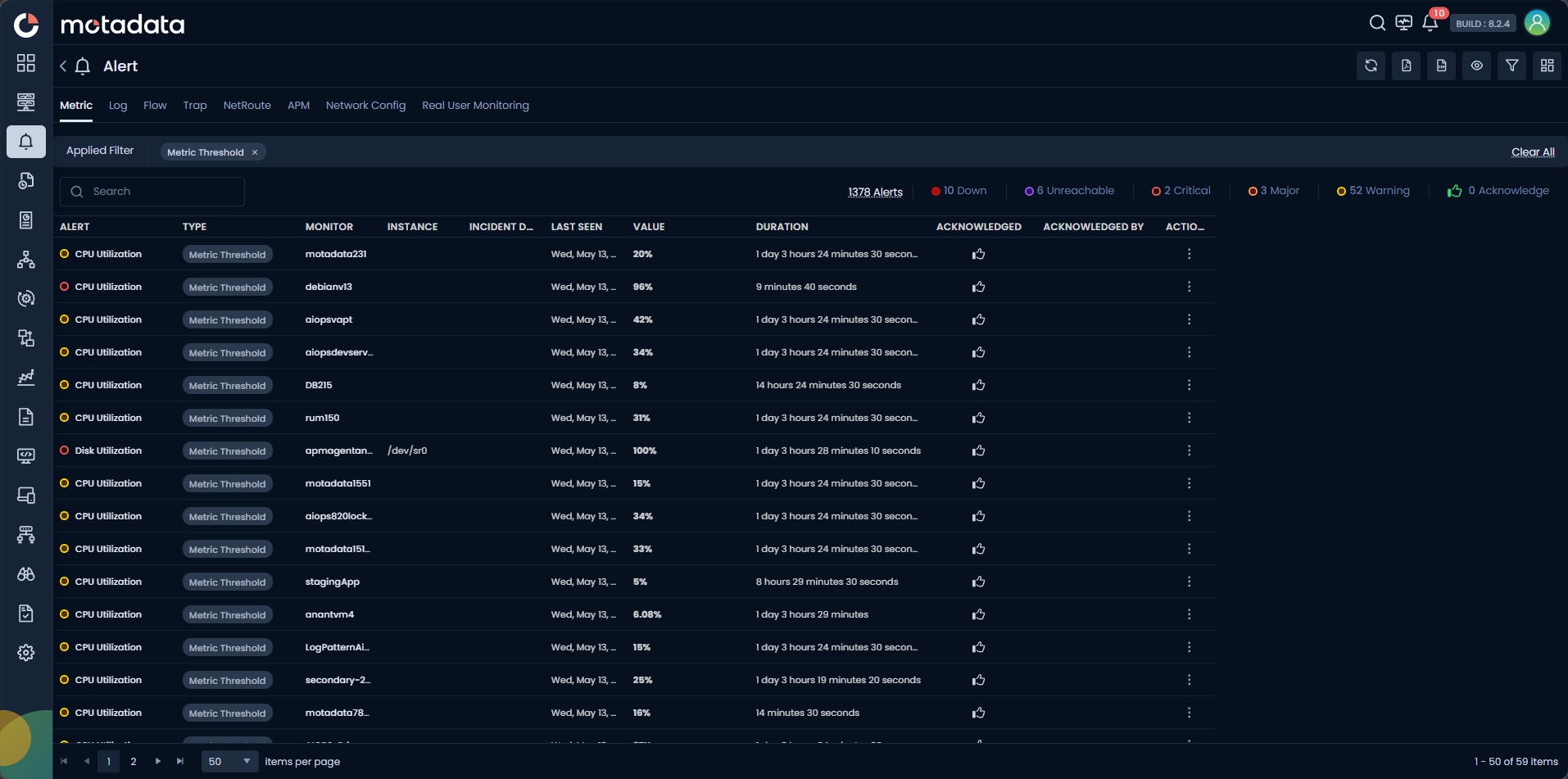
The alert list shows all active metric alerts. Each row includes:
| Column | Description |
|---|---|
| Alert | The policy name that triggered the alert. |
| Type | Alert type: Availability or Metric Threshold. |
| Monitor | The monitor on which the alert fired. |
| Instance | The specific instance, if applicable. |
| Incident # | The incident identifier. |
| Last Seen | Timestamp of the most recent occurrence. |
| Value | Metric value when the alert triggered. |
| Duration | Time the alert has been in its current state. |
| Acknowledged By | The user who acknowledged the alert, if any. |
Click any row in the alert list to open its Alert Detail screen.
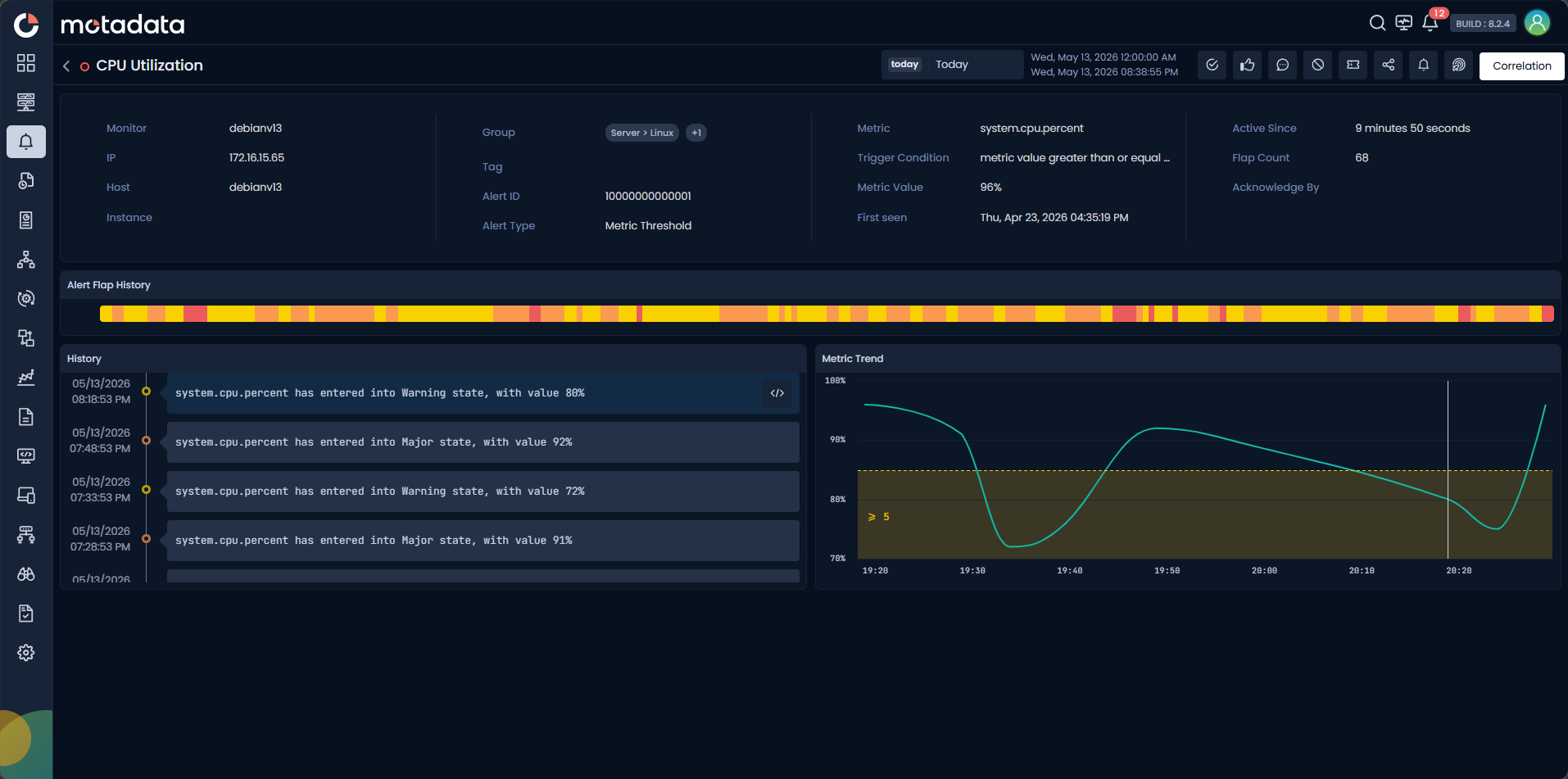
The detail screen shows monitor metadata and alert context:
| Field | Description |
|---|---|
| Monitor | Name of the monitor that triggered the alert. |
| IP | IP address of the monitor. |
| Host | Hostname of the monitor. |
| Instance | Instance name for instance-level alerts. |
| Group | Monitor group(s) the device belongs to. |
| Tag | Tags associated with the monitor. |
| Alert ID | Unique identifier for this alert. |
| Alert Type | Metric Threshold or Availability. |
| Metric | The counter that breached the threshold. |
| Trigger Condition | The condition that caused the alert to fire. |
| Metric Value | The value at the time of breach. |
| First Seen | When this alert first triggered. |
| Active Since | How long the alert has been continuously active. |
| Flap Count | Number of times the alert changed state. |
| Acknowledge By | User who acknowledged the alert, if any. |
Below the fields, you see:
- Alert Flap History: a colour-coded bar showing severity state changes over time.
- History: a chronological list of state transitions with timestamps and metric values.
- Metric Trend: a live chart showing the metric value over the selected time window with threshold markers overlaid.
The Correlation View
Click the Correlation button in the top-right corner of the Alert Detail screen.
The Correlation view opens for that alert. It shows:
- The alert header with the policy name, IP address, and monitor name.
- A time range selector in the top-right that defaults to the alert's active window. Adjust it using presets or a custom range.
- A metric trend chart showing the breaching counter across the selected window with threshold markers.
- Four correlation tabs below the chart.
Correlated Metrics
The Correlated Metrics tab opens by default. It displays related metric charts from the same monitor during the alert's time window.
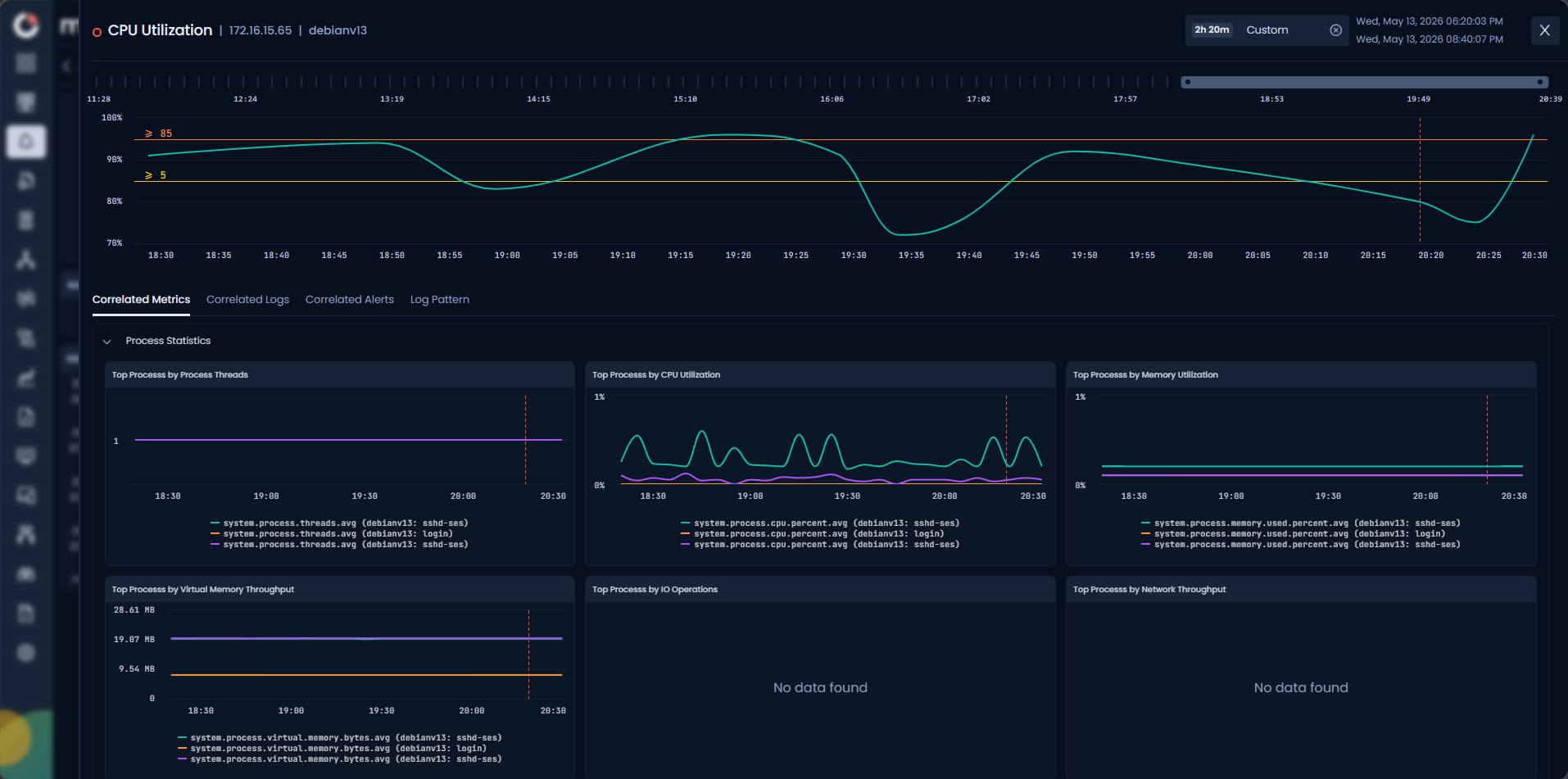
Charts appear under Process Statistics, covering process-level CPU, memory, virtual memory, I/O, and network throughput trends. If data is unavailable for a chart, it shows No data found. Use this tab to identify whether other counters on the same device behaved abnormally at the same time.
Correlated Logs
The Correlated Logs tab shows log entries from the same monitor ingested during the alert's time window.
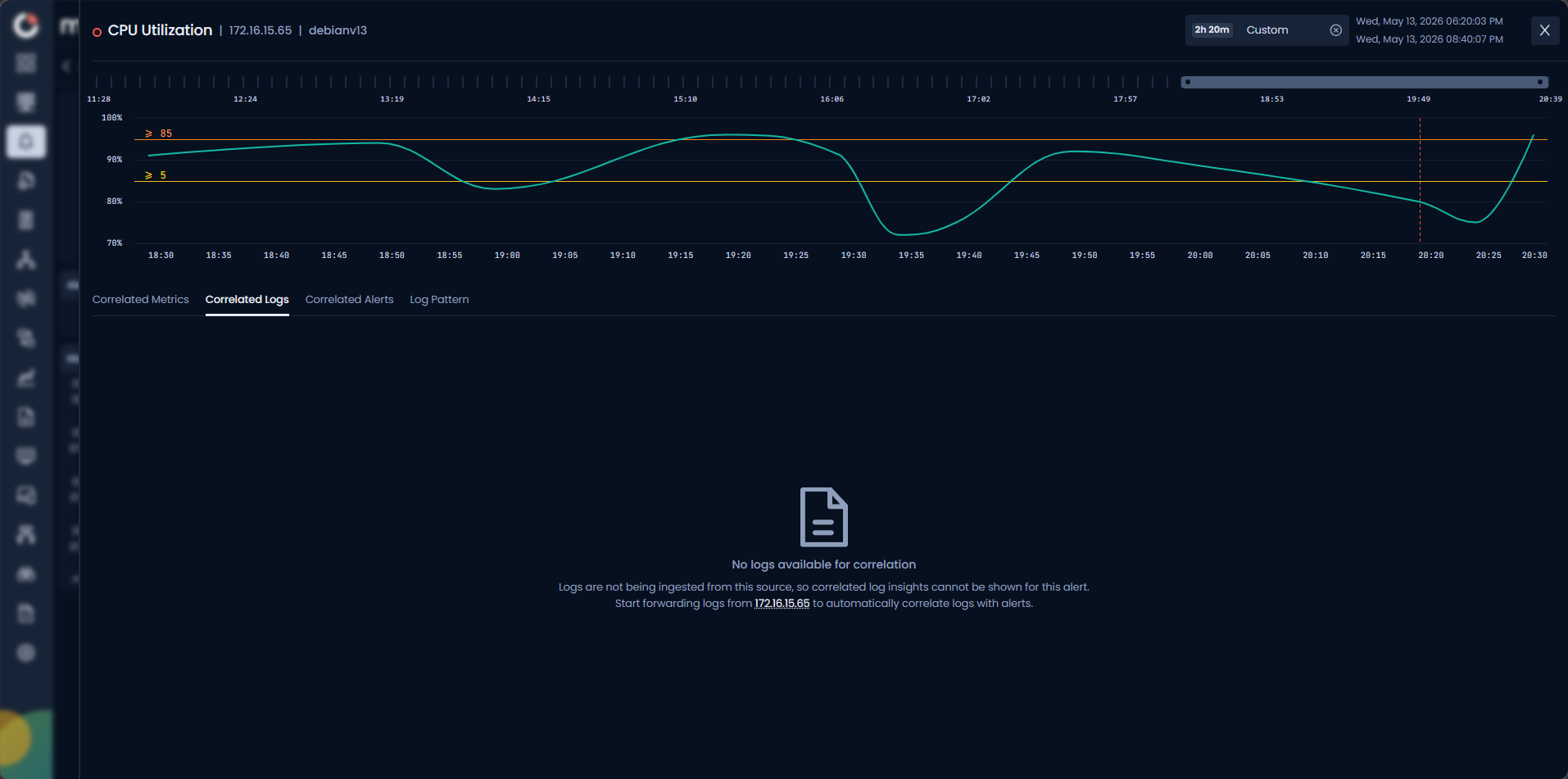
If logs are not being forwarded from the source monitor, the tab shows:
- No logs available for correlation
- Logs are not being ingested from this source, so correlated log insights cannot be shown for this alert. Start forwarding logs from
<IP>to automatically correlate logs with alerts.
When logs are available, they display in a searchable list filtered to the alert's time range.
Correlated Alerts
The Correlated Alerts tab lists other metric alerts that were active on the same monitor during the alert's time window.
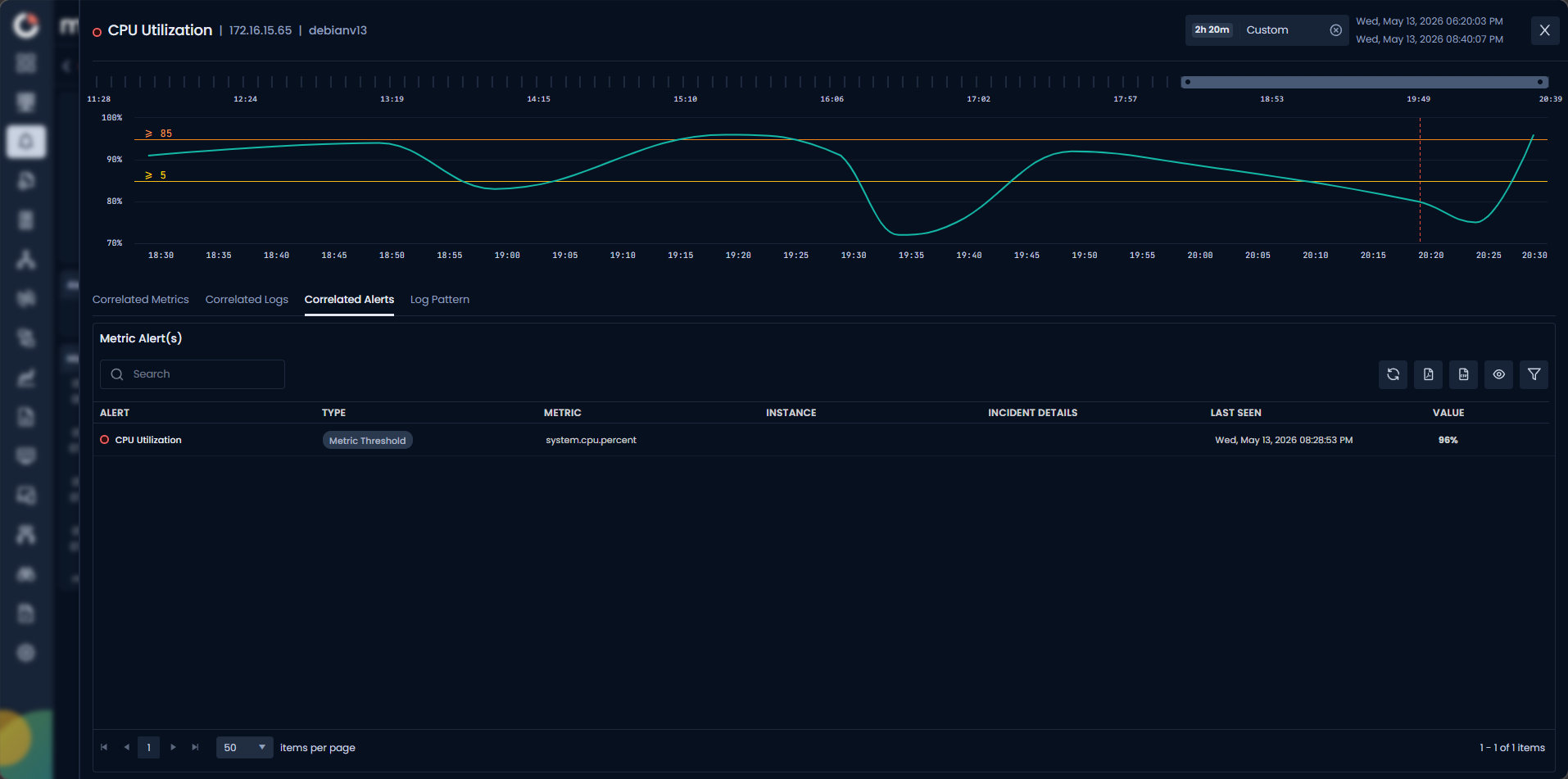
Alerts appear under Metric Alert(s) with the following columns:
| Column | Description |
|---|---|
| Alert | Name of the correlated alert. |
| Type | Alert type: Metric Threshold or Availability. |
| Metric | The counter for the correlated alert. |
| Instance | The instance, if applicable. |
| Incident Details | Incident reference, if linked. |
| Last Seen | Timestamp of the most recent occurrence. |
| Value | Metric value at the time of the alert. |
Use the Search bar to filter by alert name. Use the icons in the top-right to refresh, export, or filter the results.
Log Pattern
The Log Pattern tab analyses logs correlated with the alert and surfaces recurring patterns. It helps you identify repeated error messages or common signatures that may contribute to the alert condition.
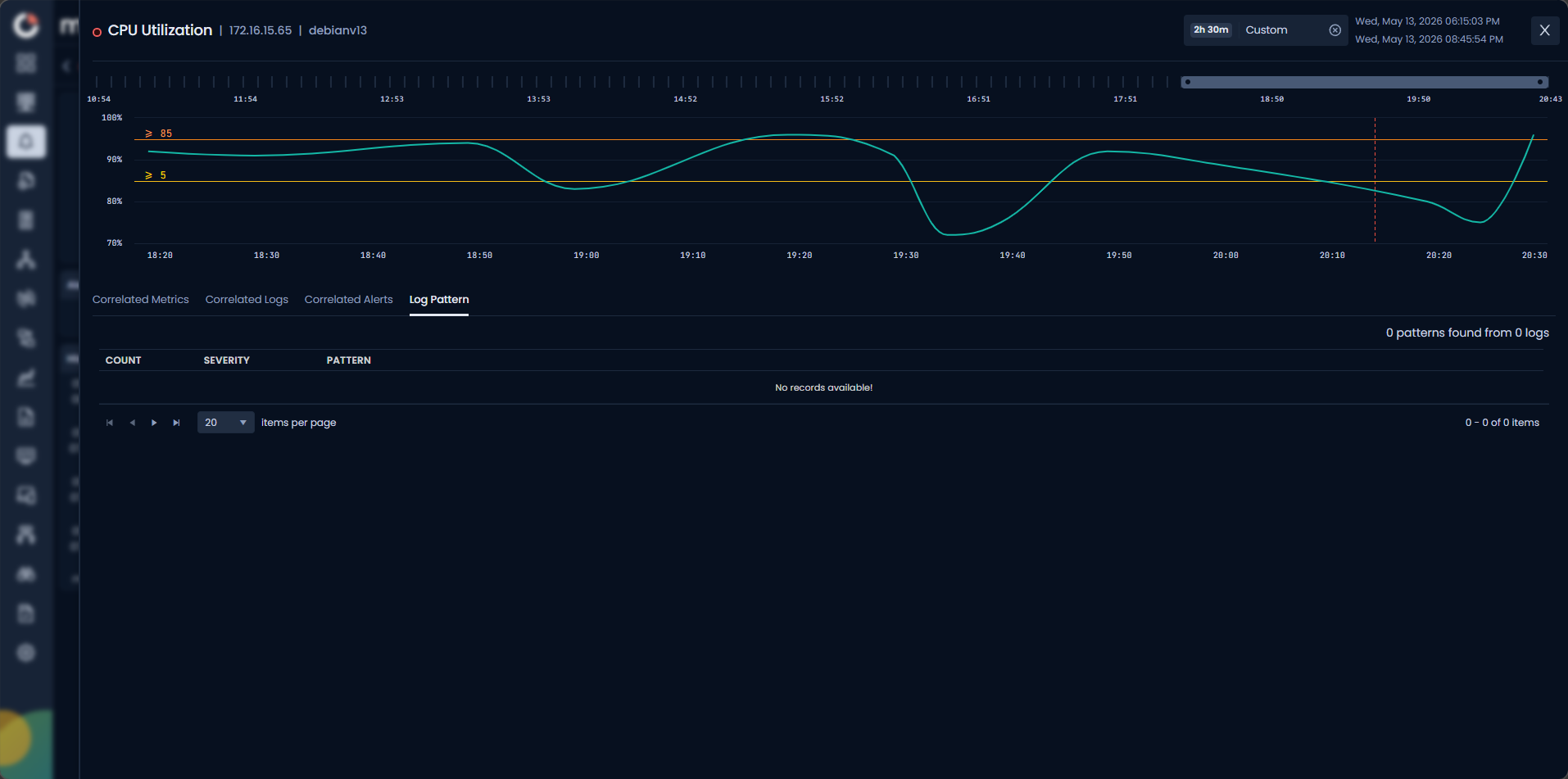
A summary line shows the total pattern and log counts, for example 0 patterns found from 0 logs.
The table shows:
| Column | Description |
|---|---|
| Count | Number of log lines matching this pattern within the alert's time window. |
| Severity | Severity level of log entries matching the pattern. |
| Pattern | The detected recurring log pattern string. |
If no patterns are found, the table shows No records available!
Log Pattern detection runs only on logs correlated with the selected alert and its time window. It uses the same pattern detection engine available in Log Search and APM Log Correlation.
Example
Your team gets a CPU Utilization alert on debianv13 at 172.16.15.65. You click the alert row, open the detail screen, and see a flap count of 68 with the metric sitting at 96%. You click Correlation and check the Correlated Metrics tab. Process CPU and memory charts reveal a runaway process spiking at the same time. You check Correlated Alerts to confirm no other threshold has fired simultaneously. The root cause is isolated in under two minutes.