Reports
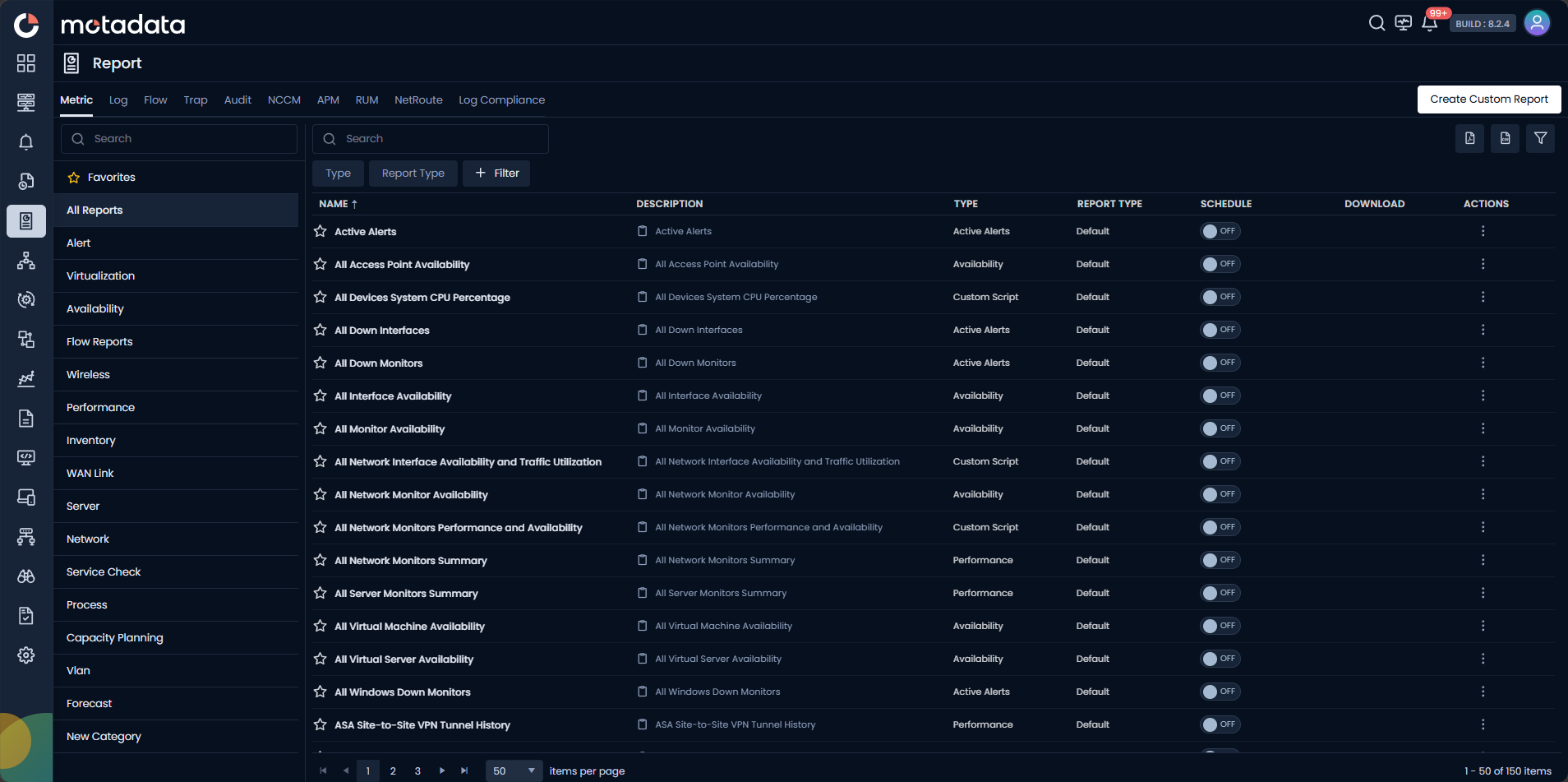
The Reports module in Motadata ObserveOps (formerly known as AIOps) turns your monitoring data into clear, actionable insights, so you can make informed decisions about your IT environment.
It gives you access to 150+ built-in reports and the flexibility to create custom reports tailored to your needs. Whether you're tracking system availability, monitoring resource usage, or meeting compliance requirements, Reports gives you the information you need in one place.
What Can You Do with Reports?
- View built-in reports: Access 150+ default reports covering performance, availability, compliance, network flow, and more. No setup needed.
- Create custom reports: Build your own reports using filters, KPIs, and time ranges that match your team's specific needs.
- Schedule automated delivery: Set any report to run on a schedule and deliver it to users by email automatically.
- Export reports: Download reports in PDF, XLSX, or HTML format for sharing or archiving. The report description is included in every exported format, so recipients see the report purpose and context alongside the data.
- Preview and export ad-hoc: Open any saved report in Preview to temporarily change parameters (devices, sources, time range, filters), then export the previewed data as PDF, XLSX, or HTML without saving those changes. The original saved report and its scheduler remain untouched.
- Organize with categories: Group reports into custom categories using the New Category option in the left panel.
Use Cases
Network Administrator: Spot Bottlenecks Fast
Use the All Network Monitors Summary – Last Day report to get a full view of network performance metrics. Identify congestion points and areas that need more bandwidth, before users feel the impact.
System Administrator: Troubleshoot Incidents Quickly
Use the All Network Monitors Summary – Last Day report to detect deviations from normal network behavior. Respond to incidents faster and keep downtime to a minimum.
IT Operations Manager: Plan Capacity
Use the Top 25 Process by CPU Utilization – Last Week report to compare resource-intensive processes. Identify what's consuming the most CPU, optimize resource allocation, and plan infrastructure upgrades with confidence.
Network Performance Monitoring
Use the Top 25 Monitors by CPU Utilization – Last Week report to review CPU usage across all monitored devices. Identify resource-heavy monitors and ensure optimal performance across your network.
Understanding the Tabs on the Reports Screen
The Reports screen is organized into tabs by data source type. Each tab shows its own set of built-in and custom reports.
Metric Tab
The Metric tab displays all reports related to infrastructure monitoring metrics: CPU utilization, memory usage, network traffic, and more. It includes both built-in default reports and custom reports your team has created. Use the left panel to filter by categories like Alert, Availability, Performance, Server, Network, Wireless, Virtualization, Capacity Planning, Forecast, and more.
To customize a built-in report without changing the original, click the Actions icon and select Copy As. You can then adjust the timeline and apply Group, Tag, or Monitor filters on the next screen.
Log Tab
The Log tab displays reports built on system log data from your devices and applications. It includes built-in log reports and any custom log reports you've created. Filter by Performance, Log Events, or custom categories you've added.
Flow Tab
The Flow tab displays reports based on network flow data: traffic patterns, bandwidth usage, and data flows across network devices. Built-in reports include Top 25 Source IP – Last 24 Hours, Top 25 Destination IP by Application – Last 24 Hours, Malicious IP Summary, and TCP SYN Flag Summary.
Trap Tab
The Trap tab displays reports related to SNMP trap data captured from network devices. Use this tab to analyze trap events and monitor device status. Create custom trap reports and organize them with New Category.
This tab shows "No records available" if no trap reports have been configured yet.
Audit Tab
The Audit tab is for reports that track system changes: configuration updates, user actions, and system modifications. It supports compliance and change management use cases. Custom audit reports support fields like Module Type, Operation Type, Users, and Status.
This tab shows "No records available" until audit reports are created.
NCCM Tab
The NCCM (Network Configuration and Change Management) tab displays reports about network device configurations, backups, firmware updates, and compliance. Built-in reports include NCM Backup Summary, Firmware Upgrade Success/Failed Summary, Running-Baseline Config Conflict Summary, and Executive Summary Report.
APM Tab
The APM (Application Performance Monitoring) tab displays reports focused on application performance metrics. It supports both built-in and custom APM reports, organized under Performance and custom categories.
RUM Tab
The RUM (Real User Monitoring) tab displays reports based on real user interaction data. Create custom RUM reports and organize them with New Category.
This tab shows "No records available" if no RUM reports have been configured yet.
NetRoute Tab
The NetRoute tab displays reports related to network path and routing data. Create custom NetRoute reports and organize them with New Category.
This tab shows "No records available" if no NetRoute reports have been configured yet.
Log Compliance Tab
The Log Compliance tab displays reports mapped to major compliance standards: PCI-DSS, HIPAA, GDPR, SOX, and ISO 27001:2022. Each standard is displayed as a tile showing the total number of reports and category count.
Click any compliance tile to drill into the full list of reports for that standard. Each report is mapped to its specific requirement, act, article, section, or control, depending on the standard. You can filter reports by their compliance reference and export them individually.