Wake on LAN Schedules List Page
The Wake on LAN Schedules list page helps technicians track and manage all schedules. It displays a list of schedules along with options to enable/disable, create, configure settings, edit, and delete them in one place.
To view the Wake on LAN Schedules list page, navigate to Admin > Asset Management > Wake On LAN. The following page will then appear.

Here, you can perform the following actions:
- Create WOL Schedule: You can create a new schedule.
- Settings: You can configure the settings for Wake on LAN Schedule.
- Enable or Disable: You can enable or disable the Wake on LAN Schedule. By default, it is enabled.
- Edit: You can edit the details of the Wake on LAN Schedule.
- Delete: You can delete the Wake on LAN Schedule. A confirmation message appears. Click Yes to continue or Cancel to stop the process.
Settings
To configure the settings, click the Settings button. A popup will appear.
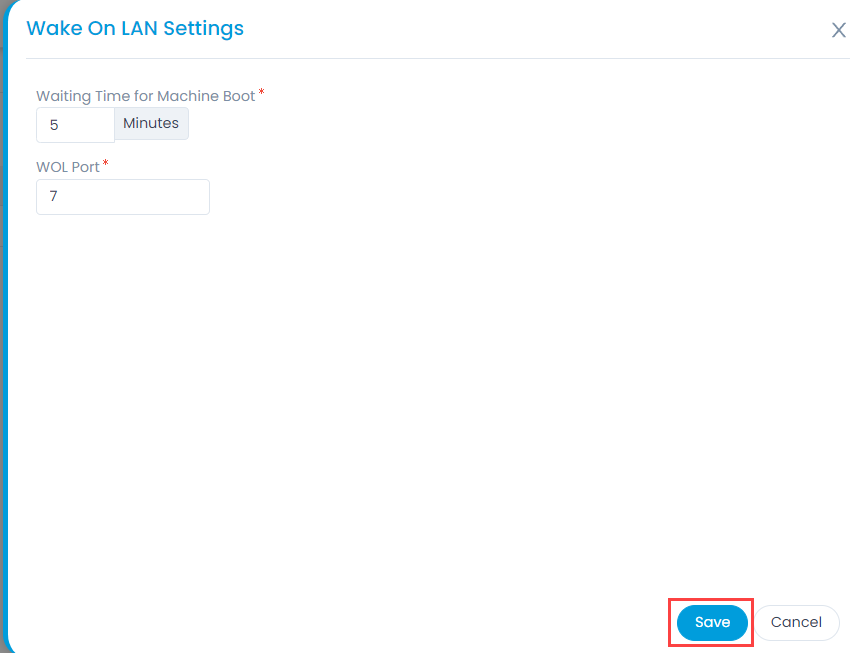
Enter the below details:
- Waiting Time for Machine Boot: Set the time until a response is awaited from the remote machine. You can set the time from 5 to 60 minutes. The default value is 5 minutes.
- WOL Port: Enter the port number on which WOL is configured. The default value is 6 or 7. You can also use other port numbers.
note
With proper MAC address, IP address, and Subnet details configured, the computer will wake up even if a different WOL port number is set.
Once completed, click Save to save the settings.