Asset Custom Rules
Custom rules help you enforce your organization’s compliance while processing an asset. These rules ensure that any change in asset attributes is supported by proper comments or notes. For example, unauthorized hardware or software changes should not be applied by any user.
To view the Asset Custom Rules page, navigate to Admin > Asset Management > Asset Custom Rules > Asset/CI tab.
Below are the predefined Manual Update rules that would be violated if enabled and a manual update is performed in the mentioned components:

- Update Hardware Component: Allows manual updating of Hardware components.
- Update Software Component: Allows manual updating of Software components.
- Update User: Allows manual updating of Users.
- Ask Approval for Hardware Asset (Only for Assets): Requires approval from the approver before allowing manual updating of Hardware Asset fields. For more details, refer to the Maker Checker functionality.
- Ask Approval for Non-IT Asset (Only for Assets): Requires approval from the approver before allowing manual updating of Non-IT Asset fields. For more details, refer to the Maker Checker functionality.
Maker Checker Functionality
Maker Checker is a functionality that ensures no changes initiated by the maker (the person initiating a change/update) in Hardware and Non-IT assets are implemented without the approver's (checker's) approval. This process adds an essential layer of validation, aligning with organizational processes and effectively preventing errors or unauthorized changes by mandating approval verification before implementation.
- This functionality is supported only in the Asset Management module.
- To use this functionality, a user must have access rights to "Asset Custom Rules".
- Approval will be sent only for manual updates from the Asset Details page.
- The functionality does not apply to Baseline, Software, Users, Relationships, Linked Events, Notes, Agent Info, Financials, and Geolocation sections.
To enable the functionality for Hardware and Non-IT Assets, follow these steps:
- Select the fields "Ask Approval for Non-IT Asset" and "Ask Approval for Hardware Asset" from the Admin > Asset Management > Custom Rules > Asset > Manual Update tab, then click Update.
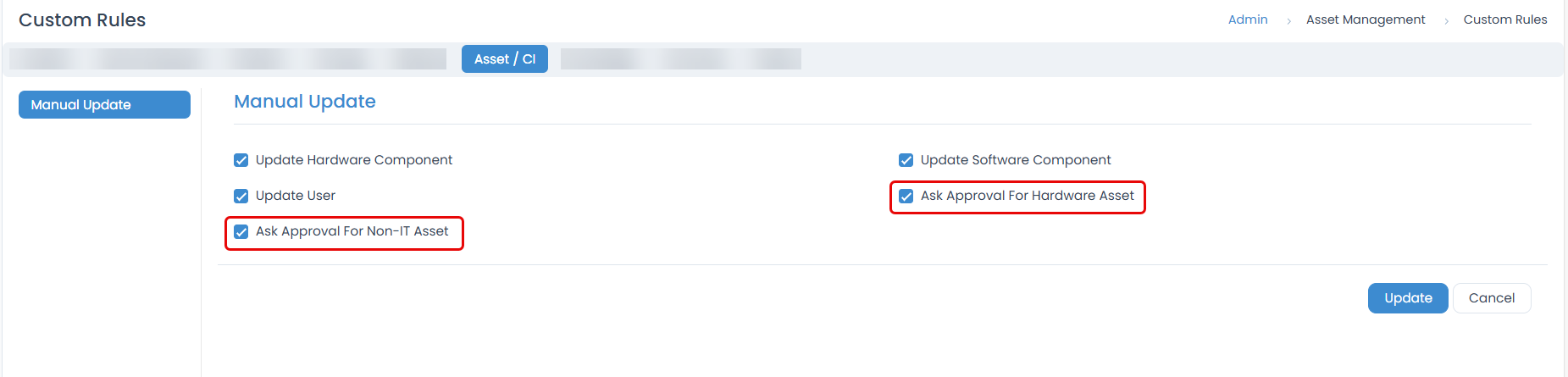
Once checked, an approval will be sent only if the asset is updated manually. If unchecked, an approval will not be sent even if the approval workflow is enabled.
- Create an Approval Workflow in the "Asset Update" tab that will run when any manual update is done in Hardware or Non-IT Assets. Here, an approval workflow is created for the Non-IT Asset.

When the user tries to update any field (for example, the "Status" field from "In Use" to "Missing") on the Non-IT Asset Details page, the message "Your Request is Submitted for Approval" will appear. The updated value will be set only after the approval is received, and the system runs the approval workflow based on the defined conditions. If no approval workflow is configured or all workflows are disabled, the value will be updated, and the approval status will be pre-approved.
- Approvals sent for asset changes will be listed in the Approvals tab on the details page.
- If there are multiple approval workflows, the "Approval Type" in the Approval Settings will be excluded for these approvals, and the latest approval will be considered.
- Once the approval is sent, its status will appear as "Checker Approval Status: Pending" on the Details page next to the tag button.
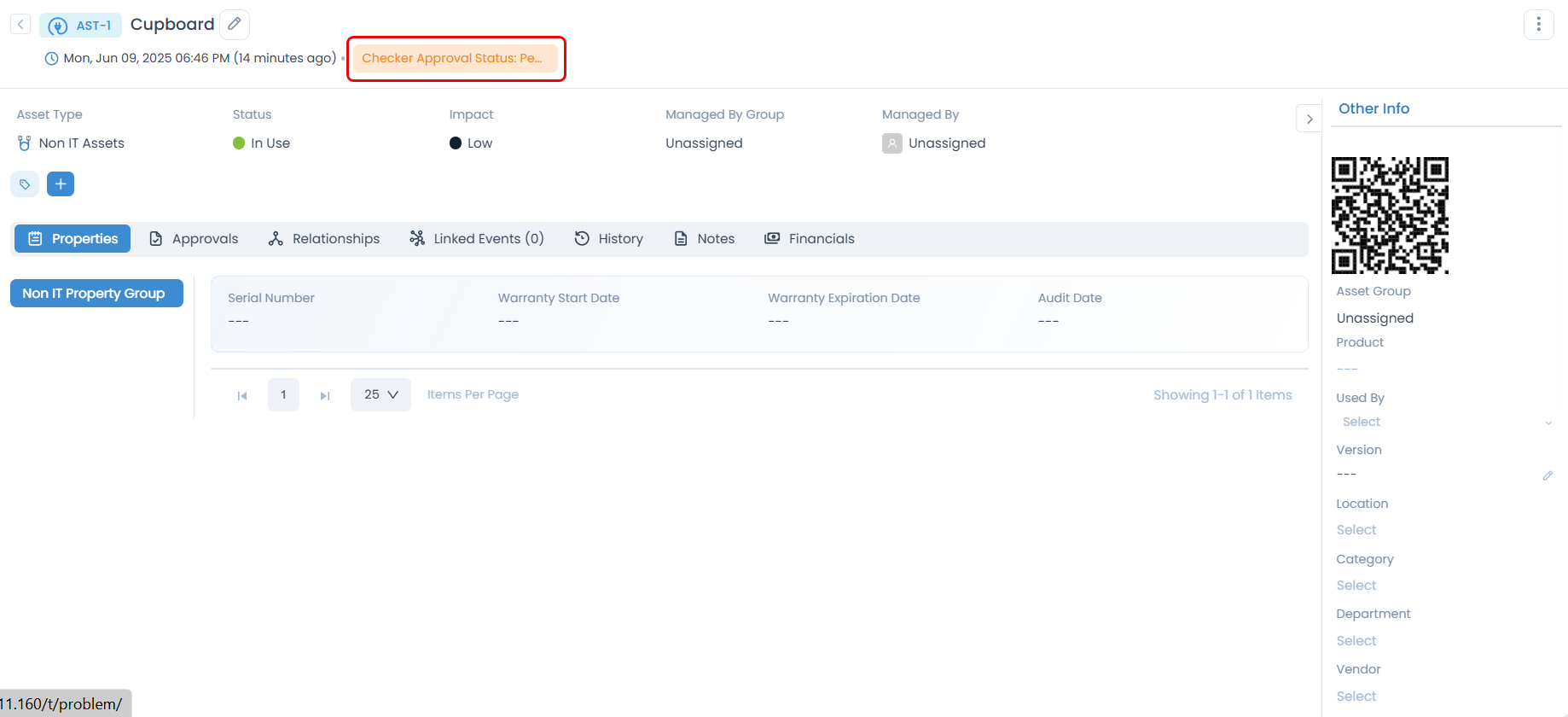
Initially, its status will be pending. It will become "Completed" when approved, deleted, or ignored.
Suppose approval is sent for multiple parameters. If another approval is sent for one of the parameters with a different value before the first approval is processed, only those fields will not be updated if a new approval is approved. The previous approval will be considered for those fields.
- Additionally, the Asset Update approval list can be viewed on the My Approvals page by clicking the "Asset Update" icon.


- The Asset Update approval details will also appear on the View Approval page, as shown below.

Once the approval is approved, the Checker Approval Status will change from "Pending" to "Completed", and the "Status" field value will also change from "In Use" to "Missing".

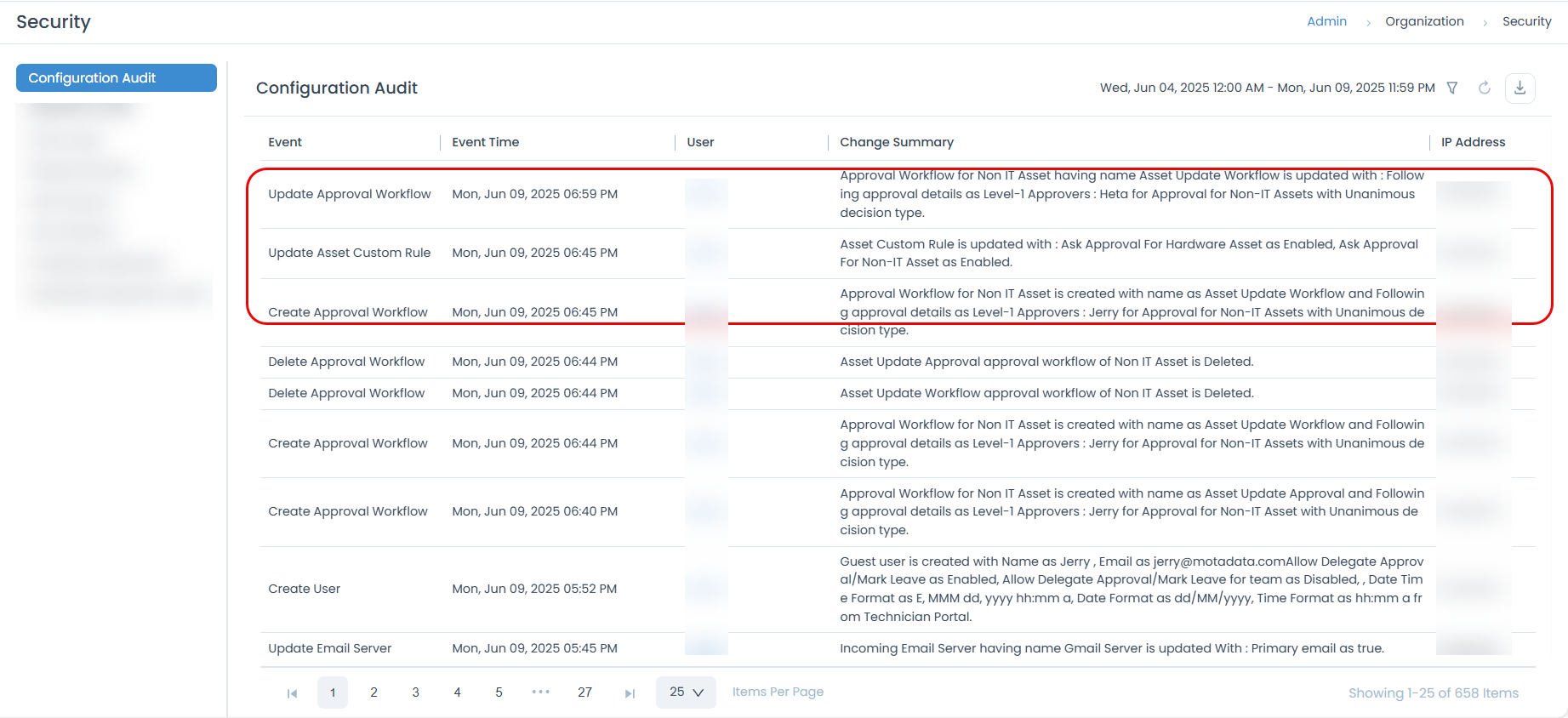
Moreover, an audit for enabling/disabling Asset Custom Rules and Workflows will be available on the Configuration Audit page.