Support User Guide
Get help, request services, and manage your support tickets through the centralized Support Portal.
Welcome to the Support Portal, your centralized hub for IT assistance and services. Seamlessly report issues, request new services, and track your ongoing support tickets with ease, all through a user-friendly interface designed to connect you directly with your IT team.
What is the Support Portal?
The Support Portal is a self-service platform designed for end users to:
- Report incidents and technical issues swiftly to your IT team.
- Request services from the service catalog with ease.
- Track the status of your requests for real-time updates.
- Access knowledge articles for self-help and quick solutions.
- Chat with support for immediate assistance.
- Manage approvals assigned to you.
- View your assigned assets and configuration items.
The features you can access are determined by the settings your administrator has configured.
Getting Access to the Support Portal
To access the Support Portal, obtain the portal URL from your IT administrator or department. Once you have the URL, you can gain access in one of the two ways, depending on your organization's setup:
Administrator-Created Account
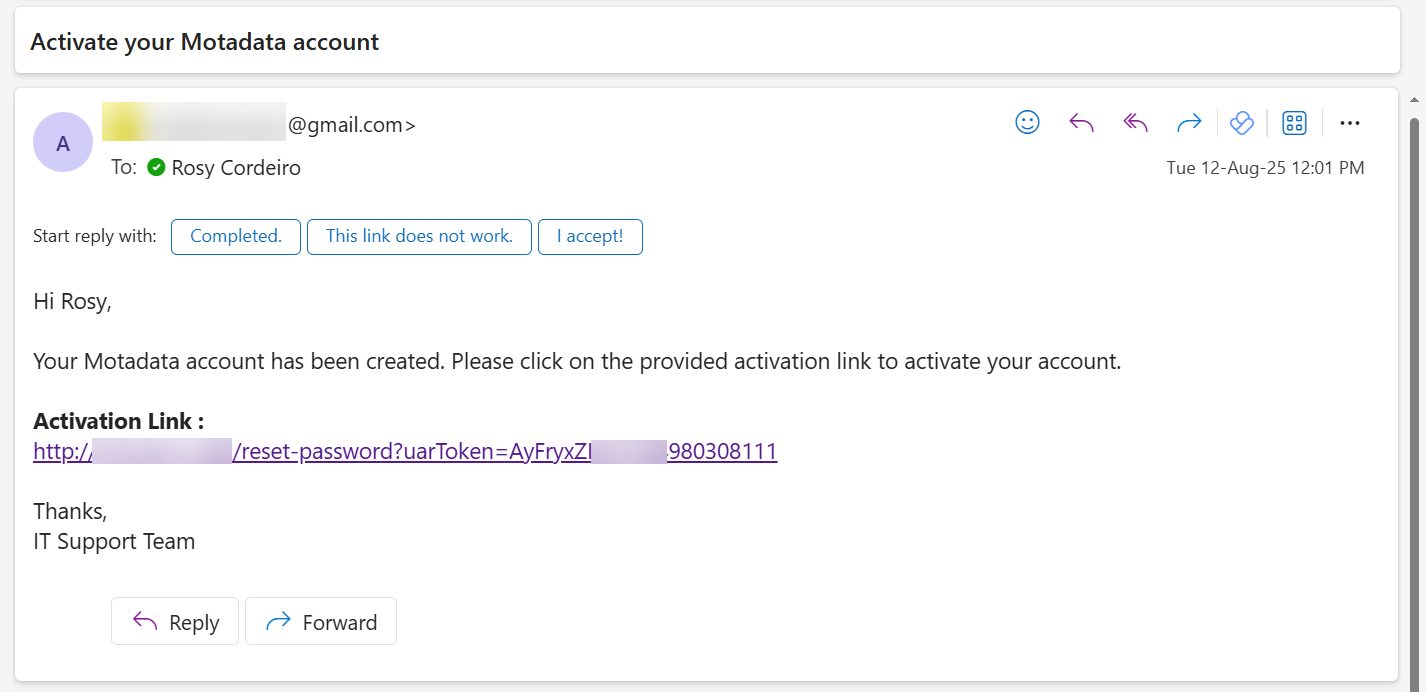
Your IT administrator may create an account for you. In this case, you will receive a verification email with a link to set up your password. For detailed instructions on first-time login and password setup, refer to Login Methods.
Self Sign-Up
If enabled by your organization, you can register for an account directly from the login page. For detailed steps on self-registration and account verification, refer to Login Methods.
- The Signup button is only visible if self-registration is enabled by your administrator. If you don't see this option, contact your IT administrator for an account.
- The user consent checkbox only appears if enabled by the administrator. The Signup button will not be active until you provide consent.
Logging In
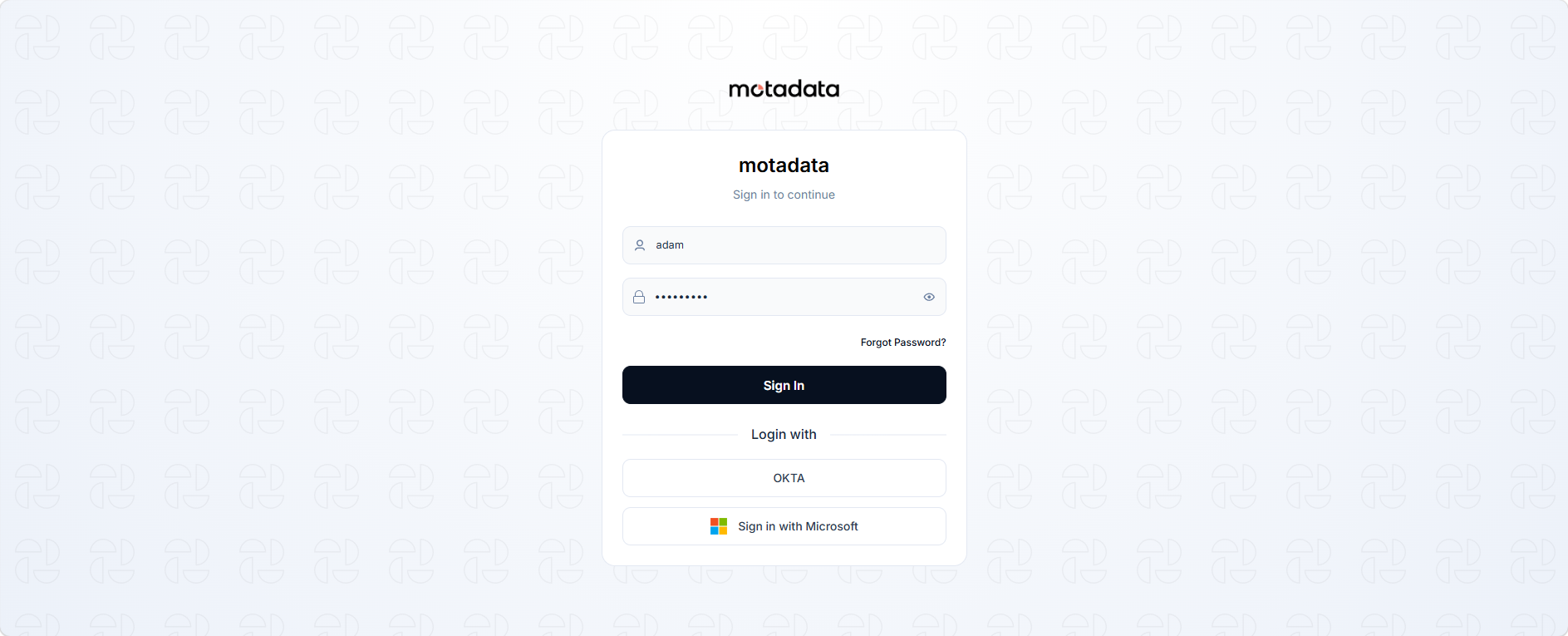
The Support Portal offers multiple authentication methods. For detailed instructions on each login method (Email/Logon Name, Single Sign-On, Google, and Microsoft), including first-time login processes and user consent, refer to the Login Methods documentation.
If multiple SSO providers are configured, you'll see additional sign-in buttons on the login page. For example, if "Sign in with Microsoft" and "OneLogin" are available, you can choose your preferred method. Here, OKTA and OneLogin methods are configured.
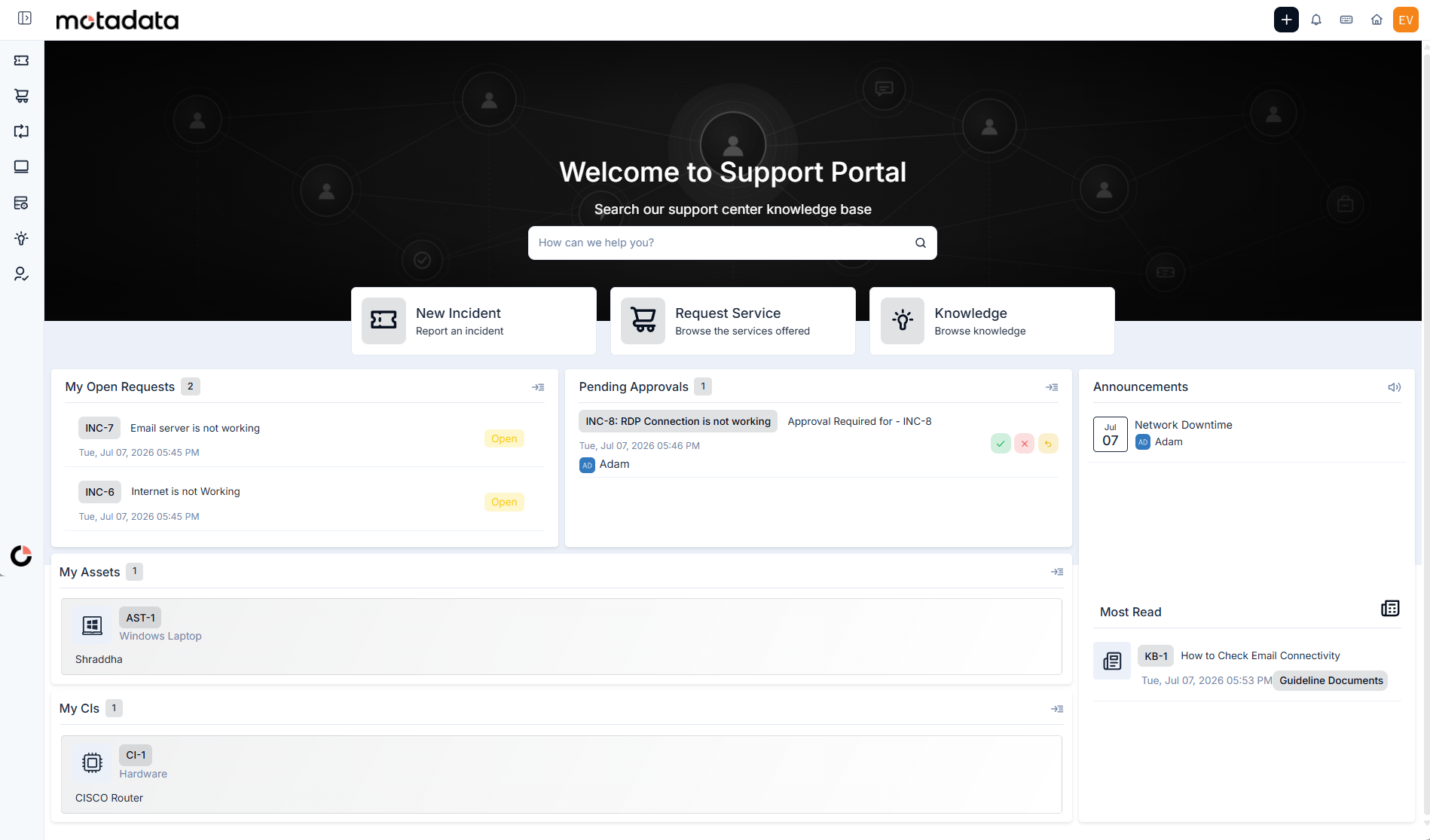
Once you're logged in, you'll see the main dashboard with various options and sections:
Related Topics
Now that you know how to access the Support Portal, explore these related topics: