Team Overview
View your team members, delegate approval authority, and manage leave to ensure smooth team operations and collaboration through the Support Portal.
Team management in ServiceOps enables you to maintain operational continuity by delegating responsibilities and managing team availability. This feature is particularly useful when team members are on leave, vacation, or unavailable for extended periods.
What is My Team?
My Team provides a centralized view of your team members and their current status. It allows you to:
- View all team members reporting to you.
- Delegate approval authority to other team members.
- Mark and manage leave for yourself and team members.
- Ensure work continuity during absences.
Benefits
- Operational Continuity: Ensure approvals and work continue even when team members are unavailable
- Responsibility Delegation: Temporarily transfer approval authority to trusted team members
- Leave Management: Centralized leave tracking and management
- Team Visibility: Clear view of team structure and member availability
Prerequisites
Team Overview is available only if you have:
- Super Admin role, OR
- Manager role with team members reporting to you, OR
Viewing My Team
Navigate to the My Team section in your Support Portal and you will see a list of technicians (Blue color) and requesters (Orange color) whose reporting manager is the logged-in user.
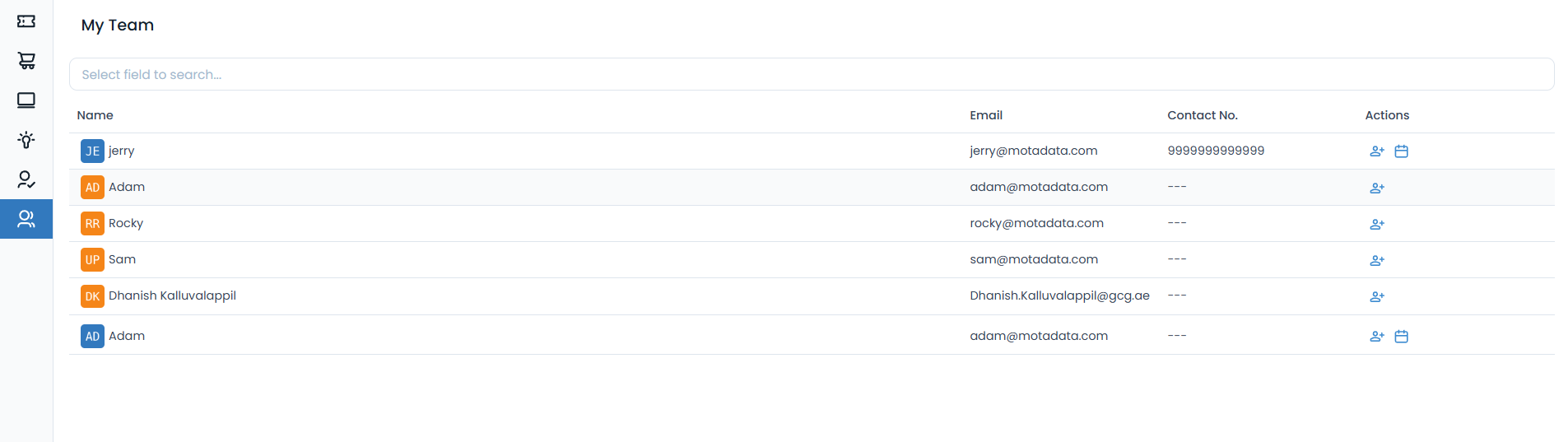
From here, you can do the following:
- Search for the required user based on name, email, and contact number.
- Delegate approval of the team members.
- Mark leave.
Approval Delegation
Approval delegation allows you to temporarily transfer your approval responsibilities to another team member when you're unavailable. This ensures that approval workflows continue without interruption.
When to Delegate Approvals
Consider delegating approvals when:
- You're going on vacation or leave.
- You'll be unavailable for extended periods.
- You need backup for approval responsibilities.
- You want to distribute workload.
Delegating Authority
To delegate your approval authority to another team member:
- Click the Delegate Approval icon next to the team member's name
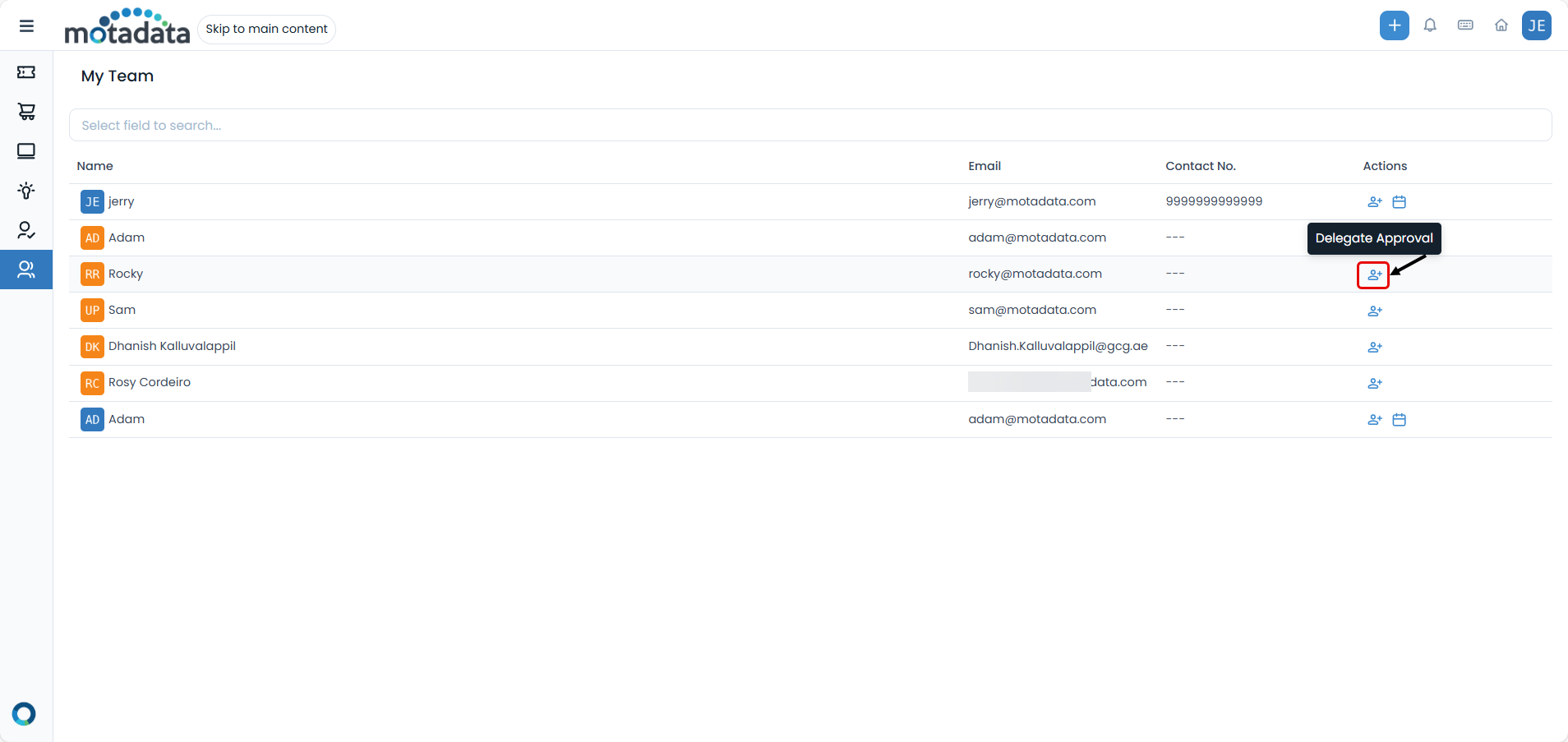
- In the delegation popup, configure the following:
| Field | Description | Required |
|---|---|---|
| Delegate Approval | Enable this option to allow users to delegate approval responsibilities to another user. | Yes |
| Delegate To | Select the team member to receive approval authority | Yes |
| Delegation Start Date | Date when delegation begins (must be future date) | Yes |
| Delegation End Date | Date when delegation ends | Yes |
| Comments | Optional notes about the delegation | No |
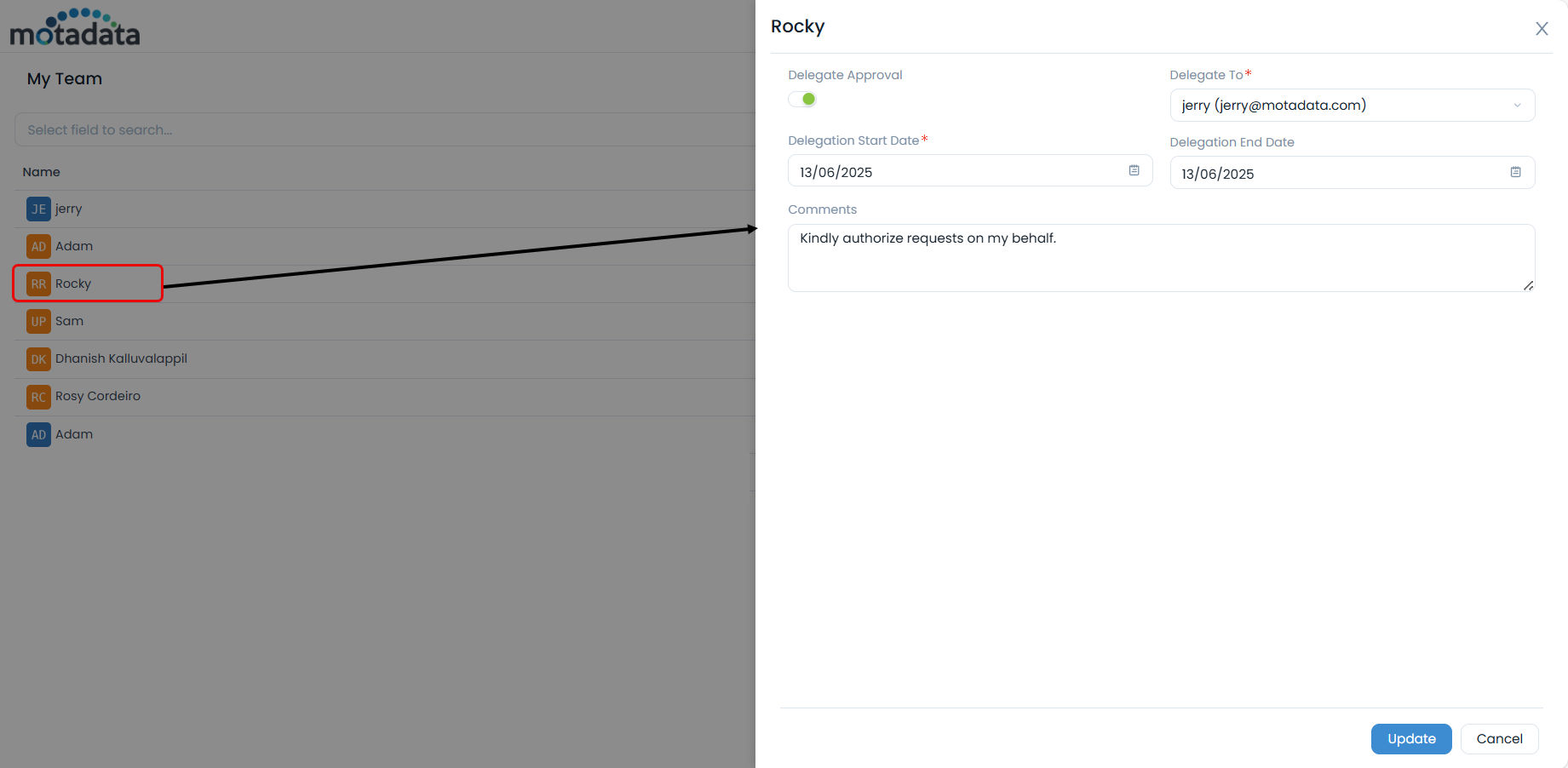
- Click Update to confirm the delegation
- The delegated team member receives an email notification.
- You receive a notification when you sign in to ServiceOps.
- All approval requests during the delegation period are automatically routed to the delegated member.
Managing Delegations
During the delegation period:
- All approval requests are automatically sent to the delegated team member.
- The delegated member can approve or reject requests on your behalf.
- You can view delegation status in your My Team page.
- Delegation automatically ends on the specified end date.
Leave Management
Leave management allows you to mark and track leave for yourself and team members. This helps maintain transparency about team availability and ensures proper work delegation during absences.
Marking Leave
To mark leave for a team member:
- Click the Mark Leave icon next to the team member's name
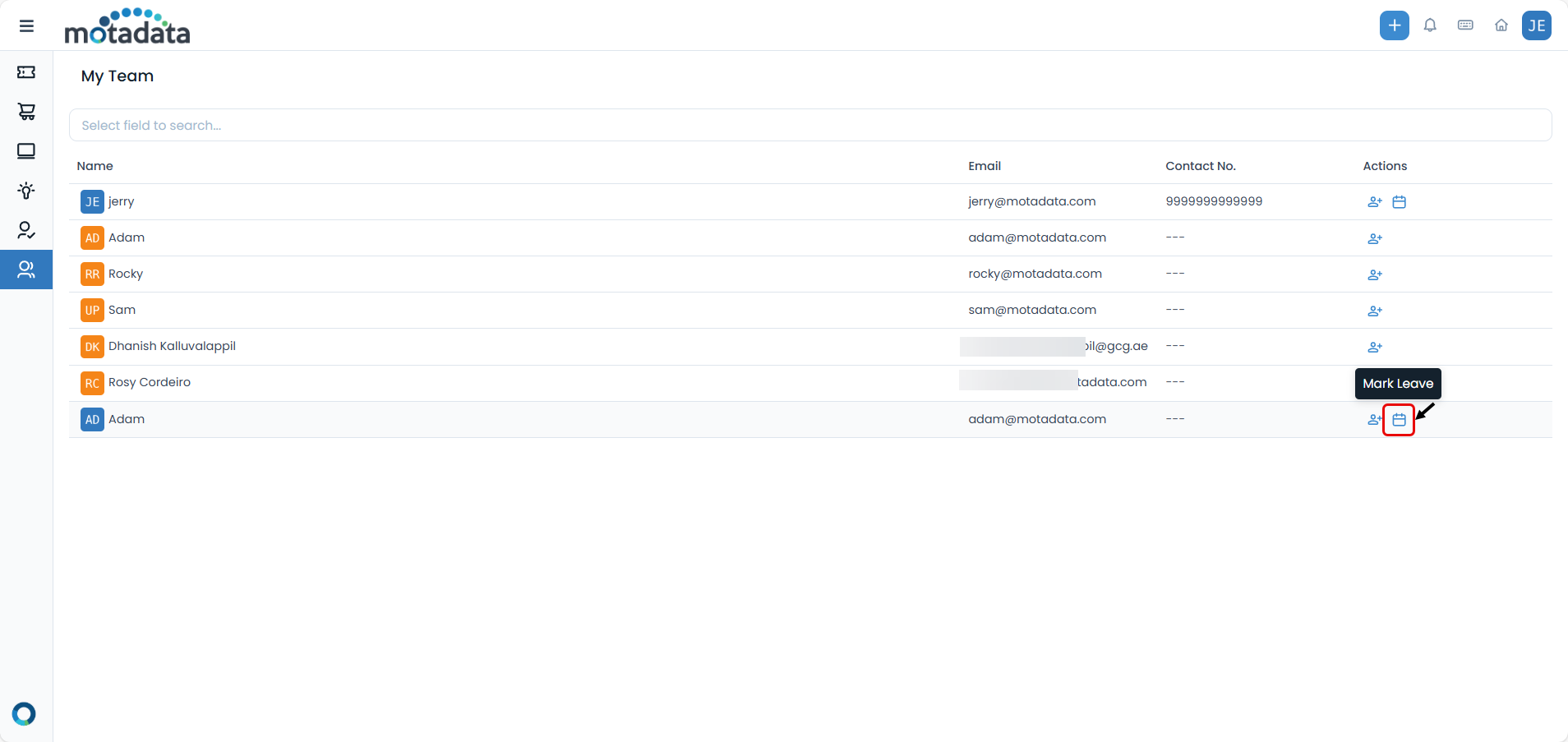
- Fill in the leave details:
| Field | Description | Required |
|---|---|---|
| Technician | Select the team member taking leave | Yes |
| Leave Type | Type of leave (Annual, Sick, Personal, etc.) | Yes |
| Start Date | Leave start date | Yes |
| End Date | Leave end date | Yes |
| Remarks | Additional notes about the leave | No |
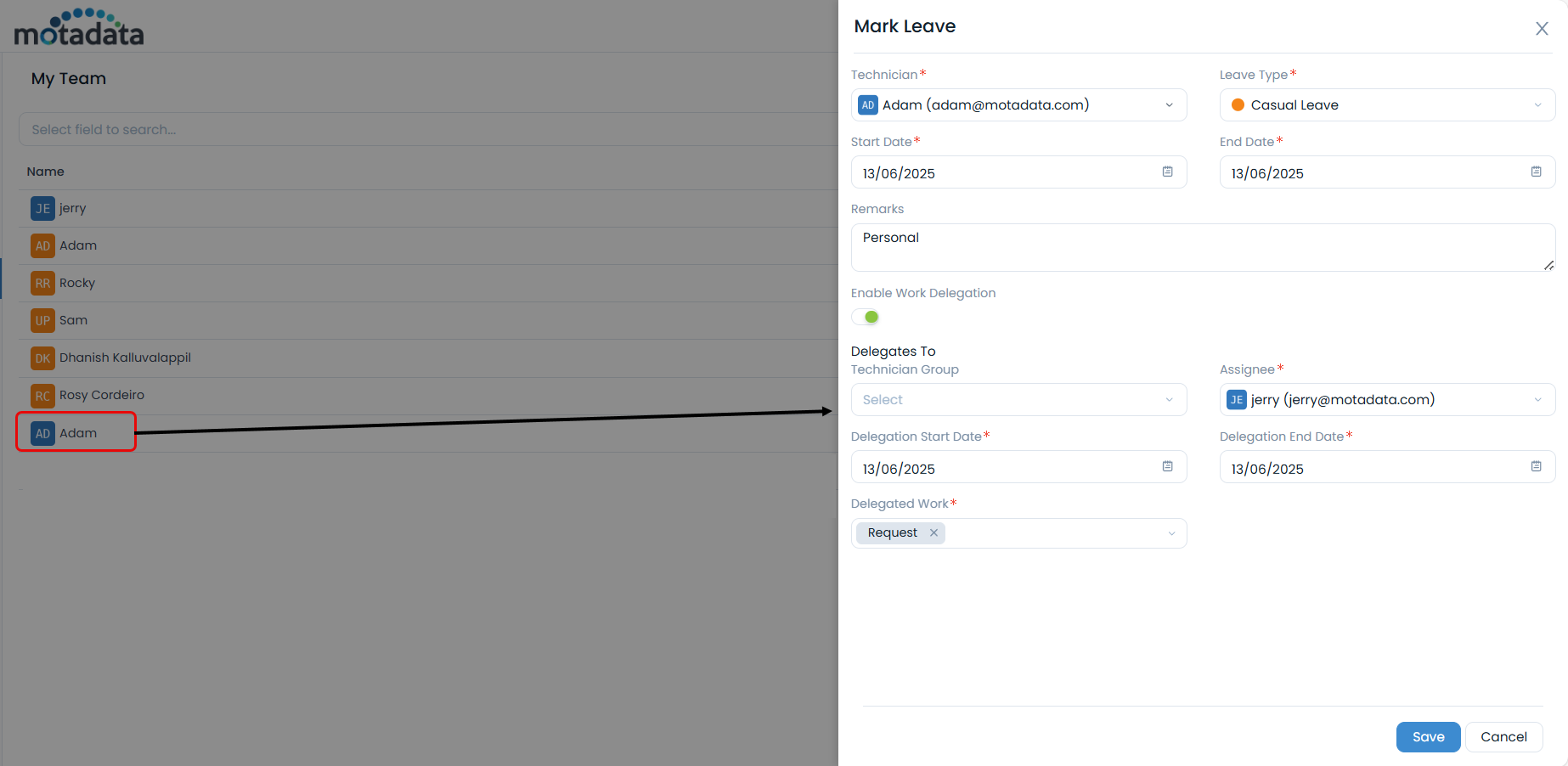
- Configure work delegation (optional):
- Enable Work Delegation if needed.
- Select the team member to delegate work to.
- Choose the delegation duration by selecting the start and end dates.
- Select work types to delegate (Requests and Changes).
- Click Save to confirm the leave
- The team member receives notification about the leave.
- Leave status appears in assignment dropdowns throughout the system.
- A warning icon appears next to unavailable team members.
Managing Own Leave
To mark leave for yourself:
Navigate to your profile in My Team.
Click the Mark Leave option.
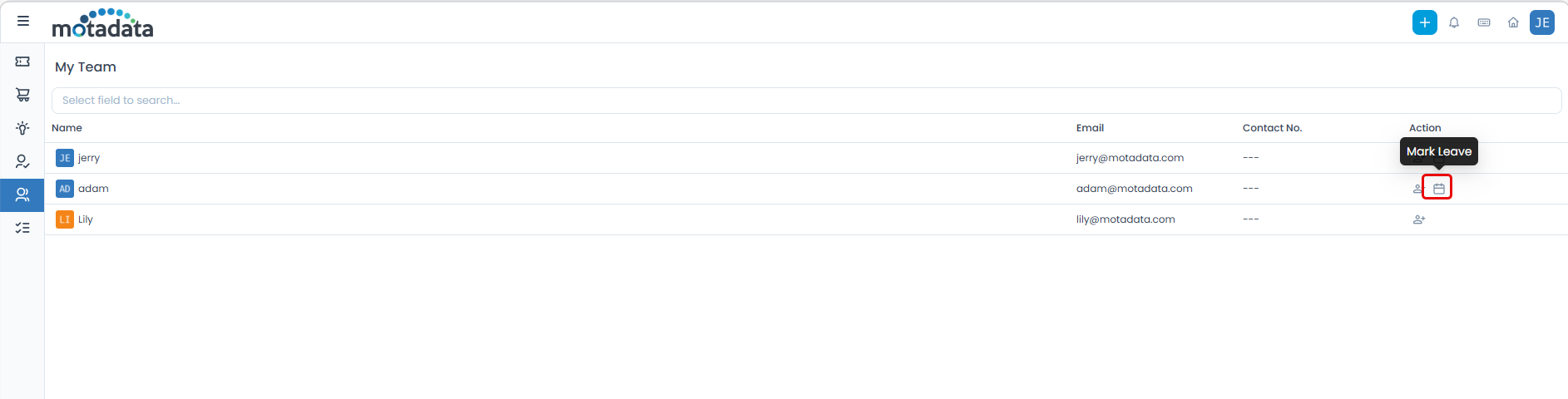
Fill in your leave details.
Configure work delegation if needed.
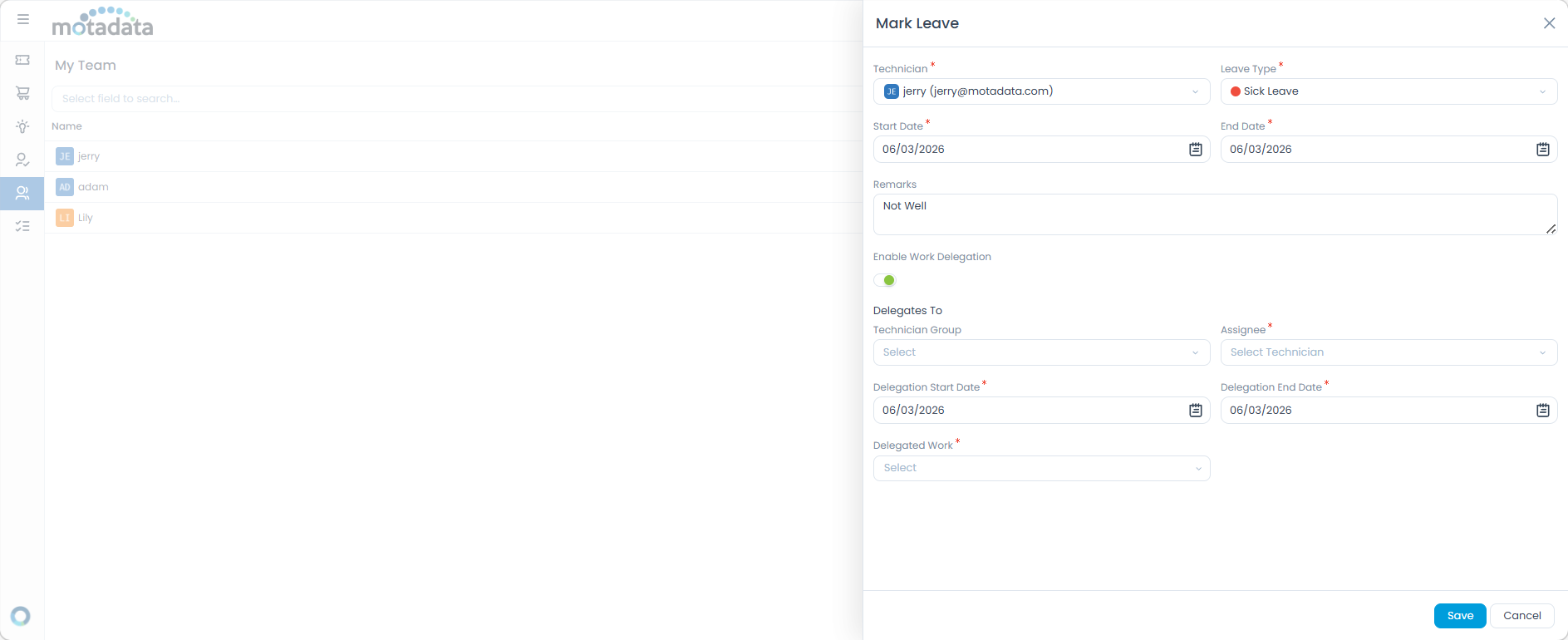
Save the leave request.
You can mark leave for yourself if you have the appropriate permissions. This helps maintain transparency about your availability.
Best Practices
- Effective Delegation
- Leave Management
- Team Collaboration
Plan Ahead - Delegate responsibilities well in advance of absences
Clear Communication - Provide clear instructions to delegated team members
Monitor Progress - Check on delegated work periodically
Document Decisions - Keep records of delegation decisions and outcomes
Timely Notification - Mark leave as soon as it's approved
Work Continuity - Always consider work delegation for extended absences
Team Communication - Inform team members about your availability
Return Planning - Plan your return and handover process
Regular Updates - Keep team informed about availability changes
Backup Planning - Always have backup plans for critical responsibilities
Documentation - Maintain clear documentation of team processes
Feedback Loop - Gather feedback on delegation effectiveness
Troubleshooting
Common Issues
| Problem | Solution |
|---|---|
| Delegation Not Working | Verify delegated member has permissions, check delegation dates, ensure member is active |
| Leave Not Showing | Confirm leave dates are entered, check leave type selection, verify member status |
| Work Not Being Delegated | Ensure work delegation is enabled, check delegation dates overlap, verify work types selected |
Getting Help
If you encounter issues with team management:
Check Permissions - Verify your role has team management permissions
Contact Administrator - Reach out to your system administrator for role adjustments
Review Documentation - Consult other relevant guides for detailed information
System Support - Contact technical support for system-related issues