Managing Approvals
Efficiently manage and respond to approval requests to keep workflows moving smoothly and maintain control over important decisions.
The approval management system in ServiceOps allows you to review and act on various requests that require your authorization. Whether you're approving service requests, change requests, asset assignments, or other workflow items, the approval interface provides a streamlined way to make informed decisions and provide feedback.
Viewing Your Approvals
You can access and act on your approvals in two ways:
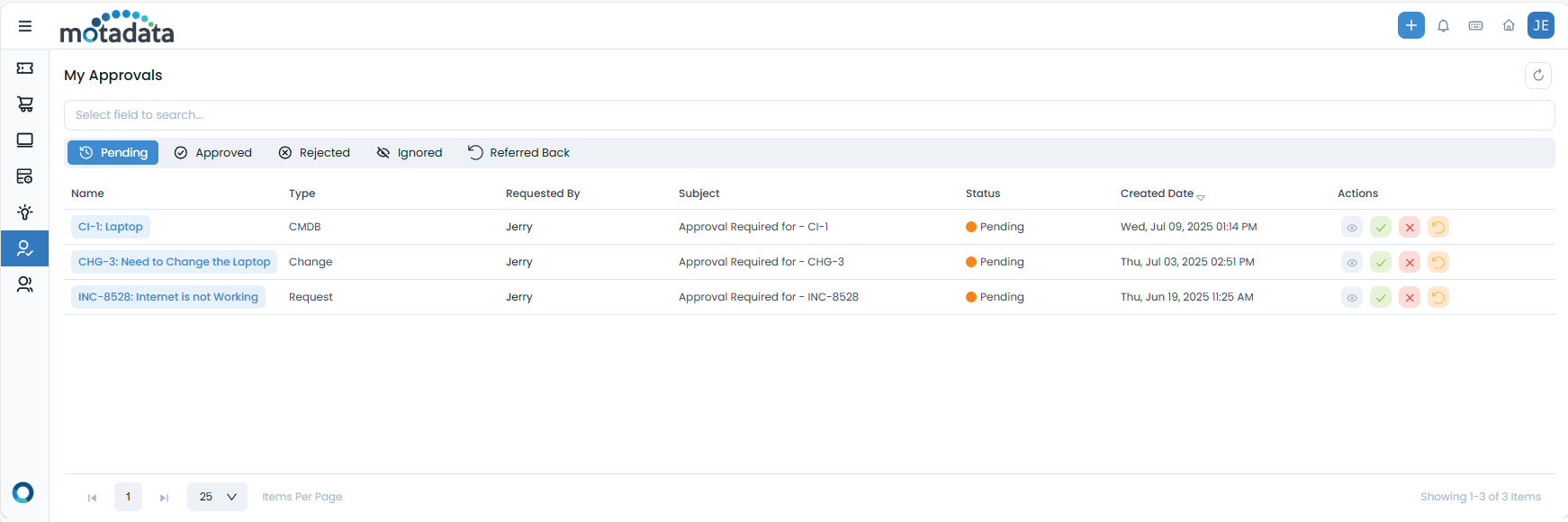
- From My Approvals: Navigate to My Approvals from the main menu to see all your assigned approvals in one place.
- From the ticket directly: When you are an approver for a ticket, the Approve, Reject, and Refer action buttons appear directly on the Approvals tab of the ticket Details page. You can take action without leaving the ticket.
To view your approvals from the My Approvals page:
- Log in to the Support Portal.
- Navigate to My Approvals from the main menu.
- The approval dashboard will display all your assigned approvals.
Types of Approval Requests
You may receive approval requests for:
- Service Requests: New equipment, software, or service access requests (e.g., requests for new software, hardware, or access)
- Problem Requests: Incident or issue reporting and resolution approvals (e.g., approving problem reports, incident resolutions)
- Change Requests: System changes, updates, or modifications (e.g., system updates, network reconfigurations)
- Release Requests: Software or system deployment approvals (e.g., approving new application deployments)
- Asset/CI Assignments: Hardware or software asset/CI assignments to users (e.g., laptop assignments, software license allocations)
- Purchase Orders: Procurement and purchasing decisions (e.g., approving vendor invoices, equipment purchases)
- Knowledge Articles: Publication or updates to knowledge base articles (e.g., new troubleshooting guides, policy updates)
Approval Decision Types
When multiple approvers are involved, the system uses different decision types:
- Unanimous: All approvers must approve the request
- Majority: More than 50% of approvers must approve
- Any One: Any single approver can approve the request
- First Approval: The first approval received (approve or reject) is considered final
This decision type is often used for simple requests where rapid approval or rejection is crucial. Be aware that with "First Approval," the first approver to take action determines the outcome, and subsequent approvers will not be able to act on the request.
Approval Status
The approval interface organizes requests into different status categories for easy management:
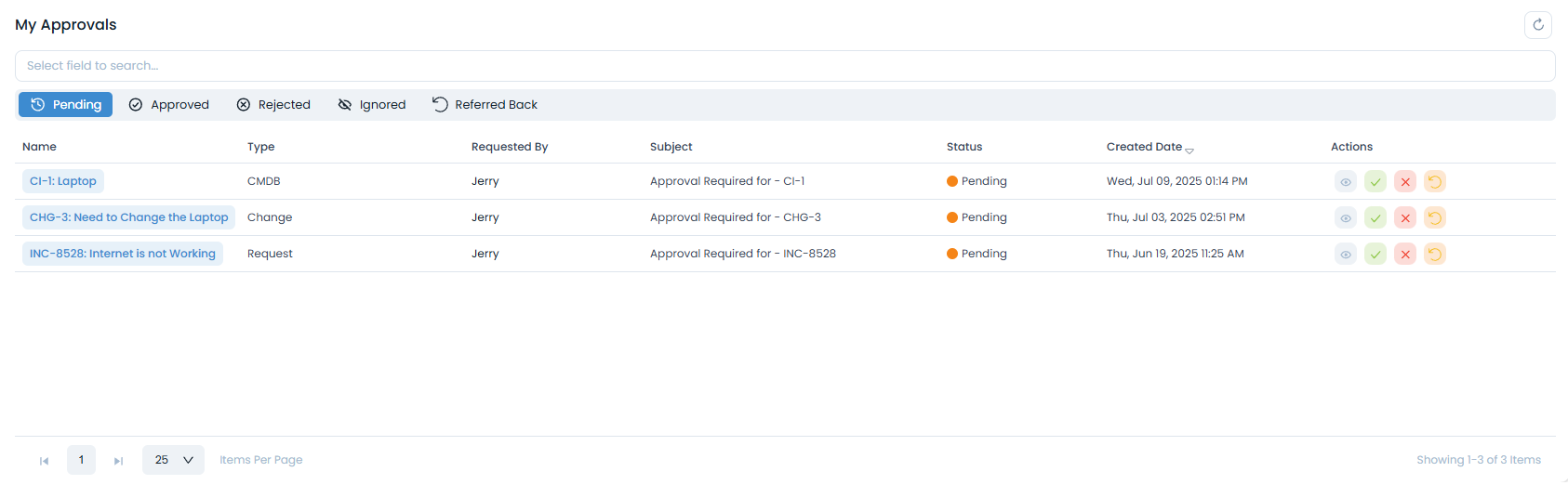
- Pending Approvals
- Approved
- Rejected
- Ignored
- Referred Back
The Pending tab shows all approvals that require your attention and action:
- View Details: Click the eye icon to see the full request details. When you click on an approval request, you'll see comprehensive information, including requester details, a summary of the request, a detailed description, and any attached documents.
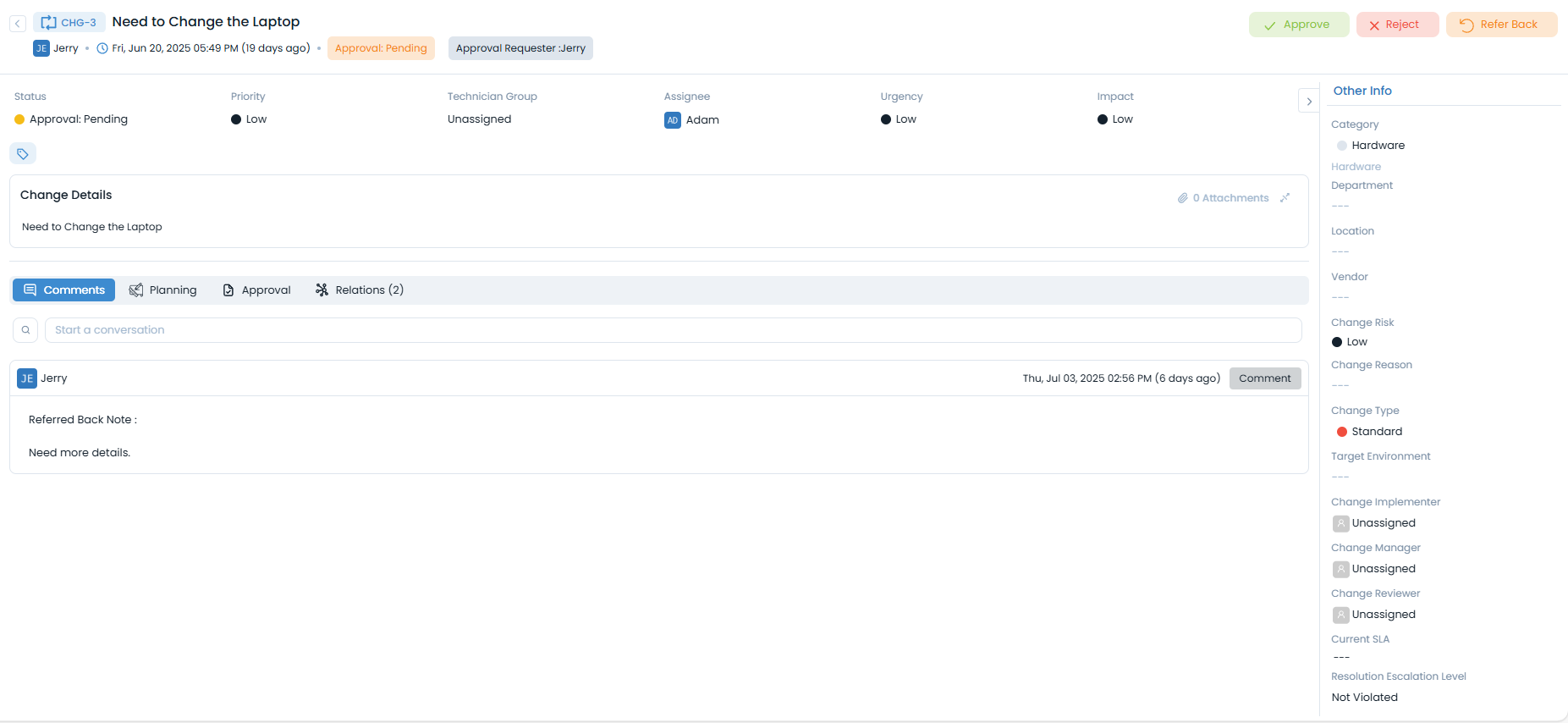
- Approve: Grant approval for the request.
- Reject: Deny the request (requires a rejection note).
- Refer Back: Return the request for additional information or clarification (requires a refer back note).
From the pending approvals list, you can quickly approve or reject requests without opening the full details page.
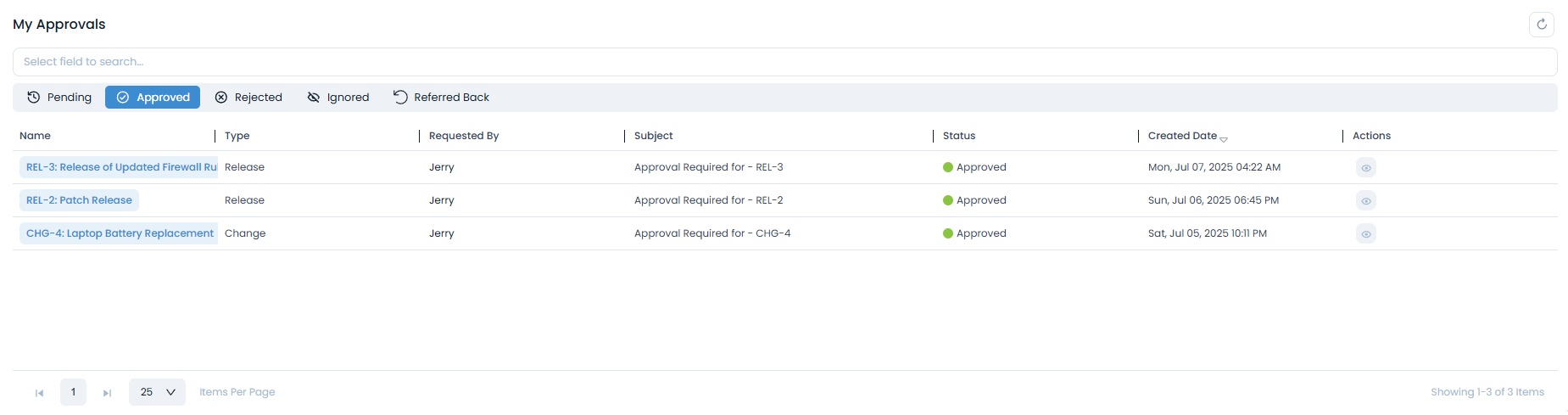
The Approved tab displays all requests you've approved in the past:
- View History: Review previously approved requests
- Search and Filter: Find specific approved requests
Adding comments helps provide context for your decision and can be useful for future reference.
The Rejected tab shows all requests you've denied:
- Review Reasons: See the rejection notes you provided by viewing the ticket details.
- Track Patterns: Identify common reasons for rejections by reviewing the ticket details.
- Learn from Decisions: Improve future approval decisions.
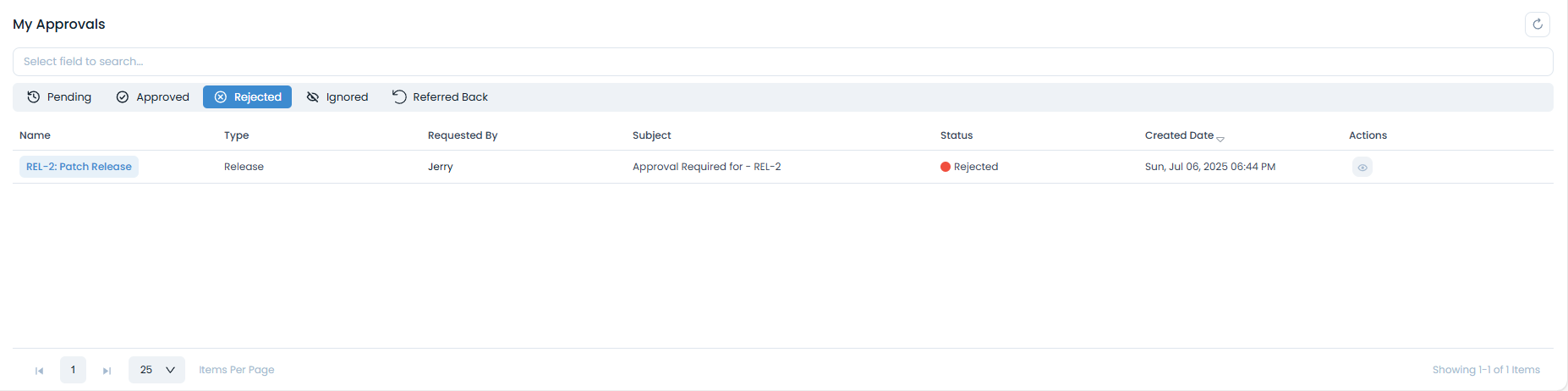
Rejection notes are mandatory and help the requester understand why their request was denied, enabling them to make necessary adjustments.
The Ignored tab contains requests you've chosen to ignore. Ignoring a request removes it from your active 'Pending' list without approving or rejecting it. Note that ignoring a request does not stop the approval process if other approvers are involved or if a deadline is in place.
Once ignored, you cannot work on these requests. You can only view the details of the request.
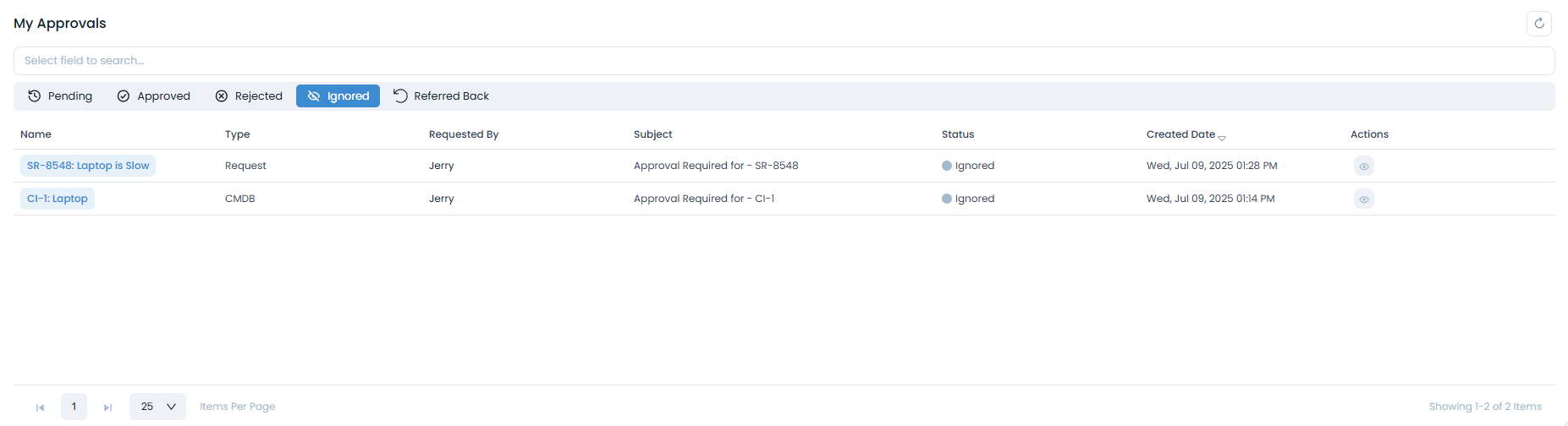
The Referred Back tab shows requests that were returned for additional information:
- Track Progress: See which requests need more details.
- Follow Up: Monitor when additional information is provided.
- Re-evaluate: Review requests once they're resubmitted.
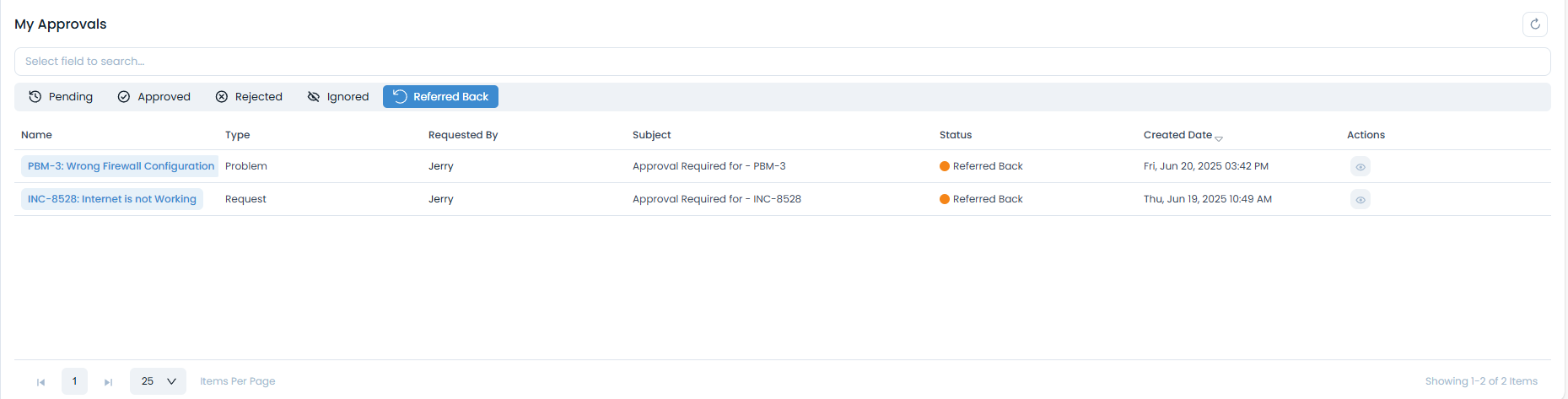
When referring back a request, be specific about what information is missing or unclear. This helps the requester provide exactly what you need to make a decision. For example, instead of writing "Needs more info," specify, "Please provide the exact software version required and the reason for the urgent upgrade."
Interacting with Approvals
Adding Comments
When viewing any ticket from the respective Approvals tab, you can add comments to the ticket:
- Click Start a Conversation in the Comments tab of the ticket details.
- Type your comment in the text area.
- Click Save to add the comment.
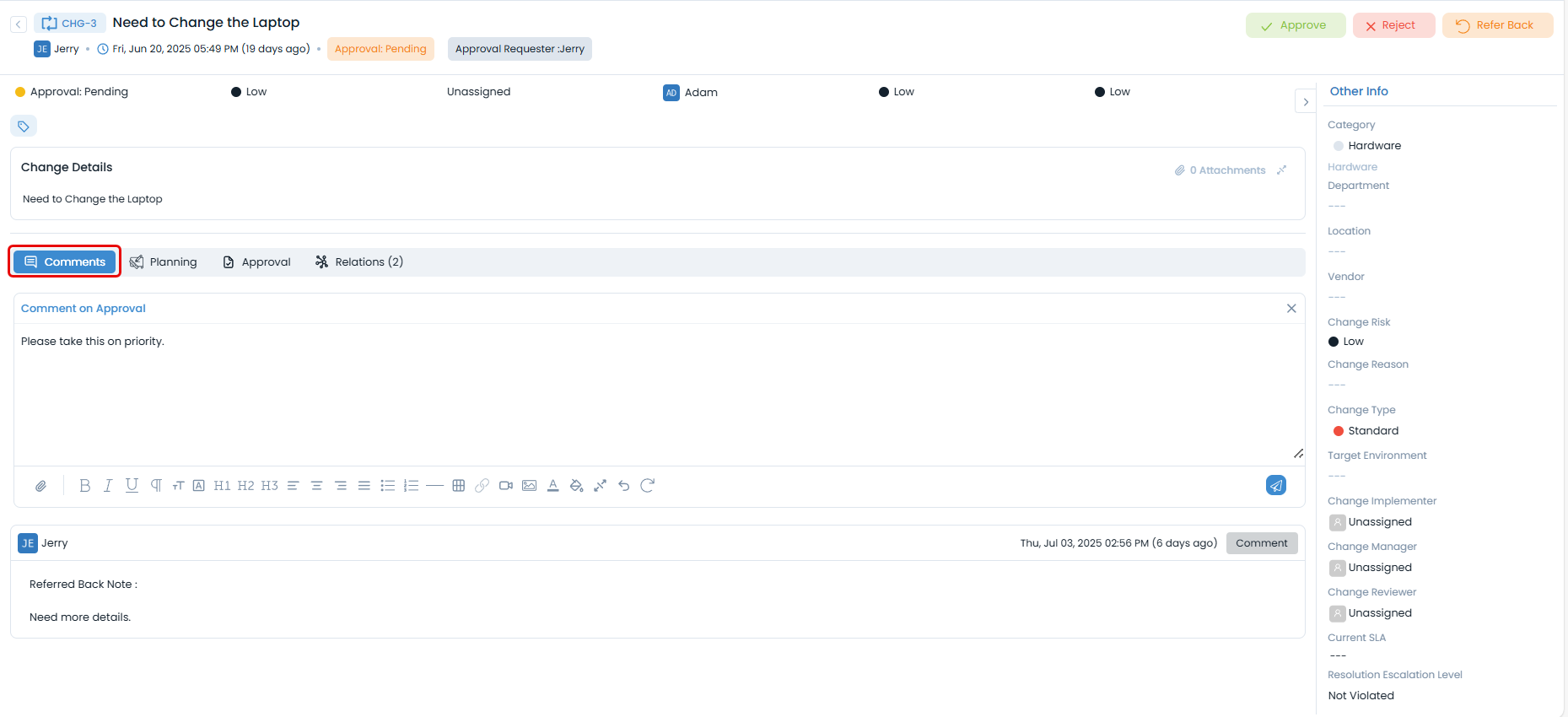
Comments are visible to:
- The original requester
- Other approvers involved in the process
- System administrators (for audit purposes)
Notifications
- Email Notifications
- In-App Notifications
You'll receive email notifications for:
- New Approval Requests: When you're assigned a new approval
- Approval Reminders: If you haven't acted on a request within a specified time
- Approval Updates: When other approvers take action or add comments on shared approvals
- Request Status Changes: When approved requests are implemented or rejected
The Support Portal provides real-time notifications:
- Dashboard Alerts: New approval counts on your dashboard
- Menu Indicators: Visual indicators showing pending approvals
- Status Updates: Real-time updates on approval status changes
Best Practices
- Making Informed Decisions
- Providing Clear Feedback
- Managing Your Time
- Review All Details: Read the complete request description before deciding
- Check Attachments: Review any supporting documents or files
- Consider Impact: Think about the broader implications of your decision
- Follow Policies: Ensure your decision aligns with organizational policies
- Be Specific: When rejecting or referring back, provide clear reasons
- Suggest Alternatives: If possible, suggest how the request could be modified
- Maintain Professionalism: Keep feedback constructive and professional
- Document Decisions: Your comments become part of the approval history
- Set Reminders: Use calendar reminders for approval deadlines
- Batch Processing: Review multiple approvals at once when possible
- Prioritize Urgent Requests: Focus on high-priority approvals first
- Regular Reviews: Check for new approvals regularly
Troubleshooting
Common Problems and Solutions
| Problem | Solution |
|---|---|
| Cannot See Expected Approvals | - Verify that the approval request is assigned to you. - Check if your user role has the necessary permissions to view approvals. - Ensure there are no active filters hiding the requests. - Refresh the page to load the latest approvals. |
| Approval Actions Not Working | - Log out and log back in to refresh your session. - Confirm that your account has the required permissions to approve or reject. - Clear your browser's cache and cookies. - If the issue persists, contact support for assistance. |
| Rejection Notes Not Saving | - Ensure you fill in the mandatory rejection notes field. - Check for any character limits or restrictions on special characters. - Provide clear and concise reasons for the rejection. |
Getting Help
If you encounter issues with the approval system:
- Check Documentation - Review this guide for common solutions
- Contact Your Manager - Discuss approval-related questions with your supervisor
- IT Support - Contact your IT support team for technical issues
- System Administrator - For permission or workflow questions