Accessing Knowledge Resources
Find answers to common questions and resolve issues independently by accessing the comprehensive knowledge base with articles, guides, and FAQs.
The Knowledge Resources section provides you with a comprehensive library of self-help articles, guides, and frequently asked questions (FAQs) to help you resolve issues independently before creating support requests. This knowledge base is designed to empower you with the information you need to solve common problems and understand system features.
The knowledge base content is freely accessible to anyone who can access the system URL. You don't need to log in to view most articles, though some features like rating articles require authentication.
Access Methods
- Before Login
- After Login
You can browse knowledge articles without logging into the Support Portal:
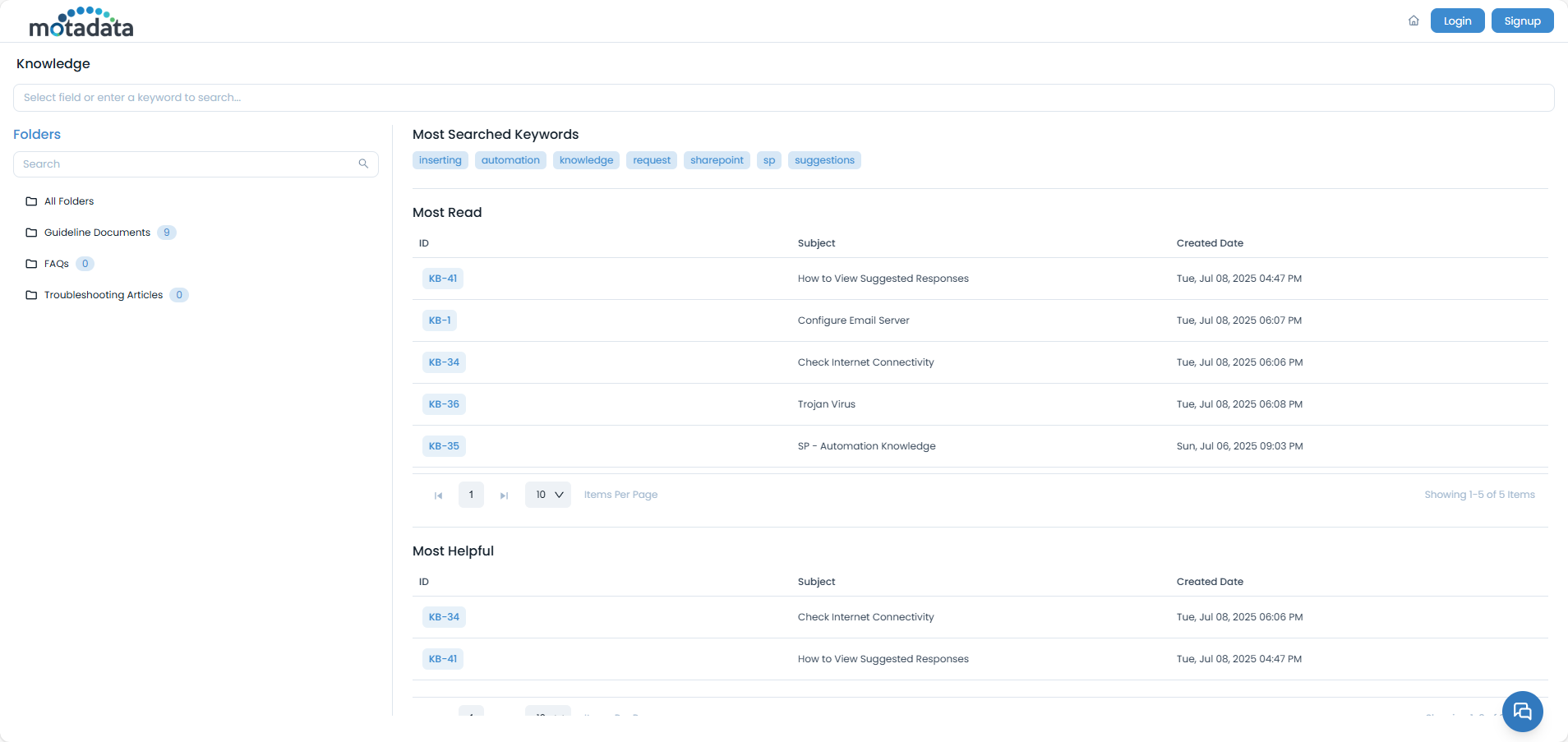
Navigate to the Support Portal URL provided by your administrator.
Click on Knowledge in the main navigation menu.
Browse the available articles organized by folders and categories.
Search for specific topics using keywords and fields like Approval Status, Last Updated By, Tags, Last Updated Date, and Created By.
Use the public access to quickly check if there's already a solution to your issue before creating a support request. This can save time and reduce unnecessary tickets.
Once you log in to the Support Portal, go to the menu, and click the Knowledge menu. The following page appears.
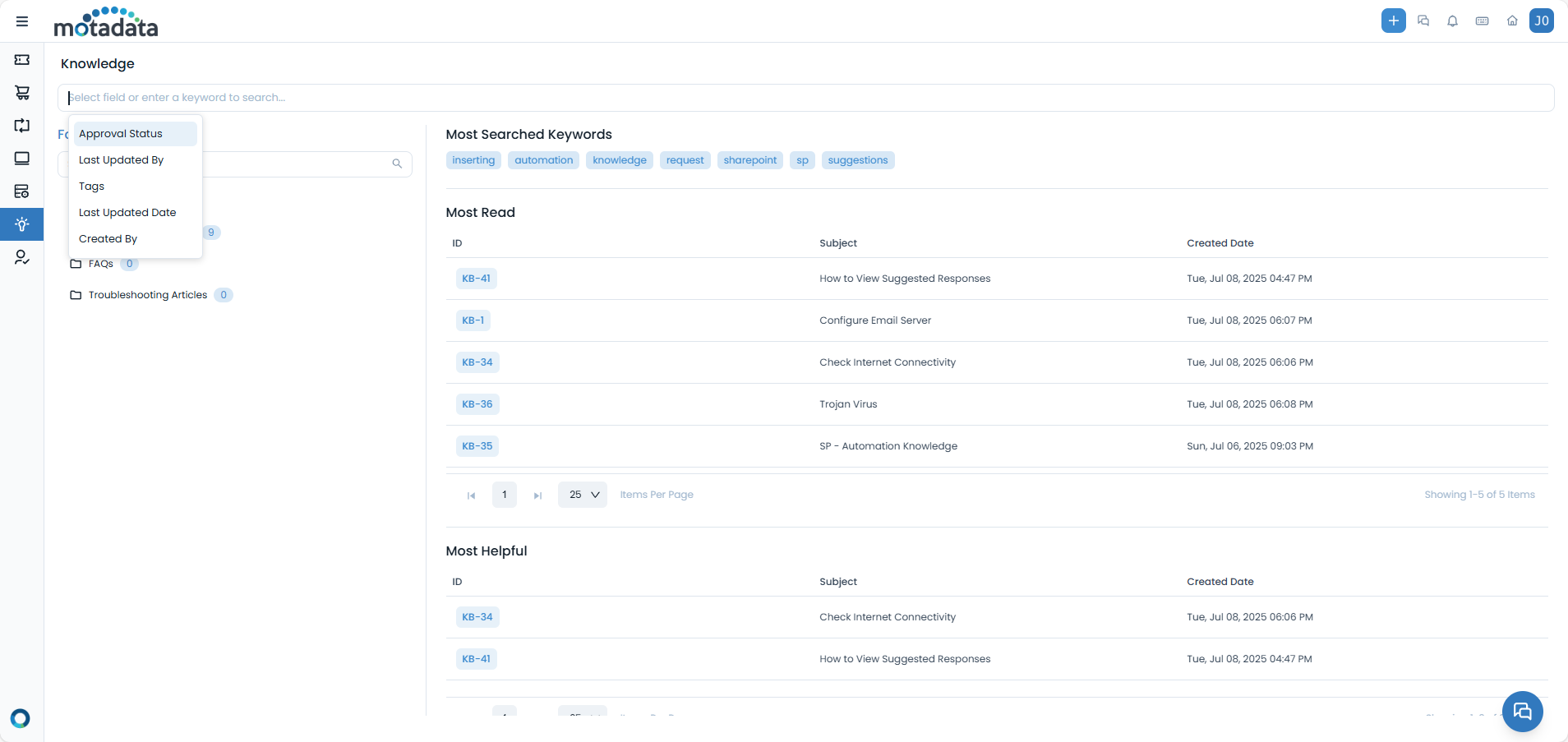
Here, you can search, view, like, and dislike the articles.
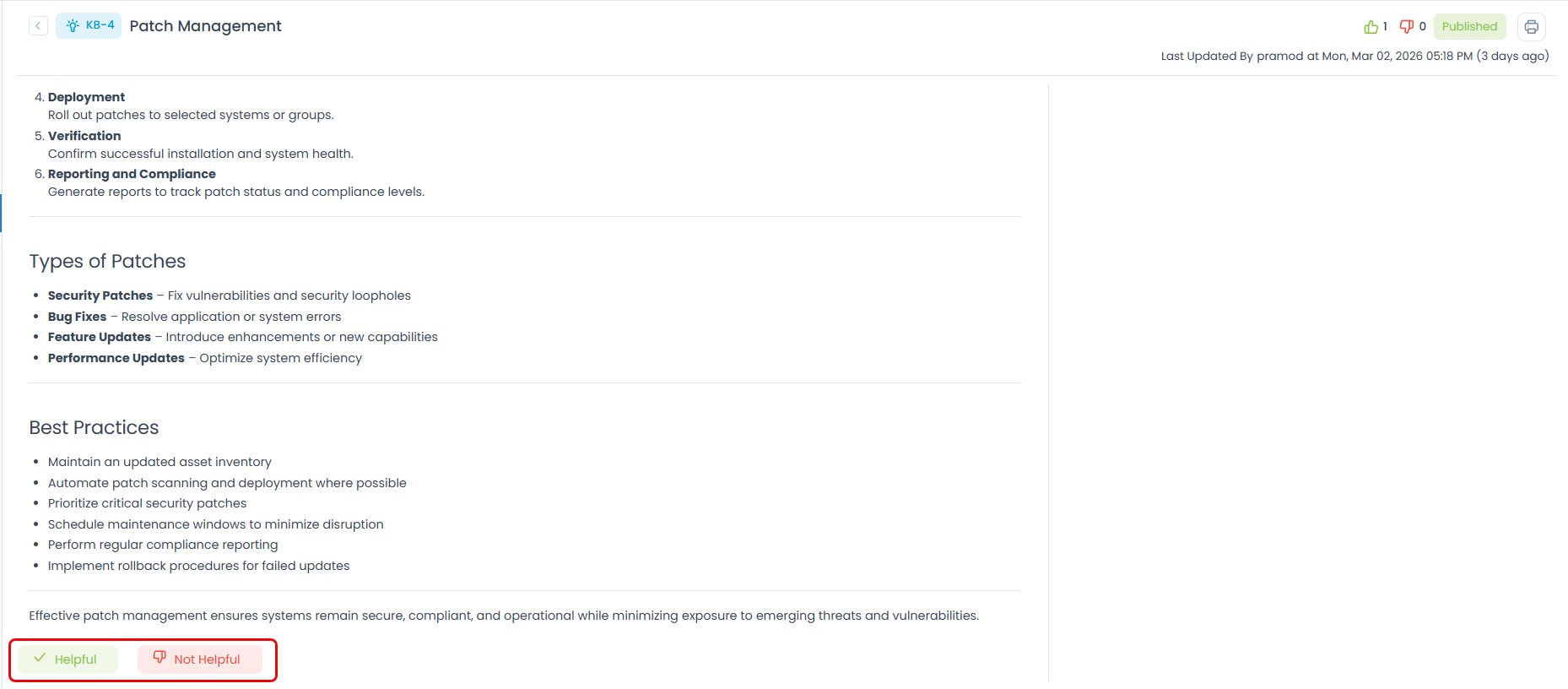
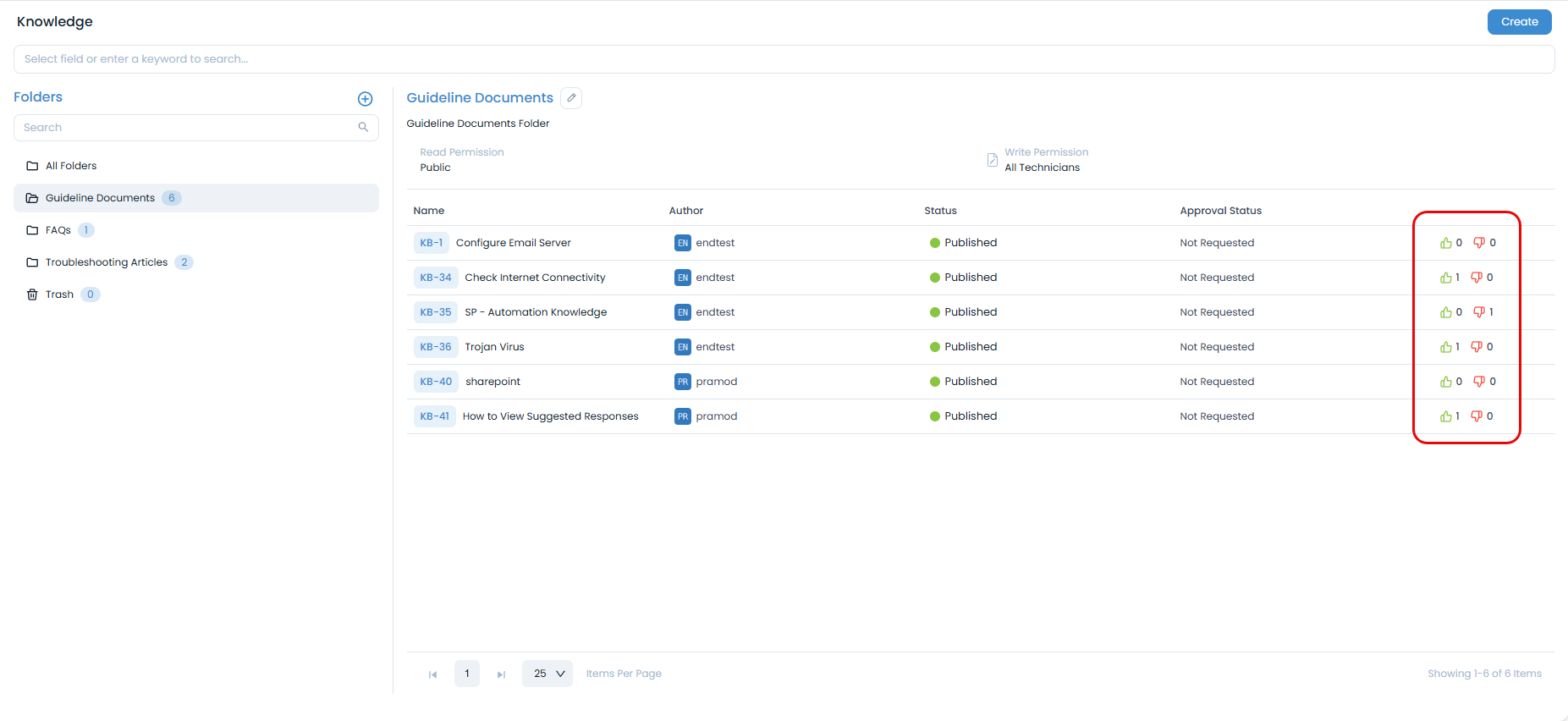
To like the article, click the Helpful (Green) button. To dislike, click the Not Helpful (Red) button. The count of the likes and dislikes will get updated on the articles list page as shown below.
Knowledge Layout
The Knowledge page is organized into several sections:
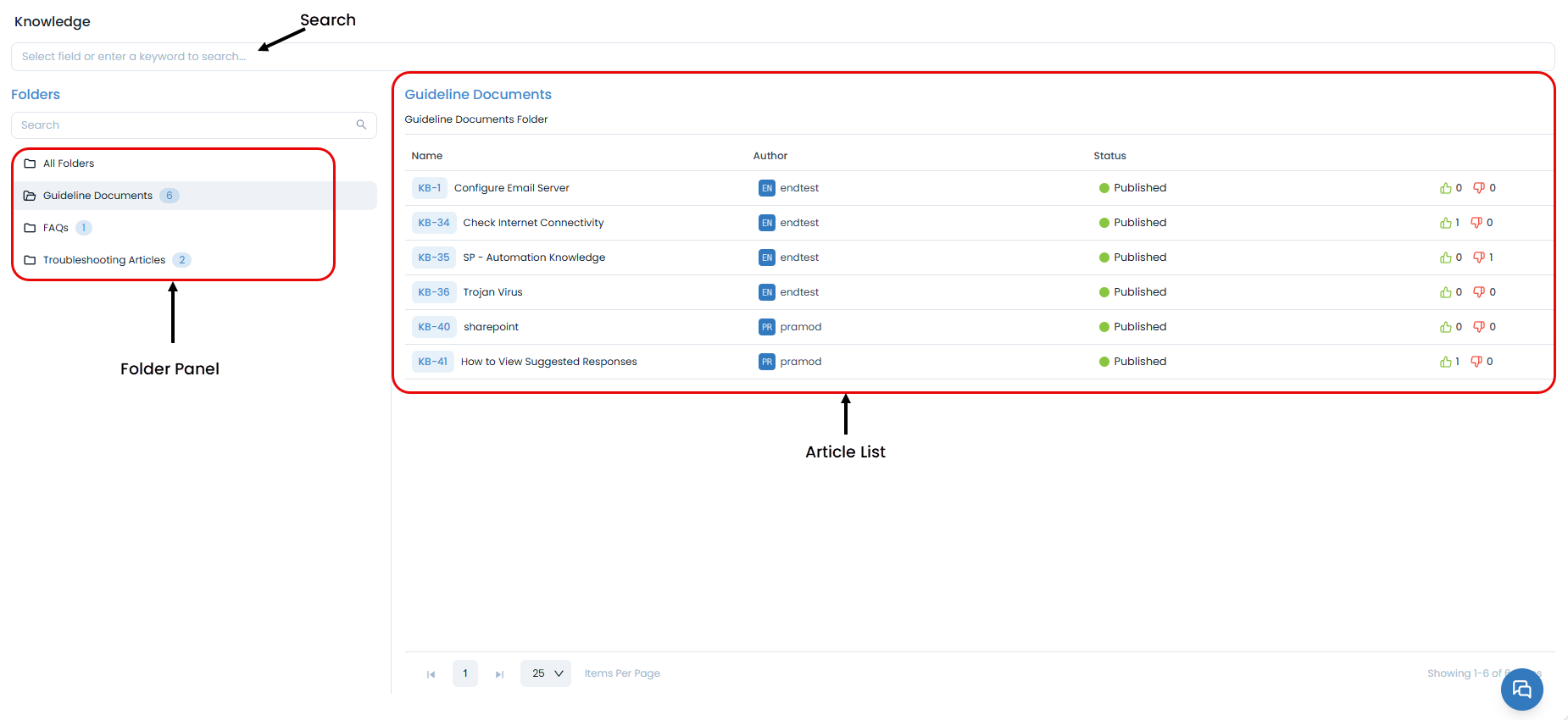
- Search Bar: Located at the top for keyword searches.
- Folders Panel: Allows browsing articles by specific folders.
- Article List: Displays the list of articles in the selected folder.
Article Structure
A typical knowledge base article in the Support Portal is structured to provide clear information and easy interaction for end-users. The key components include:
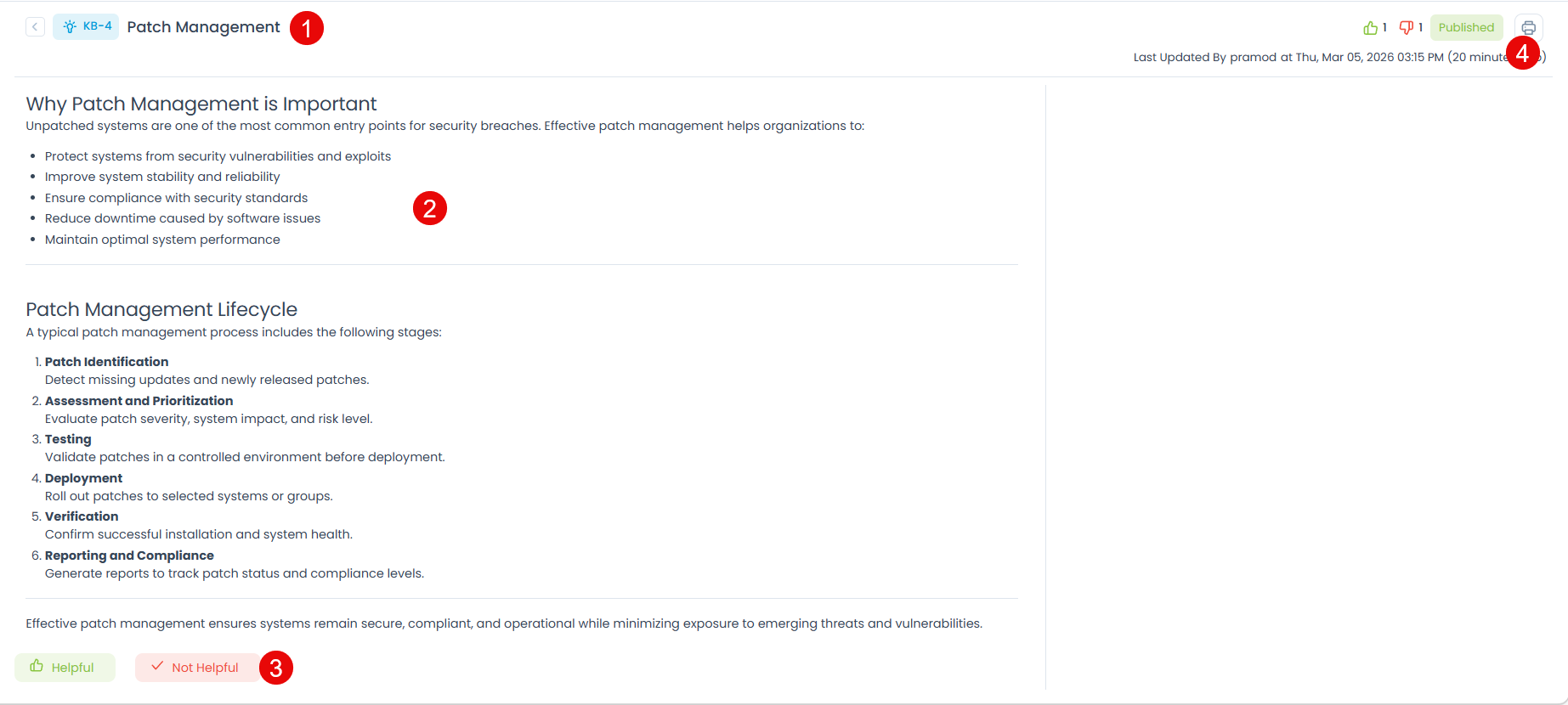
1. Article Header
The header provides essential metadata and navigation:
- Article ID & Title: Identifies the article (e.g.,
KB-4 Patch Management). - Status: Indicates if the article is
Published. - Last Updated Information: Shows who last updated the article and when.
2. Article Content
The main body of the article containing the text, images, and other media. For example, the article "Patch Management" contains the information about the patch management process.
3. User Feedback
Located at the bottom of the article, this section allows users to provide feedback on the article's helpfulness:
- Helpful/Not Helpful buttons: Users can rate the article, influencing its visibility as "Most Helpful" content.
4. Print Article
To print the article, click the Print icon on the top-right corner and a dialog appears.
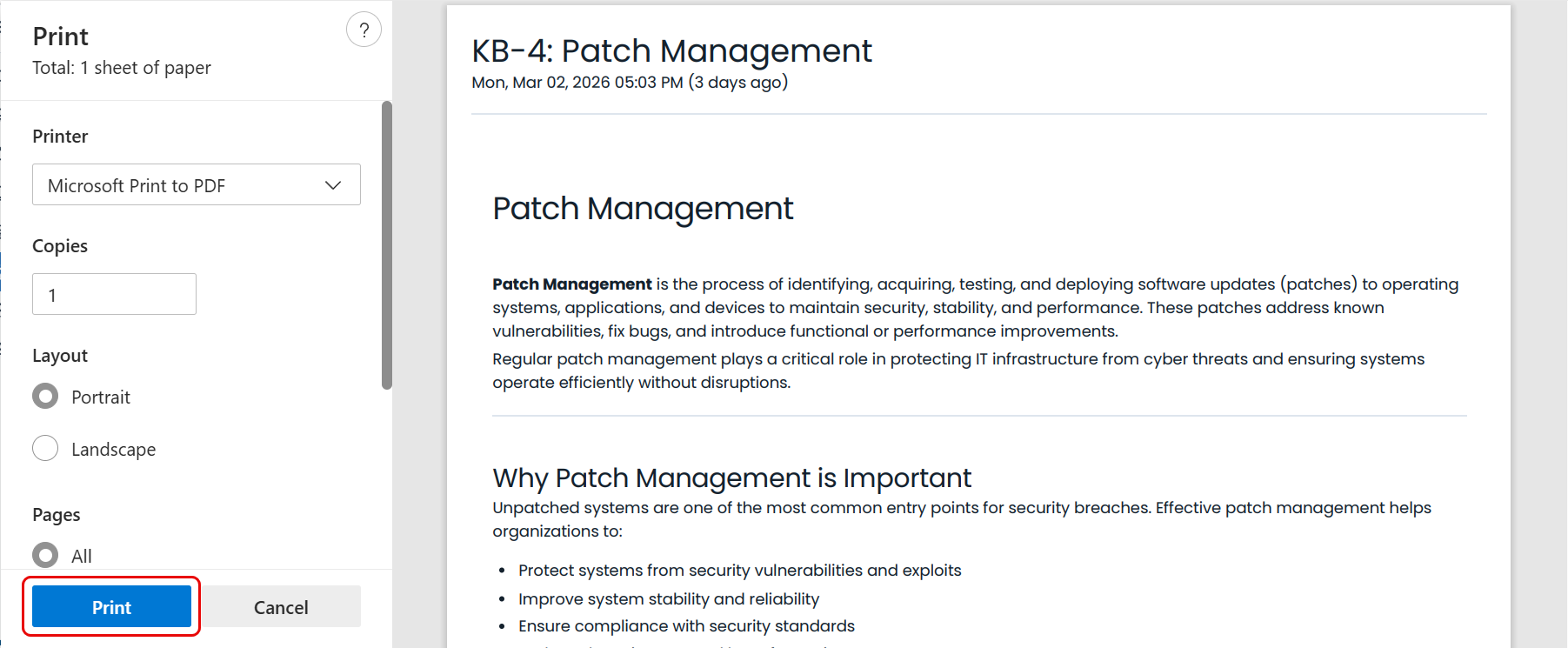
Click the Print button to print the article. The article will be printed as a PDF file.
Providing Feedback
Help improve the knowledge base by rating articles:
Read the Article - Review the complete content
Rate Helpfulness - Click the appropriate button:
- Helpful (Green): If the article solved your problem
- Not Helpful (Red): If the article didn't address your needs
Submit Feedback - Your rating helps other users and content creators
Your ratings help:
- Other users find the most useful articles
- Content creators understand what information is valuable
- Administrators identify areas needing more documentation
- Improve the overall quality of the knowledge base
Using Knowledge
To effectively resolve issues and find information independently, follow these self-help steps before escalating to a support request:
Search the Knowledge Base - Look for existing solutions
Check Related Articles - Review similar topics and procedures
Follow Step-by-step Instructions - Try the suggested solutions
Document Your Attempts - Note what you've tried before contacting support
Knowledge Features
The Support Portal's knowledge base offers several features designed to help you find relevant information quickly and efficiently. Explore these features to optimize your self-service experience:
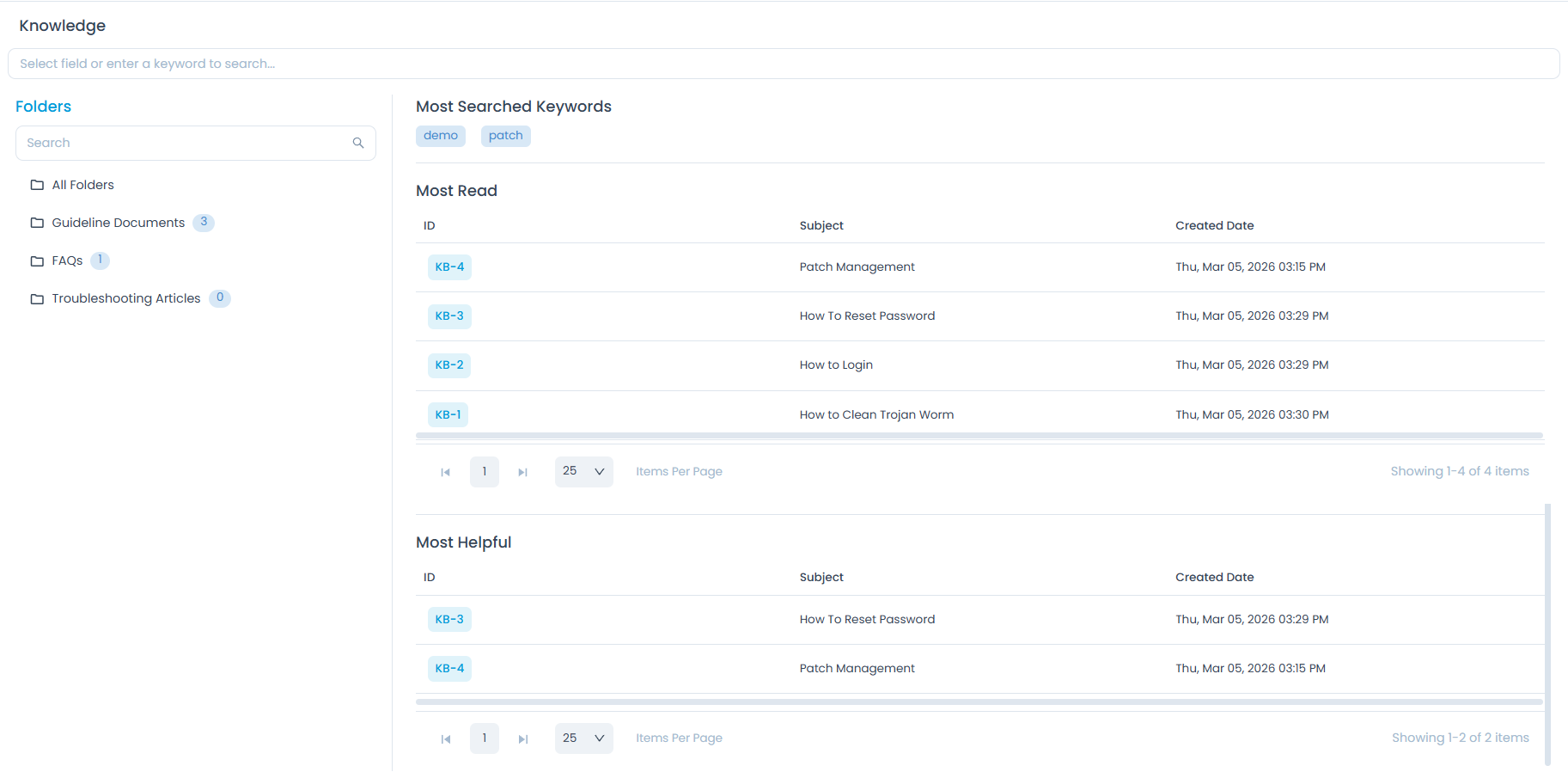
- Most Searched Keywords
- Most Read Articles
- Most Helpful Articles
See what others are searching for:
- Trending Topics: Popular search terms
- Common Issues: Frequently encountered problems
- Feature Interest: What users want to learn about
The "Most Read" section highlights popular articles that many users find helpful:
- Browse Popular Content: See what others are reading
- Discover Solutions: Find answers to common problems
- Stay Updated: Learn about new features and procedures
Articles rated highly by users appear in the "Most Helpful" section:
- Quality Content: Articles that have helped many users
- Verified Solutions: Tested and approved approaches
- User Recommendations: Community-voted best content
Mobile Access
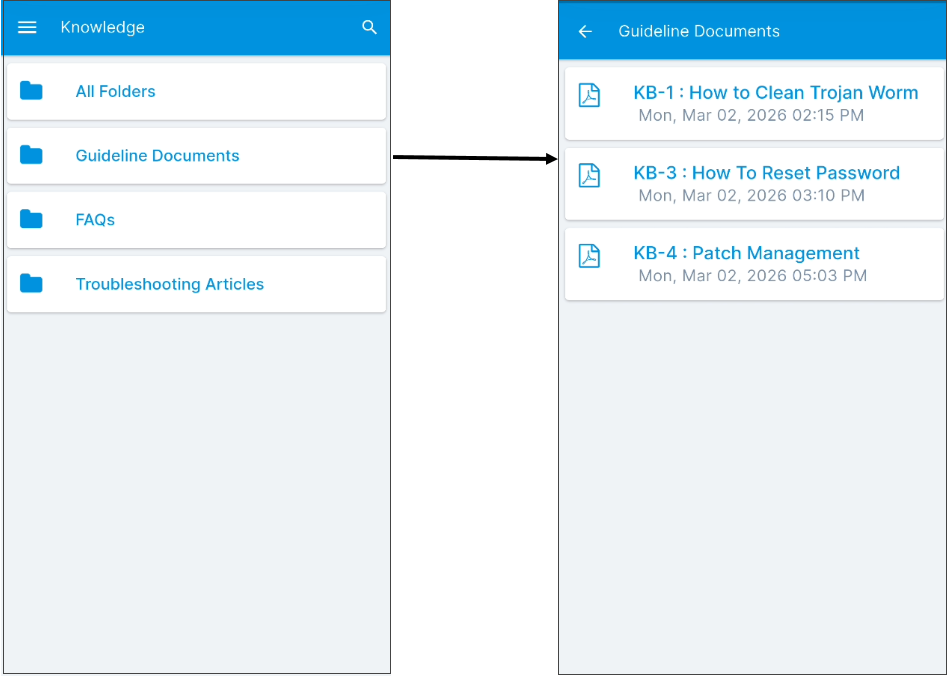
Seamlessly access knowledge articles on your mobile device through a streamlined interface. The mobile app organizes articles into folders, allowing for easy navigation and quick access to information.
- Open the Mobile App: Launch the dedicated mobile application.
- Navigate to Knowledge: Tap the Knowledge menu option.
- Browse Folders: You will see a list of folders (e.g.,
All Folders,Guideline Documents,FAQs,Troubleshooting Articles). Tap on a folder to view its contents. - View Articles: After selecting a folder, a list of articles within that folder will be displayed (e.g.,
KB-1: How to Clean Trojan Worm,KB-3: How To Reset Password,KB-4: Patch Management). Tap on an article to read its content.
Troubleshooting
Common Issues and Solutions
| Problem | Solution |
|---|---|
| Can't Access Knowledge Articles | Contact administrator for help. |
| Search Not Working | Check keywords, try different terms, browse categories |
| Articles Not Loading | Refresh page, check Internet connection, contact support. |
Best Practices
- Effective Usage
- When to Create Support Request
- Contributing to Knowledge
Knowledge Base Usage
- Search First: Always check the knowledge base before creating requests
- Use Specific Terms: Be precise with your search keywords.
- Try Variations: Experiment with different search terms and phrases.
- Check Popular Terms: Look at "Most Searched Keywords" for common or trending issues.
- Review Quality Content: Prioritize articles from "Most Read" and "Most Helpful" sections.
- Search by Fields: Utilize fields like "Approval Status," "Last Updated By," "Tags," "Last Updated Date," and "Created By" to narrow down results.
- Read Completely: Review entire articles before trying solutions
- Follow Instructions: Execute steps exactly as described
- Provide Feedback: Rate articles to help improve the knowledge base
Support Request Triggers
Create a support request when:
- No Relevant Articles: Can't find information about your specific issue
- Tried Solutions: Have attempted knowledge base solutions without success
- Unique Problem: Your issue is not covered in existing articles
- Complex Issue: Problem requires specialized technical assistance
- System Error: Encountering technical errors not addressed in articles
Help Improve Knowledge Base
Help improve the knowledge base by:
- Rating Articles: Provide feedback on helpfulness
- Suggesting Topics: Let support know what additional content would be useful
- Reporting Issues: Notify administrators about outdated or incorrect information
- Sharing Solutions: If you solve a problem, consider suggesting it be added to the knowledge base