Login Methods
Access the Support Portal using multiple authentication methods including email, SSO, Google, and Microsoft sign-in options.
The Support Portal offers flexible authentication options to accommodate your organization's security policies and user preferences. These methods ensure secure and convenient access, ranging from traditional email login to modern single sign-on solutions. They include:
- Email/Logon Name: Log in using your traditional username and password.
- Single Sign-On (SSO): Authenticate through your enterprise identity provider.
- Google Sign-In: Use your Google account credentials for access.
- Microsoft Sign-In: Use your Microsoft account credentials for access.
The login page dynamically adjusts based on your administrator's configuration. You'll see only the authentication methods that have been enabled for your organization.
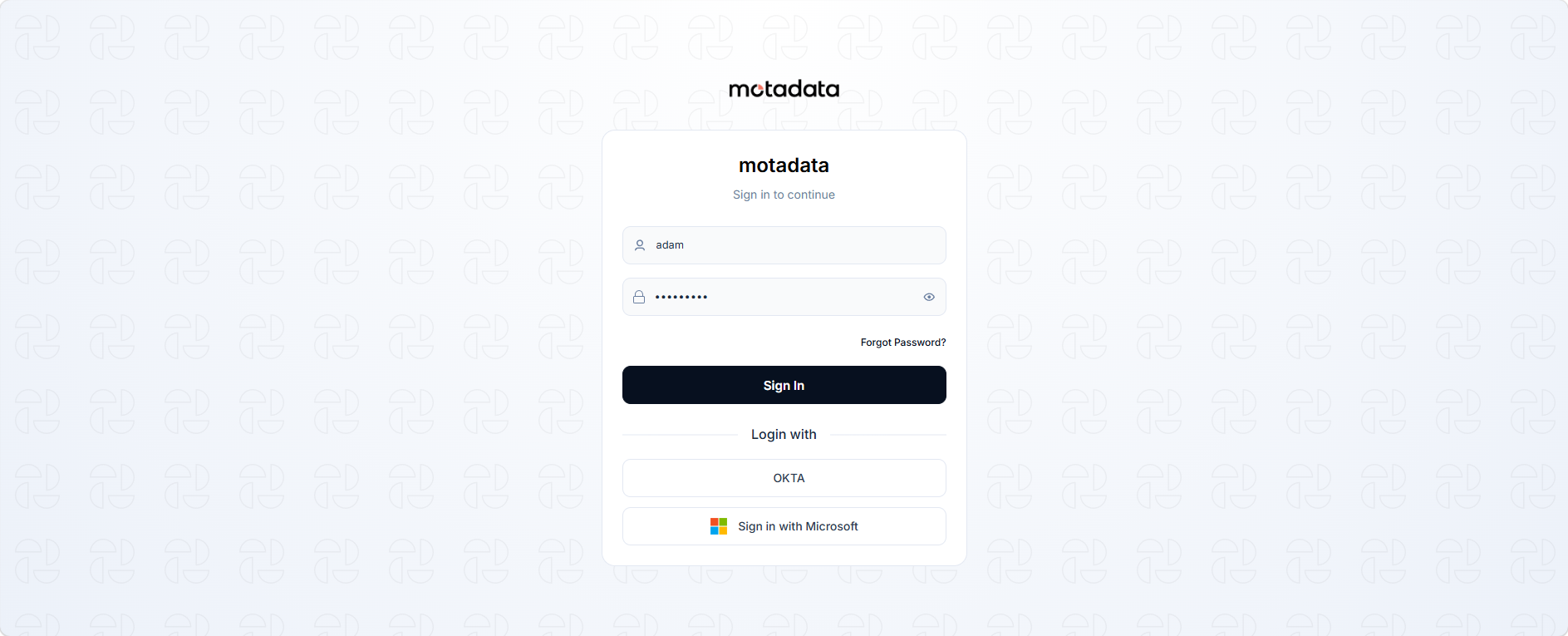
Authentication Methods
- Email/Logon Name
- Single Sign-On (SSO)
- Google Sign-In
- Microsoft Sign-In
The most common authentication method uses your company email address or logon name with a password.
Self Sign-Up
Self Sign-Up allows new users to register for the Support Portal directly, without requiring an administrator to create their account. This streamlined process provides immediate access, ensuring quick onboarding. If enabled by your administrator, you can create your own account for the Support Portal.
Registration Process
Step 1: Access the Support Portal login page.
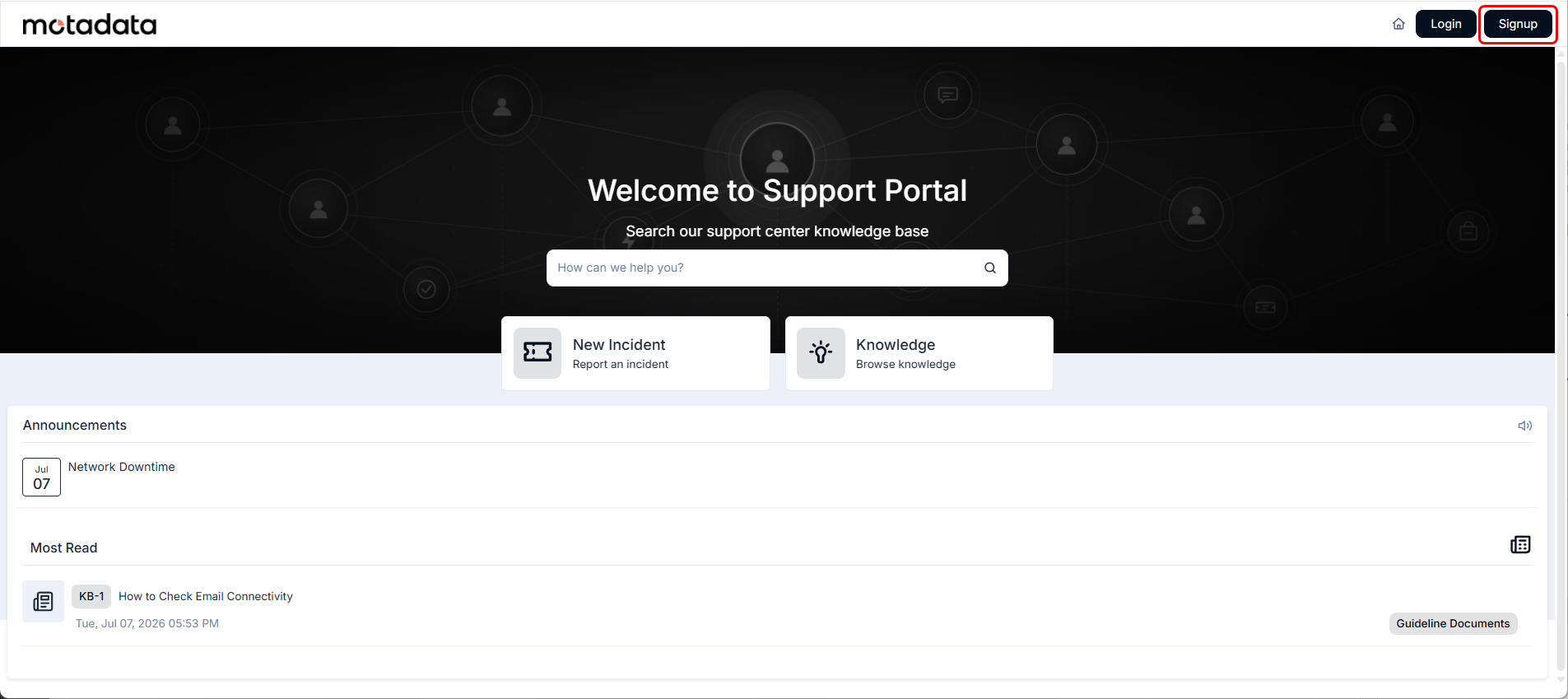
Step 2: Click on the "Sign Up" button.
Step 3: Enter the required information, such as your name and email address.
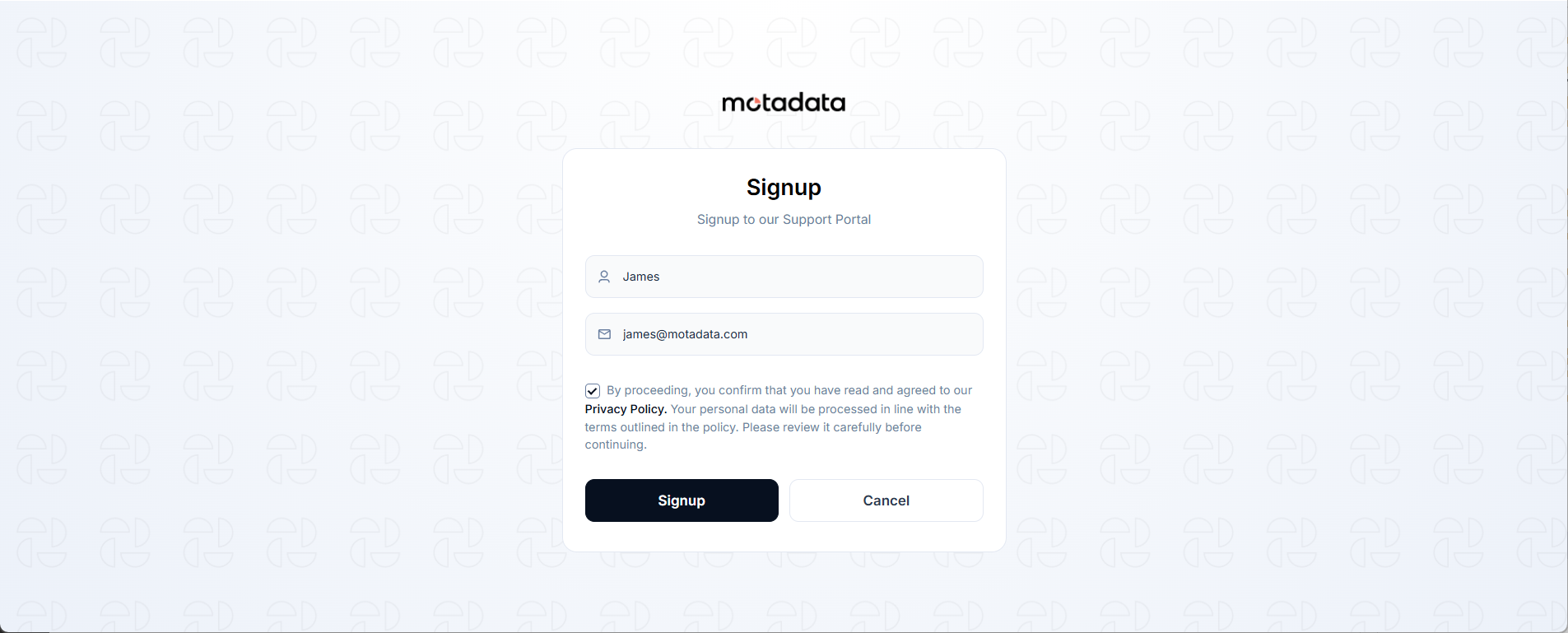
Step 4: Upon successful registration, a confirmation message will be displayed: "User with email <email_address> registered successfully."
Step 5: Once registered, you can log in using your newly created credentials.
First-Time Login (Admin-Created Accounts)
For accounts created by your administrator, follow these steps for your first login:
Step 1: Contact your administrator to request account creation.
Step 2: Check your email for a verification link after account creation.
Step 3: Click the verification link to access the Change Password page.
Step 4: Create a secure password following your organization's password policy.
Step 5: Complete the setup and proceed to access the portal.
Regular Login
Step 1: Navigate to the Support Portal using the URL provided by your administrator.
Step 2: Enter your credentials:
- Email/Logon Name: Your company email address or assigned logon name.
- Password: Your secure password.
Step 3: Click Sign In to access the portal.
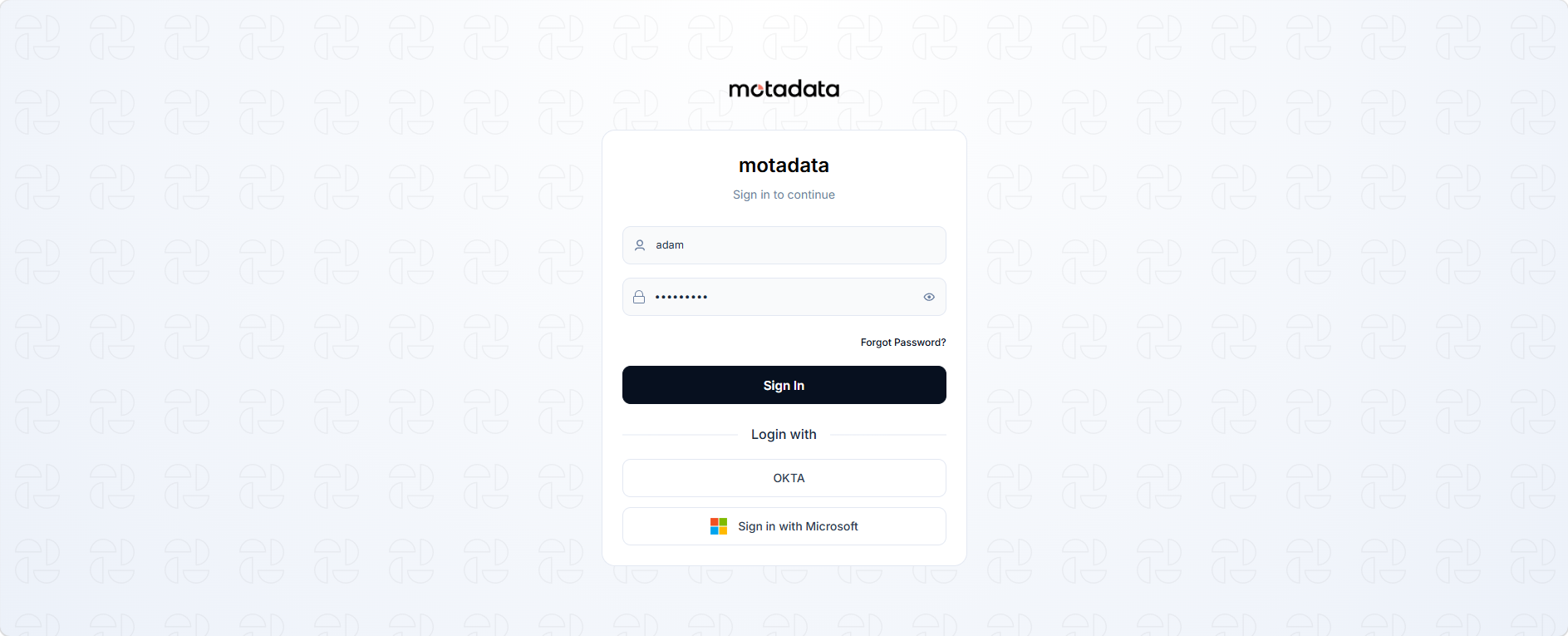
Single Sign-On allows you to access the Support Portal using your organization's existing identity provider, eliminating the need for separate credentials.
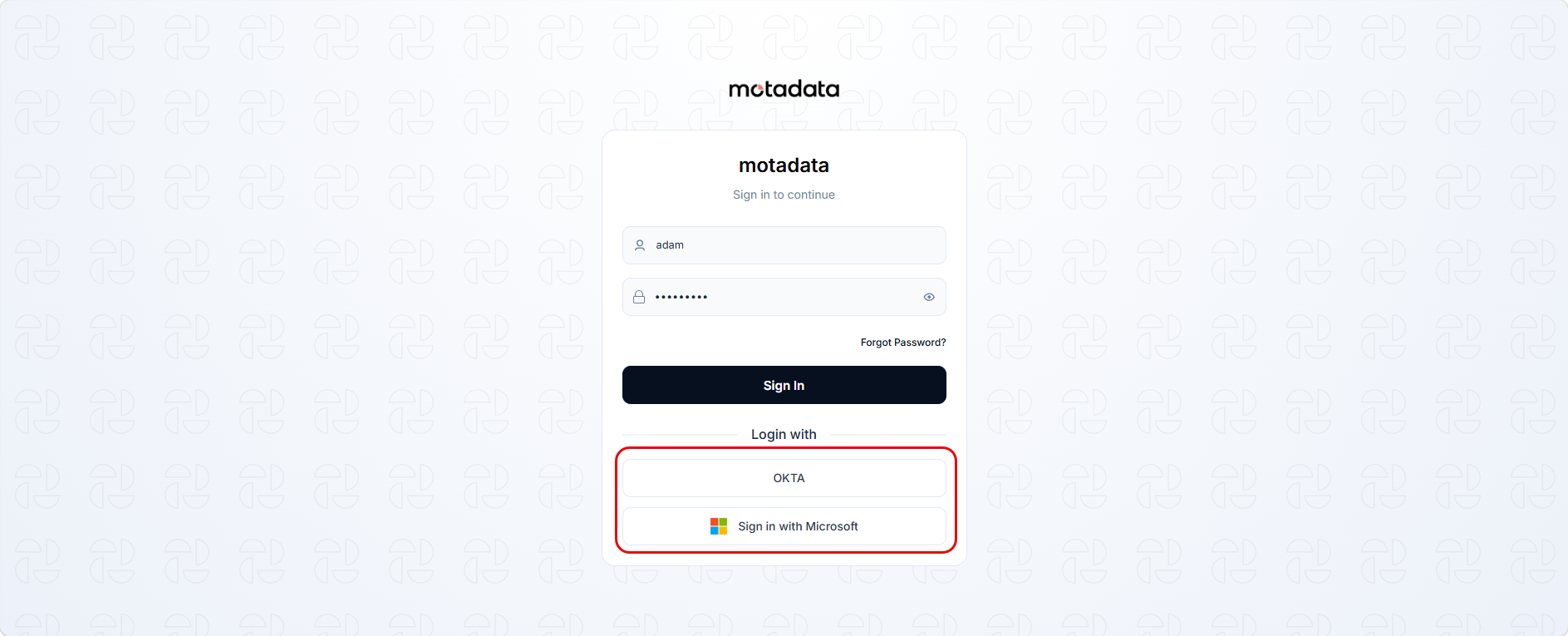
Available Providers
Your organization can use any of the following SSO providers:
- Azure AD/Office 365
- Google Workspace
- OKTA
- OneLogin
- ADFS (Active Directory Federation Services)
- JumpCloud
- WSO2
- Keycloak
- Custom SSO providers
Login Process
Step 1: Access the Support Portal login page
Step 2: Click the SSO provider button (e.g., "Sign in with Microsoft", "Sign in with Google Workspace")
Step 3: You'll be redirected to your organization's identity provider
Step 4: Enter your organizational credentials on the provider's login page
Step 5: Complete authentication and return to the Support Portal automatically
The specific SSO providers available depend on your administrator's configuration. You'll only see buttons for enabled providers.
Benefits
- Seamless Access: No need to remember separate Support Portal credentials
- Centralized Management: Password changes are handled by your organization's identity provider
- Enhanced Security: Leverages your organization's existing security policies
- Automatic User Creation: New users can be automatically created in the portal (if configured)
If enabled by your administrator, you can use your Google account to access the Support Portal.
Login Process
Step 1: Access the Support Portal login page.
Step 2: Click "Sign in with Google" button.
Step 3: Select your Google account from the popup window.
Step 4: Grant permissions if prompted (first-time users).
Step 5: Complete authentication and access the portal.
- You must have a valid Google account
- Your administrator must have configured Google authentication
- The Google account email should match your organization's domain (if domain restrictions are enabled)
Microsoft authentication allows you to use your Microsoft account (Azure AD, Office 365, or personal Microsoft account) to access the portal.
Login Process
Step 1: Access the Support Portal login page
Step 2: Click "Sign in with Microsoft" button
Step 3: Enter your Microsoft credentials in the authentication window
Step 4: Complete the sign-in process and access the portal
- Azure AD accounts: For enterprise users with organizational accounts
- Office 365 accounts: For users with Office 365 subscriptions
- Personal Microsoft accounts: If allowed by your administrator
User Consent
User consent for data access may be required by your organization, particularly with SSO or third-party authentication.
Consent Process
If user consent is enabled, you'll encounter a consent screen during login:
Step 1: Enter your credentials using any authentication method.
Step 2: Review the consent screen that appears.
Step 3: Grant permission to access your personal data.
Step 4: Complete the sign-in process.
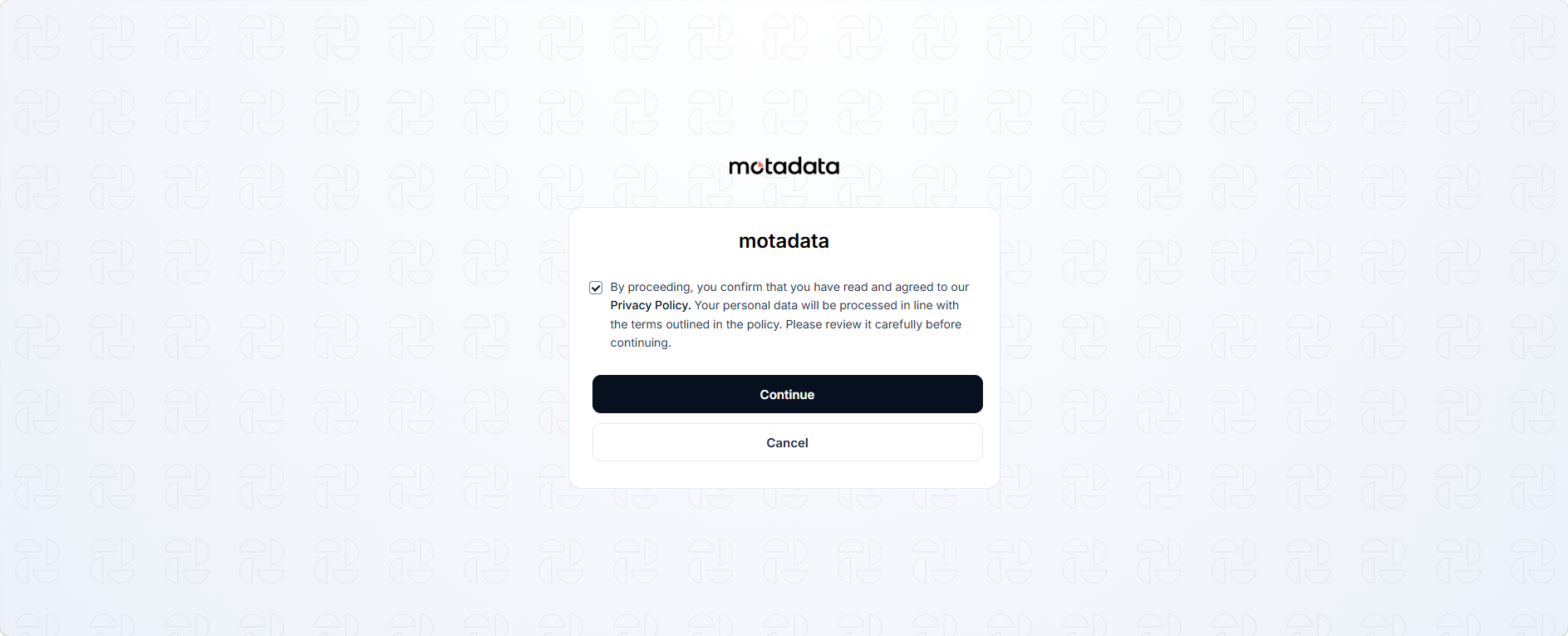
- Consent is mandatory: You cannot proceed without granting permission
- One-time setup: Consent screens typically appear only on first login
- Policy updates: You may be asked for consent again if privacy policies change
Privacy Settings
The user consent feature is controlled by your administrator through:
- Privacy Settings configuration
- Data access permissions
- Organizational privacy policies
- Consent is typically stored for future logins
- You can review and modify consent settings through your profile
Troubleshooting
Common Issues
"Invalid credentials" error:
- Verify your email/logon name is correct
- Check that your password is entered correctly
- Ensure CapsLock is not enabled
- Contact your administrator if you've forgotten your password
SSO login failures:
- Verify you're using the correct organizational account
Google/Microsoft sign-in issues:
- Ensure you're using the correct account type
- Check that the authentication method is enabled by your administrator
- Contact your administrator
Getting Help
If you encounter login issues:
Check the Knowledge Base for troubleshooting articles if available
Contact your IT administrator for account-related issues if available
Use the chat support feature if available
Security Best Practices
Password Security
- Use strong passwords: Combine letters, numbers, and special characters
- Never share credentials: Keep your login information private
- Regular updates: Change passwords as required by your organization
- Unique passwords: Don't reuse passwords from other accounts
Account Security
- Log out properly: Always use the sign-out option when finished
- Secure devices: Don't save passwords on shared or public computers
- Report suspicious activity: Contact your administrator immediately
- Keep software updated: Ensure your browser and system are up to date.