Asset Movement Overview
Assets may need to be moved out of the premises for repair, replacement, or trial. To accurately track these movements in and out of the organization, the Asset Movement Tracking functionality has been implemented. In certain scenarios, asset movements also require approval from the respective department head and a valid Asset Gate Pass as proof to clear organizational security checks.
Asset Movement functionality is currently implemented for the following asset movement types:
For 'Send to Repair' and 'Return from Repair,' assets must be declared or marked as Faulty before requesting a movement.
To view the Asset Movement page, navigate to Admin > Asset Management > Asset Movement. The list page will initially appear as shown below.
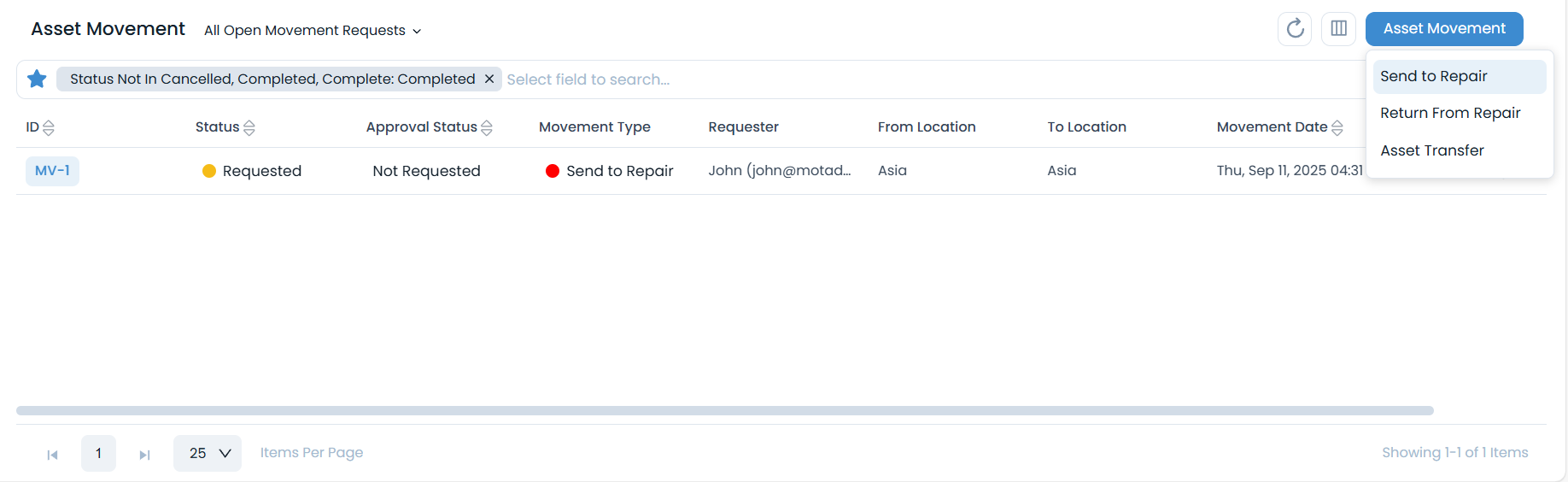
List Page
The list page displays asset movements and their details. You can also perform various tasks from here.
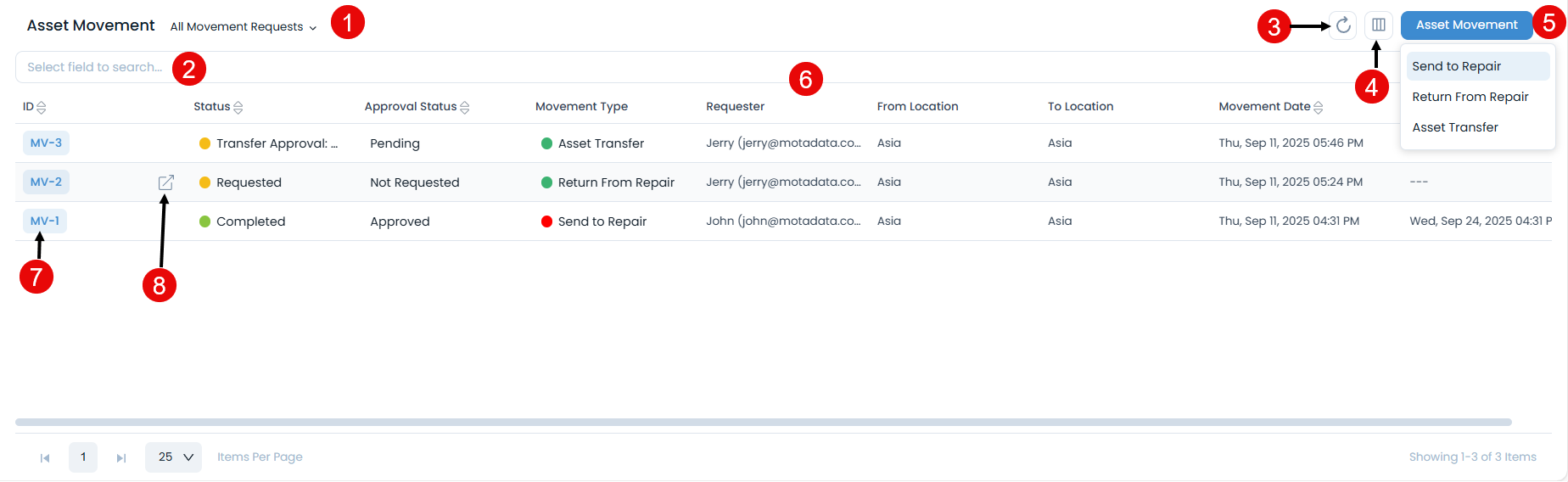
The page provides the following features:
Filter: You can filter asset movements by clicking the desired option. The following filters are available:
Filter Records Displayed All Open Movement Requests Displays all asset movement requests that are currently active and have not yet been completed or cancelled. All Requests Awaiting Approval Displays asset movement requests that have been submitted but are pending approval from the designated approver before they can proceed. My Open Movement Requests Displays only those active asset movement requests that were created by or assigned to the currently logged-in technician. All Cancelled Movement Request Displays all asset movement requests that have been cancelled. All Movement Requests Displays all asset movement records in the system regardless of their status, including open, awaiting approval, cancelled, and completed movements. Search: You can search for specific asset movements. The search is faceted and allows you to use specific criteria. More details can be found in the search section.
Refresh: You can refresh the asset movement list. This is useful when multiple people are working on asset movements and contents are updated frequently.
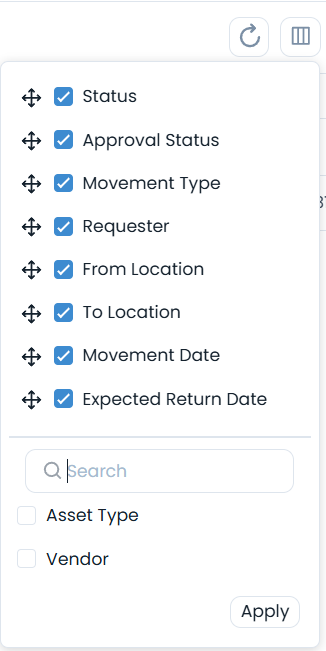
Column Selection: You can select up to 10 columns that you want to view in the grid table, as shown below.
- Asset Movement: You can create an asset movement request of type 'Send to Repair,' 'Return From Repair,' or 'Asset Transfer.'
- Grid: The grid displays asset movement details based on the selected columns. By default, it displays the first 8 columns, and the data is sorted in descending order of 'Created Date.'
- View Details Page: You can click the Asset Movement ID to view the Asset Movement Details page.
- View Details Page in a new tab: You can click the arrow icon next to the ID to view the details page in a new tab.
Details Page
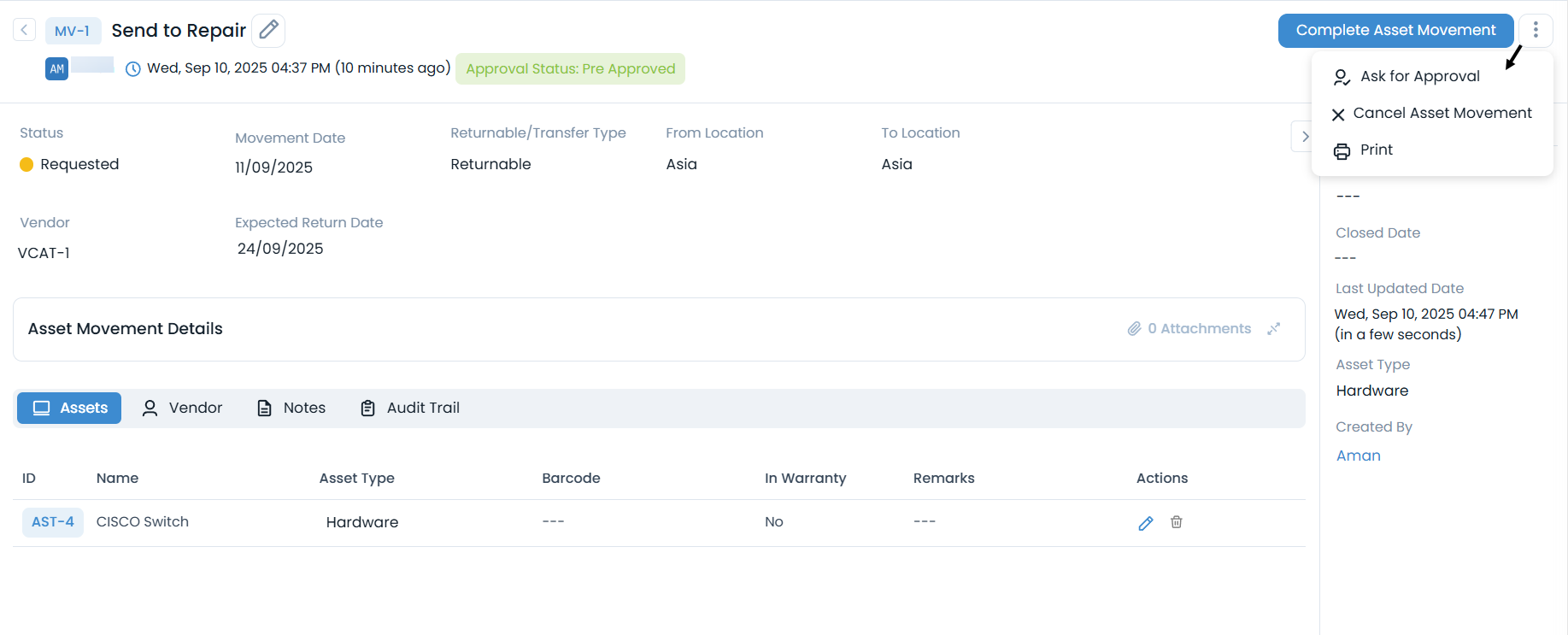
On the Details page, you can view the complete details of the asset movement and perform desired activities. To view the Asset Movement Details page, click on the desired ID or the arrow next to it on the List page. The following page will then appear.
Classifiers of Asset Movement
These properties provide current statistics of asset movement, helping you classify them under different labels. When an asset movement is processed, the labels are updated accordingly. For example, a 'Closed' status indicates that the asset movement is complete.

| Parameter | Description |
|---|---|
| Status | |
| Movement Date | |
| From Location | |
| To Location | |
| Vendor | |
| Returnable/Transfer Type | |
| Expected Return Date |
Associated Actions for Asset Movement
You can create or update different actions and activities as part of communication, collaboration, and resolution in asset movement. The available types of actions are:
- Assets
- Vendor
- Notes
- Approvals
- Audit Trail
You can view the number and exact name of the asset in movement. You can either edit or delete the asset from this tab.

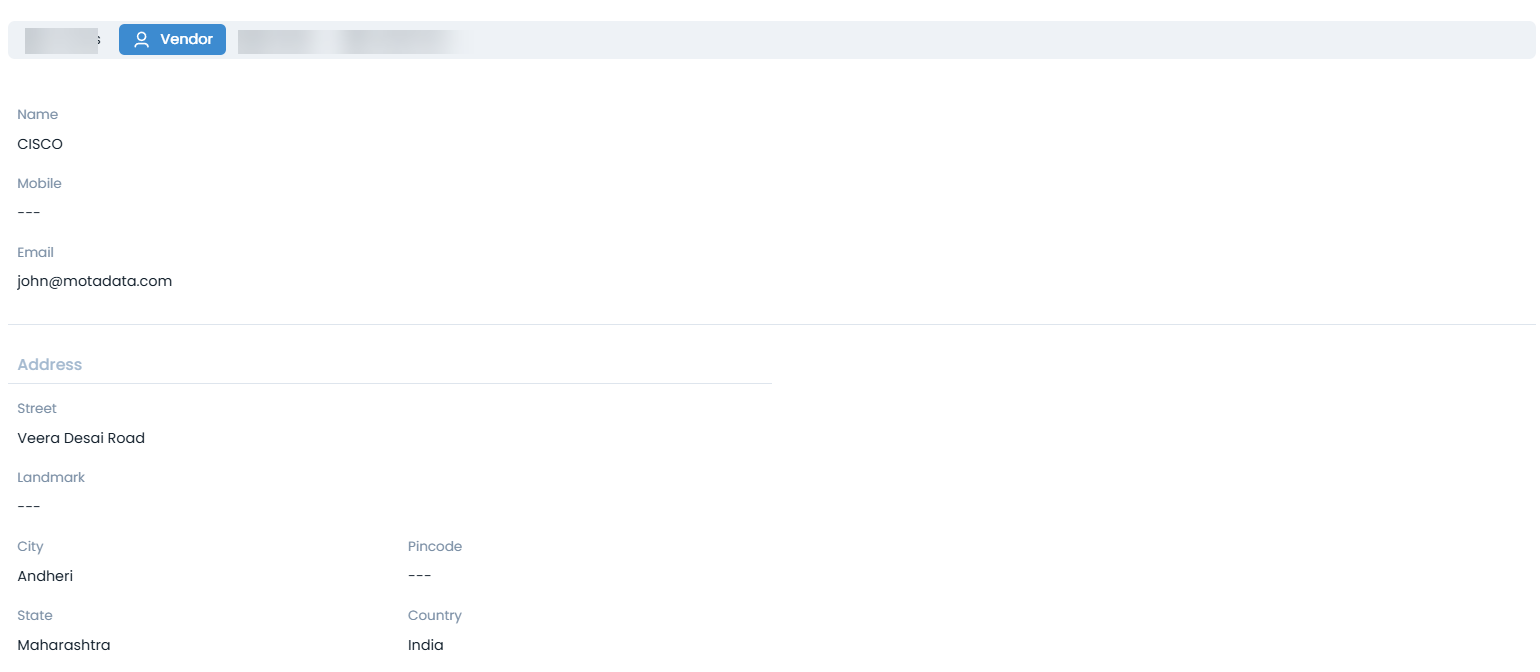
You can view the vendor details.
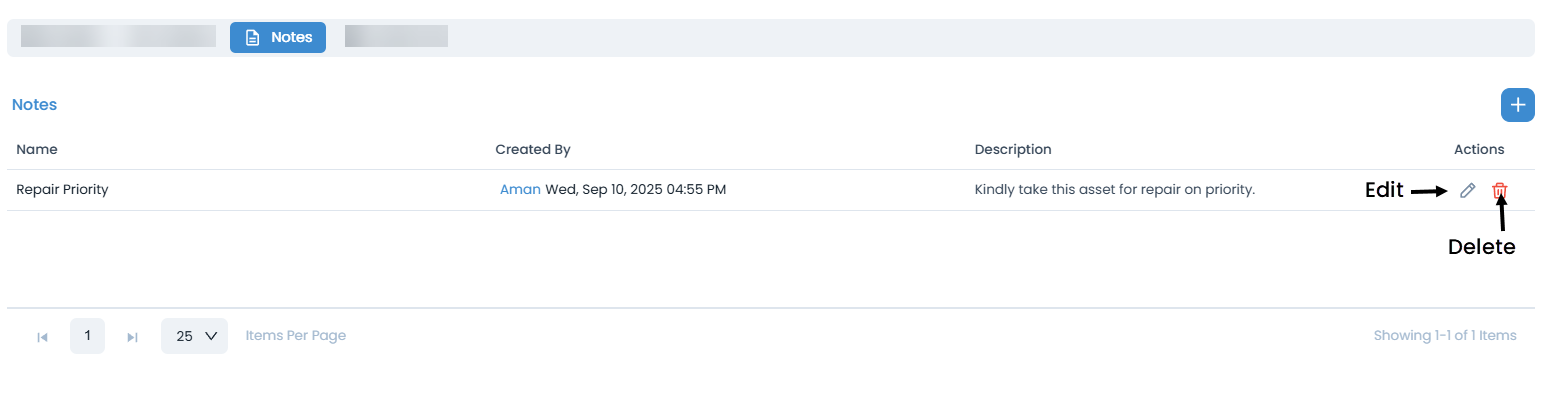
You can view the list of notes made during the movement. You can also create new notes using the Add Note button here.
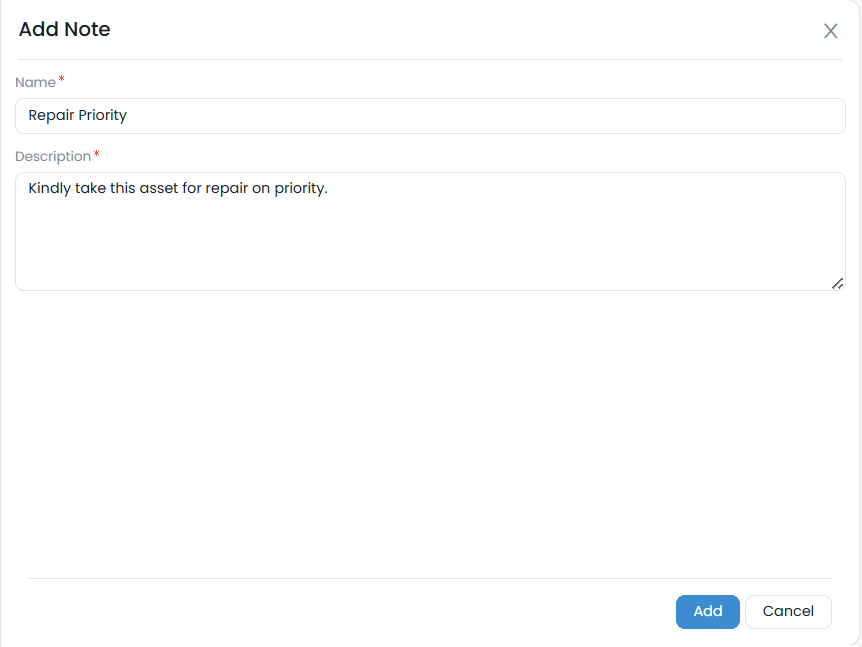
To add a note, follow these steps:
- Click the Add Note button and a popup appears.
- 2. Enter the Name and Description.
- 3. Click Add, and the note will be added.
You can view pending and approved approvals for the asset movement and remind the concerned technician about them.
The Approvals tab is visible only when there is a pending approval for the asset movement.

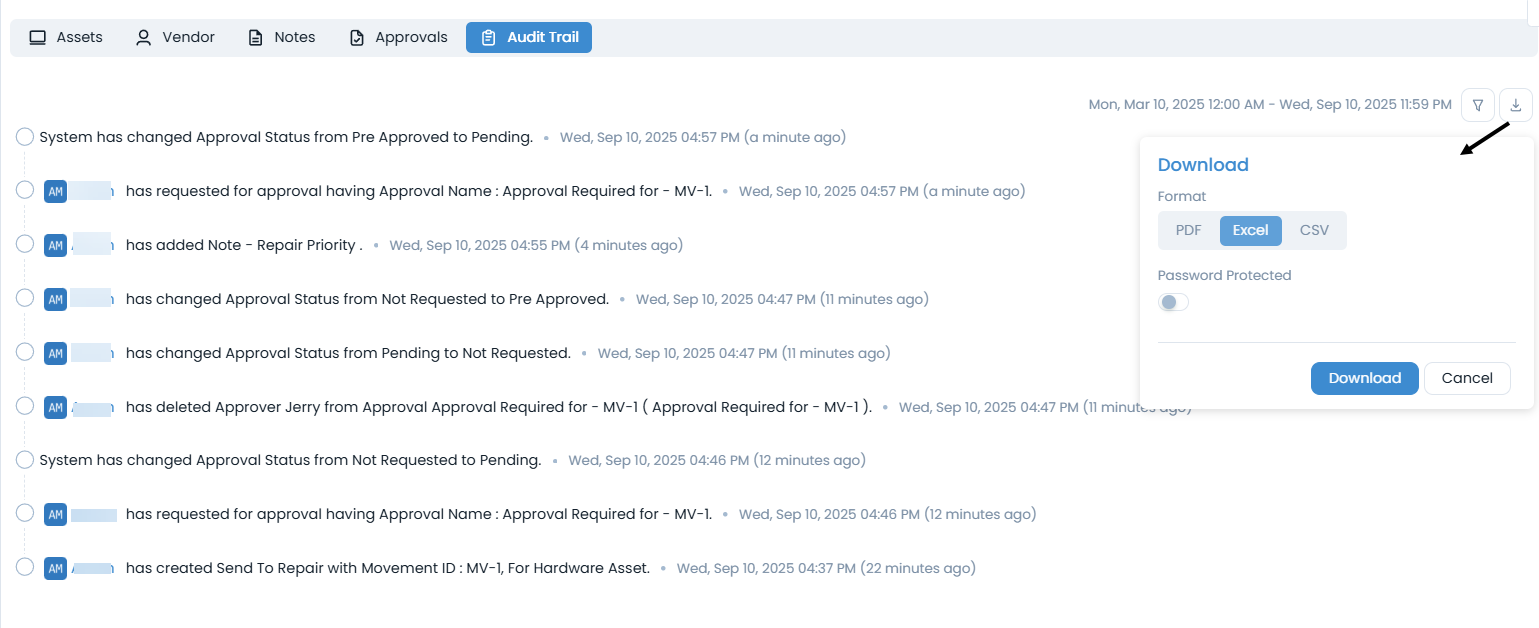
You can view the overall activities performed for a particular asset's movement based on the selected date range. You can also download the records in PDF, Excel, and CSV formats. Additionally, you can password-protect the file in PDF and Excel formats.
Along with the above, you can Ask for Approval or directly Cancel Asset Movement.
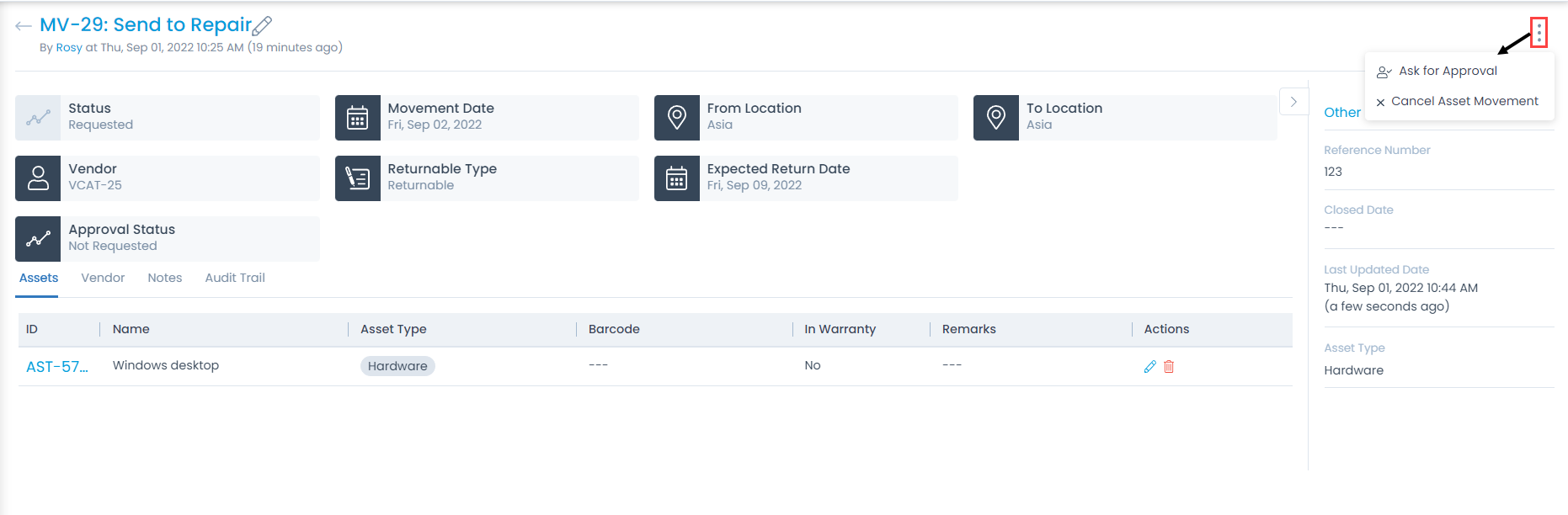
Ask For Approval
An approval process ensures no unauthorized actions. You can request approval if a technician is assigned to the movement. To initiate an approval from the asset movement details page, follow these steps:
- Click the More Options icon on the top-right corner of the details page. It will open a dropdown menu.
- Select Ask for Approval and a popup appears. Fill in the details.
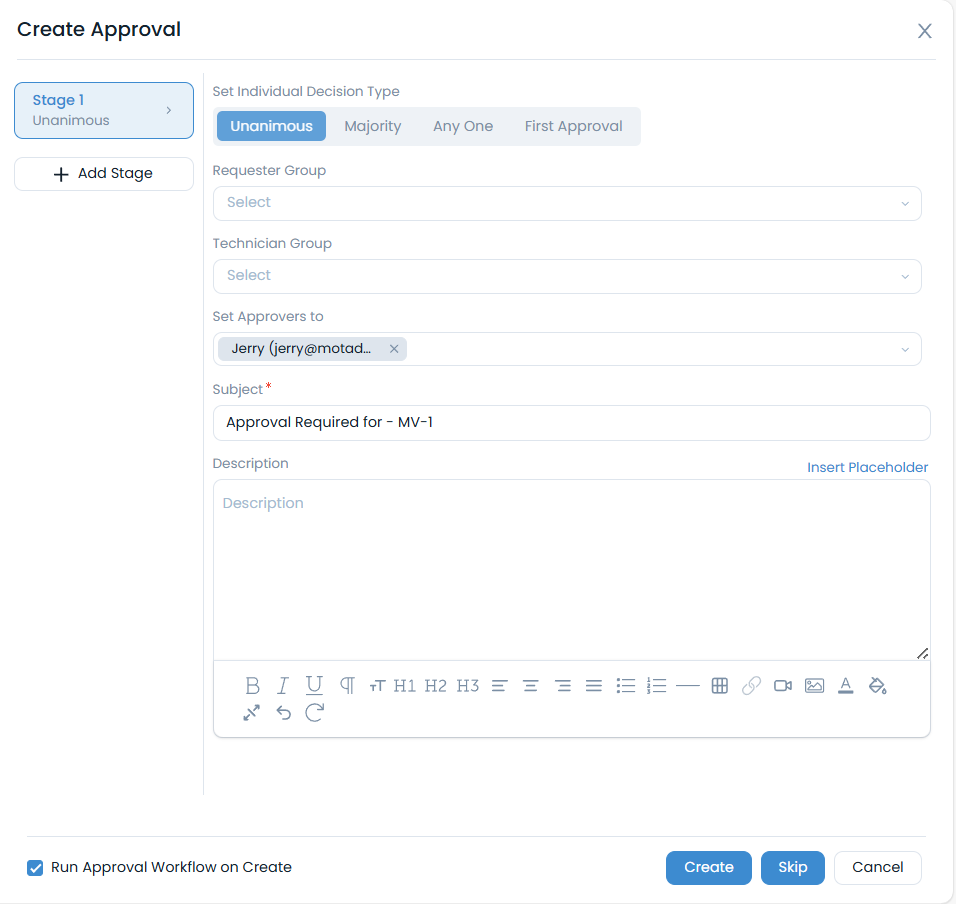
| Parameter | Description |
|---|---|
| Set Individual Decision Type | |
| Requester Group | |
| Technician Group | |
| Set Approvers to | |
| Subject | |
| Description | |
| Add Stage |
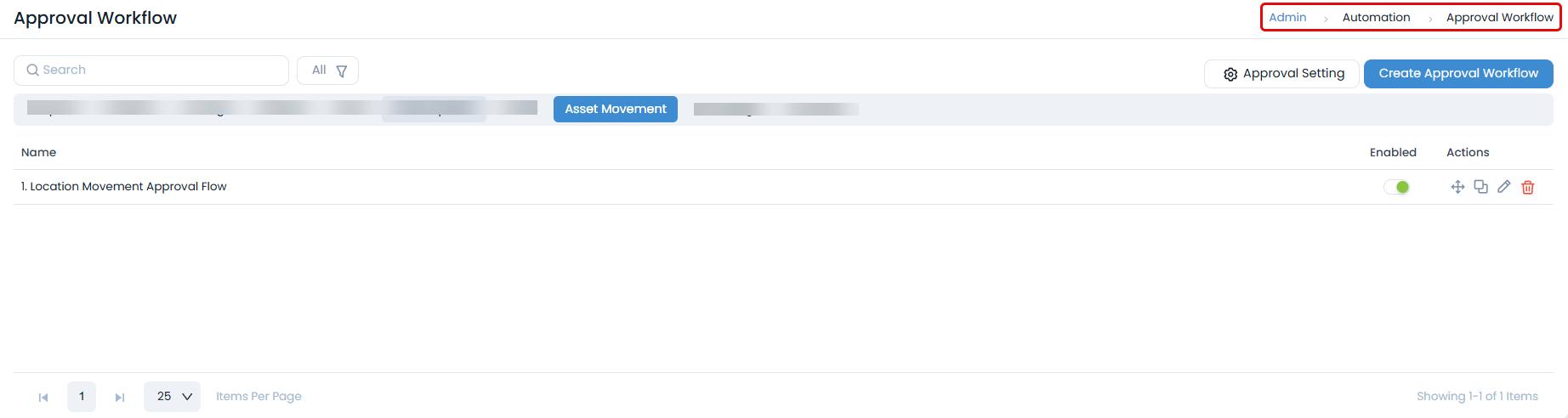
Once all details are provided, click Create. The manual approval will run based on the "Run Approval Workflow on Create" option. If enabled, both manual and Approval Workflow will run upon clicking Create. If disabled, only manual approval will be created. The Approval Setting "Allow User to Create Manual Approval" must be enabled from the Approval Workflow page.
If Skip is clicked, the request will be pre-approved, and the status will be updated in the Approval Status classifier. Its entry will also appear in the Audit Trail.
The asset transfer request will be pre-approved only if there is no active Approval Workflow whose conditions match the request. If an Approval Workflow exists, the request will not be pre-approved, and the Approval Workflow with matching conditions will be executed.
- The Approval Workflow can be created from the Admin section, as shown below:
Gate Pass for Asset Movement
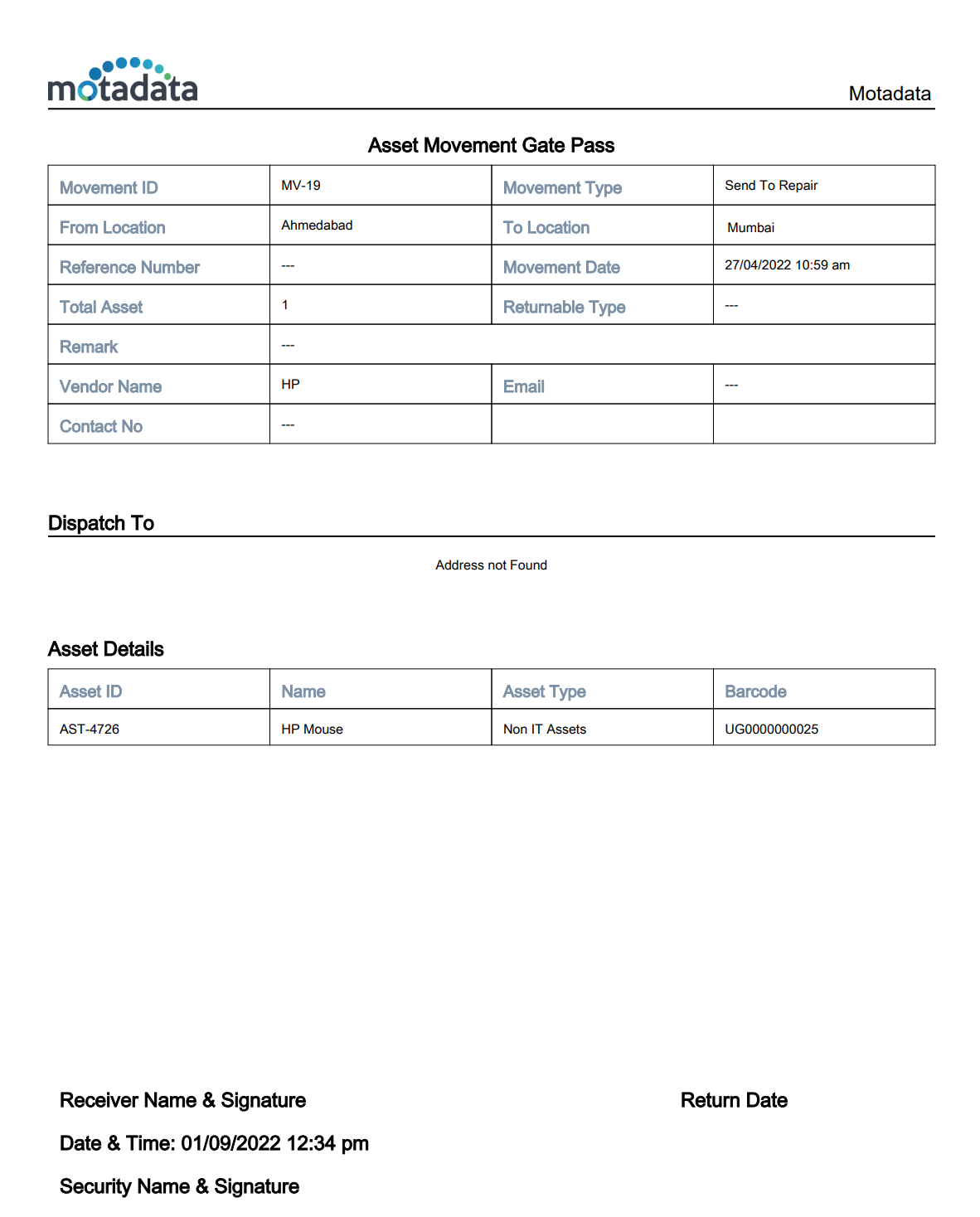
A gate pass can be generated by selecting the required template using the Print option from the More Options icon available in the top-right corner, as shown below. This option is available once the Asset Movement is approved and completed.
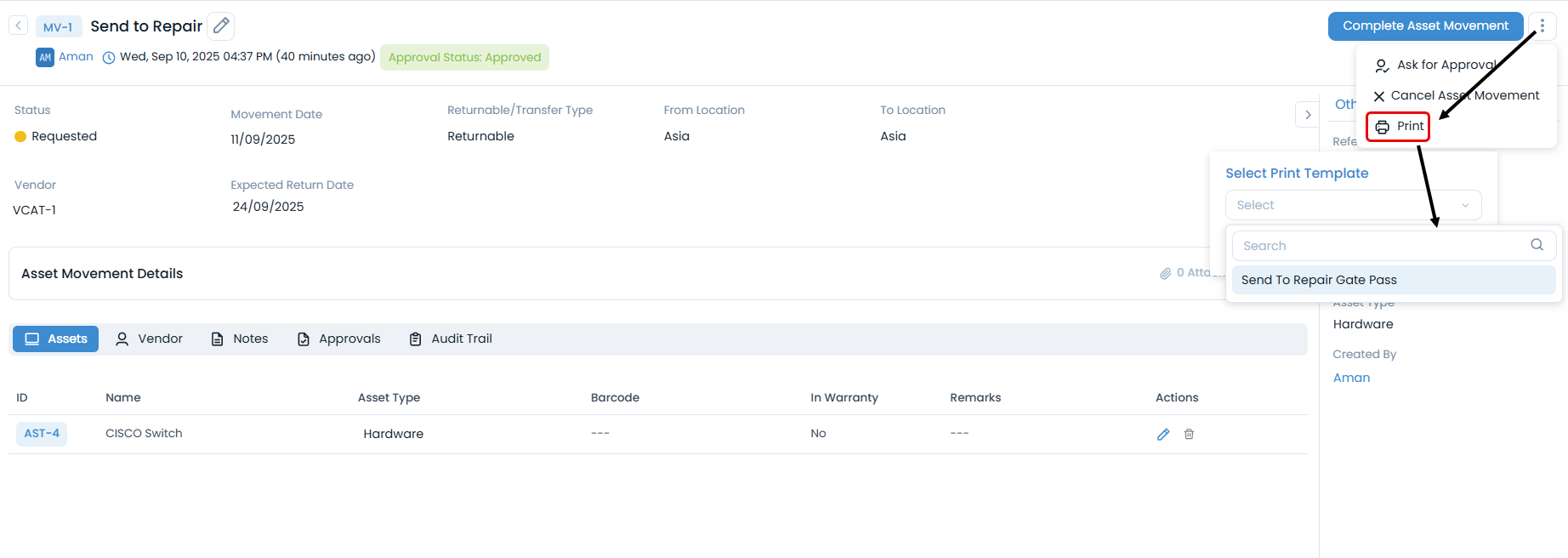
- A single Asset Movement Gate Pass will be generated for Permanent Transfers.
- Two Asset Movement Gate Passes will be generated for Temporary Transfers.
Cancel Asset Movement
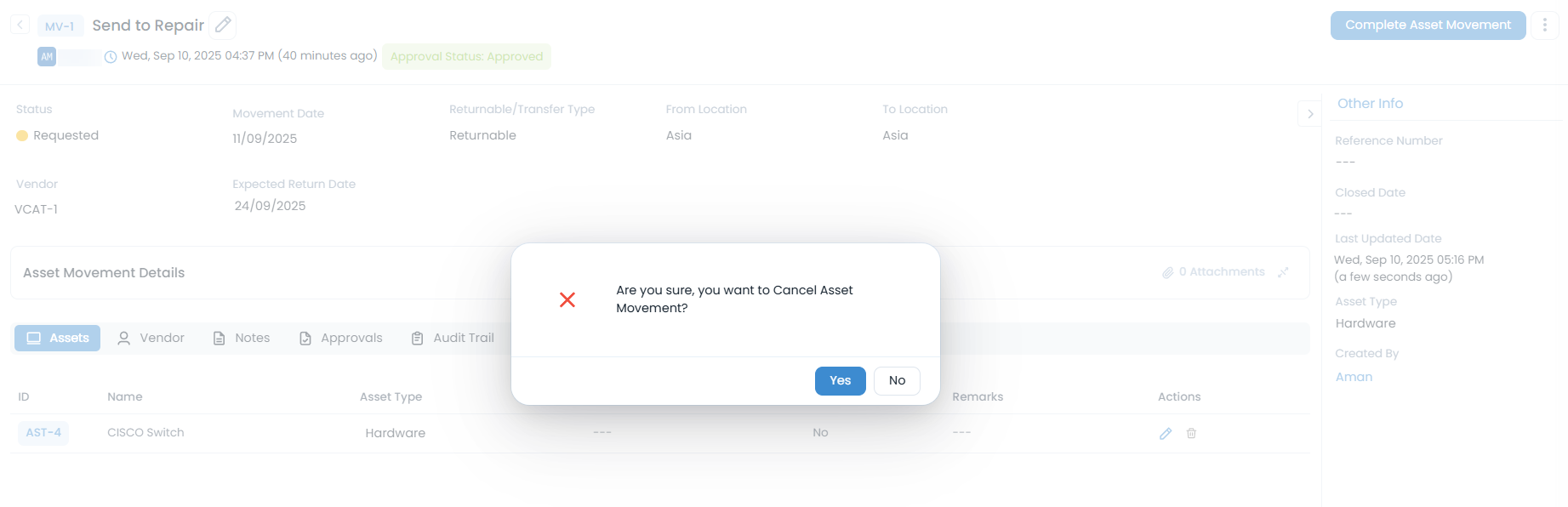
Whenever you try to cancel a movement, the system will ask for confirmation.
Notifications
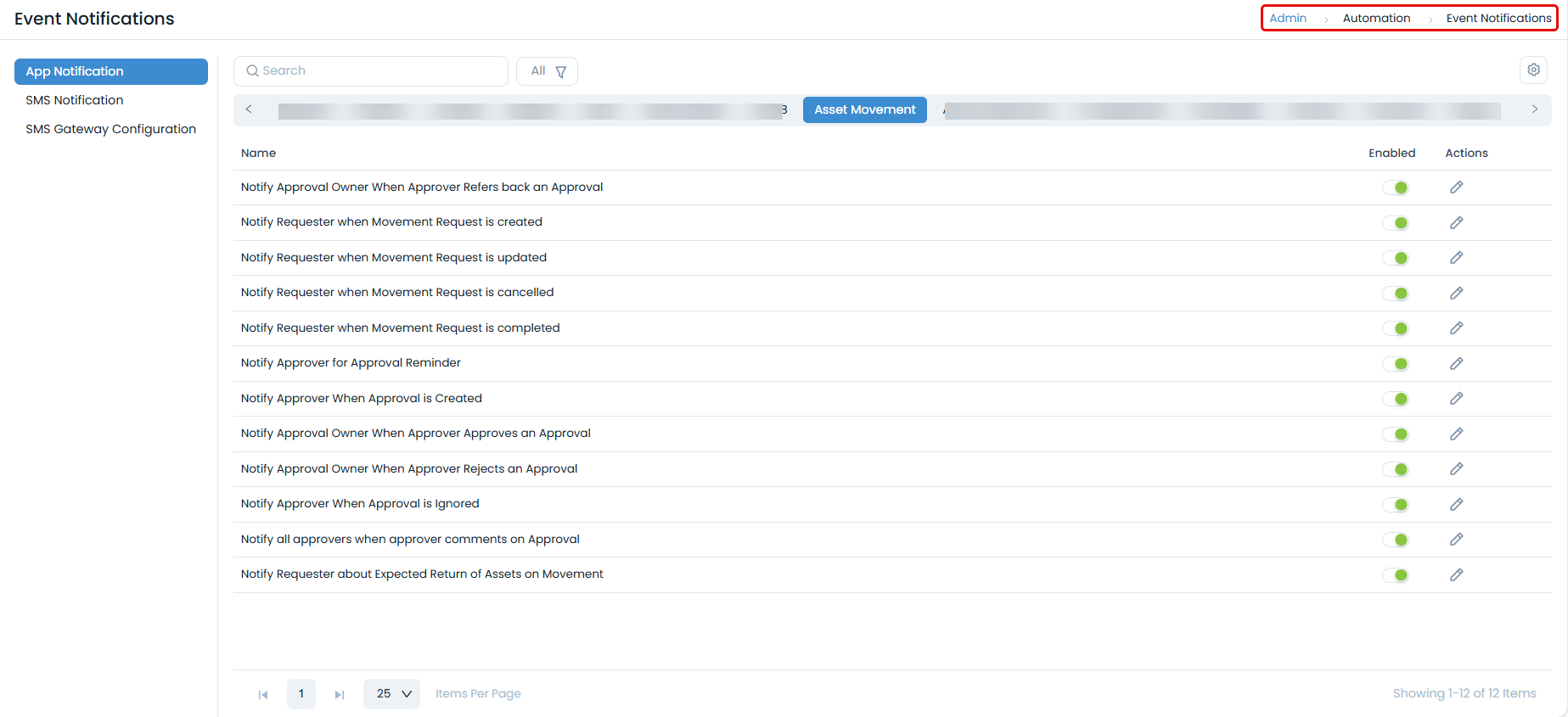
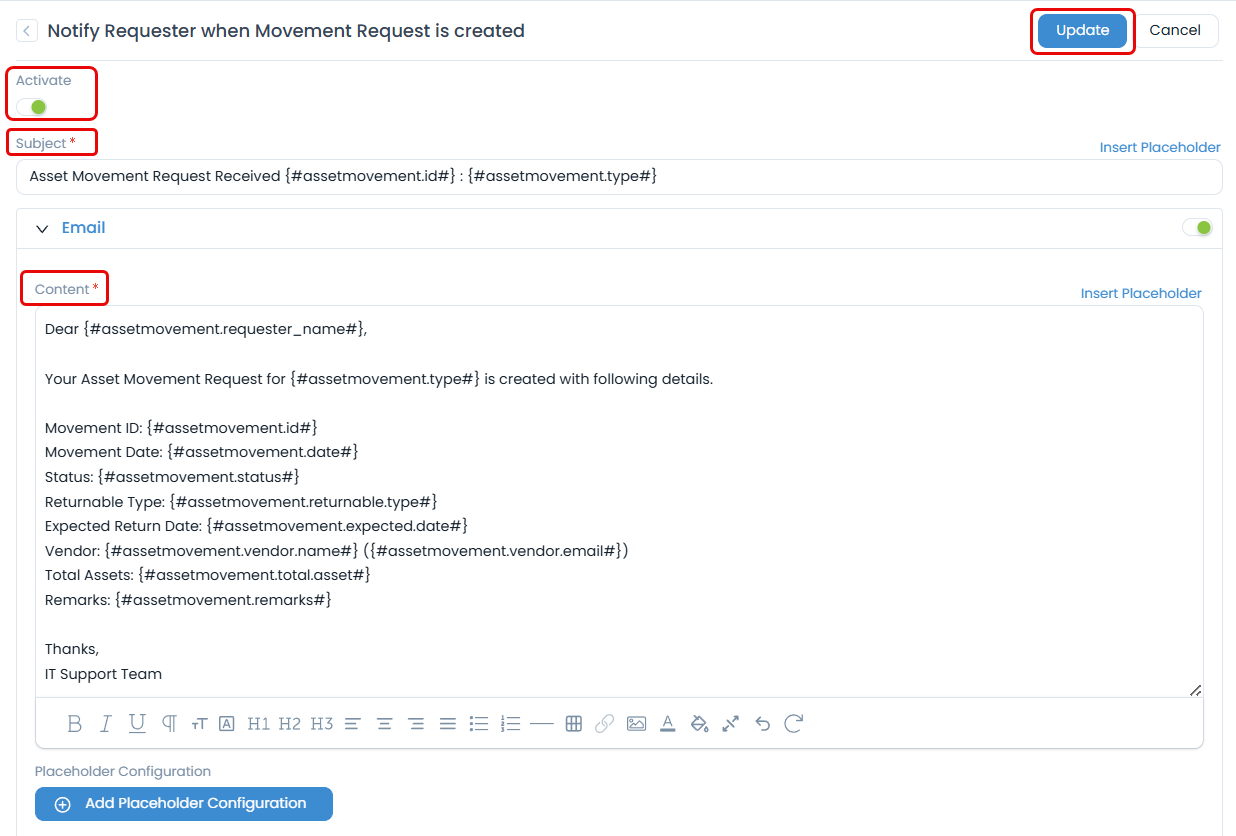
The Asset Movement module offers various notifications to users, as shown below:
Other Info
The 'Other Info' section displays additional details about the Asset Movement. You can also change them if required.
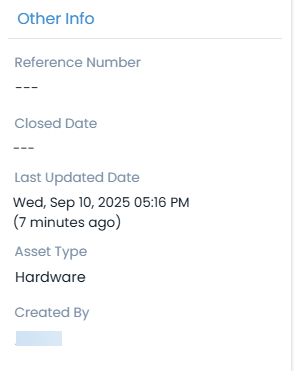
- Reference Number: Displays the asset movement's reference number.
- Closed Date: Displays the asset movement's closed date.
- Last Updated Time: Displays the date and timestamp of the last activity on the asset movement.
- Asset Type: Displays the type of asset that is in movement.