Common Search
Quickly find any record across all modules using powerful, faceted search and save your custom filters for future use.
The common search functionality is a core tool for technicians, available in every module (Requests, Problems, Changes, etc.). It allows you to move beyond simple keyword searches and use specific criteria to pinpoint the exact records you need. This guide explains how to use pre-defined searches, build your own advanced search queries, and save them for easy access later.
- This search functionality is applicable for all the modules. Here, the Request module is used as an example.
- When you use multiple values in one condition (e.g., Status In Open, In Progress), the search result uses OR logic, showing data that matches any of the selected values.
- When you use different conditions (e.g., Status In Open; Priority In High), the search result uses AND logic, showing only data for which all conditions are true.
Using the Search Bar to Build Queries
The system allows you to perform advanced searches using various combinations of search options and keywords. The search works as follows:
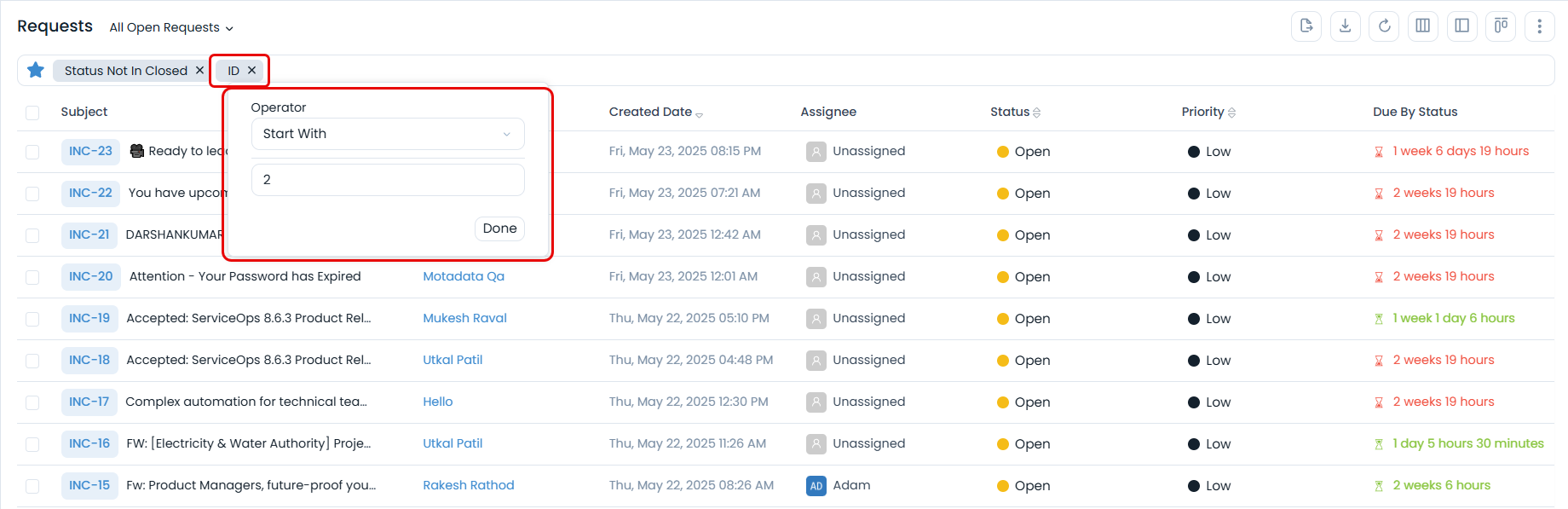
- Click anywhere in the search bar to open a dropdown menu of searchable fields.
- Select the required field from the list. A popup will appear to create a search condition.
- Select the operator (e.g., "In", "Not In", "Equals") and enter the search keyword or values.
- You can add multiple conditions to refine your search.
Using Pre-Defined Searches
The system provides a set of default search queries at the top of the page. You can use these pre-defined filters to quickly access common views. Your own saved searches will also appear in this section.

The following default searches are available in the Request module:
| Search Name | Meaning |
|---|---|
| All Open Requests | Shows all the requests that have Open status. |
| My Urgent or High Priority Requests | - Shows all the requests assigned to you. - The priority is high or urgent. - Status is not resolved or closed. |
| My Overdue Requests | - Shows all the requests assigned to you. - The request deadline has passed. |
| Unassigned Requests in My Group | - Shows the requests assigned to your technician group. - No specific technician is assigned to the request. |
| My Unresolved Requests | - Shows all the requests assigned to you. - Status is not resolved or closed. |
| Urgent or High Priority Requests in My Group | - Shows the requests assigned to your technician group. - Shows all the requests assigned to you. - Status is not resolved or closed. |
| All Requests | Shows all the requests without any search criteria. |
| All Incidents | Shows the incident requests. |
| All Service Requests | Shows the service requests. |
| All Spam Requests | Shows the spam requests. |
| All Archive Requests | Shows the archived requests. |
Saving and Managing Custom Search Queries
You can save any search query you build for future use.
After building your search query, click the hollow blue star icon to save it.

In the popup, provide a Name for the search and choose its visibility:
- Myself: The search will only be visible to you.
- All Technicians: The search will be visible to all technicians.
- Technicians In Group: The search will be visible only to technicians in a specific group that you select.

Once saved, the query will appear in the top bar, and its star icon will become solid blue.

You can modify your custom saved searches at any time to update the details or create a new search from it.

Saving a Filter for Archived Records
You can apply a custom filter to archived records and save it for future use. This functionality is available across all modules.

Related Topics
- You can learn more about managing records in the documentation for each specific module, such as Request Management, Problem Management, and Change Management.