Asset Movement Custom Fields
The Asset Movement Custom Fields feature allows administrators to design and customize the form used for asset movements. This ensures that all necessary structured information is collected when an asset is moved, improving tracking, auditing, and management.
As an administrator, you can add various custom fields to the Asset Movement Form to capture organization-specific information beyond the default fields.
Navigating to Asset Movement Custom Fields
- Go to Admin > Asset Management > Asset Movement Custom Fields. The following page will then appear.
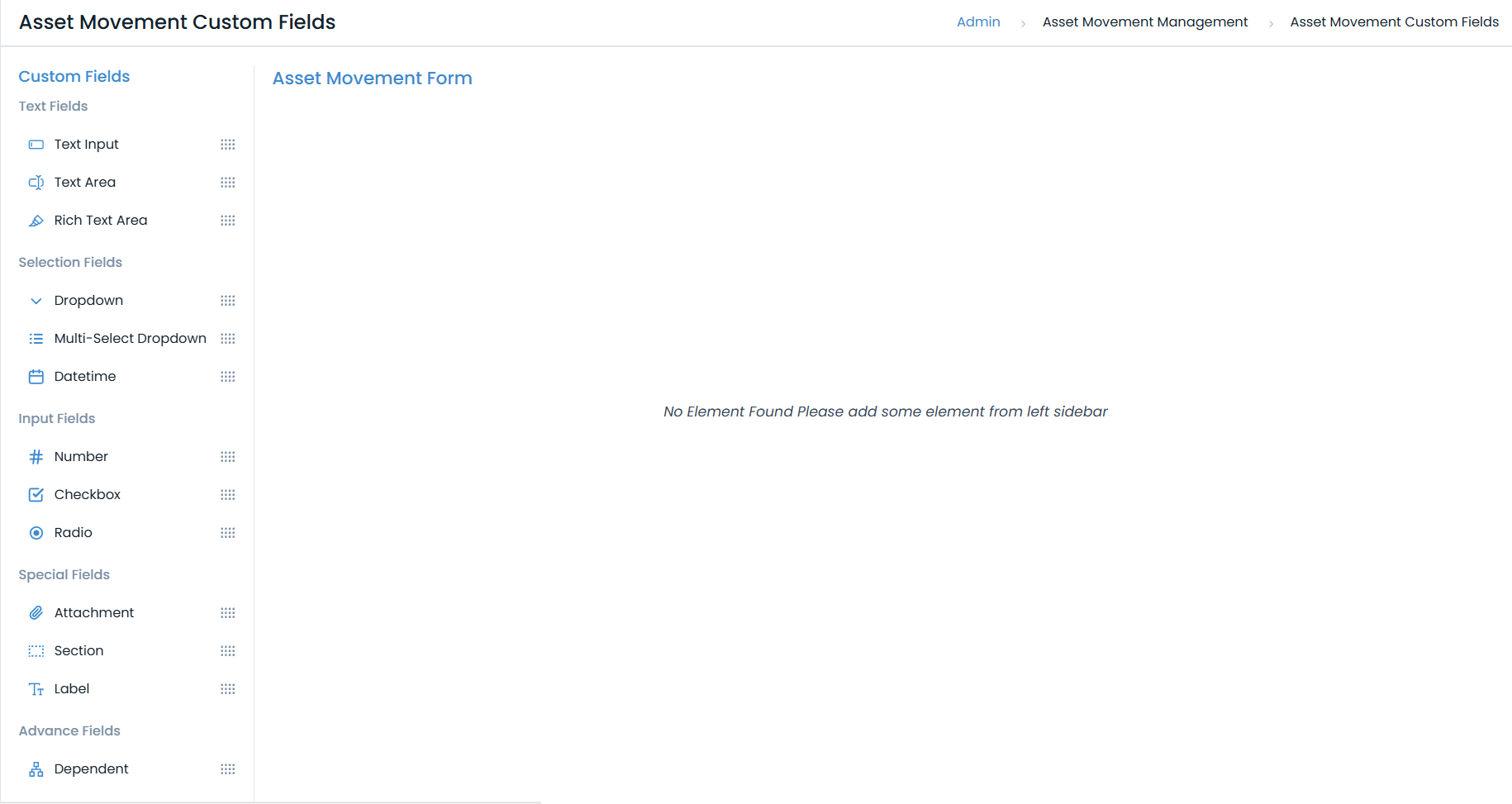
By default, the Asset Movement form is fixed and may not capture all organization-specific requirements, such as project codes, site details, or handover references. With the Custom Fields feature, administrators can add and configure additional fields to align with business processes.
Each custom field must be mapped to a Movement Type. Supported movement types include:
- Send to Repair
- Return from Repair
- Asset Transfer
When a technician initiates an asset movement, only the custom fields mapped to the selected movement type will appear in the form.
- The page displays two main areas:
- Custom Fields (Left Sidebar): A drag-and-drop palette with all available custom field types. For more details on the field parameters, refer to the Request Form.
- Asset Movement Form (Center): The main canvas where you can build the form. You drag fields from the left sidebar to this area to add them to the form.
When you hover over any field on the canvas, options appear, allowing you to reorder, edit, duplicate, or remove the field.
Custom Fields
The Custom Fields Pallet allows administrators to extend the form by adding new fields. These can be dragged and dropped into the form canvas.
Text Fields
Click to view the Text Fields
a. Text Input
- Description: A single-line text box for short inputs.
- Use Cases: Receiving person's name, Courier ID, transfer order number.
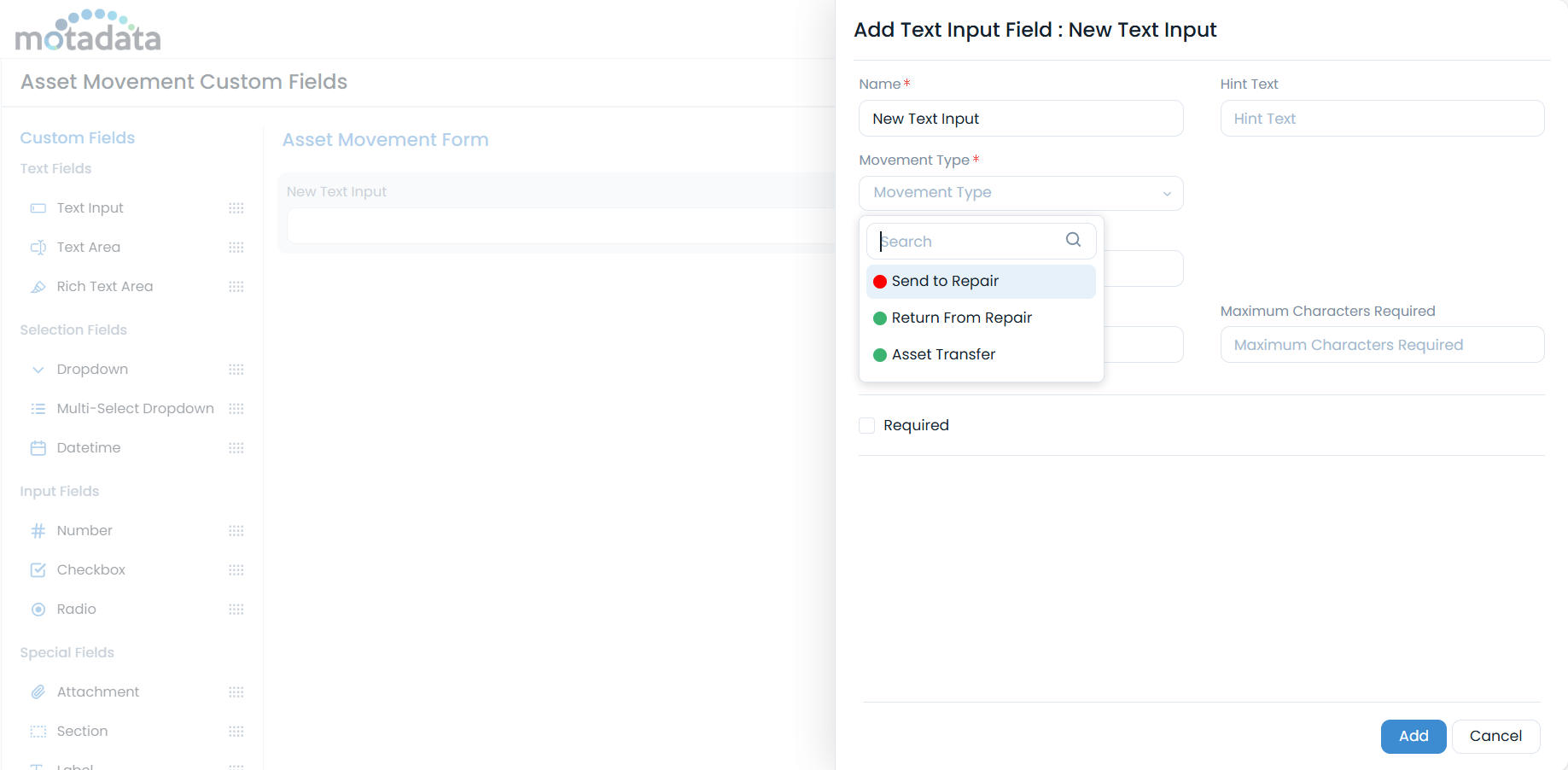
- Configuration Options:
- Name: The display label for the field.
- Hint Text: Placeholder text that appears in the field by default.
- Movement Type: Map the custom field to one or more asset movement types. Options include: Send to Repair, Return from Repair, and Asset Transfer. The field will appear on the form only when the selected movement type is initiated.
- Default Value: A predefined value for the field.
- Character Limits: Set minimum and maximum characters required.
- Permissions: Make the field mandatory.
b. Text Area
- Description: A multi-line input box for longer text responses.
- Use Cases: Reason for movement, comments on asset condition, delivery address.
- Configuration Options: Includes all
Text Inputoptions, but is designed for longer content. Movement Type mapping is also available, and the field will appear on the form only when the selected movement type is initiated.
c. Rich Text Area
- Description: A multi-line input box with a formatting toolbar for styled and media-rich content.
- Use Cases: Detailed movement justification with formatted text, images of asset condition before movement.
- Configuration Options: Similar to
Text Areabut with rich text capabilities. Additionally, you can map the custom field to one or more asset movement types. The field will appear on the form only when the selected movement type is initiated. For detailed information on its functionalities, refer to the Request Form Rich Text Area section.
Selection Fields
Click to view the Selection Fields
a. Dropdown
- Description: A single-choice selection list.
- Use Cases: Movement Type (e.g., Transfer, Repair, Disposal), Source Location, Destination Department.
- Configuration Options:
- Hint Text: Placeholder text that appears in the field by default.
- Default Value: Set a default selection.
- Options: Manually add, import, or export a list of choices.
- Movement Type: Map the custom field to one or more asset movement types. The field will appear on the form only when the selected movement type is initiated.
- Permissions: Make the field mandatory.
b. Multi-Select Dropdown
- Description: A list allowing multiple selections at once.
- Use Cases: Associated peripherals being moved, Required approvals.
- Configuration Options: Similar to the standard
Dropdown, but allows users to select more than one option. Options can also be imported or exported. Additionally, you can map the custom field to one or more asset movement types. The field will appear on the form only when the selected movement type is initiated.
c. Datetime
- Description: Allows users to select both a date and time.
- Use Cases: Scheduled movement date, expected delivery date, actual handover time.
- Configuration Options:
- Hint Text: Placeholder text that appears in the field by default.
- Movement Type: Map the custom field to one or more asset movement types. The field will appear on the form only when the selected movement type is initiated.
- Default Value: Can be set to the current date/time or a custom value.
- Allow to Select Time?: Enable or disable time selection alongside the date.
- Permissions: Make the field mandatory.
Input Fields
Click to view the Input Fields
a. Number
- Description: Accepts numeric input only.
- Use Cases: Quantity of items moved, cost of transportation, asset value.
- Configuration Options:
- Hint Text: Placeholder text that appears by default.
- Movement Type: Map the custom field to one or more asset movement types. The field will appear on the form only when the selected movement type is initiated.
- Default Value: Set a default numeric value.
- Allow Decimal in number?: Permit decimal values.
- Value Range: Set minimum and maximum required values.
- Permissions: Make the field mandatory.
b. Checkbox
- Description: Allows one or multiple check options.
- Use Cases: Confirming asset inspection, acknowledging terms, selecting included accessories.
- Configuration Options:
- Hint Text: Placeholder text that appears by default.
- Default Value: Pre-select one or more options.
- Options: Define the list of checkbox items. Options can also be imported or exported.
- Movement Type: Map the custom field to one or more asset movement types. The field will appear on the form only when the selected movement type is initiated.
- Permissions: Make the field mandatory.
- Display Option Vertically: Align the options vertically instead of horizontally.
c. Radio
- Description: Allows a single choice from multiple options, displayed inline.
- Use Cases: Asset condition (e.g., Good, Fair, Damaged), movement status (e.g., In-Transit, Delivered).
- Configuration Options:
- Movement Type: Map the custom field to one or more asset movement types. The field will appear on the form only when the selected movement type is initiated.
- Default Value: Set a default selected option.
- Options: Define the radio button choices. Options can also be imported or exported.
- Permissions: Make the field mandatory.
Special Fields
Click to view the Special Fields
a. Attachment
- Description: Lets users upload files.
- Use Cases: Photos of the asset, scanned transfer documents, approval emails.
- Configuration Options:
- Movement Type: Map the custom field to one or more asset movement types. The field will appear on the form only when the selected movement type is initiated.
- Button Text: Customize the label of the button (e.g., "Fetch Assets").
- Permissions: Make the field mandatory.
b. Section
- Description: A container used to group related fields together under a common heading.
- Use Cases: Grouping fields under "Source Details," "Destination Details," or "Condition Check."
- Configuration Options:
- Name: The title of the section.
- Movement Type: Map the custom field to one or more asset movement types. The field will appear on the form only when the selected movement type is initiated.
c. Label
- Description: A non-editable text block used to display static information or instructions on the form.
- Use Cases: Instructions for filling out the movement form, disclaimers regarding asset handling.
- Configuration Options: Set the display text. Movement Type mapping is also available, and the field will appear on the form only when the selected movement type is initiated.
Advanced Fields
Click to view the Advanced Fields
a. Dependent
- Description: Creates a parent-child relationship between fields, where the options in the child field depend on the selection made in the parent field.
- Use Cases:
- Location → Building → Floor
- Department → Cost Center
- Configuration Options:
- Hint Text: Placeholder text that appears by default.
- Movement Type: Map the custom field to one or more asset movement types. The field will appear on the form only when the selected movement type is initiated.
- Type: Can be based on a Custom list you create or a System Field (like Department, Location, or Category).
- Allow user to select leaf node only: Restrict selection to the final level of the hierarchy.
- Display Entire Hierarchy in Report: Shows the complete hierarchy of parent-child in report.
- Options: Define the radio button choices.
- Permissions: Make the field mandatory.
Summary Table – Custom Fields
| Field Type | Description | Example Use Case |
|---|---|---|
| Text Input | Single-line text entry | Courier ID |
| Text Area | Multi-line free text | Reason for movement |
| Rich Text Area | Text with formatting | Detailed movement justification |
| Dropdown | Single choice from list | Movement type |
| Multi-Select Dropdown | Multiple selections from list | Associated peripherals |
| Datetime | Pick date & time | Scheduled movement date |
| Number | Numeric value only | Quantity of items |
| Checkbox | Multiple checkable options | Confirming asset inspection |
| Radio | One selection from radio buttons | Asset condition |
| Attachment | File upload | Scanned transfer documents |
| Section | Group fields together | Source and Destination details |
| Label | Display static information | Instructions for asset handling |
| Dependent | Parent-child field relationship | Location → Building → Floor mapping |
Best Practices for Using Custom Fields
- Keep it Relevant: Only add fields that are necessary for tracking and managing asset movements.
- Use Mandatory Fields Wisely: Make fields mandatory only when the information is critical for the movement process.
- Group Related Information: Use
Sectionfields to organize the form into logical parts, such as "Source Information," "Destination Information," and "Asset Condition." - Provide Clear Instructions: Use
Labelfields and hint text to guide users on how to fill out the form correctly. - Standardize Inputs: Use
Dropdown,Checkbox, andRadiofields instead ofText Inputwhere possible to ensure consistent and structured data capture, which is easier for reporting.