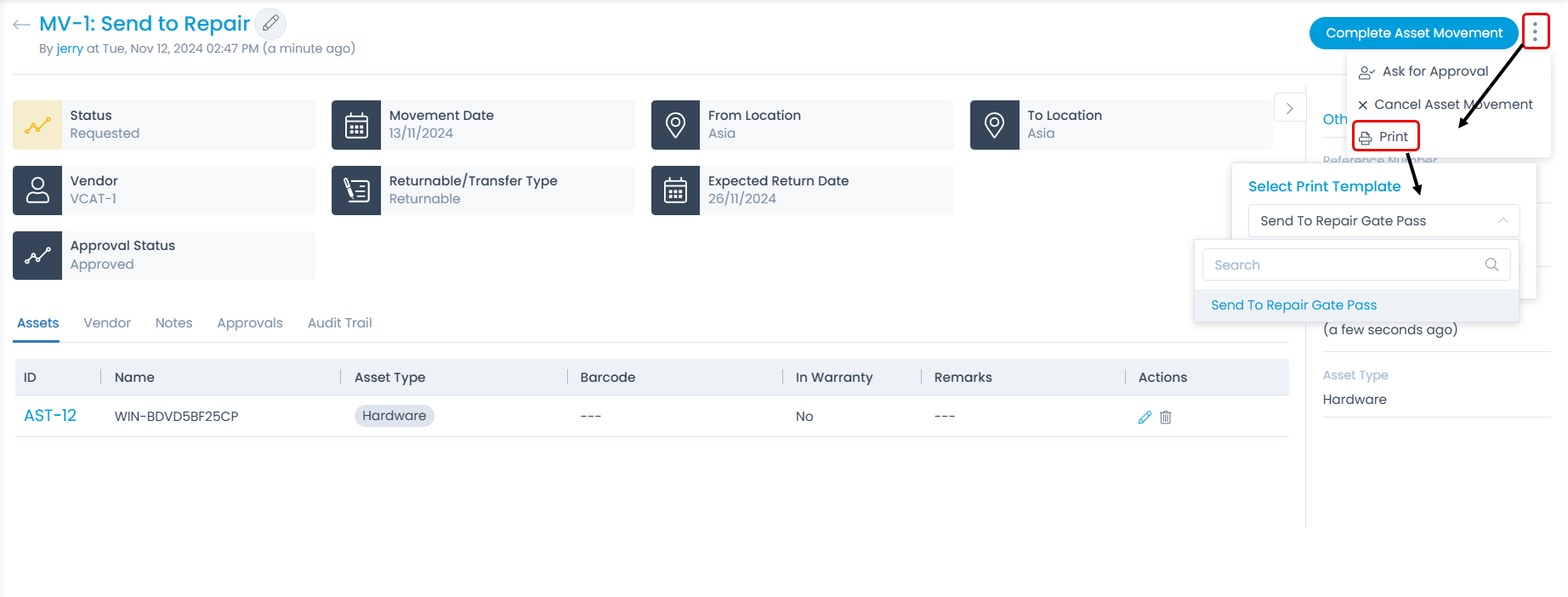
Print Templates
This page enables you to create templates for printing asset and asset movement forms. These templates allow you to print the required details for assets and asset movements.
To view the Print Templates page, navigate to Admin > Asset Management > Print Templates.
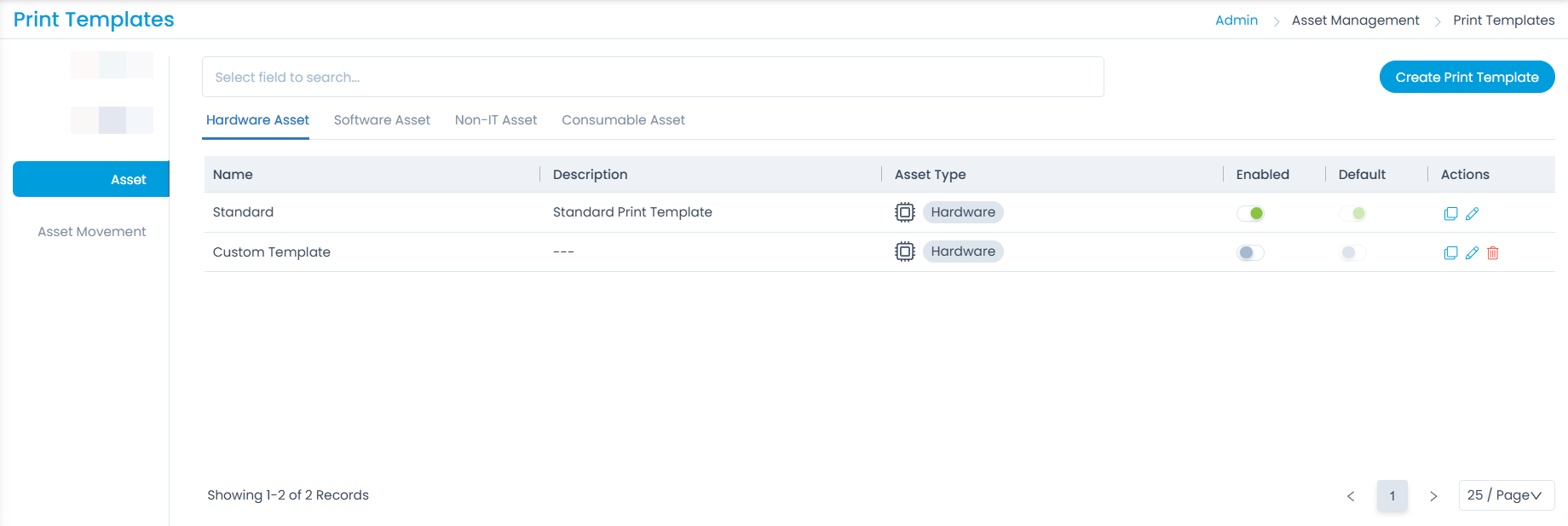
Here, you can create print templates for assets and asset movement gate passes.
Asset
In this tab, you can create and manage asset templates according to your organizational requirements.
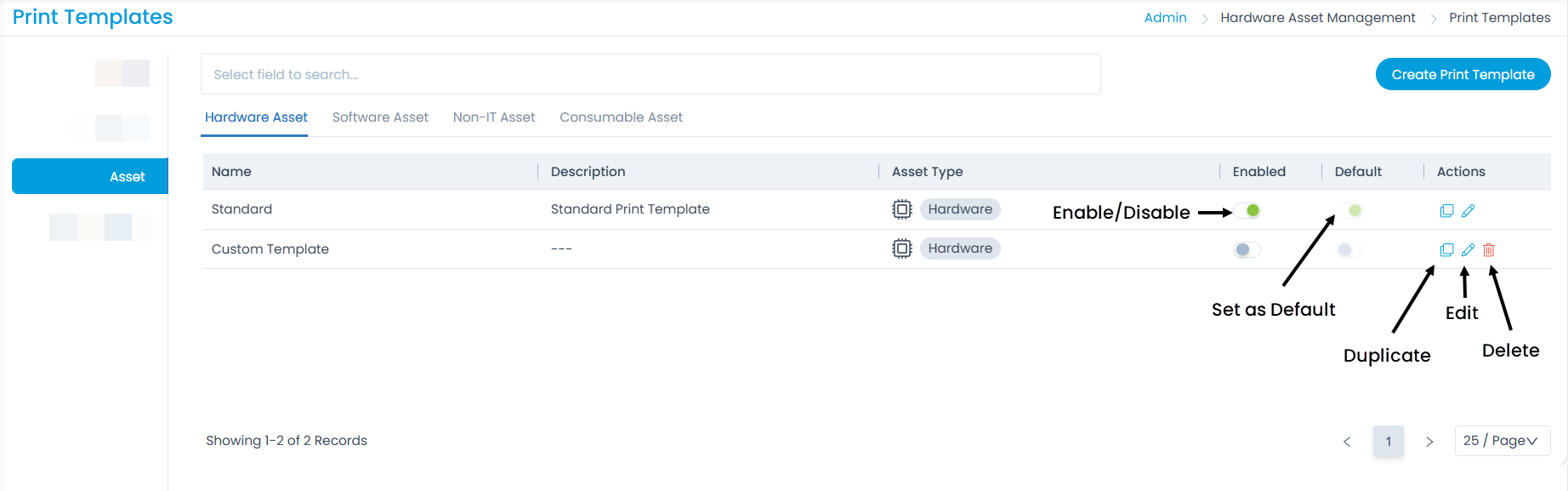
Here, you can perform the following actions:
- Search: Search for entries based on the Name column.
- Create Print Template: Create a new print template.
- Enabled: Enable or disable a print template.
- Set as Default: Set a print template as the default.
- Duplicate: Create a duplicate print template.
- Edit: Edit an existing print template.
- Delete: Delete the template if it is no longer required. A confirmation message appears. Click Yes to continue or Cancel to stop the process.
Create Print Template
To create a print template, follow these steps:
- Click the Create Print Template button. A popup window will then appear.
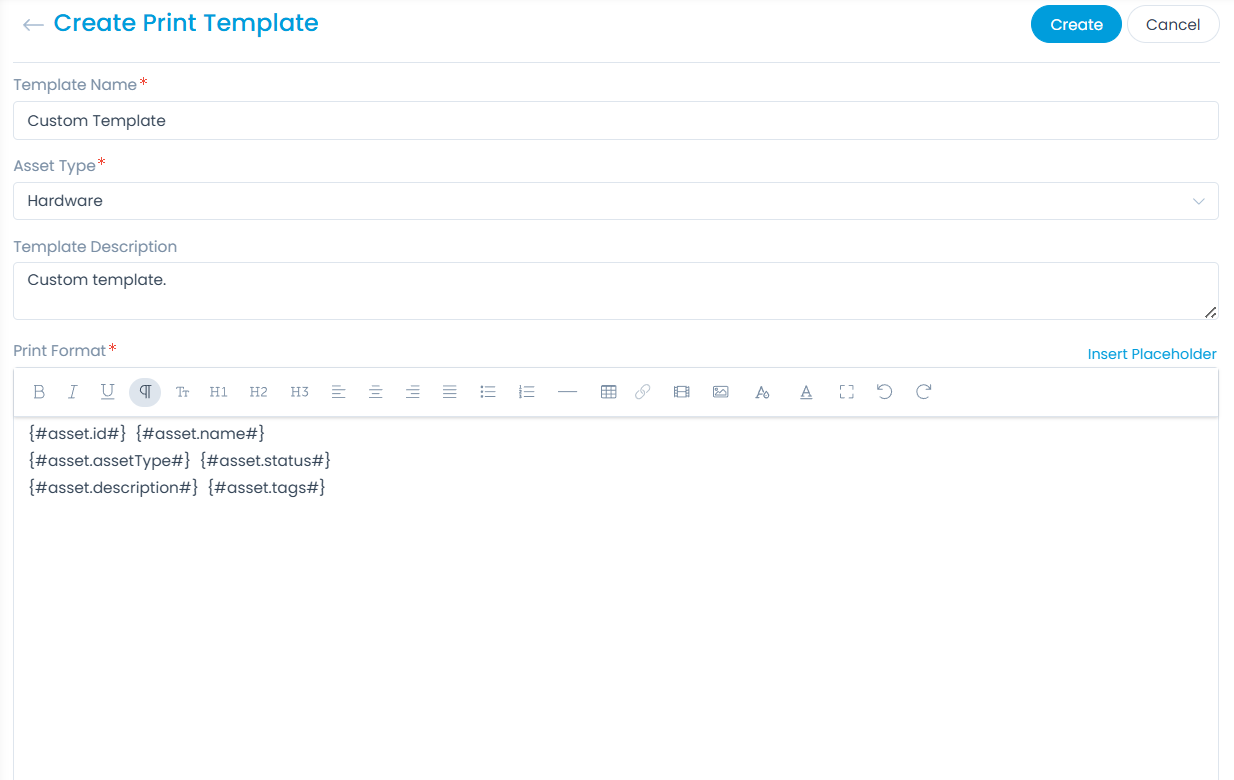
- Enter the following details:
| Parameter | Description |
|---|---|
| Template Name | Enter the name of the template. |
| Asset Type | Select the asset type for which you want to create the template. |
| Template Description | Enter a short description of the template. |
| Print Format | Create the format you want to use as a template for printing asset details. You can also use placeholders to include the required details. |
- Once completed, click Create. The created template will then appear on the Asset Details page when editing.
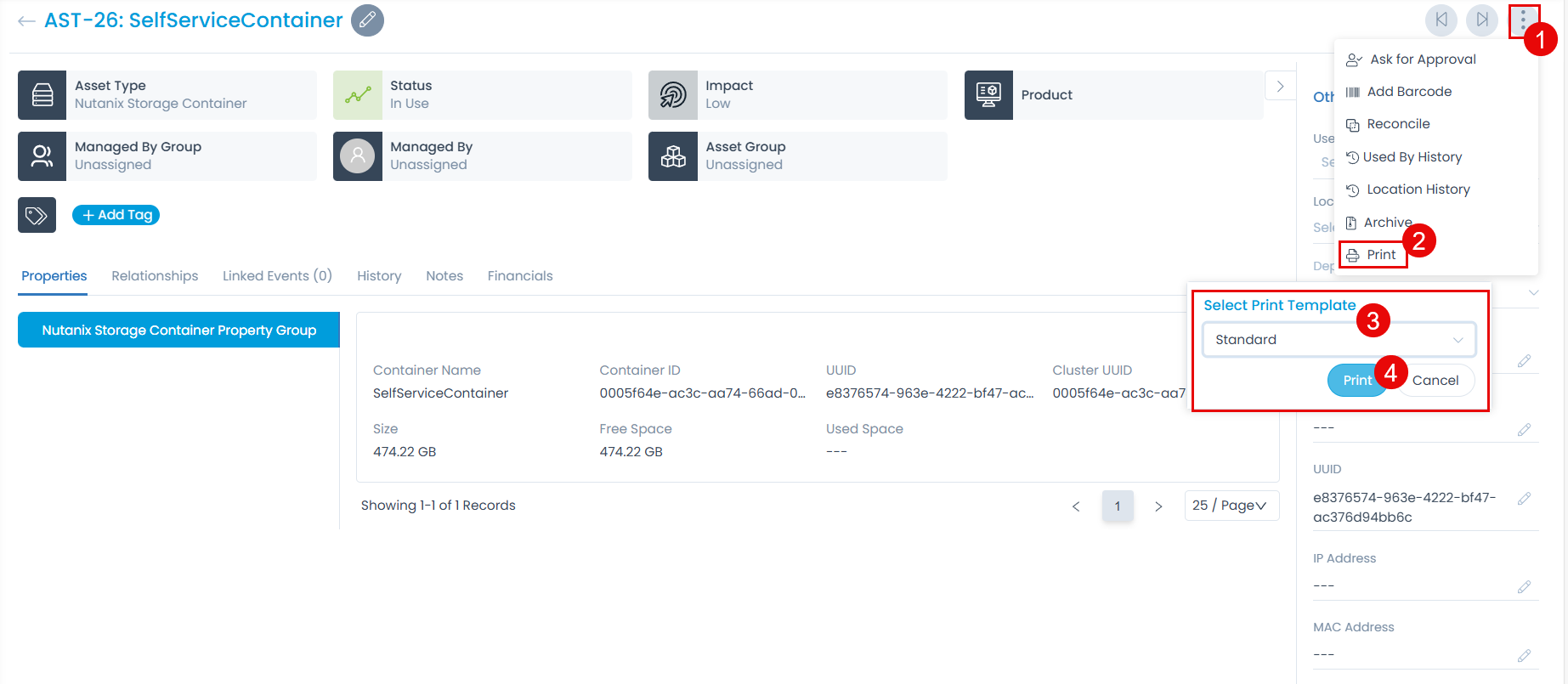
Asset Movement
In this tab, you can create and manage templates for asset movement gate passes (Send to Repair, Return from Repair, and Asset Transfer) according to your organizational requirements.
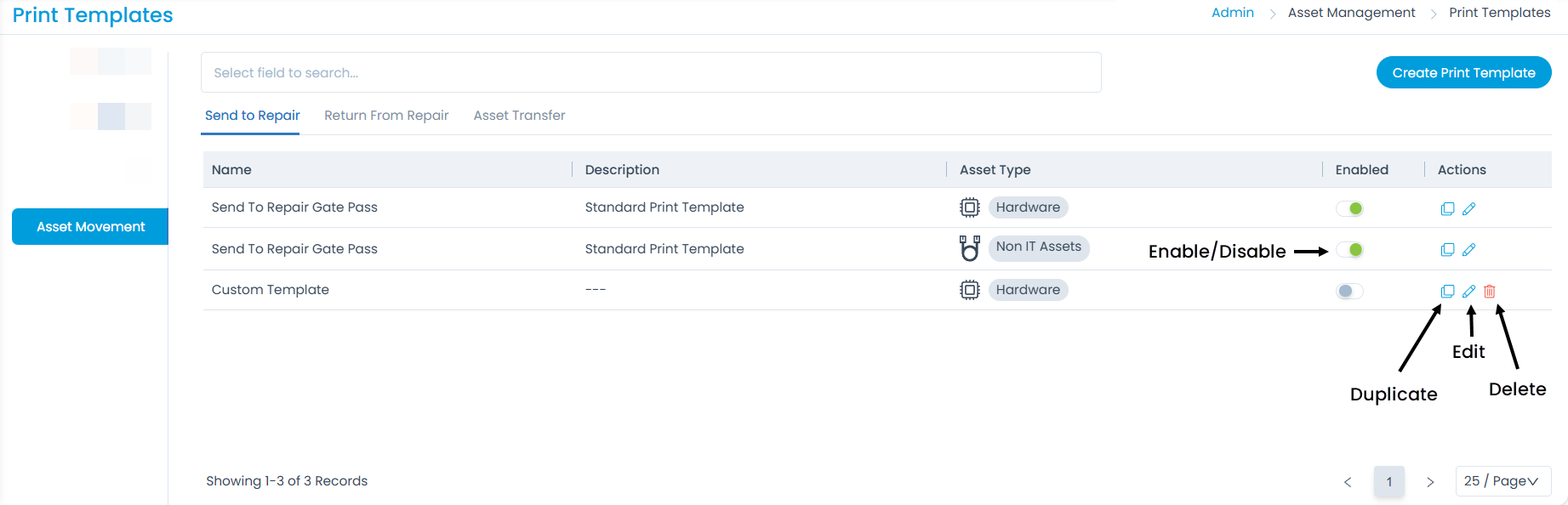
Here, you can perform the following actions:
- Search: Search for entries based on the Name column.
- Create Print Template: Create a new print template.
- Enabled: Enable or disable a print template.
- Duplicate: Create a duplicate print template.
- Edit: Edit an existing print template.
- Delete: Delete the template if it is no longer required. A confirmation message appears. Click Yes to continue or Cancel to stop the process.
Create Print Template
To create a print template, follow these steps:
- Click the Create Print Template button. A popup window will then appear.
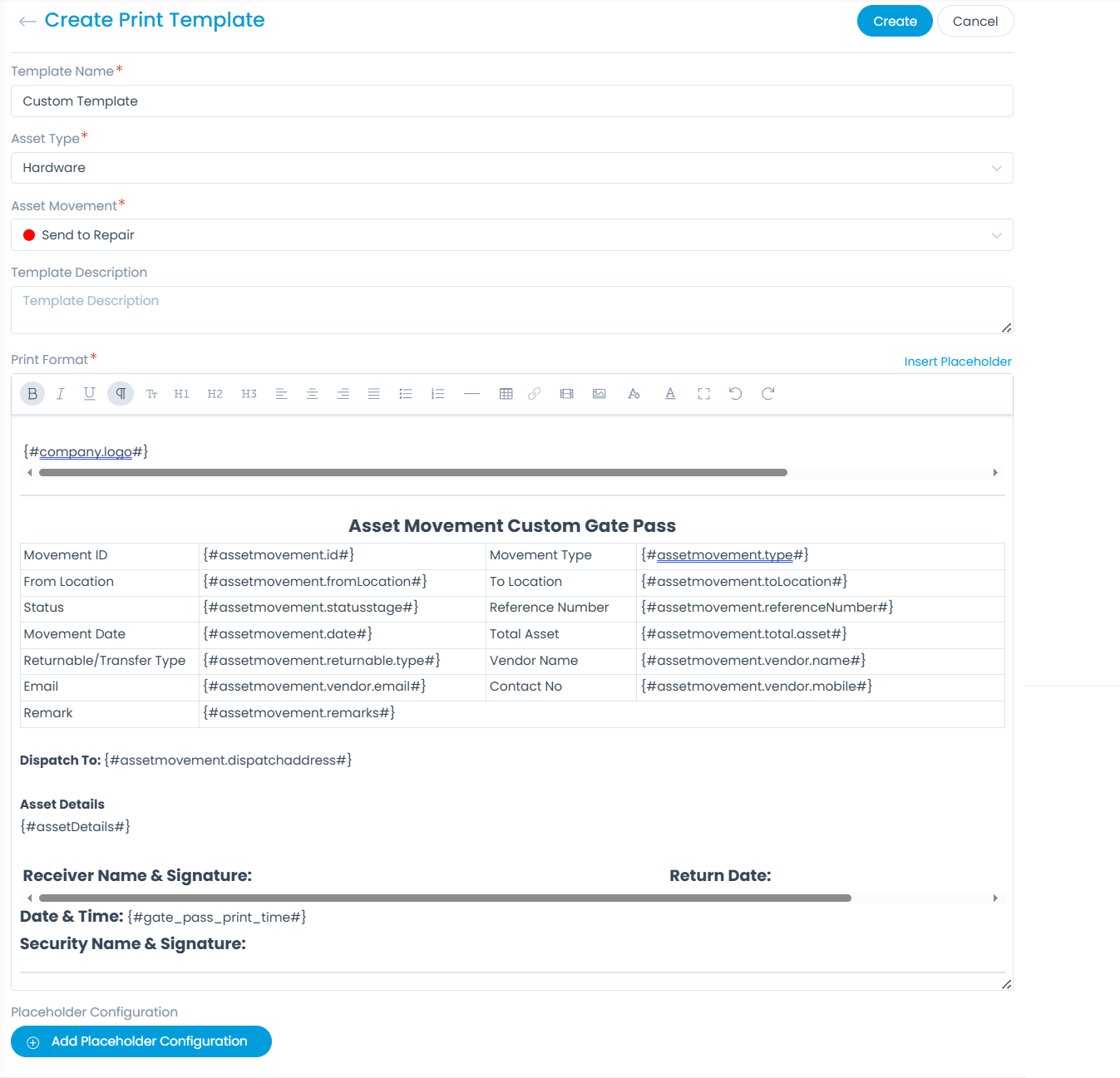
- Enter the following details:
| Parameter | Description |
|---|---|
| Template Name | Enter the name of the template. |
| Asset Type | Select the asset type for which you want to create the template. |
| Asset Movement | Select the type of asset movement. Options include: Send to Repair, Return from Repair, and Asset Transfer. |
| Template Description | Enter a short description of the template. |
| Print Format | Create the format you want to use as a template for printing asset details. You can also use placeholders to include the required details. |
- Once completed, click Create. The created template will then appear on the Asset Movement Details page when editing.