Asset Status
Asset Status determines the progress of asset tickets at each stage. This allows you to track work done or pending on a ticket, enabling appropriate actions. The system provides default status values that are ready for use.
To view the Asset Status page, navigate to Admin > Asset Management > Asset Status > Asset tab.
Here, you can manage ticket statuses, edit status names, set the default status, and change the color of status values to match your organization’s theme.
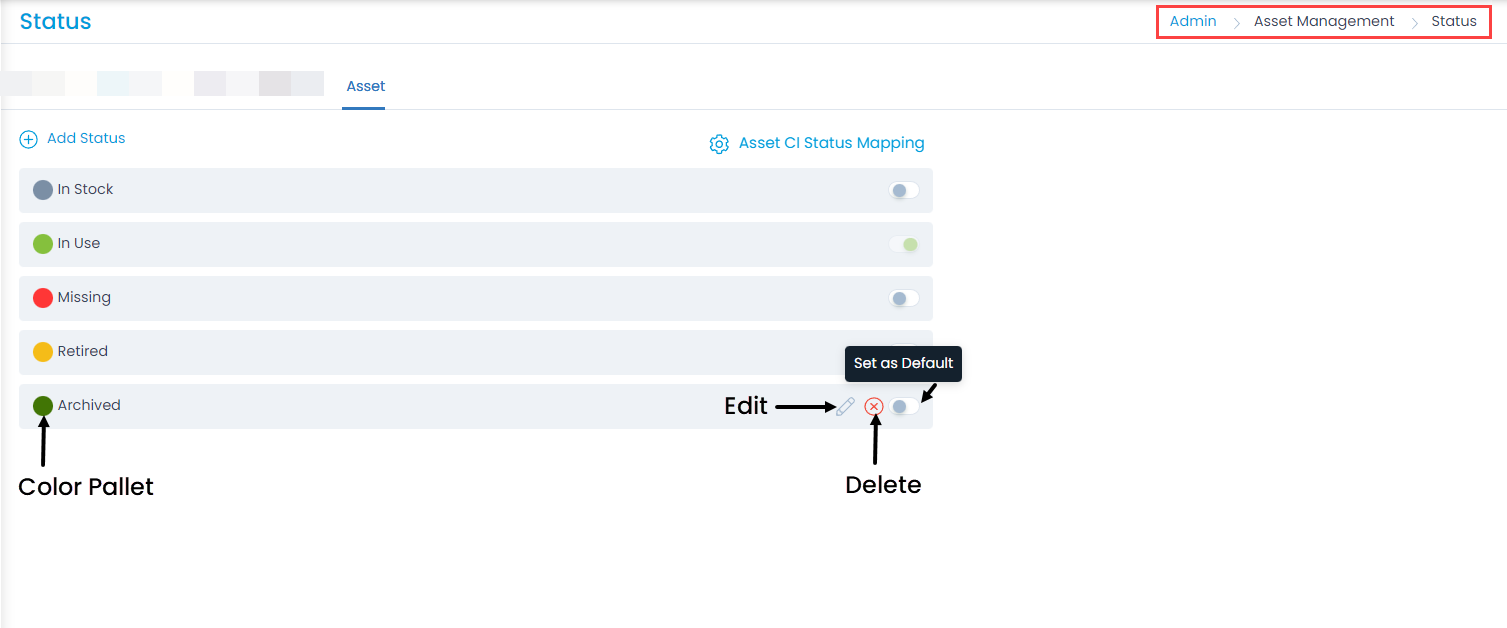
Here, you can do the following:
- View and edit the default status.
- Add and manage custom statuses.
- Reorder the statuses using drag and drop.
- Set the default status of the ticket when a new asset is added.
Add Status
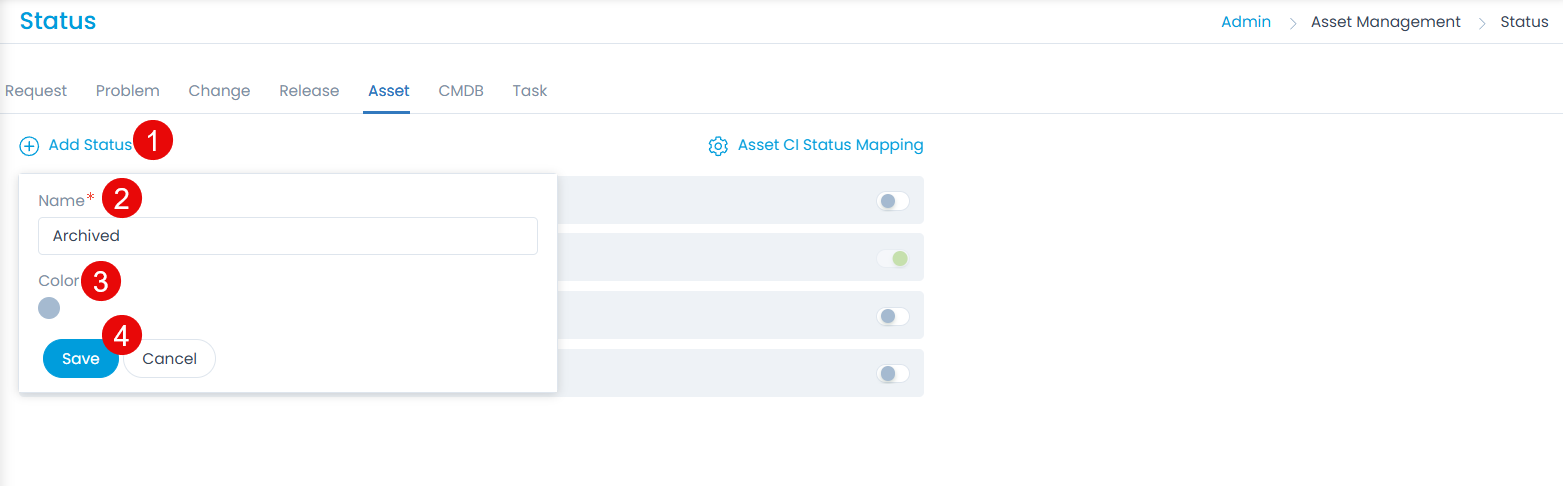
To add a custom status,
- Click the Add Status link.
- Enter the Name of the status.
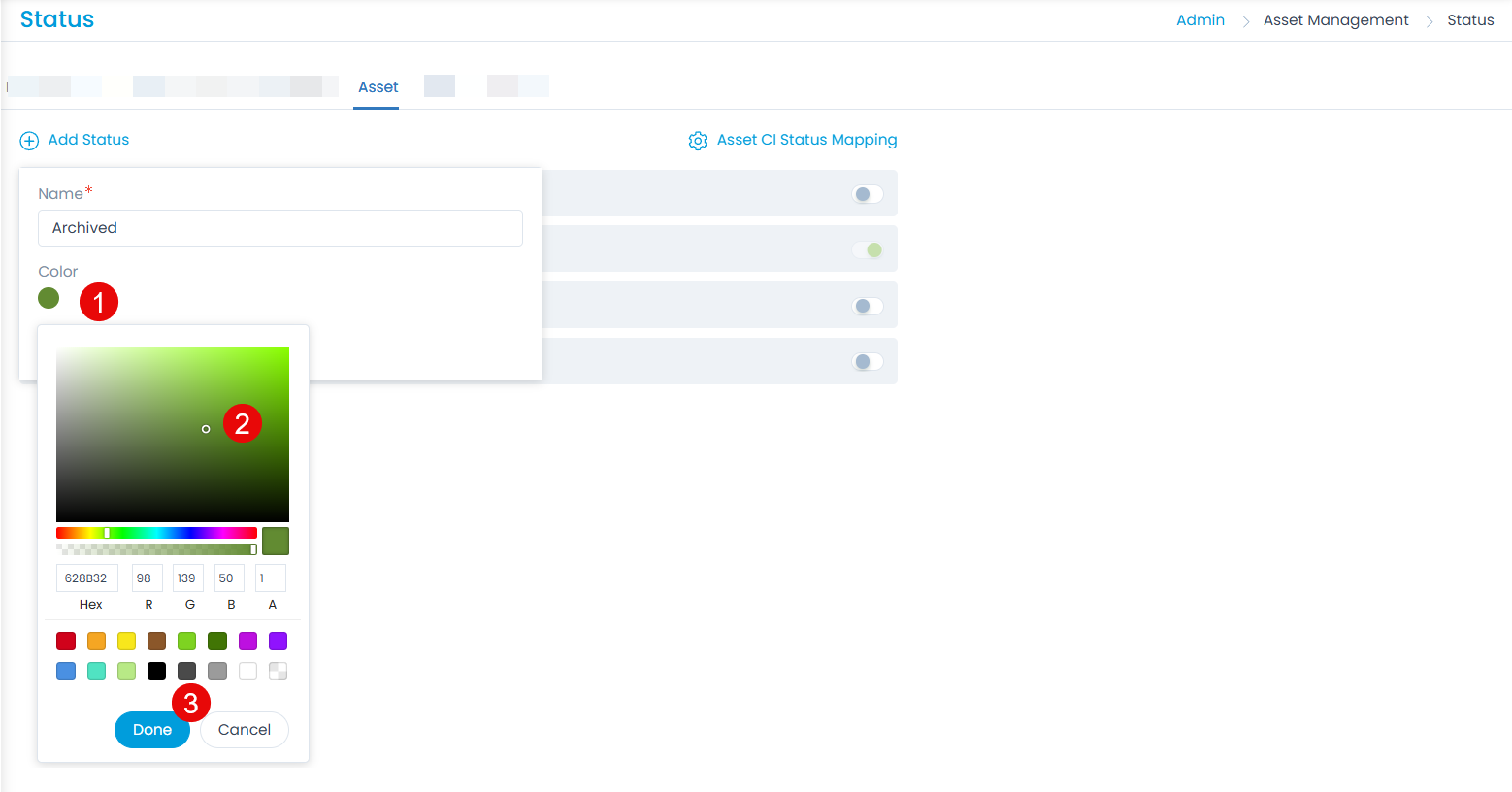
- Select the color or enter the hexadecimal code by clicking the color palette icon.
- Click Save.
- Once added, you can edit or delete the custom status. You can only edit, but not delete, the default statuses.
Asset CI Status Mapping
This enables mapping Asset status values with CI status. You can also map custom statuses.
note
- Status mapping will function only for assets/CIs discovered or polled through Discovery.
- Only unique Asset-CI pair mappings will be allowed.
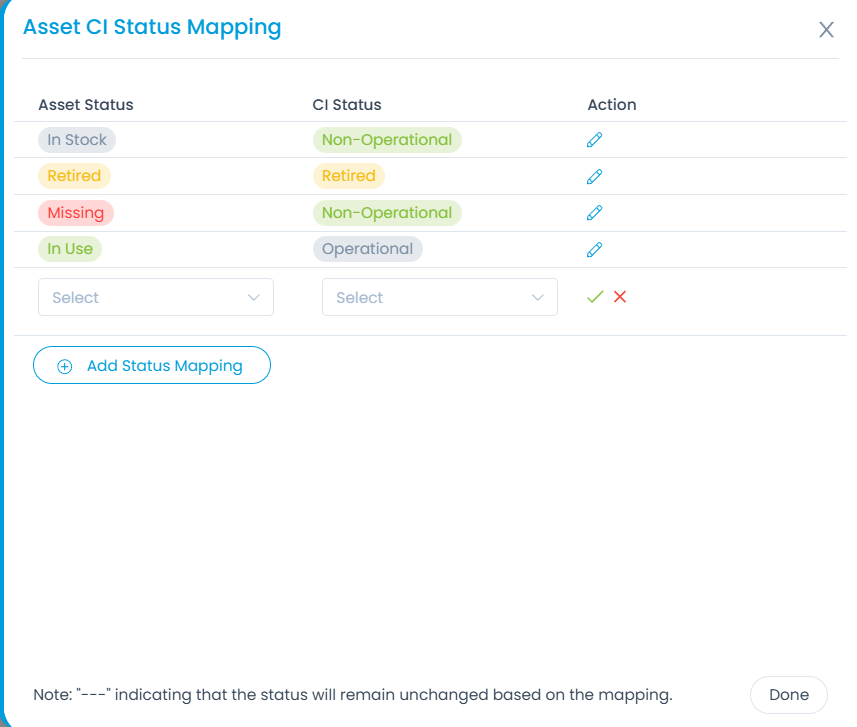
To map any status,
- Click the Add Status Mapping button.
- Select the Asset status and CI Status values that you want to map from the respective dropdowns.
- Once done, click Done.
- Now, when the status of the Asset will change, the status of the CI associated with it will also change as per the mapping configured.