Asset Categories
Categories allow you to group similar assets, which helps technicians filter required assets easily and quickly from a large list. The system provides the following categories by default:
- Restricted
- Public
- Secret
- Confidential
- Internal
To view the Asset Category page, navigate to Admin > Asset Management > Asset Categories > Asset tab.
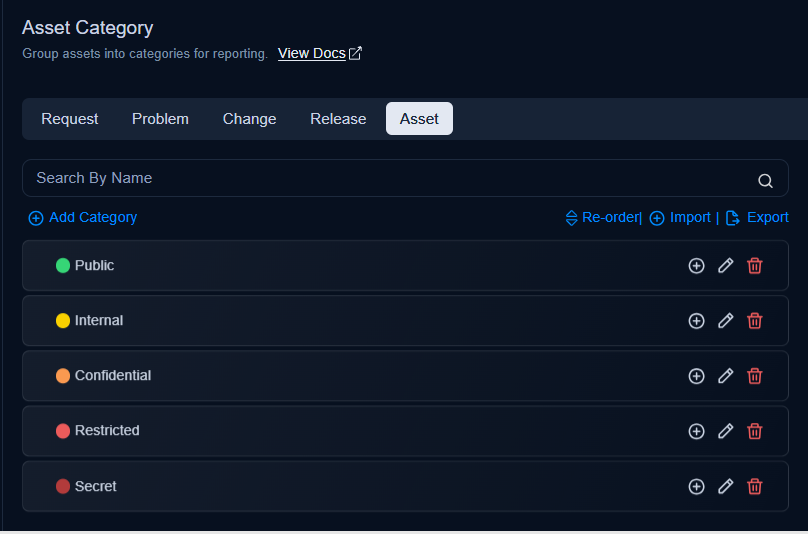
Here, you have the following options, which are common across the Request, Problem, Change, and Release tabs:
- Search: Search for a category by name from the list.
- Add Category: Add a category. For more details, refer to the Request Category link.
- Import Categories: Import a list of categories in bulk. For more details, refer to the Import Request Category link.
- Re-Order: Reorder categories in the list using drag and drop. You can also reorder subcategories.
- Category Configurations: Configure the settings for asset creation. For more details, refer to the Request Category link.
- Add Sub Category: Add a sub-category. For more details, refer to the Request Category link.
- Edit: Edit the category name.
- Delete: Delete the category if it is no longer required. A confirmation message appears. Click Yes to continue or Cancel to stop the process.