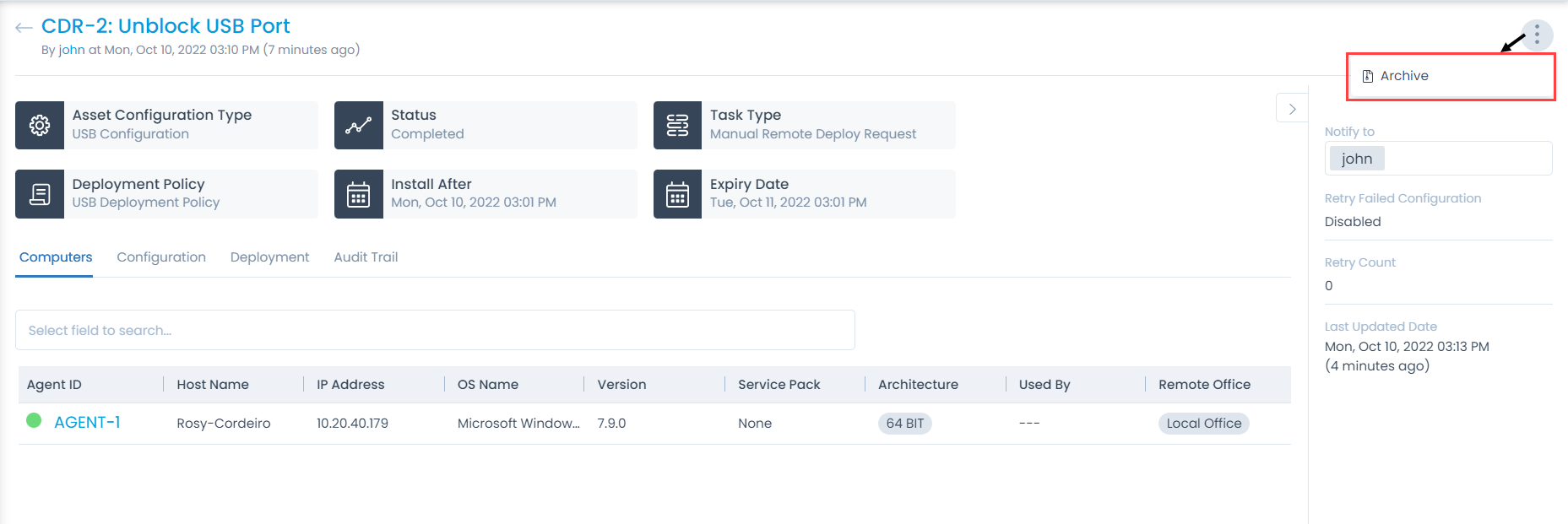
USB Configuration Deployment Details Page
On the USB Configuration Deployment Details page, you can view and edit the complete configuration details and perform the desired actions.
To view the details, from the list page, click on the ID. The following page appears.
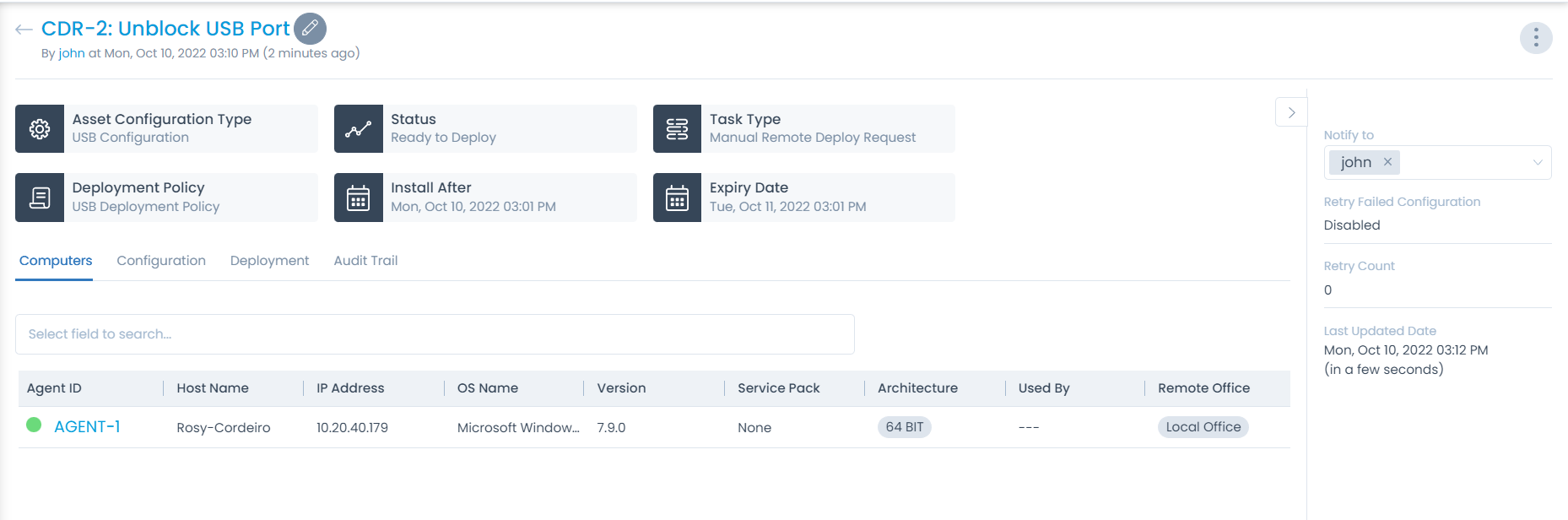
Edit
To edit the configuration deployment details, click the edit (Pencil) icon. The following page appears.
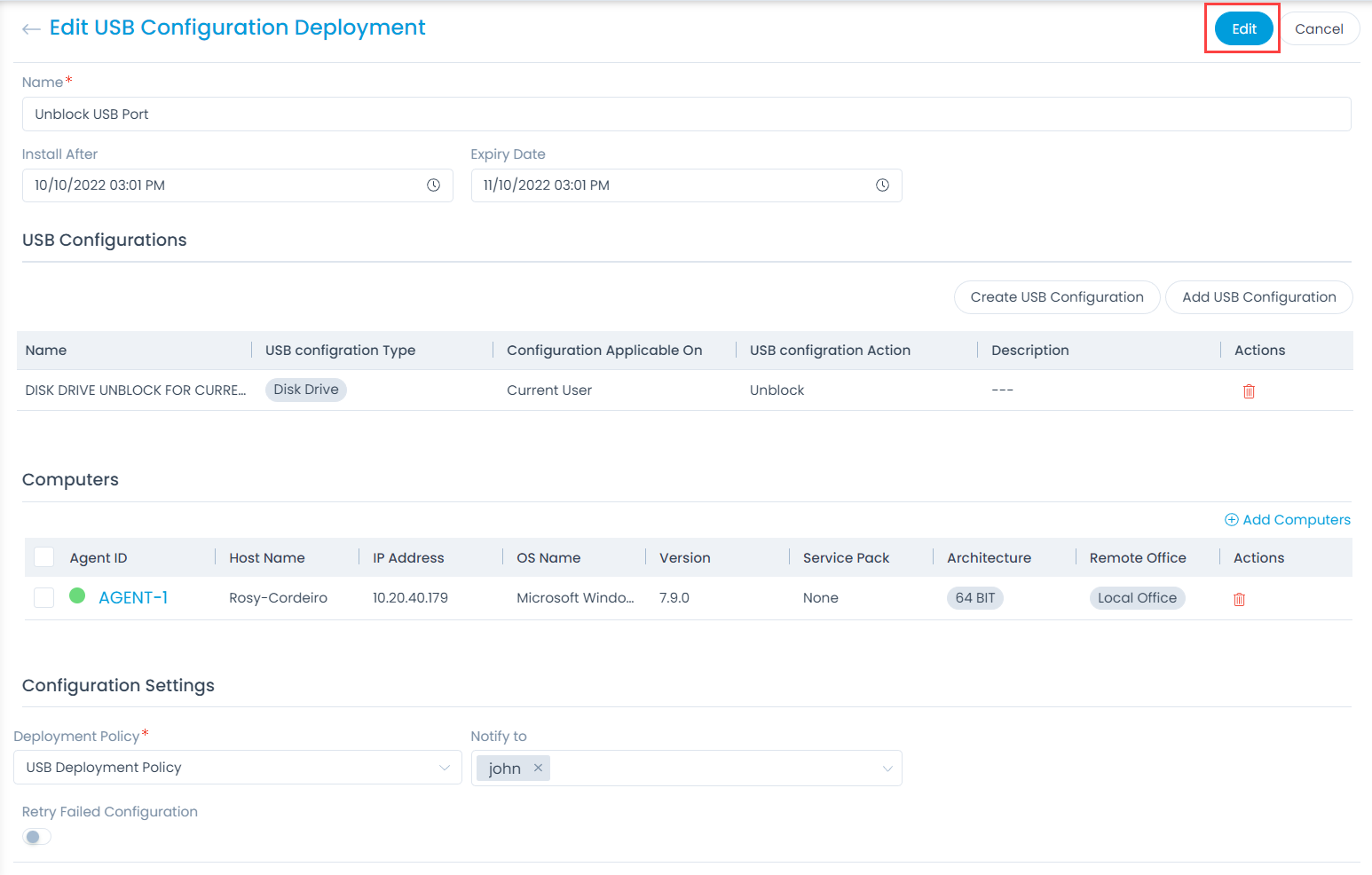
Edit the required details and click Edit to save. For more details, refer to the link Create USB Configuration Deployment.
Classifiers
These properties tell you the current statistics of the configuration deployment and help you classify it under the different labels. When someone works on a USB Configuration deployment, they update the labels accordingly.

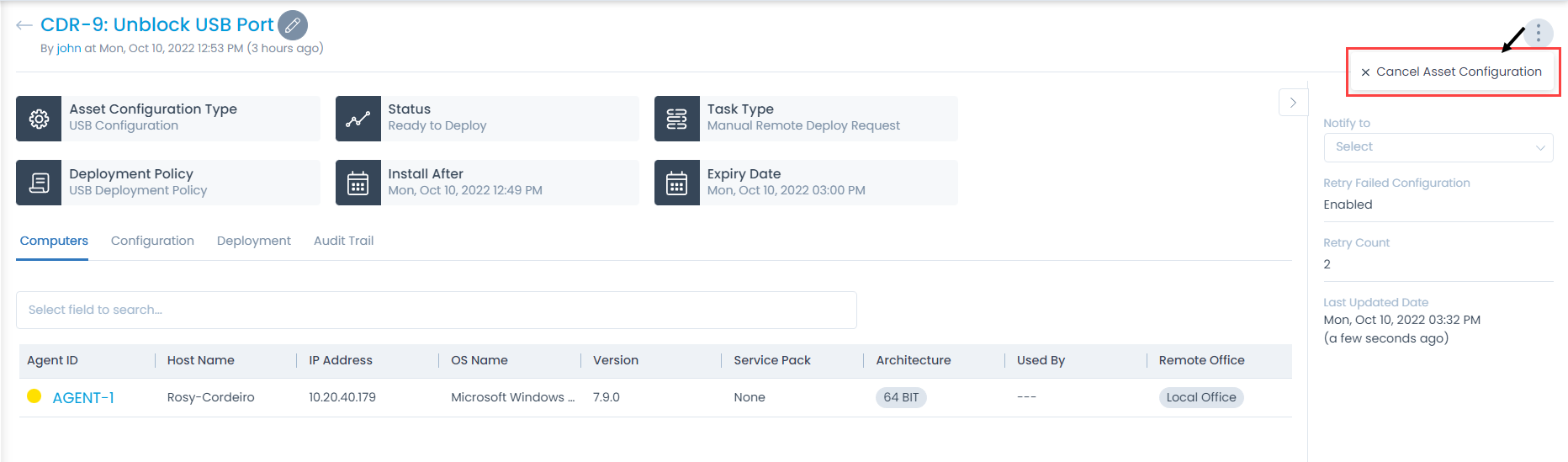
- Asset Configuration Type: Displays the type of asset configuration.
- Status: Displays the current status of the deployment. The values are Ready to Deploy, In Progress, and finally Completed.
- Task Type: Displays the type of the deployment.
- Deployment Policy: Displays the policy selected for the deployment.
- Install After: Displays the date after which the deployment is to be initiated.
- Expiry Date: Displays the expiry date mentioned for the deployment.
Associated Actions
You can create or update actions and activities as part of communication, collaboration, and issue resolution for the configuration deployment. The available action types are:
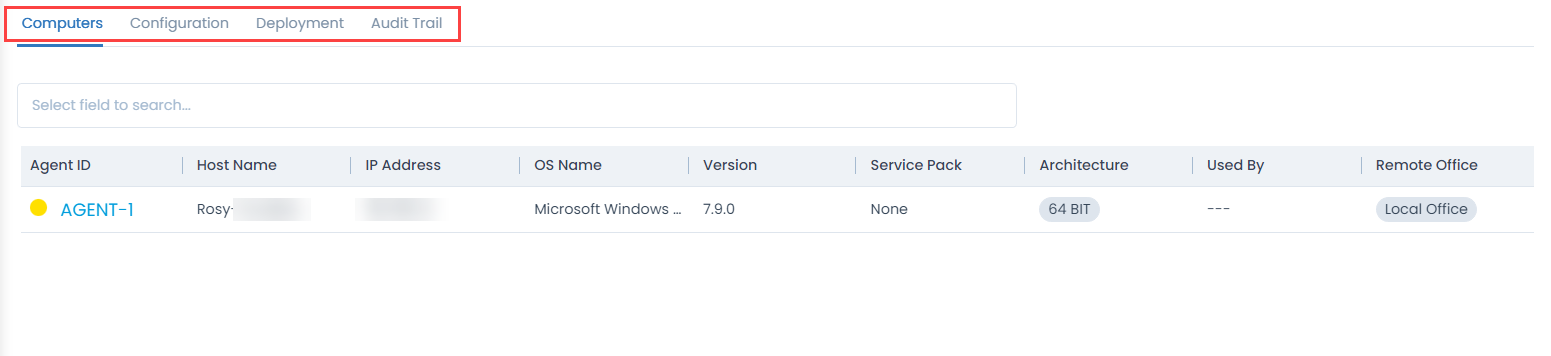
- Computers: View the list of computers (agents) for configuration deployment.
- Configuration: View the list of packages affected by the selected package.
- Deployment: View the installation packages for the selected package.
- Audit Trail: View the activity log for all actions related to the package.
Other Information
The other information displays additional details about the USB Configuration deployment.
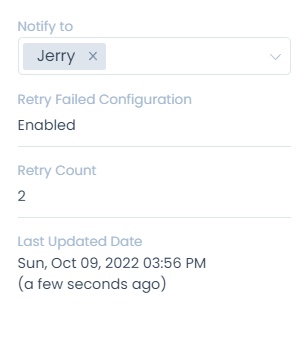
- Notify: Select the users to be notified about the deployment from the dropdown.
- Retry Failed Configuration: Displays if the retry configuration is enabled or disabled.
- Retry Count: Displays the number of retries, if enabled.
- Last Updated Date: Displays the date when the deployment was last updated.
Cancel Asset Configuration
To cancel the deployment process:
- Click the More Options icon (vertical 3 dots) and select the option Cancel Asset Configuration.
- A confirmation dialog appears. Click Yes to continue or No to stop the process.
Archive
To archive the deployment request:
- Click the More Options icon (vertical 3 dots) and select the option Archive.
- A confirmation dialog appears. Click Yes to continue or No to stop the process.
This option appears when the deployment status is either cancelled or completed.