Discovery Service
Track the status of every discovery scan, monitor live asset counts, and review completed scan results from a single page.
The Discovery Service page lists all scans triggered manually or by a schedule. It updates in real time so you can follow a running scan without navigating away.
To access Discovery Service, navigate to Admin > Discovery and Agents > Discovery > Discovery Service.
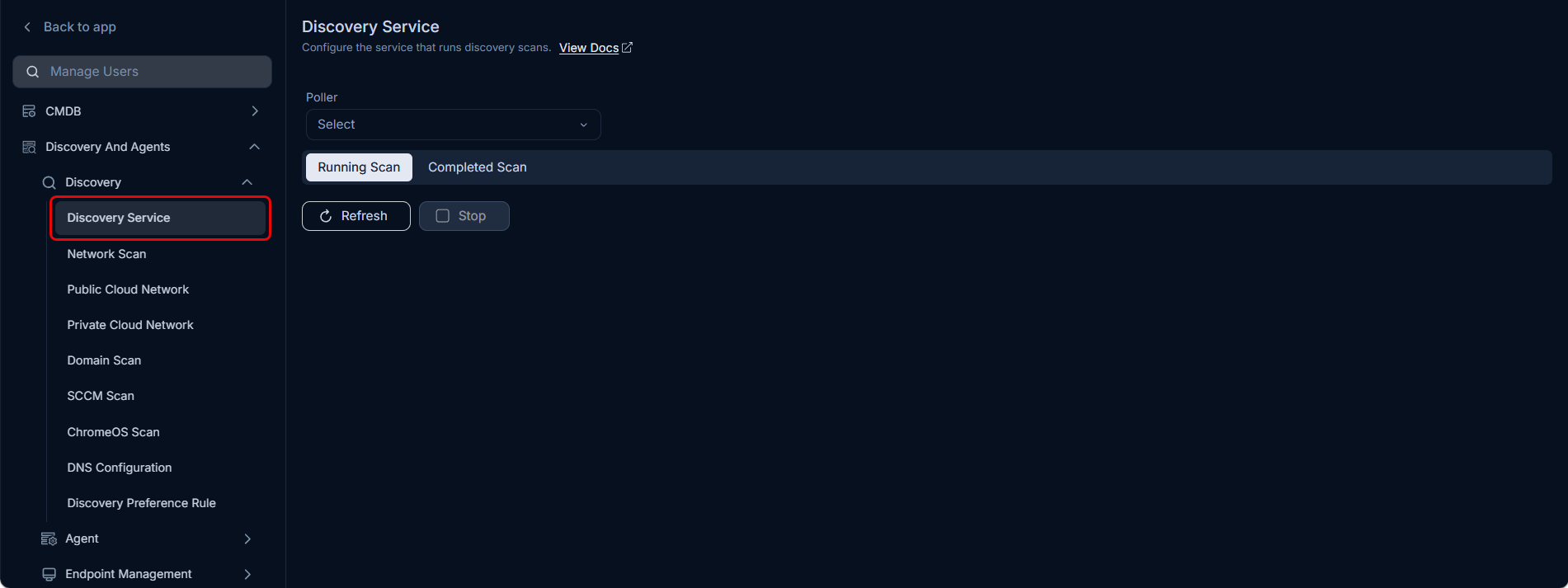
Pending Scan
The Pending Scan tab lists scans queued for execution. Once a scan starts, it moves to the Running Scan tab.
This tab is visible only when a Poller service is selected.
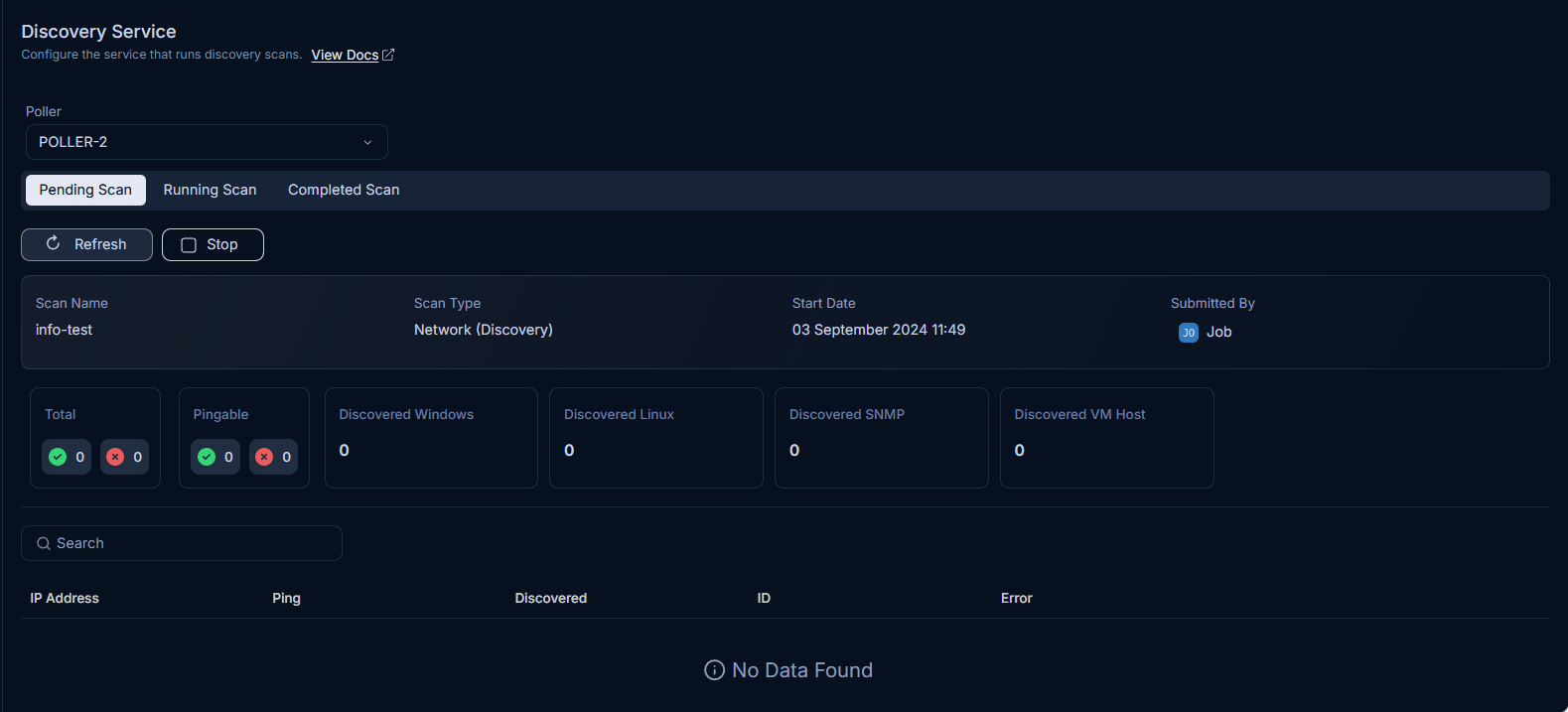
Running Scan
The Running Scan tab shows all scans currently in progress with live counters.
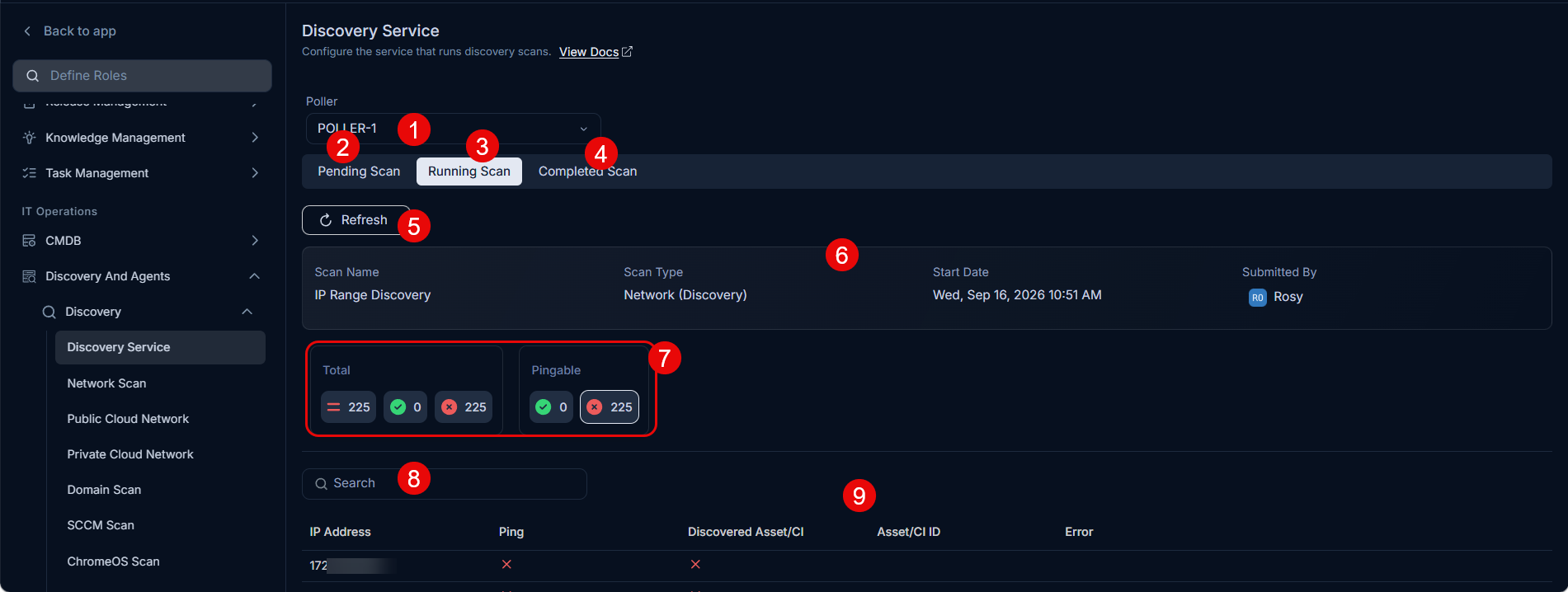
The tab provides the following information and controls:
- Poller: Select the Poller service to filter scan results by that Poller.
- Pending Scan: Switch to the Pending Scan tab. Available only when a Poller is selected.
- Running Scan: View ongoing scans with live status updates.
- Completed Scan: Switch to the Completed Scan tab to view finished scans.
- Refresh: Reload the page to pull the latest asset counts.
- Scan Details: Displays the scan name, scan type, start date and time, and the user who submitted the scan.
- Discovery Details: Shows a breakdown of Total Assets, Pingable Assets, Discovered Assets, and Not Discovered Assets.
- Search: Filter the IP address list by entering a specific IP address.
- IP Address List: Lists each IP address that was pinged or discovered, along with the corresponding asset ID.
Completed Scan
The Completed Scan tab displays the results of finished scans.
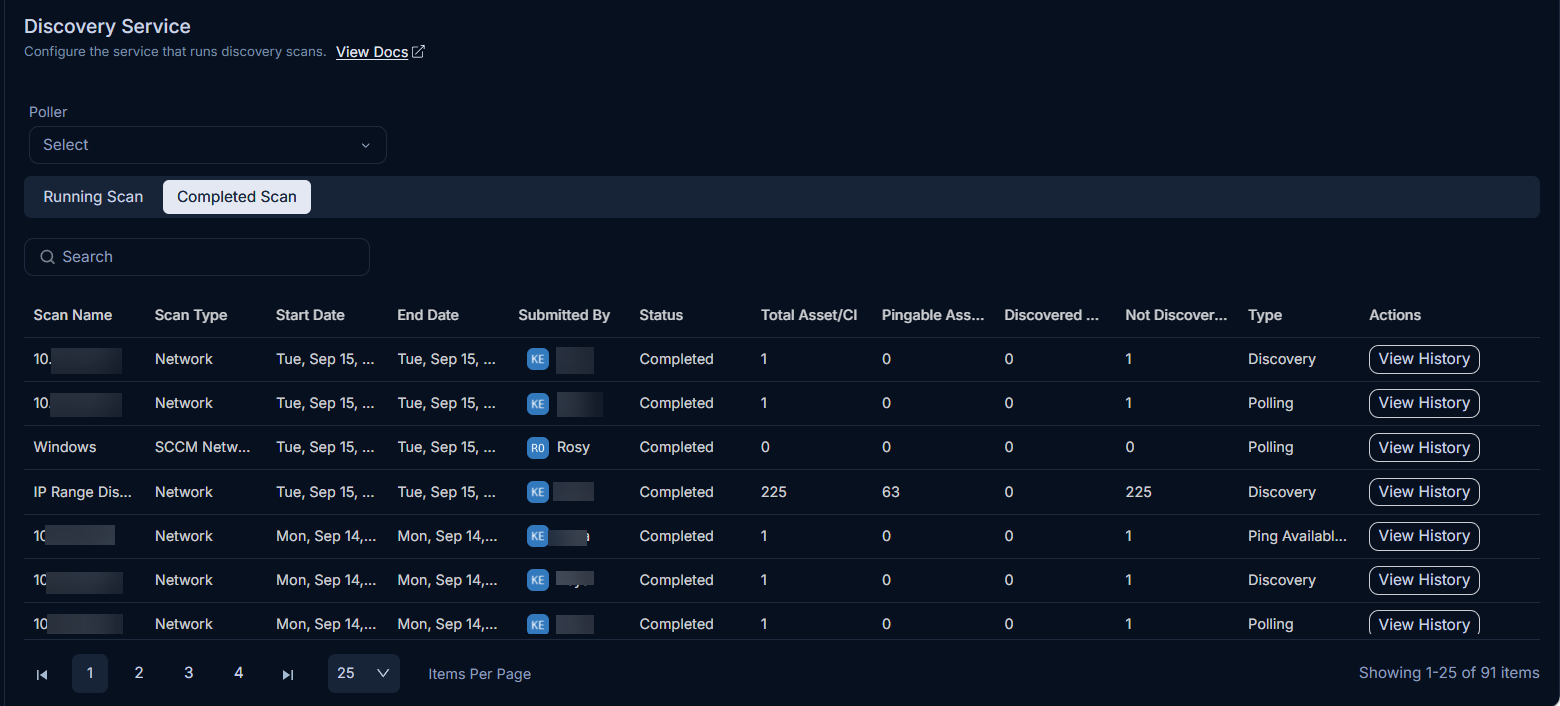
Click View History to open a detailed breakdown of the scan results. The popup shows the success and failed counts, along with a breakdown by asset type: Total Assets, Pingable, Not Pingable, Discovered Windows, Linux, SNMP, and VM Host assets.
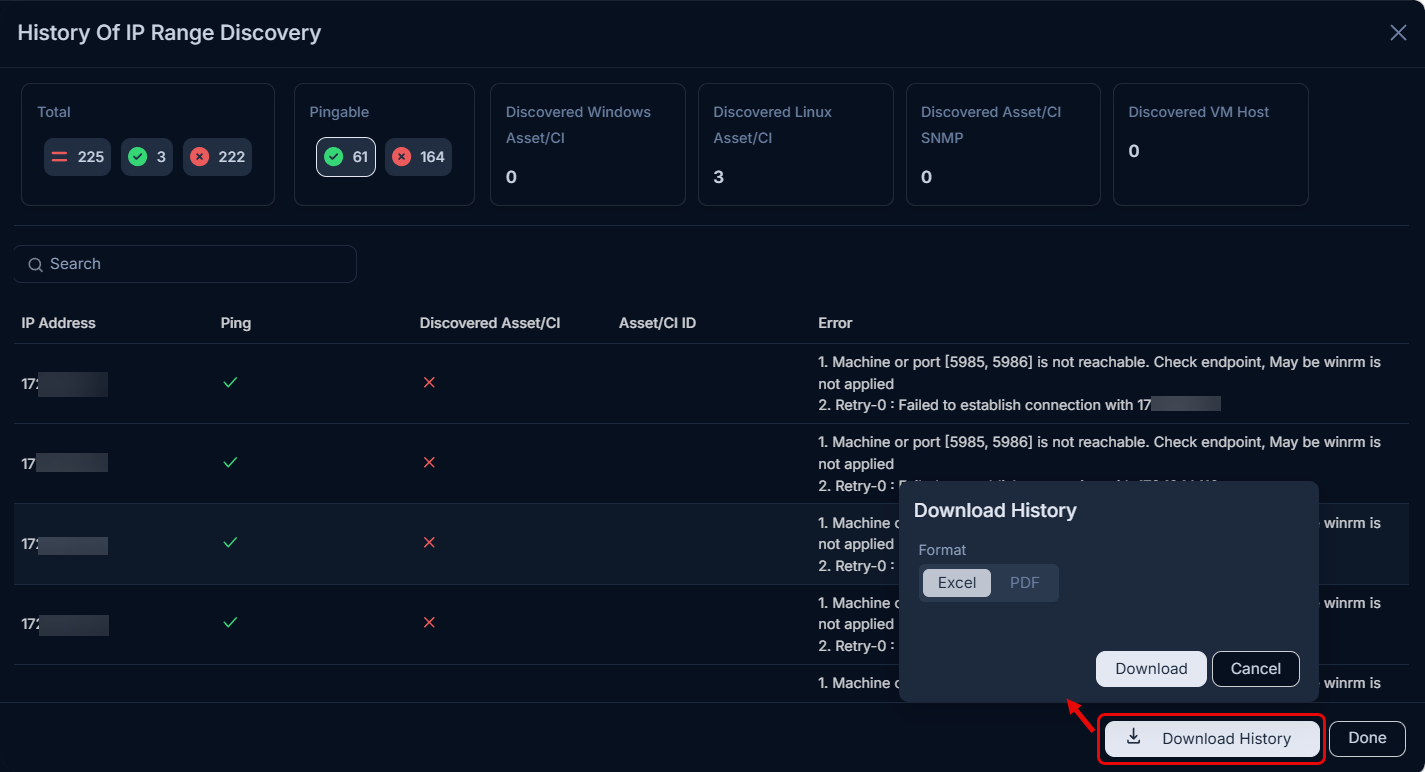
Download the scan history in Excel or PDF format using the available export buttons.