ChromeOS Scan
Discover ChromeOS devices and add them to your asset or CI inventory using Google OAuth credentials.
ChromeOS Scan connects to Google's admin API using OAuth credentials to enumerate and import ChromeOS devices. Based on the configured Discovery Preference Rule, each discovered device is added as an Asset or CI.
To access ChromeOS Scan, navigate to Admin > Discovery and Agents > Discovery > ChromeOS Scan.
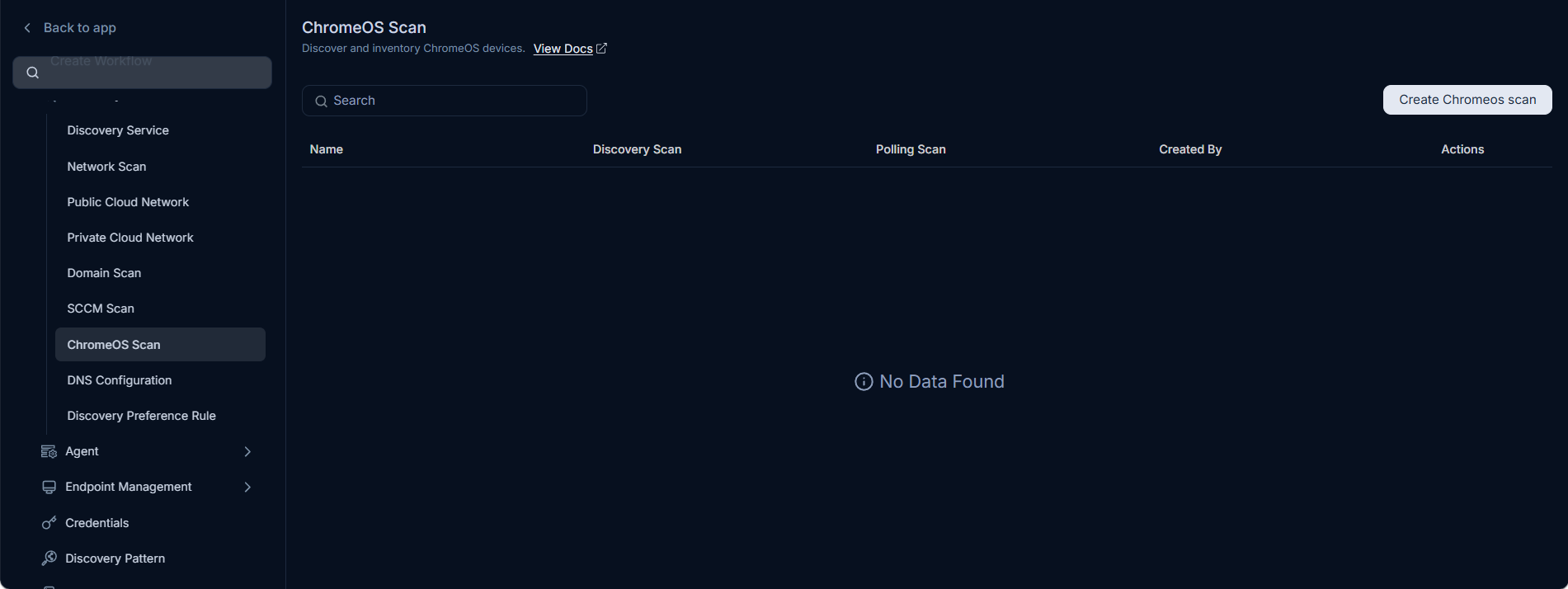
Create a ChromeOS Scan
- Click Create ChromeOS Scan. The following popup appears.
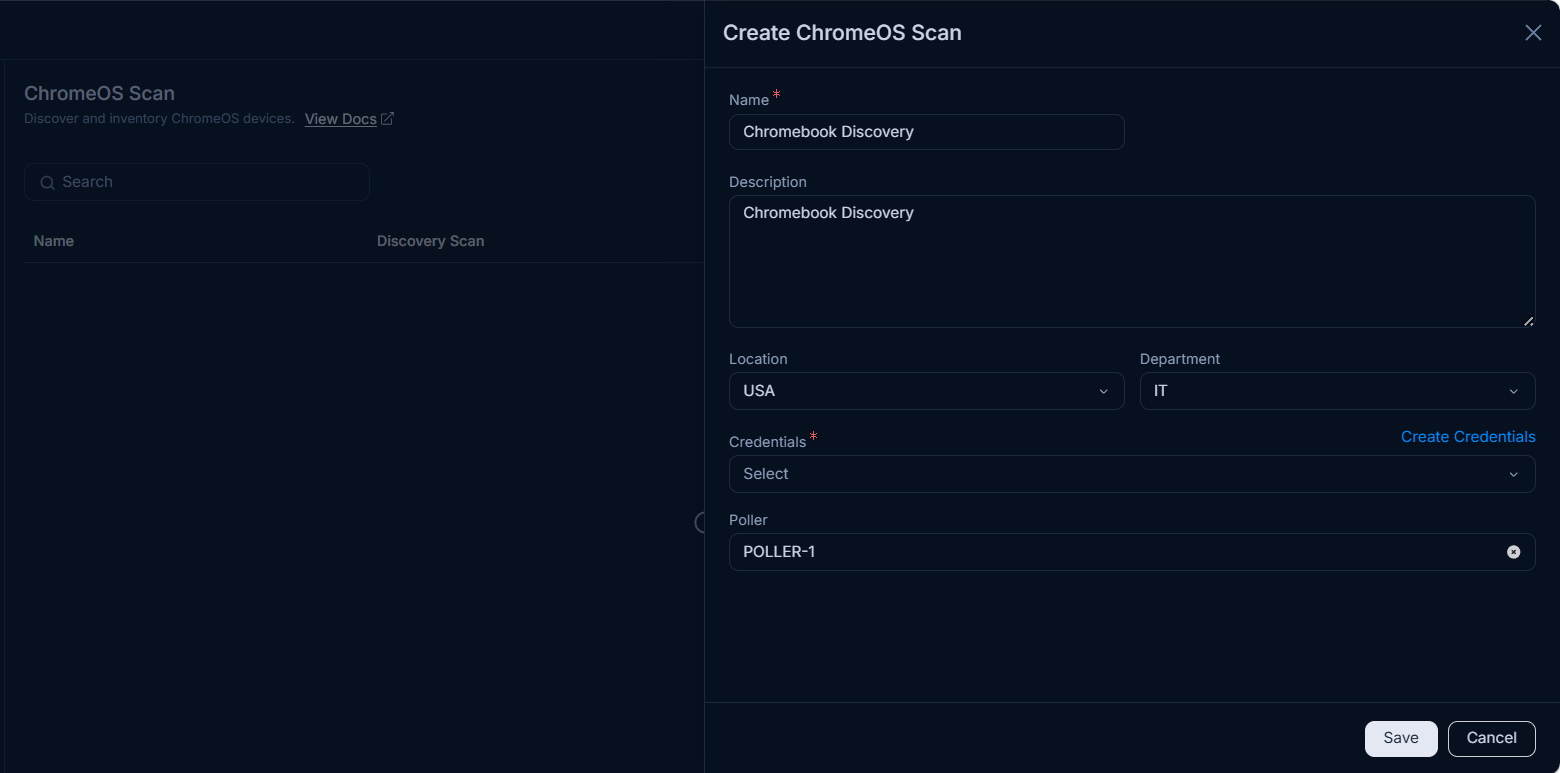
Enter the following details:
Field Description Name Enter a name for the ChromeOS scan. Description Enter a brief description of the scan. Location Select the location for the scan. Department Select the department. Credentials Select the OAuth credentials created to discover ChromeOS devices. When you create a new credential using the Create Credentials option, it is automatically selected. No manual re-selection is required. Poller Select a Poller to route discovery through a specific Poller service. Click Save. The newly created scan appears on the list page. Now, you can configure a scheduler, or initiate the scan immediately using the Discover New Asset option or poll the existing asset. Once clicked, the discovery process will get initiated and the progress will appear on the Discovery Service page.
Actions on the List Page
After saving a ChromeOS scan, the following actions are available from the scan row.
Scheduler
Select Scheduler on the scan row to configure automated discovery and polling runs for that scan. The scheduler popup displays two tabs:
- Discover Scan Schedule: Configure to automatically populate the inventory with newly discovered ChromeOS devices.
- Polling Scan Schedule: Configure to regularly poll existing ChromeOS devices to monitor their status and update their details.
Discover Scan Schedule
Click Create Discovery Schedule and configure the following:
- Schedule Type: Select the type of schedule:
- Once: Runs only once on the selected start date.
- Daily: Runs daily from the selected start date and time.
- Weekly: Runs once a week on the selected day and time. Provide a start date.
- Monthly: Choose when the scheduler runs:
- On Specific Date: Select the Date and Month for the schedule to run.
- On Specific Day: Select the Occurrence (for example, first or second), Weekday (for example, Monday or Tuesday), and Month.
- Interval: Set the interval in hours or days within which the schedule runs. Provide a start date.
- Automatically add Assets in CMDB?: Select Yes to add discovered ChromeOS devices to CMDB automatically after each scan.
- Email: Enter one or more email addresses to receive scan completion notifications.
Click Save to activate the schedule.
Polling Scan Schedule
Configure to regularly poll existing ChromeOS devices to refresh their details. Click Create Polling Schedule and configure the following:
- Schedule Type: Select the polling frequency:
- Once: Polls only once on the selected start date.
- Daily: Polls daily from the selected start date and time.
- Weekly: Polls once a week on the selected day and time. Provide a start date.
- Monthly: Choose On Specific Date or On Specific Day and configure the date, occurrence, weekday, and month accordingly.
- Interval: Set the interval in hours or days. Provide a start date.
- Email: Enter one or more email addresses to receive polling completion notifications.
Click Save. Scheduled runs appear in the Discovery Service tab at the configured time.
Discover New Asset
Click Discover New Asset on the scan row to trigger an immediate scan for newly added ChromeOS devices. A confirmation dialog appears asking "Do you want newly scanned Entities in Asset/CI list?"
Select one of the following options:
- Yes: Adds the newly discovered entities directly to the Asset or CI list, based on the configured Discovery Preference Rule.
- No, Add in Stage: Runs the scan but places discovered entities in Stage instead of the Asset or CI list.
- Cancel: Closes the dialog without running the scan.
Poll Existing Asset
Click Poll Existing Asset to refresh the details of already-discovered ChromeOS devices without running a full discovery scan.
Edit and Delete
Click Edit to update the scan configuration. Click Delete to remove the scan if it is no longer needed.