Endpoint Management
Endpoint Management gives your team precise control over which discovered machines are scanned for patches and vulnerabilities, so every managed endpoint is accounted for and nothing falls outside scope.
Use this page to manage the devices that are included as endpoints for Patch, Package, and Vulnerability Management operations. Endpoints can be added in two ways:
- Manually through the Endpoint Scopes tab, where you add individual endpoints directly.
- Automatically using the Scope Policies tab, which applies defined conditions to bring machines into scope.
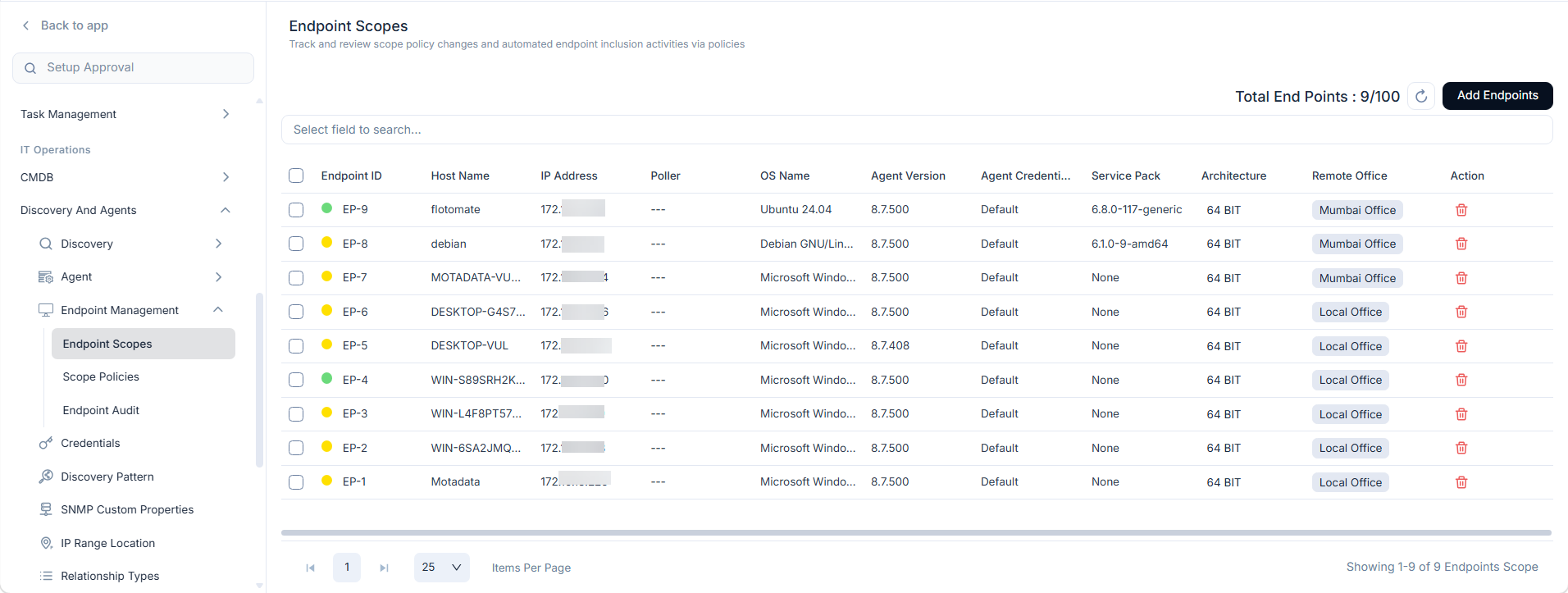
To access this page, navigate to Admin > Discovery and Agents > Endpoint Management.
Prerequisites
Before managing endpoints:
- You must have the Admin role in ServiceOps.
- Target endpoints must have the ServiceOps Agent installed and activated.
- Confirm your license capacity in the Total End Points counter before adding endpoints. Managed endpoints cannot exceed your license limit.
How Does Endpoint Management Work?
ServiceOps discovers endpoints (endpoints, servers, laptops, etc.) through its agent-based polling system. Once discovered, endpoints are not automatically included in Patch or Vulnerability Management operations. You bring them into scope manually using Add Endpoints, or automatically using Scope Policies with defined conditions. Once an endpoint is in scope, ServiceOps includes it in all patch, package, and vulnerability scans. You can remove endpoints from scope at any time, and the Endpoint Audit page logs every inclusion and exclusion event.
Endpoint Scopes
The Endpoint Scopes page shows all endpoints currently in or out of scope for Patch, Package, and Vulnerability Management. This is where you add discovered machines to make them eligible for management.
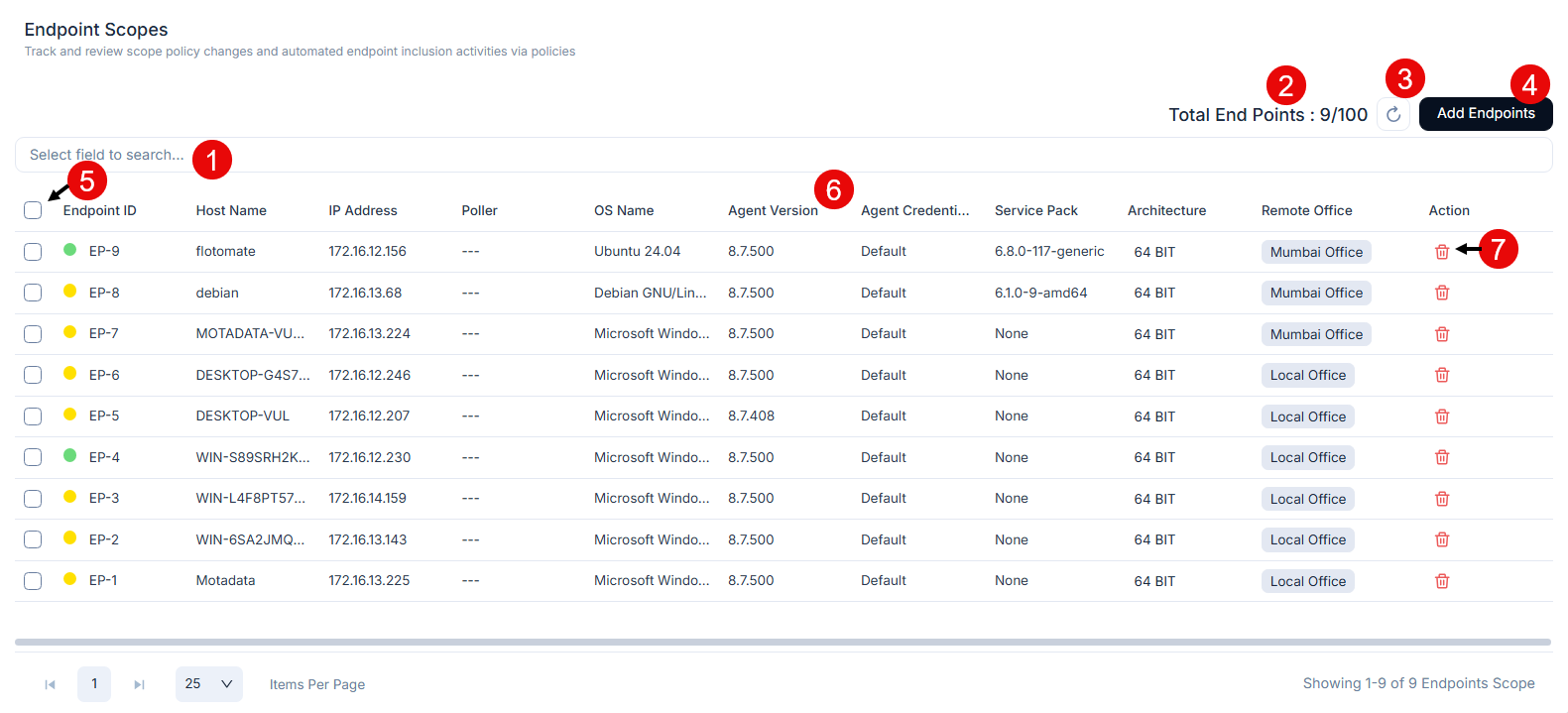
The page includes the following controls:
- Search Field: Search for endpoints by Endpoint ID, Host Name, IP Address, Poller, OS Name, Agent Version, Agent Credentials, Service Pack, Architecture, or Remote Office.
- Total End Points: Shows the total number of managed endpoints and remaining license slots. Managed endpoints can't exceed your license limit.
- Refresh: Reloads the Endpoint Scope list to reflect the latest discovery and agent check-in data.
- Add Endpoints: Adds endpoints manually to the Endpoint Scope.
- Bulk Remove: Removes multiple endpoints from the Endpoint Scope at once.
- Grid: Displays all discovered endpoints with their details.
- Action Column: Contains a delete icon to remove an individual endpoint from scope.
Endpoint Scope Grid Columns
All columns displayed in the Endpoint Scope grid:
| Parameter | Description |
|---|---|
| Endpoint ID | Unique identifier ServiceOps assigns to each endpoint |
| Host Name | Network name of the endpoint |
| IP Address | IP address of the endpoint |
| Poller | Poller responsible for managing the endpoint |
| OS Name | Operating system installed on the endpoint |
| Agent Version | Version of the ServiceOps Agent installed on the endpoint |
| Agent Credentials | Credentials the agent uses to connect |
| Service Pack | Service pack level of the operating system |
| Architecture | System architecture, for example x64 |
| Remote Office | Remote office location assigned to the endpoint |
Only endpoints with the ServiceOps Agent installed are visible and manageable within the Endpoint Scope.
Adding Endpoints
To manually add endpoints to the Endpoint Scope:
- Click Add Endpoints. A popup window opens, listing available agents.
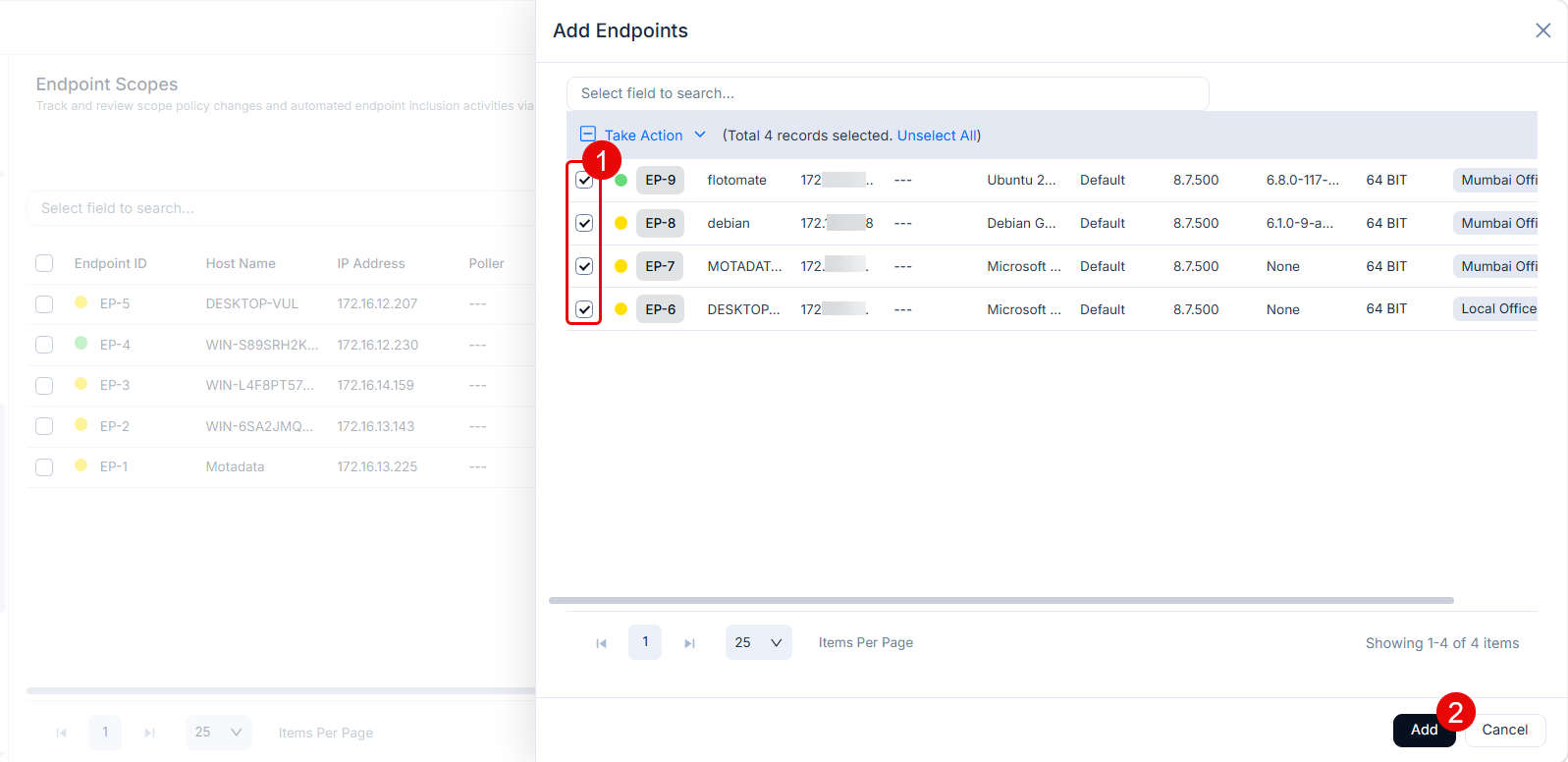
In the popup window:
- Use the search bar to find endpoints by Endpoint ID, Patch Status, Host Name, IP Address, Poller, OS Name, Version, Service Pack, Architecture, Remote Office, or Tags.
- Select the endpoints you want to add.
- Click Add to bring the selected endpoints into scope.
The endpoints appear in the grid and are immediately in scope for patch, package, and vulnerability operations.
Scope Policies
Scope Policies let you automatically include endpoints in scope based on defined conditions, reducing manual work when onboarding new machines.
To access this section, navigate to Admin > Discovery and Agents > Endpoint Management > Scope Policies.
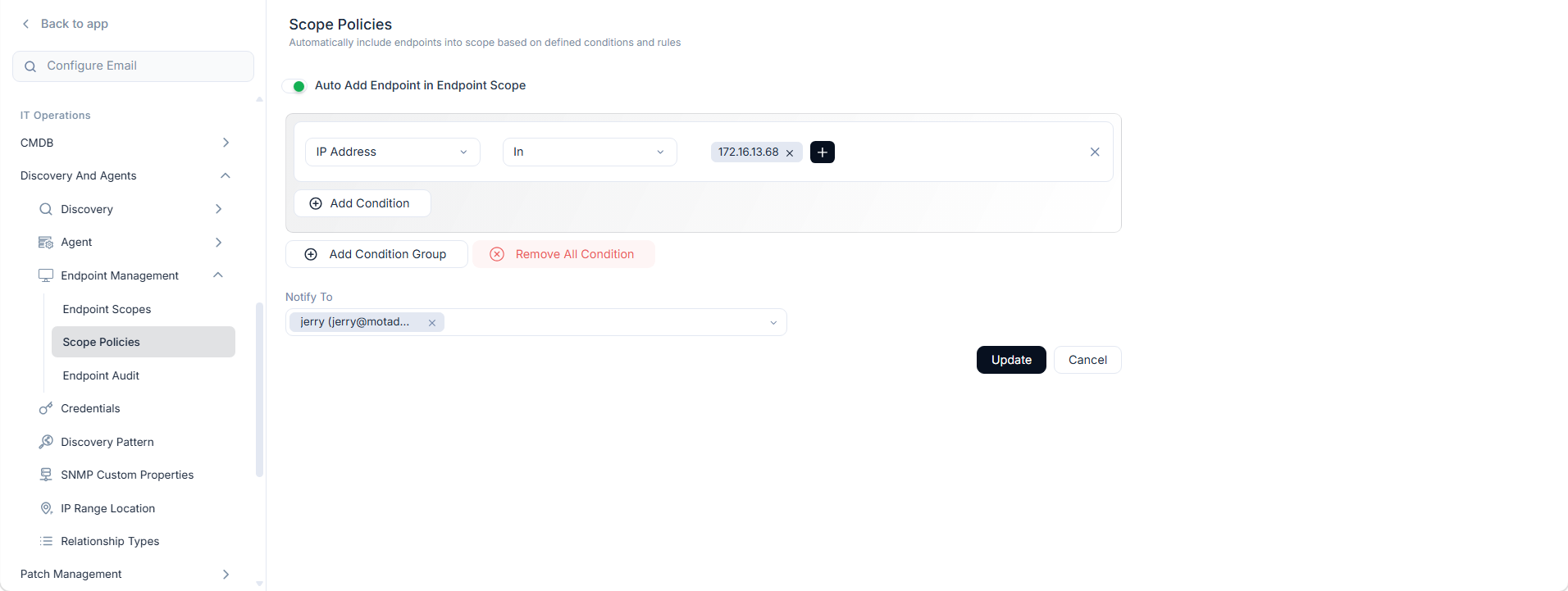
To configure a Scope Policy:
- Enable the Auto Add Endpoint in Endpoint Scope toggle to turn on automatic inclusion.
- Click Add Condition to define a rule, for example
OS NameinWindows. - Click Add Condition Group to create a grouped set of conditions.
- Select technicians in the Notify To field to receive an email when ServiceOps automatically adds an endpoint.
- Click Update to save your policy. ServiceOps applies the conditions to all existing endpoints and adds matching ones to scope at the next scan.
Endpoint Audit
The Endpoint Audit page logs all operations and changes related to endpoint management. Use it to track which actions were taken, who performed them, and when endpoints were added or removed from scope.
To access this section, navigate to Admin > Discovery and Agents > Endpoint Management > Endpoint Audit.
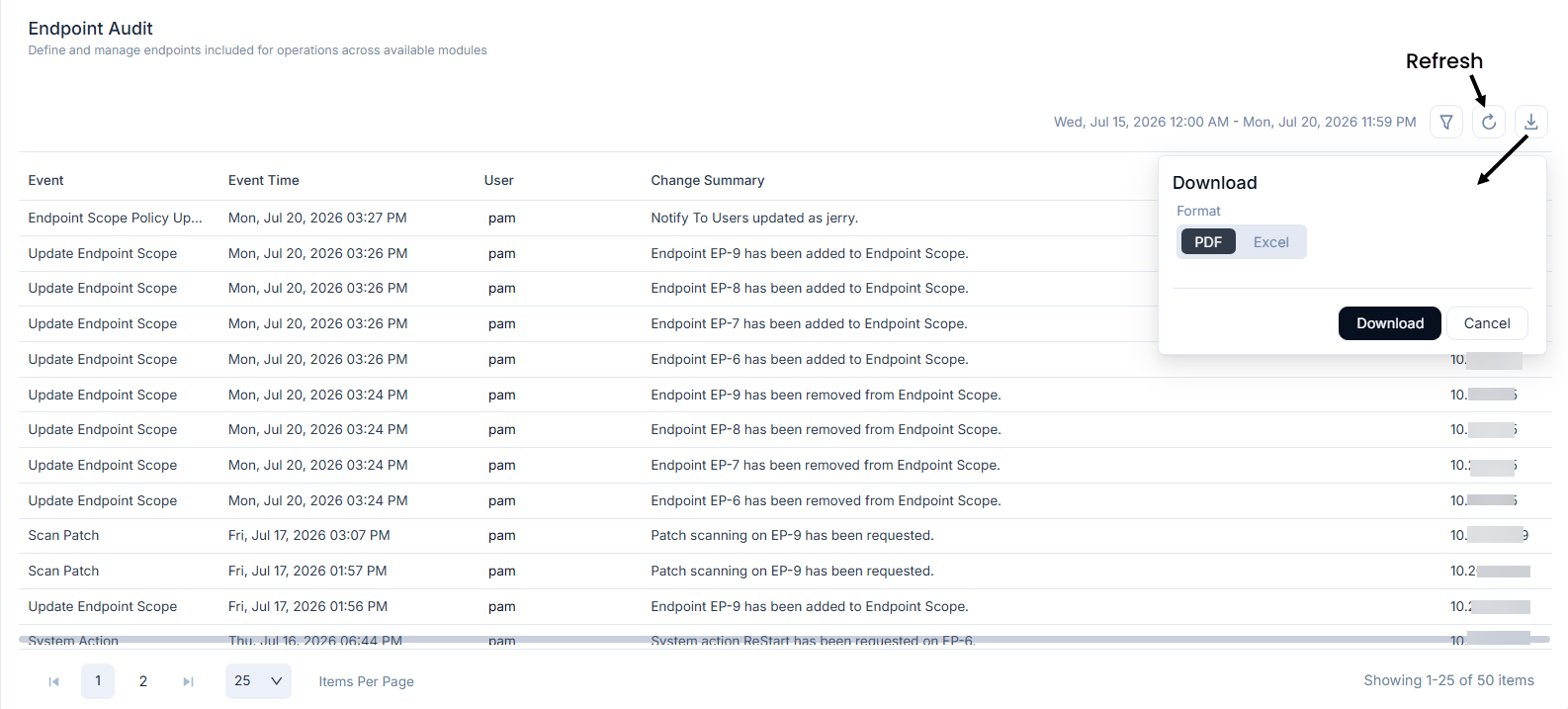
On the Endpoint Audit page, you can:
- Filter audit logs by Start Date, End Date, User, Event, and IP Address.
- Click Refresh to load the latest log entries.
- Click Download to export the audit report in PDF or Excel format.
Example
Your organization has 300 Windows servers discovered through the ServiceOps Agent. You need to bring all Windows servers into scope automatically without adding each one manually. You navigate to Admin > Discovery and Agents > Endpoint Management > Scope Policies, enable Auto Add Endpoint in Endpoint Scope, and add a condition: OS Name in Windows Server. You add the IT Operations group to Notify To, then click Update. ServiceOps automatically adds every new Windows Server that the agent discovers, and emails the IT Operations team each time a new endpoint joins scope.
Troubleshooting
A discovered endpoint does not appear in the Add Endpoints popup
Cause: The ServiceOps Agent is not installed or not activated on that endpoint.
Fix: Install and activate the ServiceOps Agent on the target endpoint. Once the agent checks in, the endpoint appears in the popup list.
Scope Policy does not automatically add new endpoints
Cause: The Auto Add Endpoint in Endpoint Scope toggle is off, or the condition does not match the endpoint's attributes.
Fix: Navigate to Admin > Discovery and Agents > Endpoint Management > Scope Policies, confirm the toggle is on, and verify the condition values match the target endpoint's OS Name or other attributes exactly.
Endpoint added to scope exceeds the license limit
Cause: The number of managed endpoints has reached the license maximum shown in the Total End Points counter.
Fix: Remove unused endpoints from scope using Bulk Remove, or contact Motadata to expand your license capacity.