Microsoft Office Updates
The Microsoft Office Updates page lets you decide what happens when a Microsoft Office patch reaches an endpoint and an Office application (such as Word, Excel, Outlook, or PowerPoint) is already open. This gives administrators per-application control over installation behavior, prevents users from losing unsaved work, and makes it easier to distinguish a deliberate deferral from a genuine deployment failure.
To access this setting, navigate to Admin > Patch Management > Patch Administration > Microsoft Office Updates.
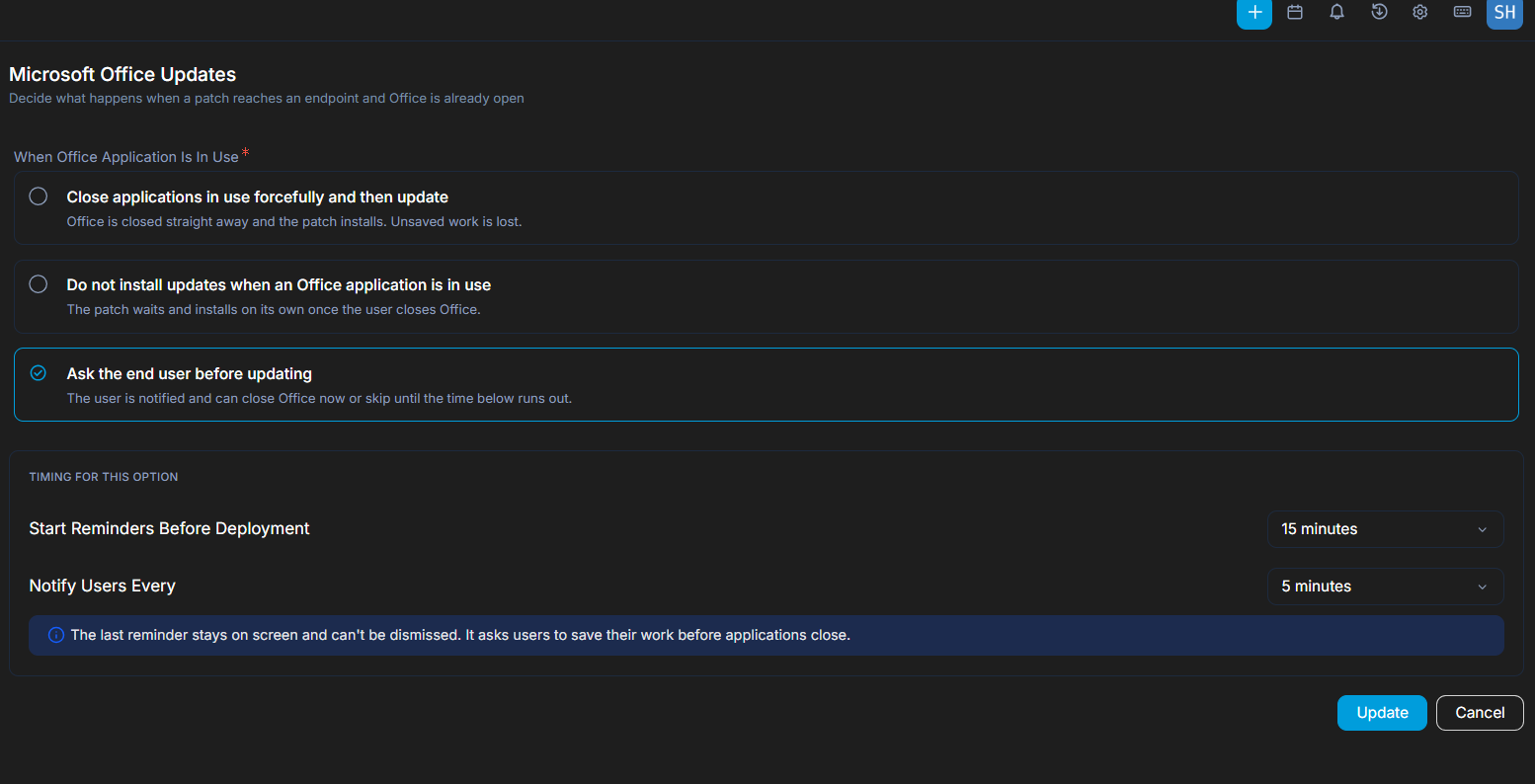
When Office Application Is In Use
Select one of the following three mutually exclusive options to control how the patch installation is handled when an Office application is running on the endpoint. The default on first open is Ask the end user before updating.
Close applications in use forcefully and then update
- The agent closes any open Office application and installs the patch on schedule.
- The end user is not prompted, so let users know in advance to save their work.
- Once installed, the status is Success.
- If the application does not close, the status is Failed with the remark Patch update failed - the application could not be closed on the endpoint, so you can follow up on that endpoint.
Do not install updates when an Office application is in use
- If Office is running, the patch is not installed and the user sees nothing.
- The status remains In Progress with the remark Patch update delayed since the application is in use by another process.
- If the user closes Office within the deployment window, the patch installs and the status moves to Success.
- If Office is still open when the window ends, the status moves to Expired, keeping the remark so the deferral is not mistaken for a failure.
- Delayed endpoints can be filtered separately from Failed endpoints on the deployment detail view.
Ask the end user before updating
- The end user is notified before deployment based on the Timing for this option settings, up to a maximum of six notifications.
- Reminders can be dismissed, and the next one still appears at the configured interval.
- The last reminder stays on screen and cannot be dismissed.
- At the scheduled deployment start time, the agent closes any running Office application and installs the patch.
- The status is Success and the record notes how many notifications were issued.
Timing For This Option
The Timing for this option block is shown only when Ask the end user before updating is selected. Configure the following reminder settings:
| Field | Description |
|---|---|
| Start Reminders Before Deployment | Select how long before the scheduled deployment the first reminder should appear on the endpoint. Options: 15 minutes, 30 minutes, 60 minutes. Default is 15 minutes. |
| Notify Users Every | Select how often the reminder should repeat until the deployment starts. Options: 5 minutes, 10 minutes, 15 minutes. Default is 5 minutes. |
The last reminder stays on screen and cannot be dismissed. It asks users to save their work before applications close.
When you are done, click Update to save the changes, or Cancel to discard them.