Packages
The Packages section in ServiceOps Patch Management enables administrators to upload, configure, and manage software installation files. These packages are crucial for deploying applications, tools, or updates not covered by standard patch processes, and can be attached to Deployment Requests for automated distribution to target endpoints.
To access the Packages page and begin managing your software packages, navigate to Admin > Patch Management > Packages.
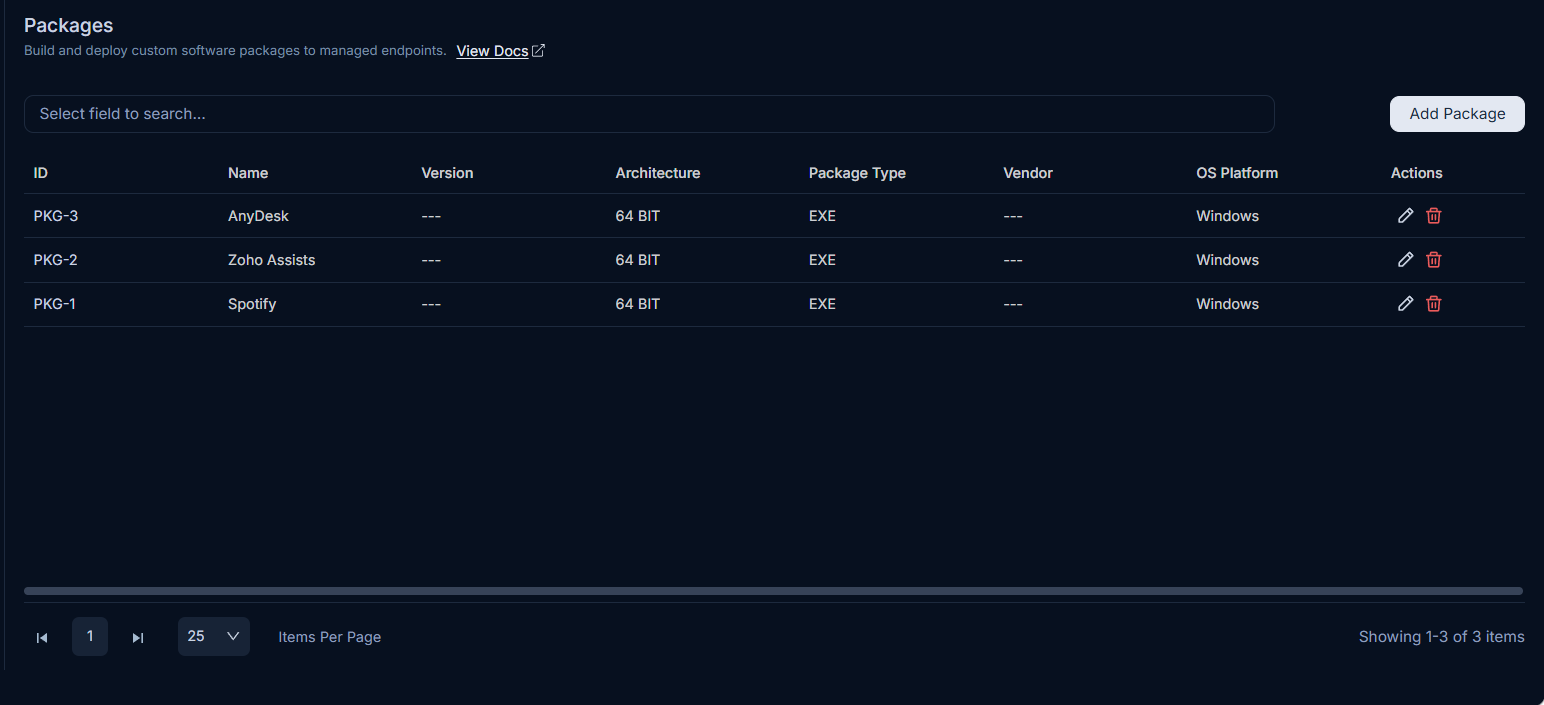
From this centralized page, you can efficiently search, view, create, edit, and delete software packages, ensuring all necessary applications are readily available for deployment.
Adding a Package
To add a new software package to ServiceOps:
Click the Add Package button. The package configuration form will appear.
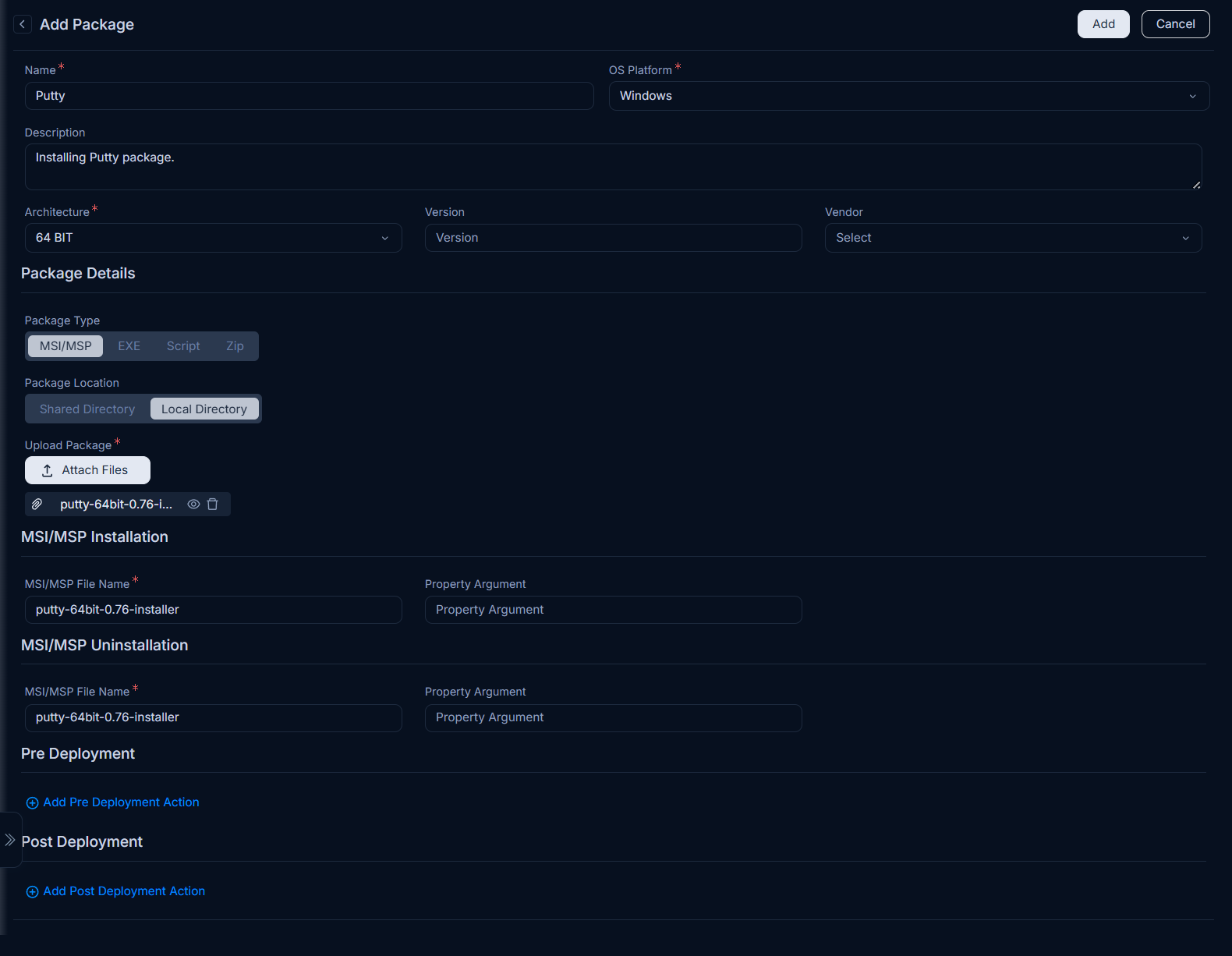
Configure the following package details:
| Parameter | Description |
|---|---|
| Name | Enter a unique and descriptive name for the software package. |
| OS Platform | Select the operating system platform(s) for which the package is intended: - Windows: For packages compatible with Microsoft Windows operating systems. - MAC: For packages compatible with Apple macOS. - Linux: For packages compatible with Linux distributions. |
| Description | Enter a short, informative description of the package, including its purpose or contents. |
| Architecture | Select the system architecture(s) on which the package can be installed: - 64 Bit: For 64-bit operating systems. - 32 Bit: For 32-bit operating systems. - ARM64: For ARM64-based systems, commonly found in newer devices. |
| Version | Enter the specific version number of the software package. |
| Vendor | Select the vendor that provides the software package. For details on adding new vendors, refer to the Vendor Catalog. |
| Package Details | |
| Package Type | Select the file type of the package. This determines the installation method: - MSI/MSP (Windows): For Microsoft Installer packages, typically used for Windows application installations and updates. - EXE (Windows): For executable files, commonly used for standalone Windows application installers. - Script (Windows/MAC/Linux): For custom scripts (e.g., PowerShell, Bash) to perform complex or automated deployment tasks across different OS platforms. - Zip (Windows/MAC/Linux): For compressed archives containing multiple files (e.g., configuration files, binaries) that need to be extracted and possibly executed. - Application (MAC/Linux): For native application bundles specific to macOS or Linux distributions. |
| Package Location | Select where the package file is stored and how it will be fetched for deployment: - Shared Directory: Select this option if your package is stored on a network share accessible by target machines. Specify the Shared Drive File Path using the Add Path link. To ensure successful deployment: - Ensure direct network connectivity between the File Server and the Shared Directory. - The shared path or file must not be password protected. Path Format: Use the format Example: - Local Directory: If selected, Upload Package directly from your local system using the Attach Files button. This option supports both standard packages and large packages exceeding 5 GB (such as OS upgrade ZIP packages containing an ISO and script). For large package uploads to work, the application server and Nginx must be configured with the required size limits. Refer to the How to Upgrade OS Using Package Deployment guide for the required server configuration. |
Windows Platform Specific Parameters
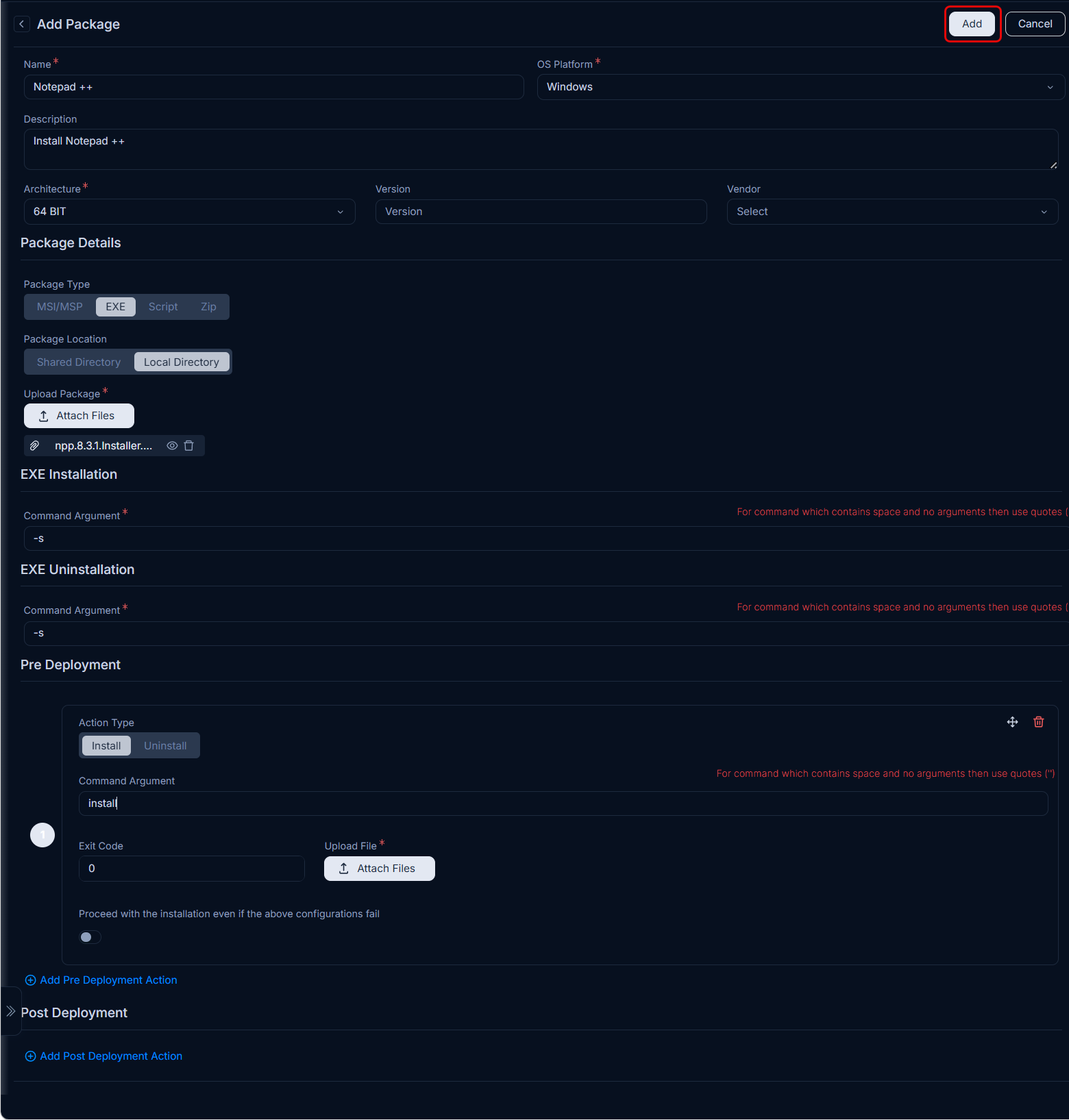
If OS Platform is selected as Windows, the following parameters become available:
| Parameter | Description |
|---|---|
| MSI/MSP Installation (For MSI/MSP Package Type) | |
| MSI/MSP File Name | Enter the exact filename of the MSI (Microsoft Software Installer) file to be installed. |
| Properties Arguments | Enter the silent installer command-line arguments specific to the MSI/MSP package. For example: For 7Zip.msi file use the command |
| MSI/MSP Uninstallation (For MSI/MSP Package Type) | |
| MSI/MSP File Name | Enter the exact filename of the MSI (Microsoft Software Installer) file to be uninstalled. |
| Properties Arguments | Enter the silent uninstaller command-line arguments specific to the MSI/MSP package. For example: For 7Zip.msi file use the command |
| EXE/Zip Installation (For EXE/Zip Package Type) | |
| Command Argument | Enter the silent installer command-line arguments to initiate the installation of the EXE or ZIP file. For example: - For putty.exe file: use the command - For 7Zip.zip file use the command |
| EXE/Zip Uninstallation (For EXE/Zip Package Type) | |
| Command Argument | Enter the silent uninstaller command-line arguments to initiate the uninstallation of the EXE or ZIP file. For example: - For putty.exe file: use the command - For 7Zip.zip file use the command |
| Script Execution (For Script Package Type) | |
| Command Argument | Enter the command-line arguments required to execute the script file. |
Pre-Deployment Actions
This section allows you to configure actions that must be successfully completed before the package deployment begins. If any pre-deployment action fails, the entire package deployment process will be halted.
- The defined actions will be executed in the order they are listed.
- Pre-deployment actions are currently supported for Windows OS only.
- A maximum of 10 pre-deployment actions can be added.
Benefits of Pre-Deployment Actions:
- Disk Space Verification: Ensure target PCs have sufficient free disk space before installation.
- Version Control: Install packages only on systems that do not already have the latest version.
- Conflict Resolution: Uninstall previous conflicting software versions (e.g., older Java versions) to prevent issues.
- Environment Setup: Specify the path to required runtime environments (e.g., JRE) to avoid manual configuration by users.
- Update Management: Disable automatic updates for software to maintain complete control over deployed versions.
| Parameter | Description |
|---|---|
| Pre Deployment | |
| Action Type | Select the type of action to perform: - Install: To execute a command for installing a prerequisite or setting up an environment. - Uninstall: To execute a command for uninstalling conflicting software. |
| Command Argument | Enter the command-line arguments required to execute the selected install or uninstall action. |
| Exit Code | Specify the expected exit code for a successful execution of the pre-deployment action. For example: 0 typically indicates success. |
| Proceed with the installation even if the above configurations fail | Enable this option if you want the main package deployment to continue even if this specific pre-deployment action fails. Disable it to halt deployment on failure. |
| Add Pre Deployment Action | Click this link to add additional pre-deployment actions. |
Post-Deployment Actions
This section allows you to configure actions that will be executed after the package deployment process completes. If any post-deployment script fails, relevant remarks will be added to the deployment logs, but the main installation will not be rolled back.
- The defined actions will be executed in the order they are listed.
- Post-deployment actions are currently supported for Windows OS only.
- A maximum of 10 post-deployment actions can be added.
| Parameter | Description |
|---|---|
| Post Deployment | |
| Action Type | Select the type of action to perform after deployment: - Install: To execute a command for installing supplementary components or post-installation setup. - Uninstall: To execute a command for cleaning up temporary files or rolling back minor changes if needed. |
| Command Argument | Enter the command-line arguments required to execute the selected install or uninstall action. |
| Exit Code | Specify the expected exit code for a successful execution of the post-deployment action. For example: 0 typically indicates success. |
| Proceed with the installation even if the above configurations fail | Enable this option if you want to proceed with the overall deployment reporting even if this specific post-deployment action fails. Disable it to mark the post-deployment step as failed on error. |
| Add Post Deployment Action | Click this link to add additional post-deployment actions. |
MAC or Linux Platform Specific Parameters
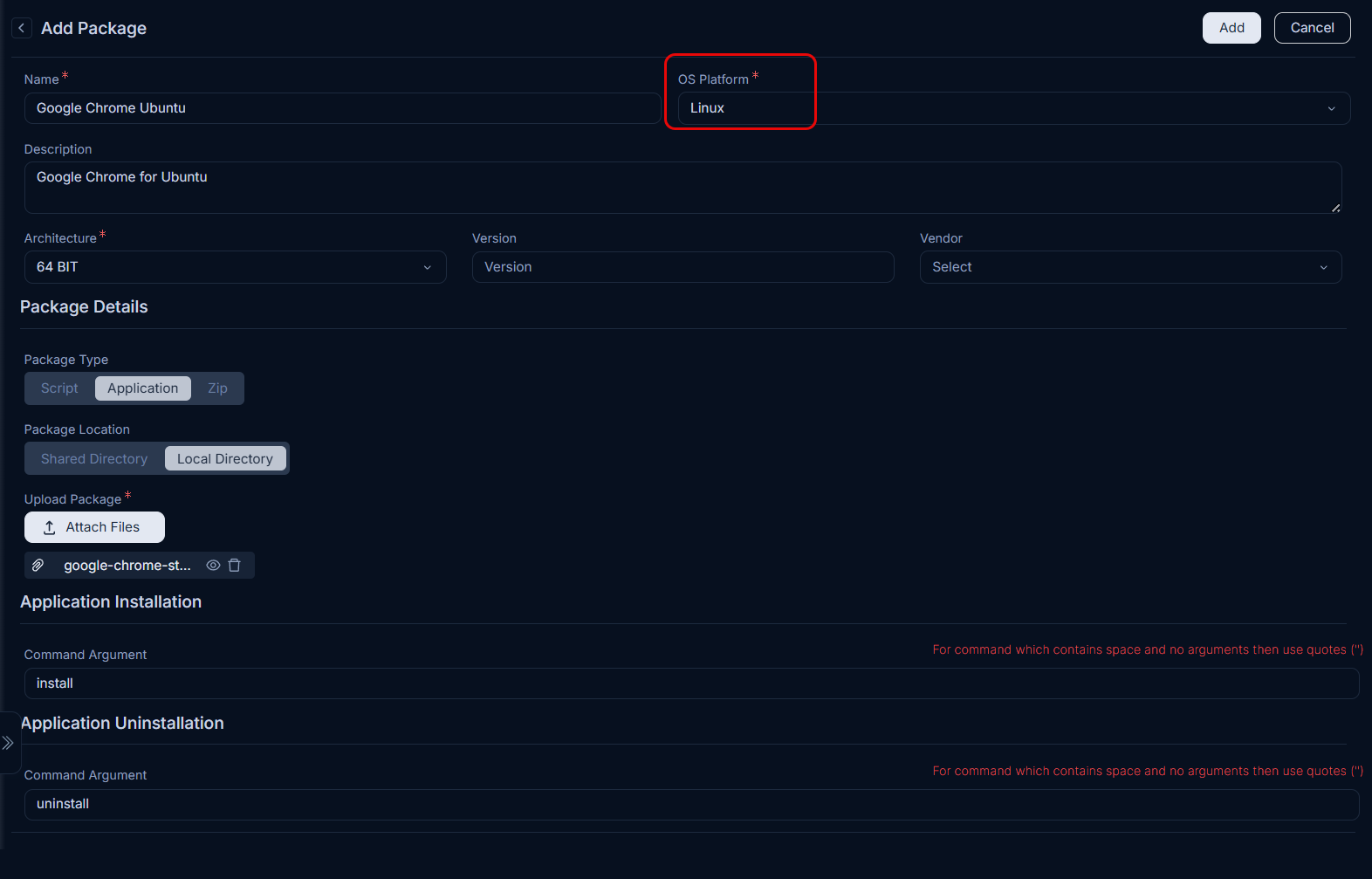
If OS Platform is selected as MAC or Linux, the following parameters become available:
| Parameter | Description |
|---|---|
| Script/ZIP Execution (For Script/Zip Package Type) | |
| Command Argument | Enter the command-line arguments required to execute the script or extract and execute the contents of a ZIP file. |
| Application Installation (For Application Package Type) | |
| Command Argument | Enter the command-line arguments required to initiate the installation of the native application bundle. |
| Application Uninstallation (For Application Package Type) | |
| Command Argument | Enter the command-line arguments required to initiate the uninstallation of the native application bundle. |
Common Application Install/Uninstall Commands
| Sr. No. | Package name | Package Type | Install command | Uninstall command |
|---|---|---|---|---|
| 1 | CPU-Z | .exe | /SILENT | "C:\Program Files\CPUID\CPU-Z\unins000.exe" /SILENT |
| 2 | Notepad++ | .exe | /S | "C:\Program Files\Notepad++\uninstall.exe" /S |
| 3 | 7zip | .exe | /S | "C:\Program Files\7-Zip\Uninstall.exe" /S |
| 4 | Postman | .exe | -s | "%LocalAppData%\Postman\Update" --uninstall -s |
| 5 | CCleaner | .exe | /S | "C:\Program Files\CCleaner\uninst.exe" /S |
| 6 | 7Zip | .msi | /qn | MsiExec.exe /x {23170F69-40C1-2702-2201-000001000000} /qn |
| 7 | PuTTy | .msi | /qn | MsiExec.exe /X{E078C644-A120-4668-AD62-02E9FD530190} /qn |
| 8 | Teams | .exe | /SILENT | "%LocalAppData%\Microsoft\Teams\Update.exe" --uninstall -s |
| 9 | Firefox | .msi | /qn | "C:\Program Files\Mozilla Firefox\uninstall\helper.exe" /S |
| 10 | 7zip | .zip | 7zip.bat | 7zipuninstall.bat |
Once all the details are filled, click Add and the package gets created with a prefix PKG. For Example: PKG-1
For detailed instructions on deploying packages, refer to the How to Use Package Deployment guide.
Recommended Action
After configuring your software packages, it's recommended to define Deployment Policies to manage how these packages are distributed to your endpoints. This ensures controlled and systematic rollouts aligned with your organizational requirements.
For details, see Deployment Policies.