Deployment Policies
A deployment policy controls how a Deployment Request carries out the deployment of patches and packages. Administrators can create multiple policies and select the most appropriate one when initiating a deployment.
Deployment policies offer fine-grained configurations for:
- Initiating deployments
- Managing reboot behavior
- Handling user interaction
- Configuring notifications
To view the Deployment Policies page, navigate to Admin > Patch Management > Deployment Policies.
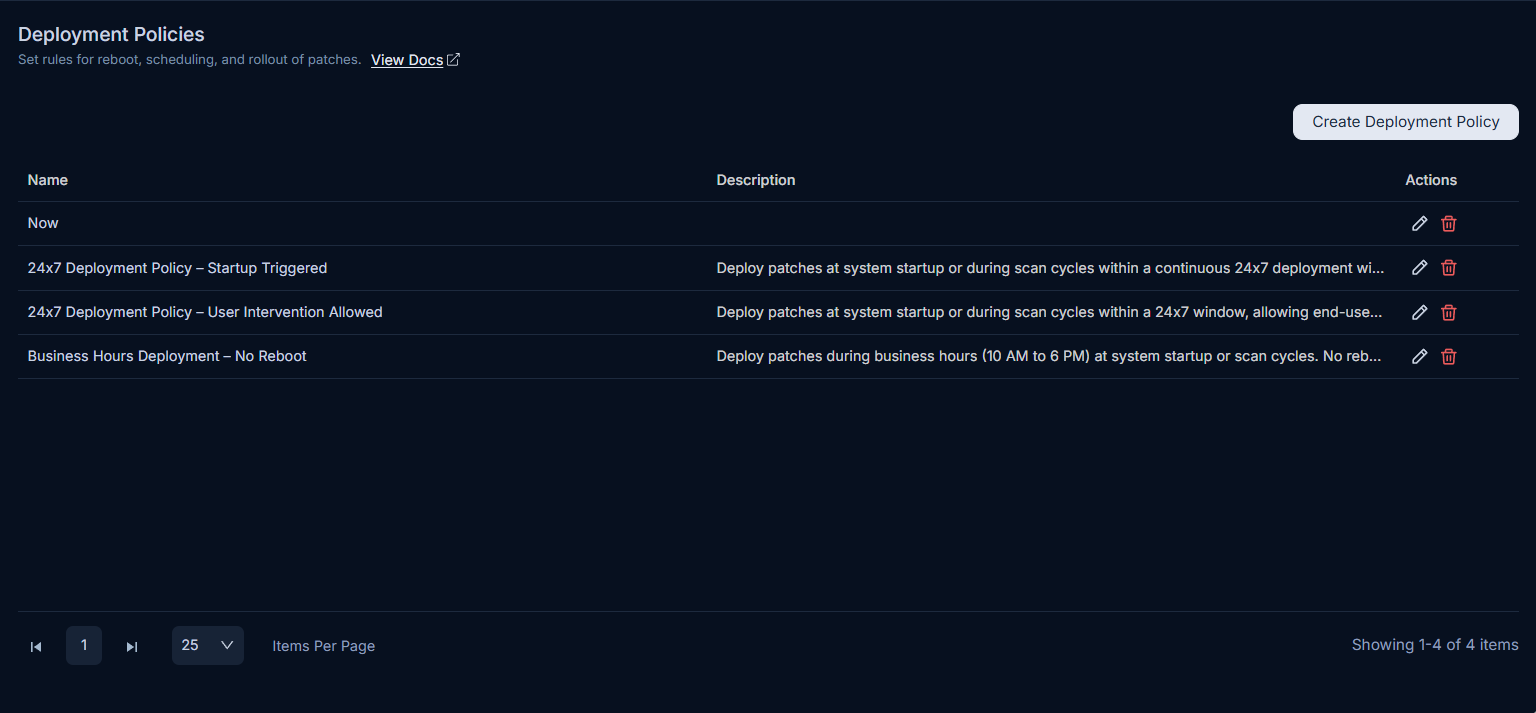
This page allows you to view default and custom policies, and to add, edit, or delete them.
A policy cannot be deleted if it is currently associated with an active Deployment Request. You must first delete the associated request before deleting the policy.
Adding a Deployment Policy
To add a new deployment policy:
- Click the Create Deployment Policy button to open the configuration popup.
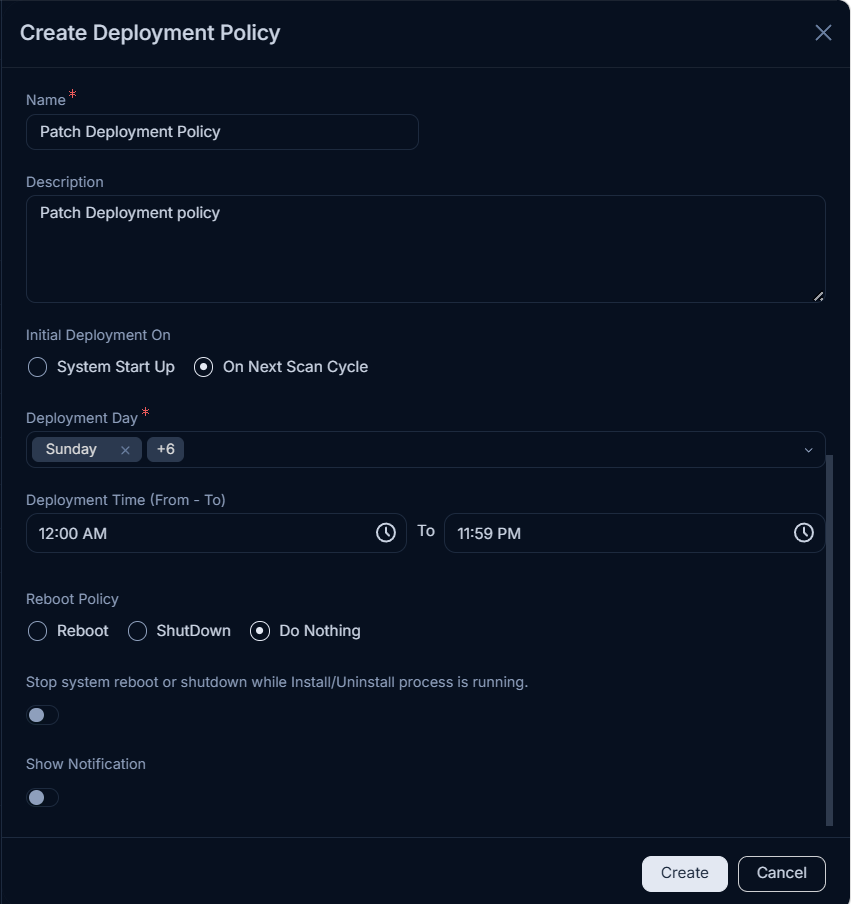
- Enter the following details:
| Parameter | Description |
|---|---|
| Name | Enter a unique and descriptive name for the deployment policy. |
| Description | Provide a brief, informative description of the policy's purpose. |
| Initial Deployment On | Define when the product server should initiate deployment commands to target endpoints. Options include: - System Start Up: Commands are sent when the system starts. For Example: If a policy is configured for 'System Start Up', patches will be deployed when the target machine reboots. - On Next Scan Cycle: Commands are sent during the upcoming scheduled scan cycle. For Example: If a policy is configured for 'On Next Scan Cycle', patches will be deployed during the next scheduled patch scan. |
| Deployment Days | Select the specific days of the week when the deployment is permitted to run. |
| Deployment Time (From-To) | Specify the start and end time within which the deployment should run. The deployment will run only within this time range. For Example: If a policy is configured for 'Deployment Time (From-To)' as '08:00 AM - 05:00 PM', the deployment will run only between 8:00 AM and 5:00 PM. |
| Reboot Policy | Choose the action to perform on target systems after a successful installation: - Reboot: The system will automatically reboot after patches are deployed. - Shutdown: The system will automatically shut down after patches are deployed. - Do Nothing: No action is taken; the system remains in its current state. |
| Skip Reboot/Shutdown if not required | Enable this option to automatically skip any reboot or shutdown actions if the system determines they are not necessary after a successful deployment. This is disabled by default. |
| Stop system Reboot or shutdown while Install/Uninstall process is running | Enable this option to prevent the system from rebooting or shutting down if an installation or uninstallation process is still active. This helps avoid data corruption or incomplete updates. |
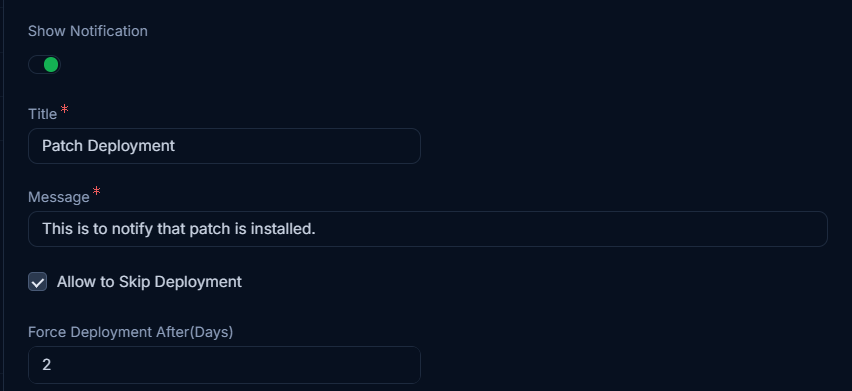
| Show Notification | Enable this to display notifications to users on target endpoints before a deployment. If enabled, provide the following details: - Title: Enter the title for the notification window. - Message: Compose the message to be displayed to endpoint users. - Allow to Skip Deployment: Enable to give users the option to postpone the deployment. If enabled, the Force Deployment After (Days) parameter becomes available. - Force Deployment After (Days): Specify the number of days after which the deployment will be automatically enforced, regardless of user deferral. |
| Parameter | Description |
|---|---|
| Show Reboot/Shutdown Notification | Enable this to notify users on target endpoints before a scheduled reboot or shutdown. If enabled, provide the following details: - Title: Enter the title for the reboot/shutdown notification window. - Message: Compose the message to be displayed to endpoint users. - Allow User to Postpone Reboot/Shutdown: Enable to give users the option to defer the reboot or shutdown. If enabled, the Allowed Postpone Intervals parameter becomes available. - Allowed Postpone Intervals: Set the duration for postponement by selecting a Time and Unit (Minute, Hour, or Day). You can add multiple postponement intervals using the Add link. |
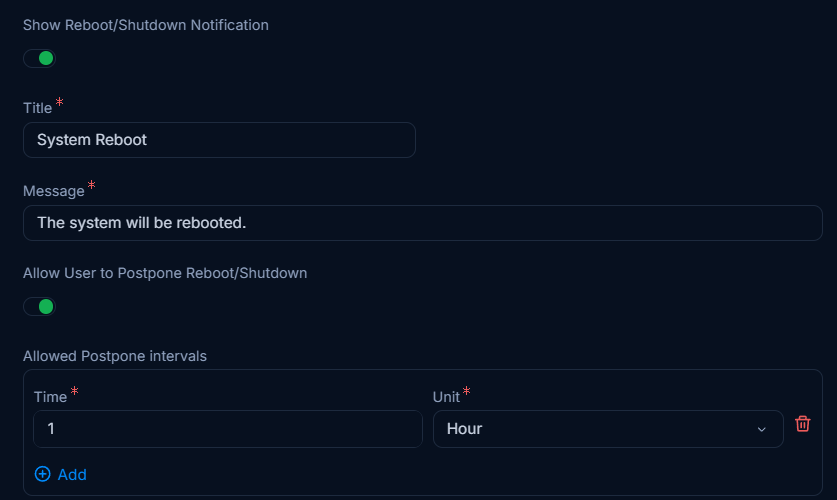
- Once all the details are filled, click Create. This policy can now be used in both Patch Deployment and Package Deployment creation.