Endpoint Groups
Endpoint Groups allow you to classify and organize your endpoints into logical collections, simplifying targeted patch deployment, policy enforcement, and reporting. Leveraging Endpoint Groups offers several key benefits:
- Targeted Deployments: Easily deploy patches or packages to specific departments or operational units by creating a corresponding Endpoint Group.
- Policy Exceptions: Define Decline Patch Configuration policies to exclude specific patches for a particular group of Endpoints.
- Automated Testing: Utilize Endpoint Groups for Automatic Patch Tests, allowing you to validate patch efficacy on a subset of machines before broader deployment.
To access this management page, navigate to Admin > Patch Management > Deployment Management > Endpoint Groups.
To manage Endpoint Groups, ensure you are on the Endpoint Group tab of the Endpoints and Groups page.
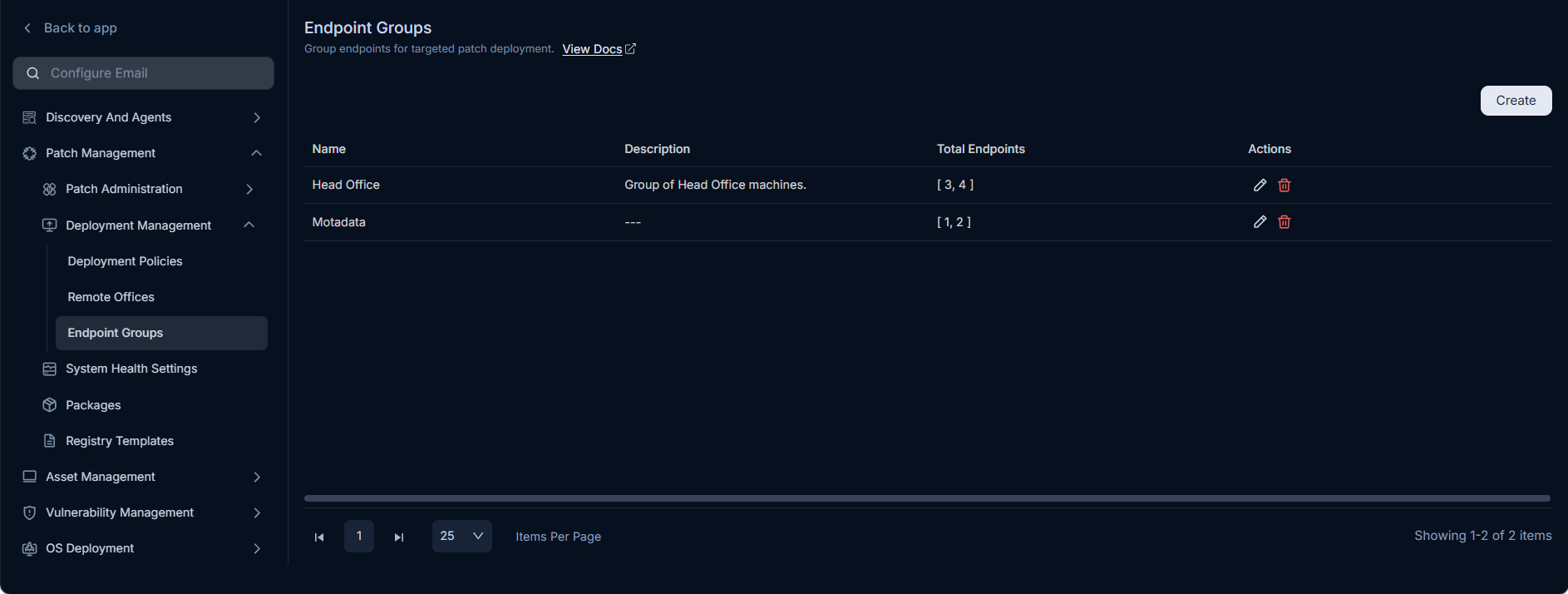
From here, you can create, edit, and delete Endpoint Groups.
Creating a Endpoint Group
To create a new Endpoint Group:
- Click the Create button on the list page. A configuration popup will appear.
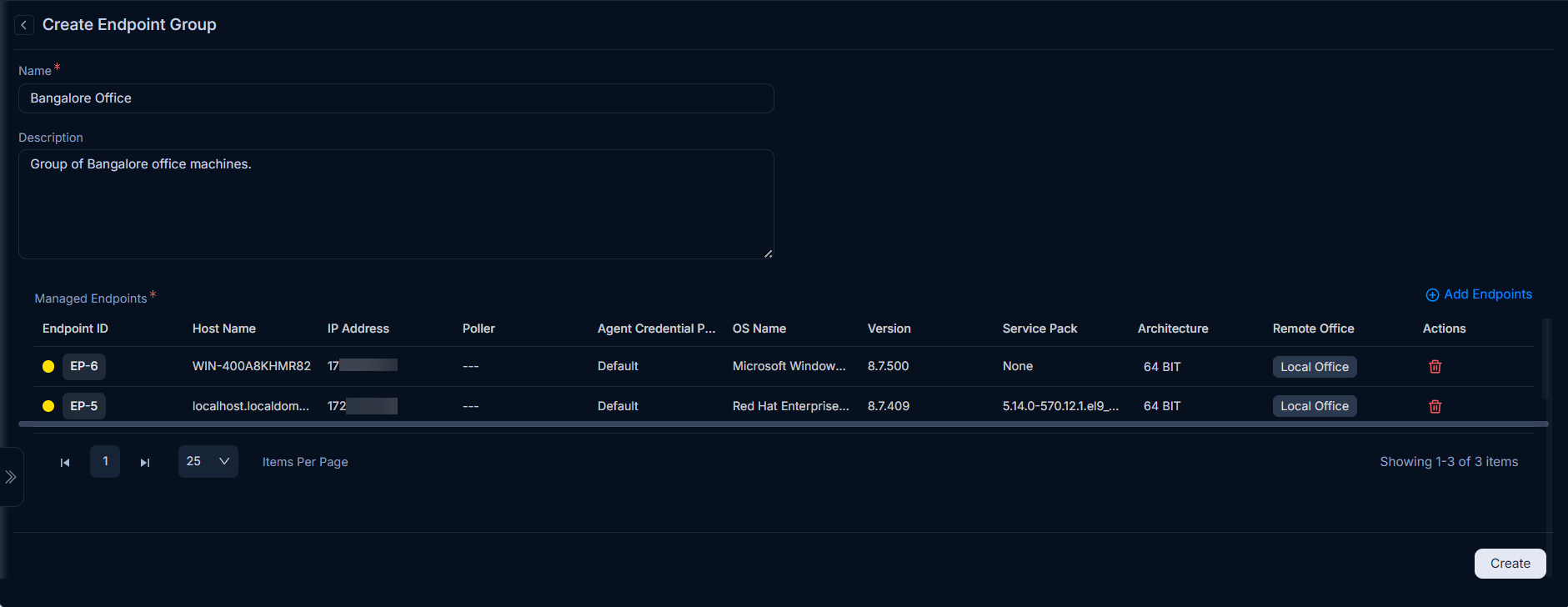
- Enter the following details:
- Name: Enter a unique and descriptive name for your new Endpoint Group.
- Description: Provide a short description of the group's purpose or criteria.
- Add Endpoints: Add individual Endpoints to this group. Click the Add Endpoints link to display a list of available agents (only those already in the Endpoint Scope are shown). Select the desired Endpoints and click Add.
- Once all Endpoints are added and details are filled, click Create. The new group will appear on the list page and can now be used for various patch management activities.