Registry Templates
Registry Templates in ServiceOps offer a powerful mechanism for managing and deploying specific configurations to the Windows Registry. These templates streamline system adjustments, enforce policies, and ensure consistency across managed environments.
To access the Registry Templates page, navigate to Admin > Patch Management > Registry Templates.
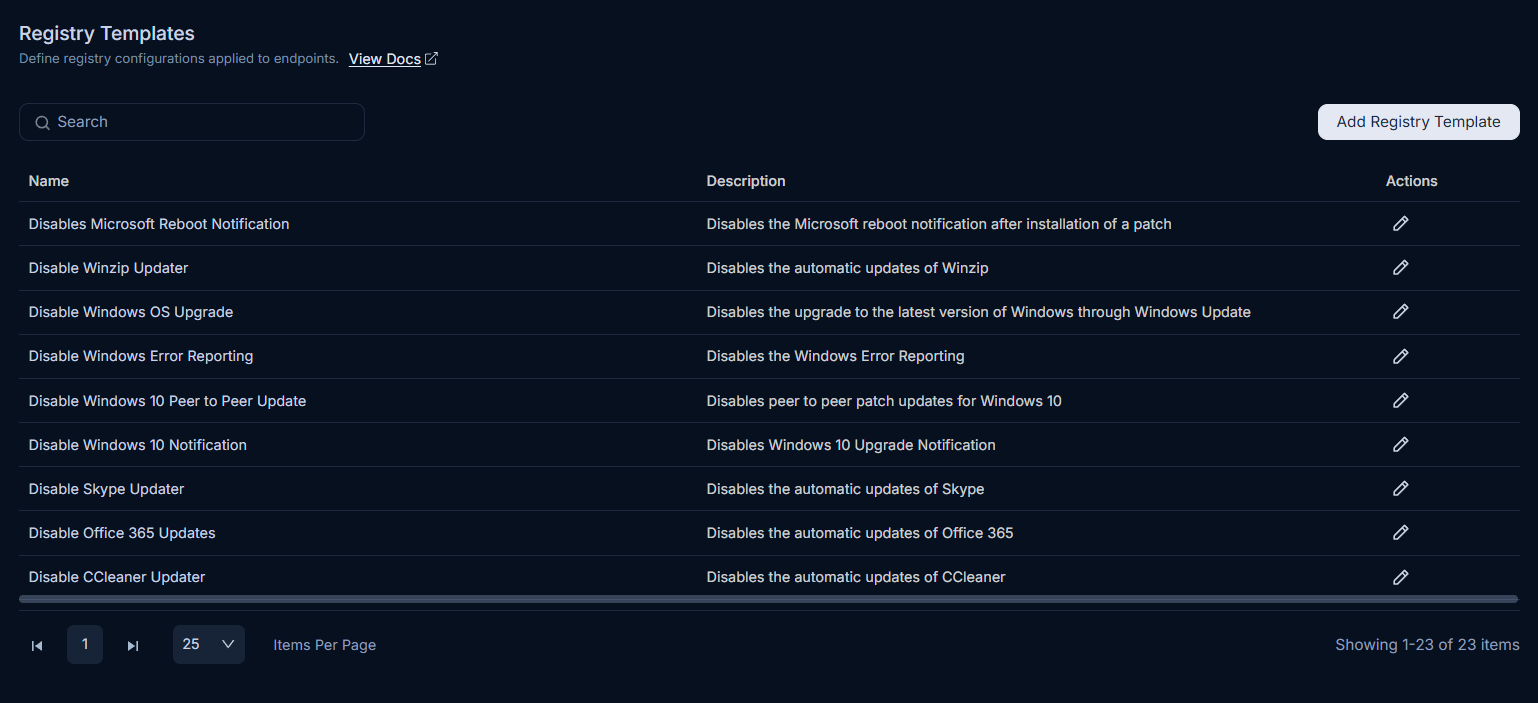
From this centralized page, you can efficiently:
- Search: You can search for the required template based on keywords.
- View: You can view the list of templates along with their description in the grid.
- Add: You can add a new registry template using the Add Registry Template button.
- Edit: You can make changes in the default registry templates using the Edit icon.
- Delete: You can delete the custom registry templates using the Delete icon.
Adding a Registry Template
The Windows Registry contains a hierarchical database of keys and values, which can be manipulated to change the behavior of the operating system and installed software. Registry Templates simplify this process by allowing you to define a set of these manipulations as a reusable template.
To add a new registry template:
Click the Add Registry Template button. The configuration page will appear.
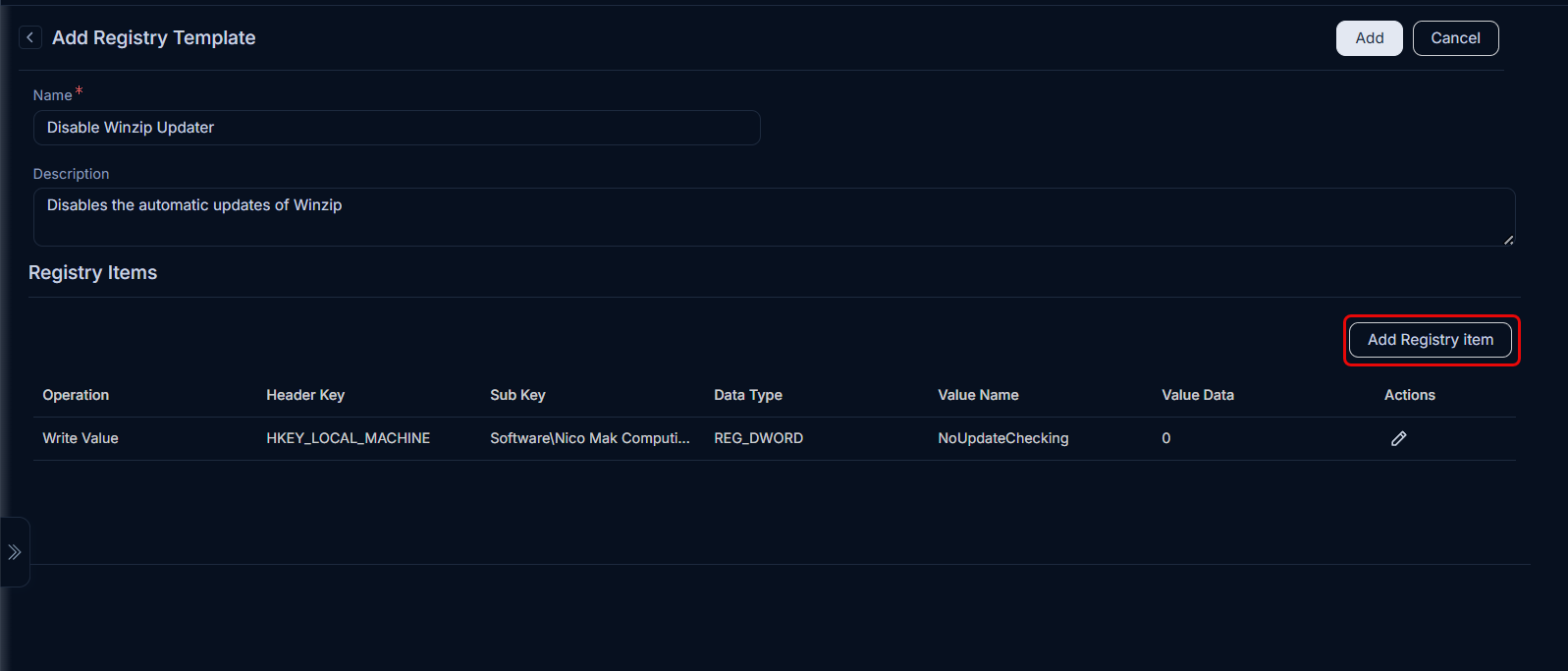
Enter the following details for the template:
- Name: Provide a unique and descriptive name for the registry template.
- Description: Enter a short, informative description of the template's purpose or the changes it applies.
- Registry Items: In this section, you will define the individual registry changes that the template will perform. Click the Add Registry Item button to open a popup for configuring a new registry item.
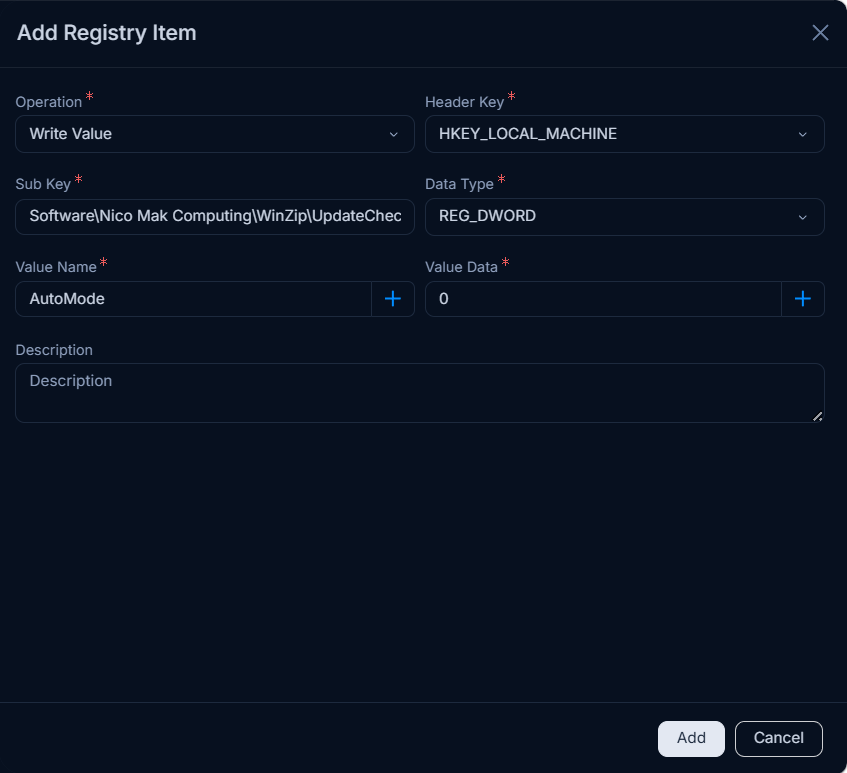
For each registry item, enter the following details:
Parameter Description Operation Select the type of action to perform. Options include: Write Value, Delete Value, Add Key, and Delete Key. Header Key Select the main registry hive. Options are: HKEY_LOCAL_MACHINEandHKEY_USERS.Default.Sub Key Enter the specific path to the subkey (e.g., SOFTWARE\Microsoft\Windows\CurrentVersion\Run).Data Type Select the data type of the registry value. Options include: REG_SZ(string),REG_DWORD(32-bit number),REG_EXPAND_SZ(expandable string), andREG_QWORD(64-bit number).Value Name Specify the name of the registry value. You can also assign a dynamic variable by clicking the blue plus (+) icon and selecting the desired variable. Value Data Enter the data for the registry value, in a format consistent with the selected Data Type. Description Provide a short description for this specific registry item, explaining its purpose. 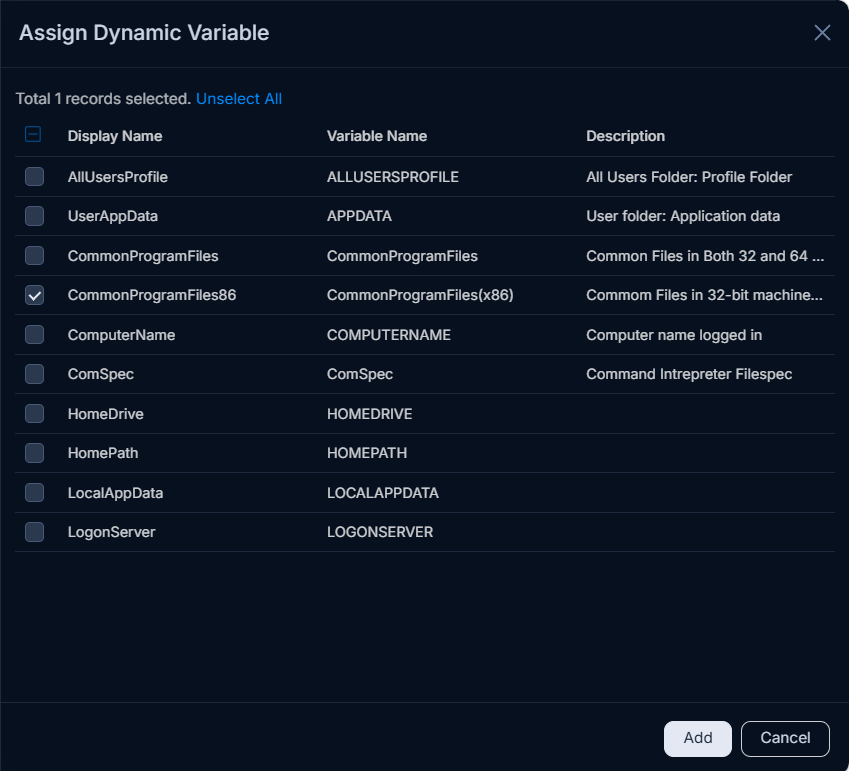
Once all registry items are configured, click Add. The new registry template will then appear on the main list page.