Remote Offices
Modern organizations often operate across multiple geographical locations, all centrally managed from a main office. These remote sites are referred to as Remote Offices. To optimize operations and reduce network strain, individual Remote Offices can utilize a relay server, which facilitates secure communication between external systems and the internal ServiceOps application.
To support these distributed environments, ServiceOps provides the following Remote Automation features:
- Centralized Grouping: Create and manage groups of endpoints for a specific location, then save them as a Remote Office. This simplifies targeting and policy application.
- Scope-based Management: Add a Remote Office to the Endpoint Scope for comprehensive Patch, Package, and Registry Management, rather than managing individual endpoints.
- Relay Server Integration: Point a Remote Office to a Relay Server. This feature significantly reduces the burden on the central File Server by allowing Remote Offices to download Patches and Packages locally from the Relay Server, thereby optimizing bandwidth usage.
To view the Remote Offices page, navigate to Admin > Patch Management > Deployment Management > Remote Offices.
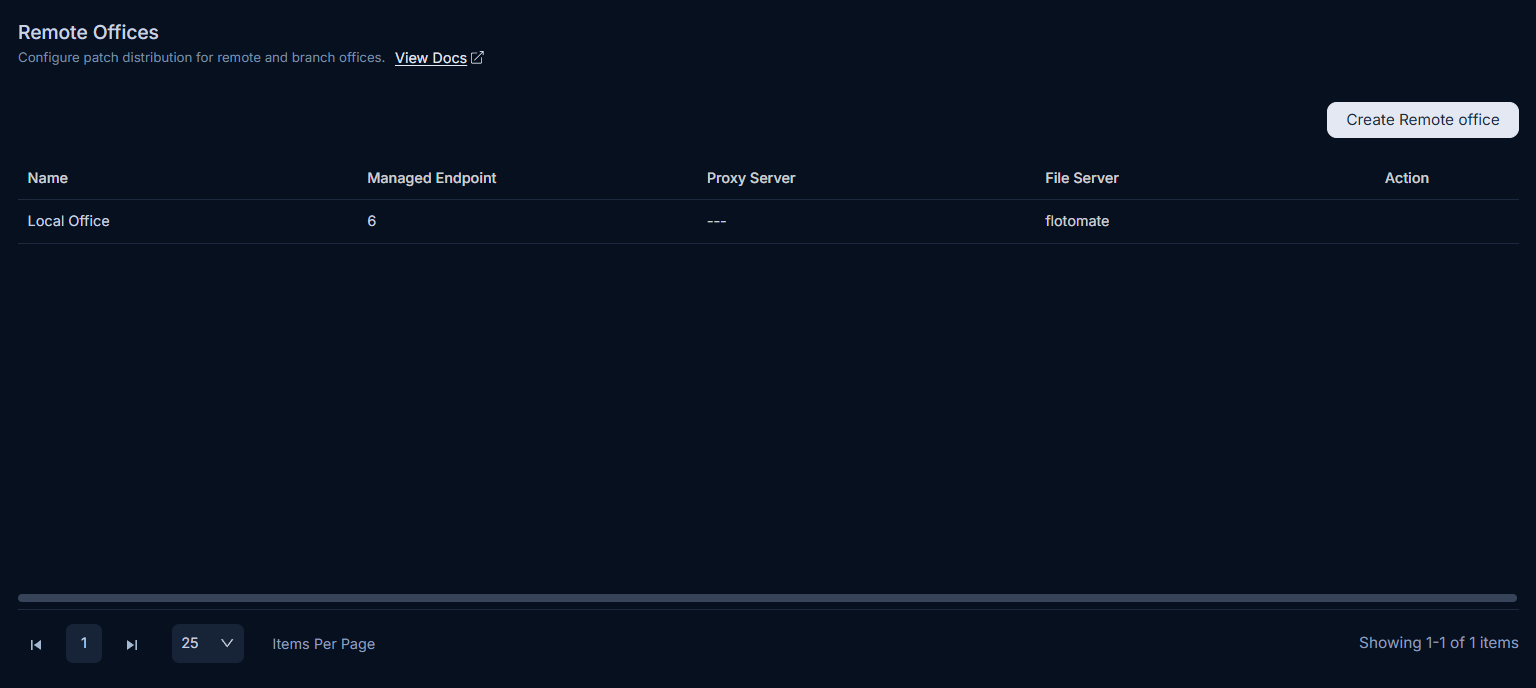
Creating a Remote Office
To create a new Remote Office, follow these steps:
- Click the Create Remote Office button, located at the top-right corner of the page. A popup window will appear.
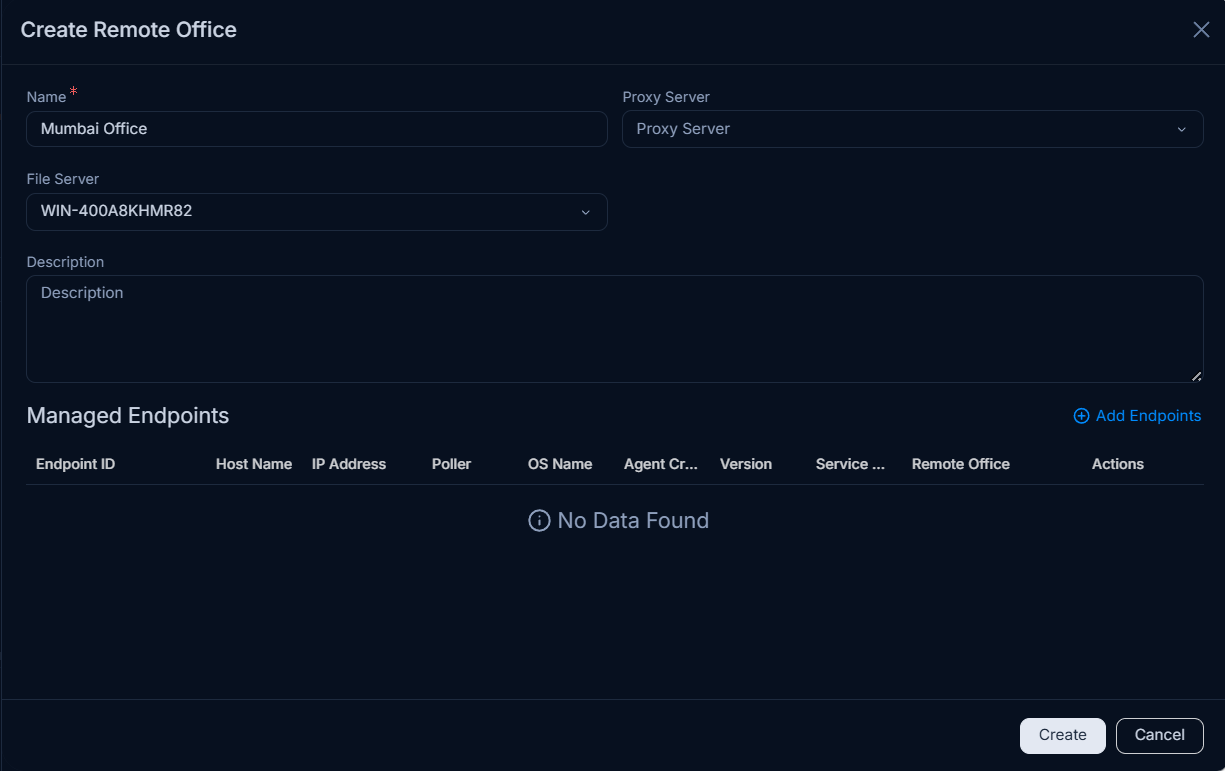
- Enter the following details:
| Parameter | Description |
|---|---|
| Name | Enter a unique and descriptive name for the remote office. |
| Proxy Server | Select the appropriate server for network connectivity: - Select a Proxy Server if a direct internet connection is required for the remote office. - Select a DMZ Server if communication between external systems and the internal ServiceOps application is required. |
| File Server | Select the File Server to which this remote office should be connected. This server will be used for patch and package distribution. For details, refer to the File Server documentation. |
| Description | Provide a short, informative description of the remote office. |
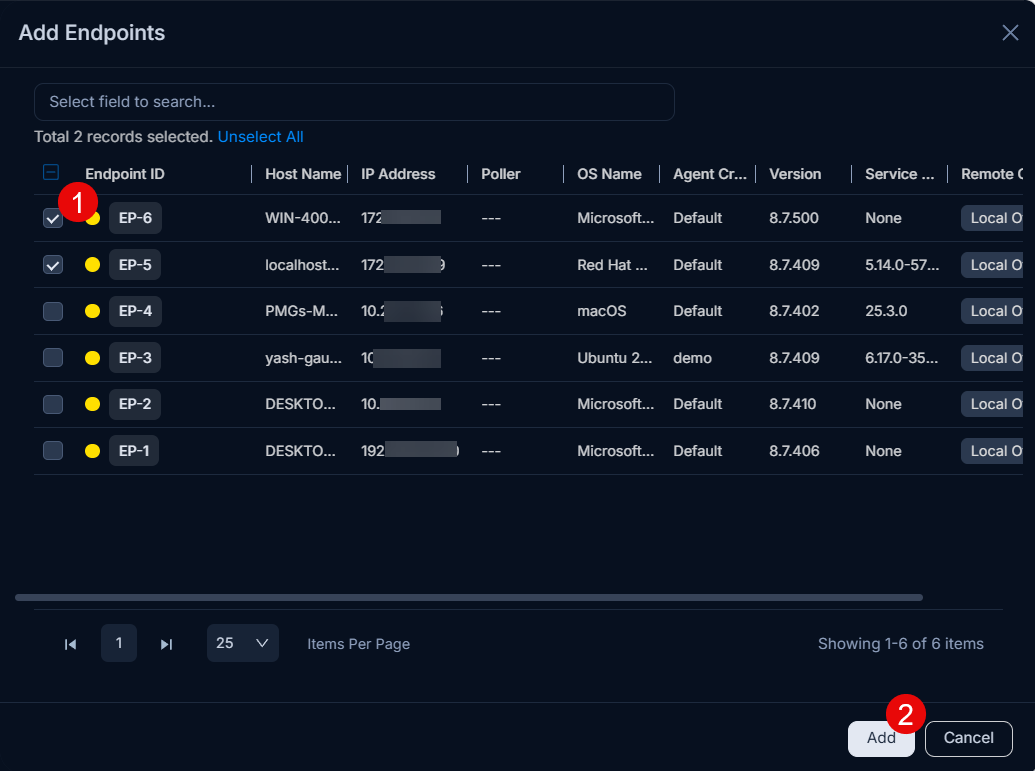
| Add endpoints | Add endpoints to this remote office. Click the Add Endpoints link to open a list of available endpoints. Select the desired endpoints from the list and click Add. Note: Manually selected endpoints will override any exclusion criteria or conditions configured for the Remote Office. |
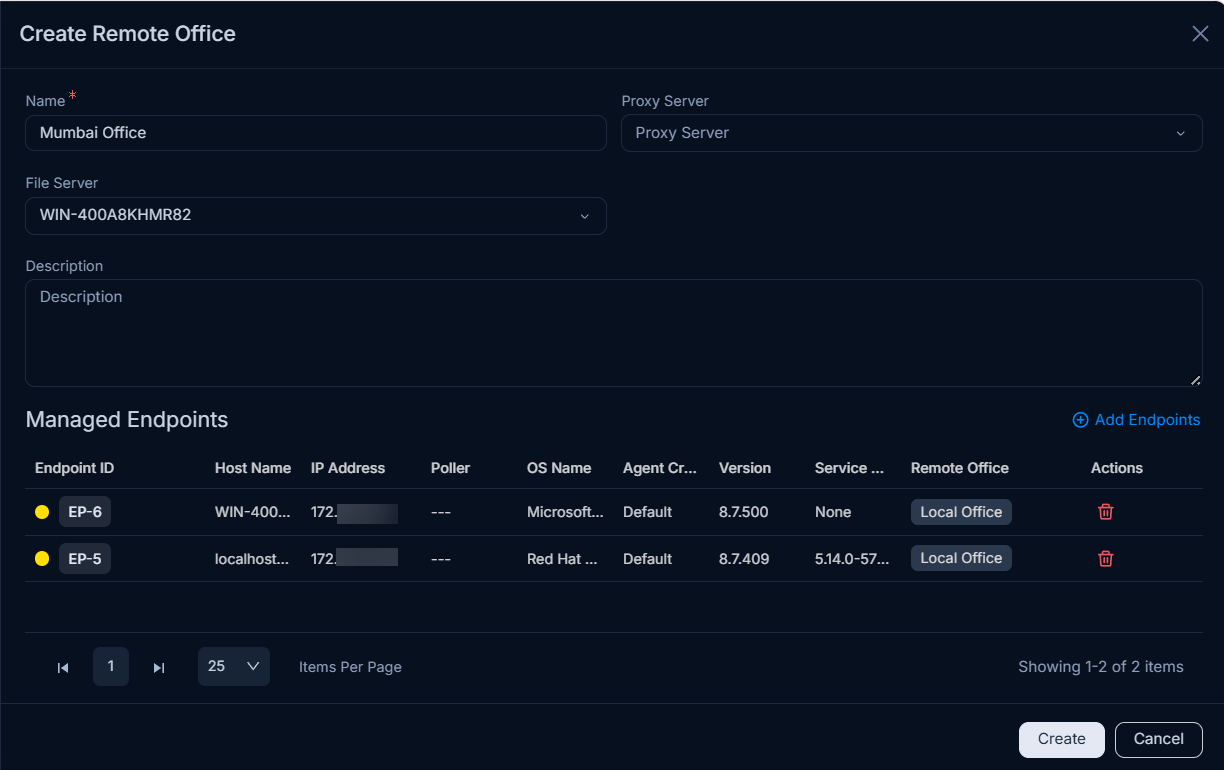
- Once all details are entered, click Create. The new remote office will appear on the list page. You can then use the respective icons to edit or delete it. If you choose to delete, a confirmation message will appear; click Yes to proceed or Cancel to abort the process.