Change Templates
Templates are ready-made forms that you can use when filling out a change form. You only need to select a template, and the form is filled in automatically. These are convenient when a change is of standard or recurring type. The advantages of using a template are:
- Creating a change using a template saves time.
- Templates ensure that proper and sufficient information is included in the change.
- Change parameters such as priority, urgency, and assignee can be predefined in the template.
To view Change Templates, navigate to the Admin > Change Management > Change Templates > Change tab.
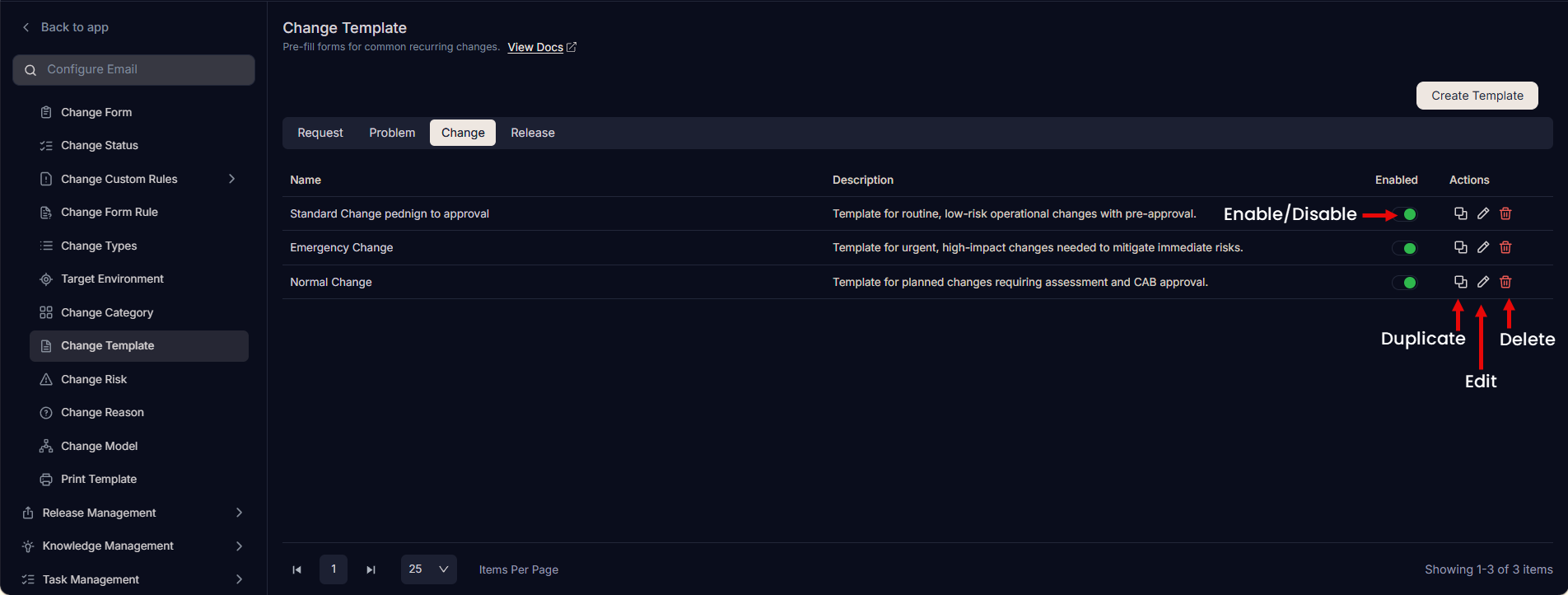
This section displays the out-of-the-box (OOB) templates and allows you to create and manage templates for the Request, Problem, Change, and Release modules.
It also includes the following options:
Create Template: You can create a template from scratch.
Enable/Disable: You can enable or disable a template as needed.
Duplicate: You can create a copy of a template, modify it, and use it. This has two benefits:
- If you are creating a new template similar to the existing one, you do not need to start from the scratch.
- If you modify the copy, the original remains as a backup in case of errors.
Edit: You can edit the template to make changes to it.
Delete: You can delete unwanted templates. A confirmation message appears. Click Yes to continue or Cancel to stop the process.
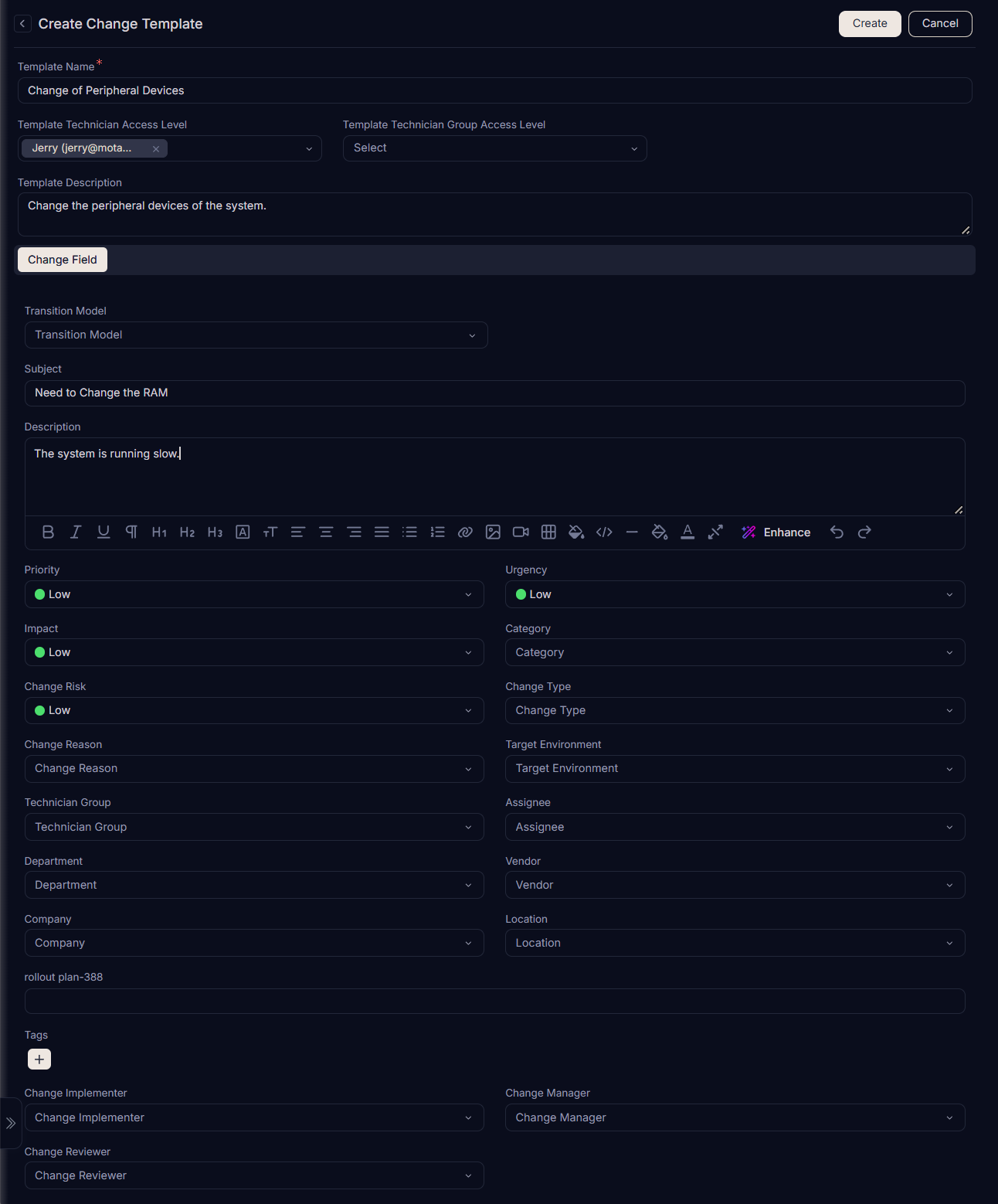
- Enter the following details:
| Parameter | Description |
|---|---|
| Template Name | Enter the name of the template. |
| Template Technician Access Level | Select the technician(s) who can access the template. |
| Template Technician Group Access Level | Select the technician group(s) who can access the template. |
| Template Description | Enter a brief description about the template. |
| Subject | Enter the subject of the change. |
| Description | Enter the description of the change. |
| Priority | Select the priority of the change. |
| Urgency | Select the urgency of the change. |
| Impact | Select the impact of the change. |
| Category | Select the category to which the change belongs. |
| Change Risk | Select the risk involved in the change. |
| Change Type | Select the type of change. |
| Change Reason | Select the reason of the change. |
| Target Environment | Select the target environment in which the change is applicable. |
| Technician Group | Select the technician group for the change. |
| Assignee | Select the assignee if you want to assign the change to a specific person. |
| Department | Select the department if you want to assign the change to a specific department. This field is optional. |
| Vendor | Select the vendor from the dropdown list. |
| Company | Select the company if you want to assign the change to a specific company. Note: This field is available only if the Managed Services Provider feature is enabled. |
| Location | Select the location if you can find the location from the dropdown. This field is optional. |
| Tags | Add tags to help identify similar changes(optional). |
- Once all the details are filled in, click Create. The template will be available to the users in the Fill From Template dropdown when creating a change. Similarly, you can create templates for the Request, Problem, Change, and Release modules.