Change Form Rules
Change form rules let you make fields (system and custom) mandatory or optional, show or hide them, enable or disable them, set or clear values, and show or hide options based on conditions in the change form. These rules apply when creating a change, editing a change, or both. This helps you collect the required details from the users.
To view the Change Form Rules, navigate to Admin > Change Management > Change Form Rules.
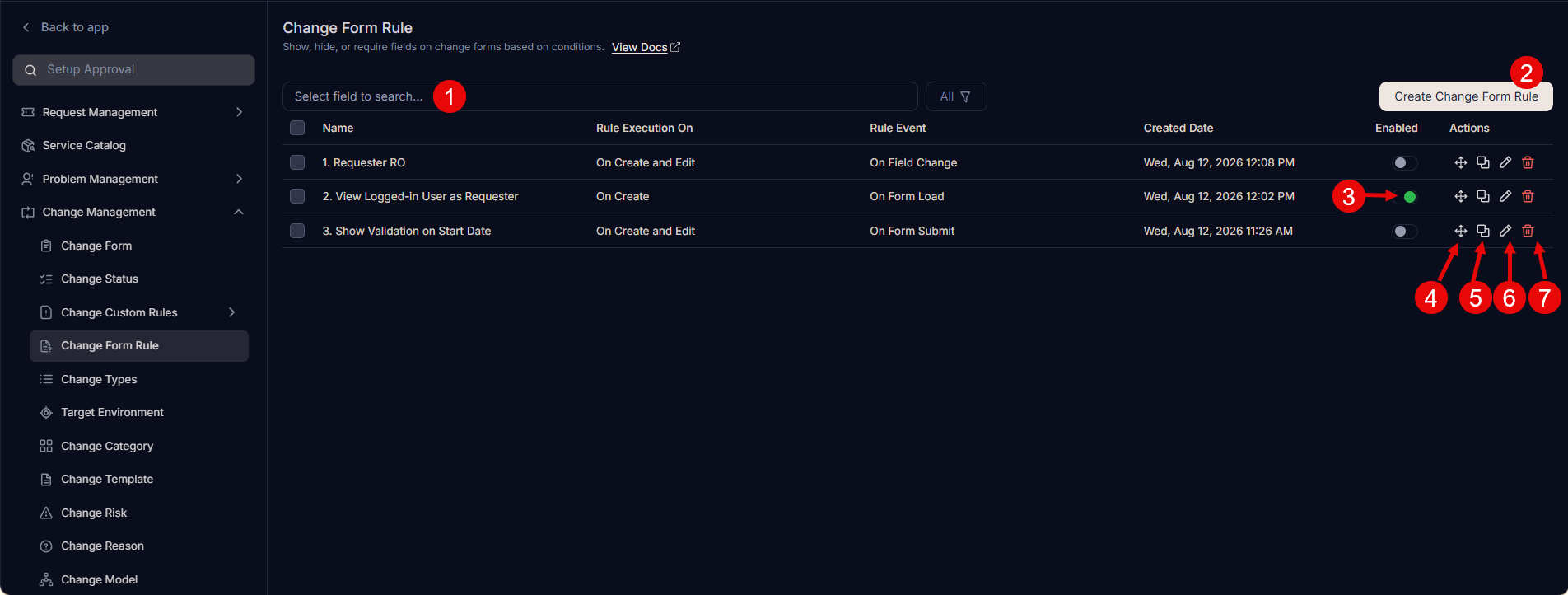
The page displays a list of existing rules and the following options:
- Search: You can search for the required rule using keywords.
- Create Change Form Rule: You can create a change form rule.
- Enabled: You can enable or disable a change form rule. By default, it is enabled. If disabled, the rule is not be applied to the change form.
- Re-order: You can re-order rules using drag-and-drop.
- Duplicate: You can create a duplicate rule based on the existing one.
- Edit: You can edit the rule to make changes.
- Delete: You can delete the unwanted rules. A confirmation message appears. Click Yes to continue or Cancel to stop the process.
Create a Change Form Rule
To create a form rule, follow these steps:
- Click Create Change Form Rule in the top-right corner of the page. A pop-up appears.
Change Form Rule actions such as Hide, Non-mandate, Disable, and Clear value may not work for system fields such as Subject, Requester, and Status because their default properties take precedence.
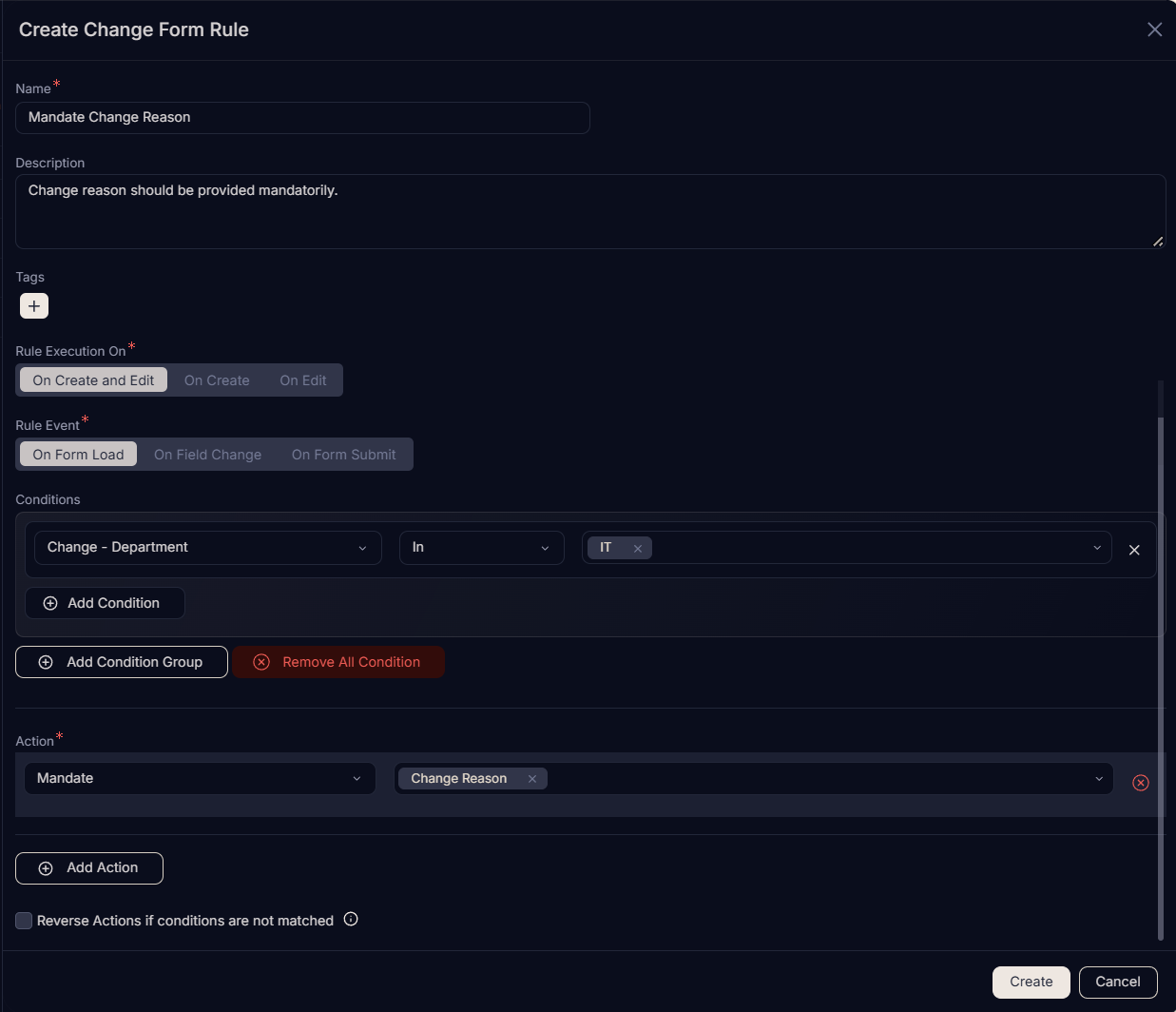
- Enter the following details:
- Name: Enter the name of the Change Form Rule.
- Description: Enter a short description about the Change Form Rule.
- Rule Execution On: Select when to execute the rule. The options are:
- On Create and Edit: Select to execute the form rule when creating or editing a change.
- On Create: Select to execute the form rule only when creating a change.
- On Edit: Select to execute the form rule only when editing the change.
- Rule Event: Select the event that triggers the rule. The options are:
- On Form Load: Select to apply the rule when the form loads.
- On Field Change: Select to apply the rule when the value of a field changes.
- On Form Submit: Select to apply the rule when the form is submitted.
- Conditions: Define the conditions that the system evaluates in the change form to determine whether to apply the rule. The conditions are grouped into Request Fields, Change Fields, Logged-in Users Fields, and Requester Fields. You can define multiple conditions here. All the conditions work in AND form. This means the rule applies only when all conditions are true.
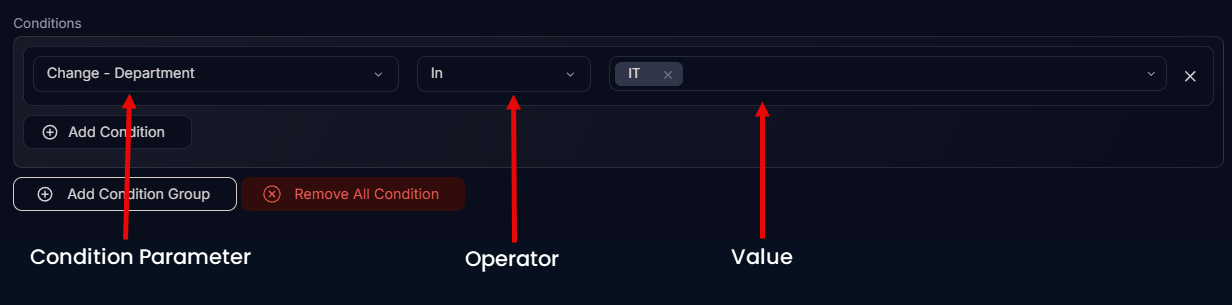
- Condition Parameter: Select a condition parameter from the dropdown list.
- Operator: Select the operator: In or Not In from the dropdown list.
- Value: Select the value for condition. You can select multiple values of which the first value will be displayed in full, followed by the count of all additional values selected.
You can also click the Add Condition Group button to add more conditions in the Change Form Rule. Click Remove All Condition to remove all conditions from the Change Form Rule.
Action: Select the action and its value(s) for the selected conditions from the given list. In the below figure, the Change Reason field will become mandatory if the IT Department is selected in the change form. To add more actions, click Add Action.
Show: To make the required field visible on the Change Form when the conditions of the form rule match.
Hide: To hide the required field on the Change Form when the conditions of the form rule match. Once a field is hidden, you can also apply the clear value and set value actions on it.
Mandate: To make the required field mandatory on the Change Form when the conditions of the form rule match.
Non-Mandate: To make the required field optional on the Change Form when the conditions of the form rule match.
Enable: To enable the required field on the Change Form when the conditions of the form rule match.
Disable: To disable the required field on the Change Form when the conditions of the form rule match.
Set Value: To set the value of the required field on the Change Form when the conditions of the form rule match. The Set Value action also supports dynamic population from Requester profile data. When configuring the action, select the target field, then choose From > Requester Field as the source. Supported Requester fields include contact number, email, manager, department, location, and compatible custom fields. Only fields with a matching data type appear in the selection list.
For example, to auto-populate the Department field based on the selected requester, set the Rule Event to On Field Change, select Requester as the trigger field, then set the Action to Set Value, choose Department as the target field, and map it using From > Requester Fields > Department.
Clear Value: To clear the value of the required field on the Change Form when the conditions of the form rule match.
Show Options: To view the options of the required dropdown field on the Change Form when the conditions of the form rule match.
Hide Options: To hide the options of the required dropdown field on the Change Form when the conditions of the form rule match. You can hide options for these fields: Technician Group, Schedule End Date, Vendor, Assignee, Target Environment, Department, Requester, Status, Priority, Change Reason, Change Type, Category, Urgency, Location, Change Risk, Schedule Start Date, and Impact.
Run Custom Script: Runs the custom script and populates the selected field with the returned data.
Filter Data: Filters the available values based on the selected user field and requester field, respectively.
For example, on the Create Change page, to filter the Assignee list based on the user's and requester's locations, set Action to Filter Data and configure: Assignee; User field:Location; Requester field:Location. Then, when creating or editing a Change Request, the Assignee list is filtered based on the Location field.

- Reverse Actions if conditions are not matched: Enable if you want to reverse the actions when the conditions do not match in the change form. This option is available only if conditions are added.
- When finished, click Create.