Change Reason
A change can be defined bya specific reason that leads to improvements in existing instances. This development or improvement is called a reason for the change.
To view the Change Reason page, navigate to Admin > Change Management > Change Reason.
Here, you can do the following:
- View and edit the default reasons.
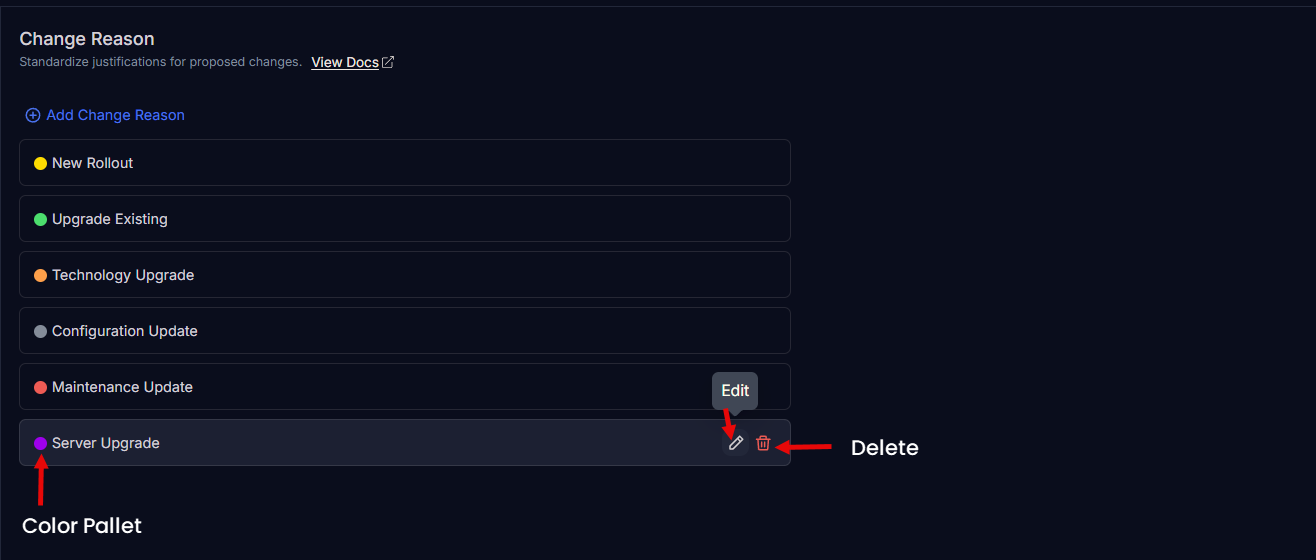
- Add and manage the custom reasons.
Add Change Reason
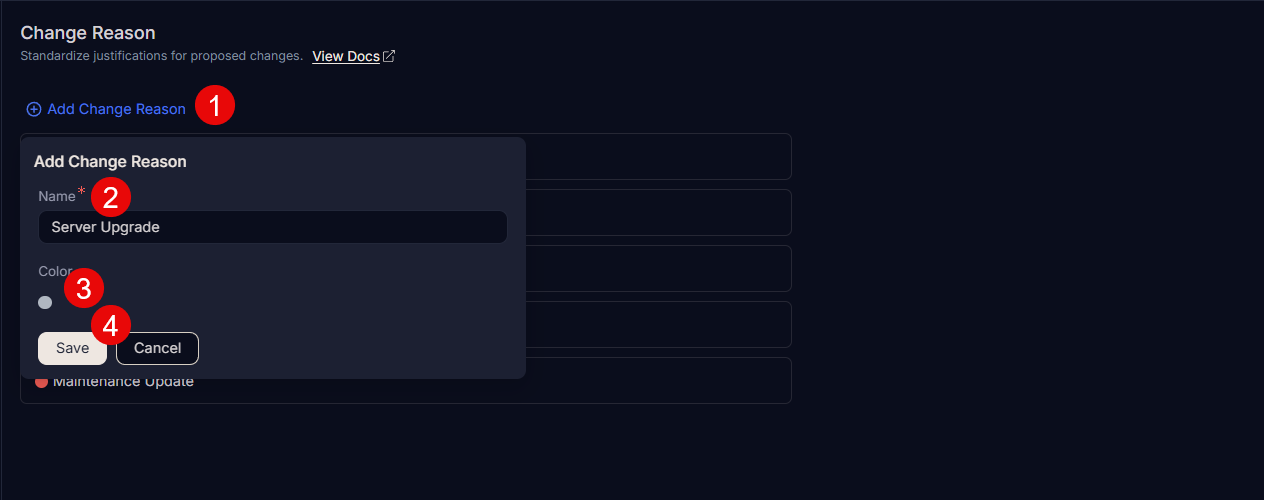
To add a custom change reason:
- Click Add Change Reason.
- Enter the Name of the change reason.
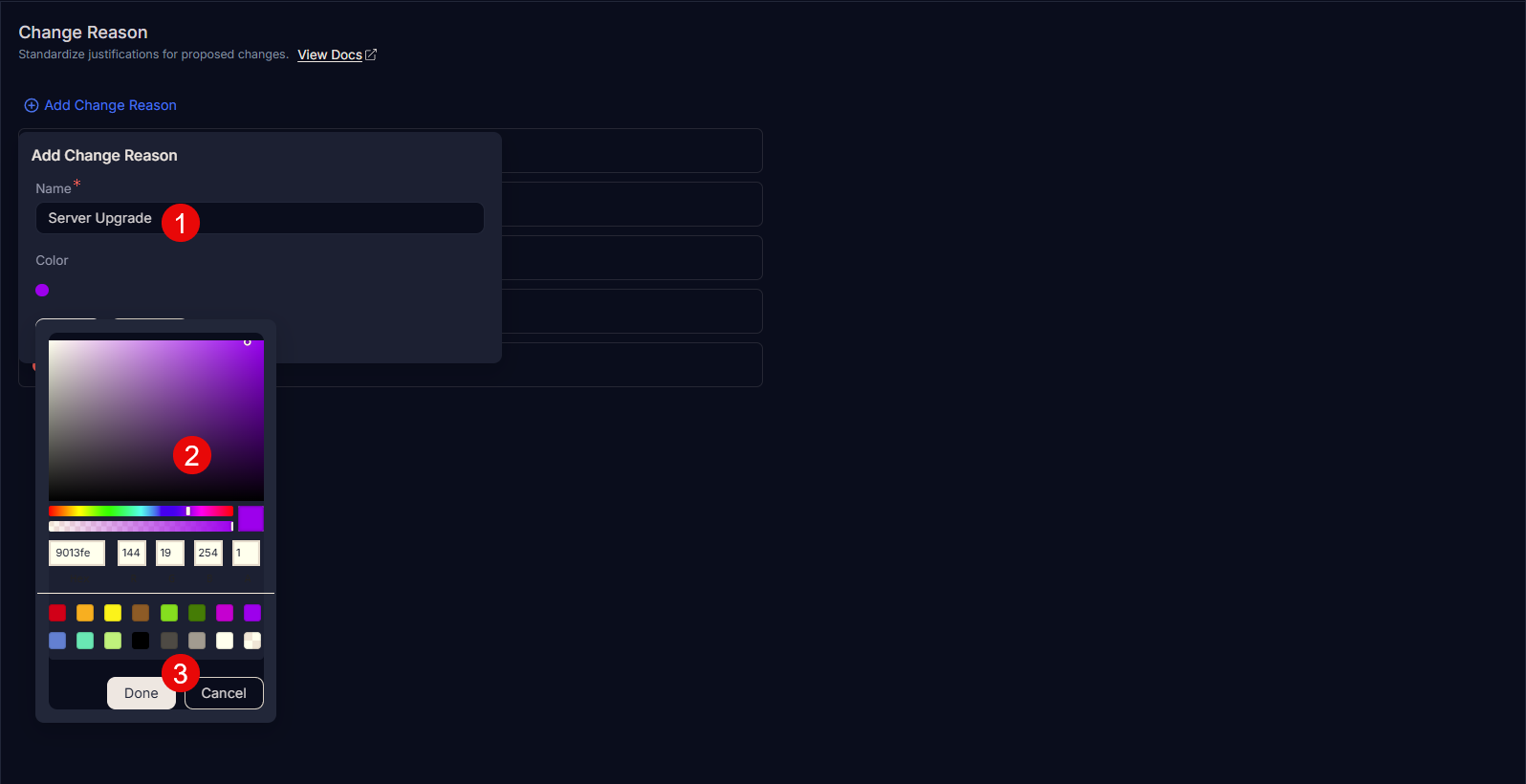
- Select a color, or enter a hexadecimal code by clicking the color palette icon.
- Click Save.
- Once added, you can edit or delete the custom reason. You can edit default reasons, but you cannot delete them.