Change Model
A Transition Model describes how a Change Request transitions from one state to another in ServiceOps.
This section enables you to create and manage transition models. These models help in changing the status of the Change Requests automatically based on certain conditions. For example, if you want to change the status of a ticket from Open to InProgress when a particular Assignee is assigned. You can fulfill this requirement by using a Transition Model. Read on to learn how to create a Change Transition Model and use it to achieve the desired result.
To view the list page:
Navigate to Admin > Change Management > Change Model. The following page appears.
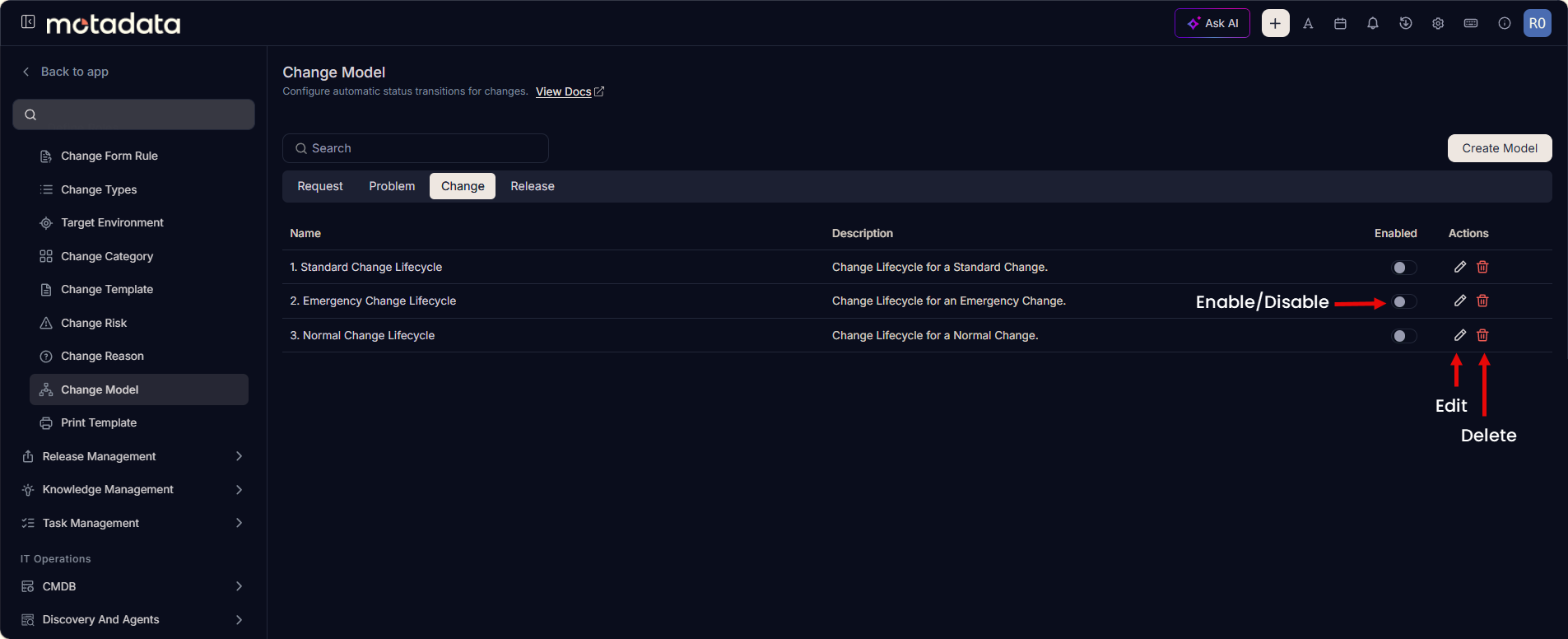
From this page, you can:
- View both default and custom Transition Models.
- Enable/Disable a model.
- Create a new model.
- Edit an existing model.
- Delete a model.
Default Change Models
On a fresh installation, the following Change Models are available by default:
- Standard Change Lifecycle – Lifecycle for standard, pre-approved, low-risk changes.
- Emergency Change Lifecycle – Lifecycle for urgent, high-priority changes requiring immediate action.
- Normal Change Lifecycle – Lifecycle for planned, higher-risk changes that require formal review and approval.
These models are enabled by default and can be customized or disabled based on organizational needs.
Create Model
To create a transition model, follow these steps:
- Navigate to Admin > Change Management > Change Model and click Create Model. The following page appears.
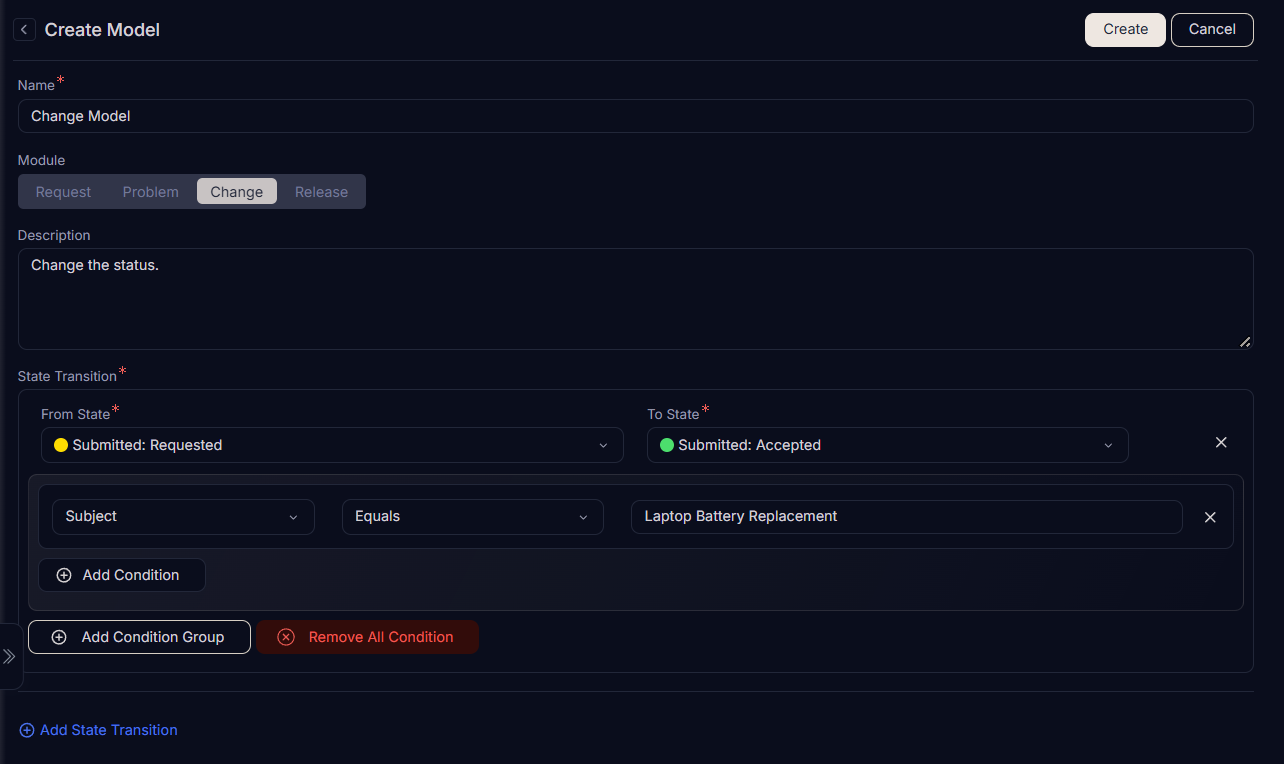
- Enter the following details:
- Name: Enter the name of the transition model. For example, enter "Change Model".
- Module: Select the module. By default, the option selected from the previous window will be selected. If required, you can select the other module. On doing so, the fields will get updated accordingly. For example, if from the Admin > Change Management > Change Model is selected, the Change option will be selected by default.
- Description: Enter a brief description about the model.
- State Transition: Click Add State Transition and select From State and To State. You can add multiple transitions. Next, add a condition group to automatically change the ticket status when the conditions match. You can add multiple condition groups. For example, in the figure above, the transition from Submitted: Requested to Submitted: Accepted uses the condition Subject = Laptop Battery Replacement.
- Once done, click Create, and the model is available on the list page. By default, it is enabled. Now, you can apply this model to the Change Requests either at the time of creation.
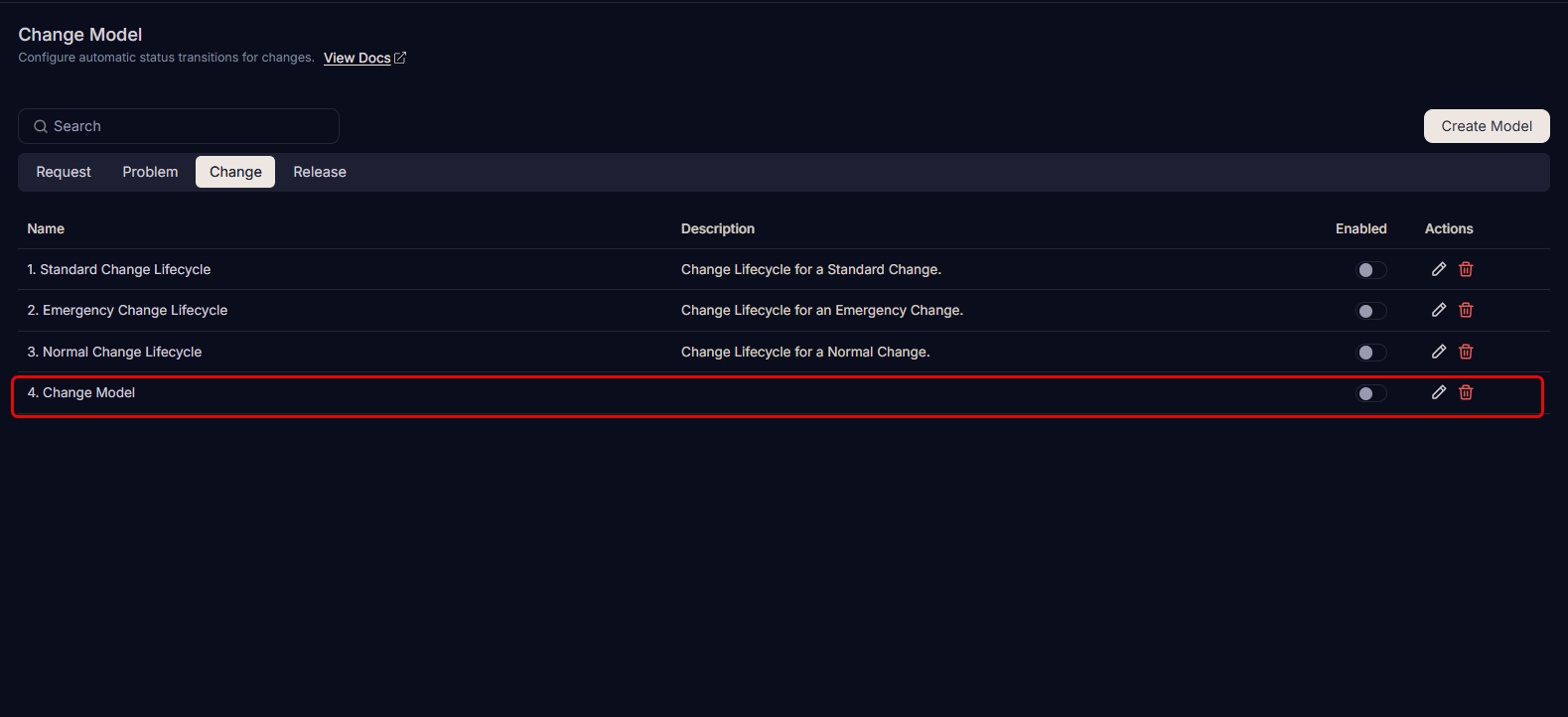
- To edit the model details, click the Edit icon on the list page, make the changes, and save it.
- To delete the model, click the Delete icon.
Related Topics
- Create a Change: See how the Transition Model can be applied to the request.