Change Status
Change Status determines the progress of the Change tickets at each stage. Using these statuses, you can see how much work is complete or pending on a ticket and take action accordingly. The system provides default status values that are ready to use.
To view the Change Status page, navigate to the Change tab: Admin > Change Management > Change Status > Change.
Here, you can manage ticket statuses at different stages. You can also edit status names, enable or disable SLA and UC, and change status colors to match your organization's theme.
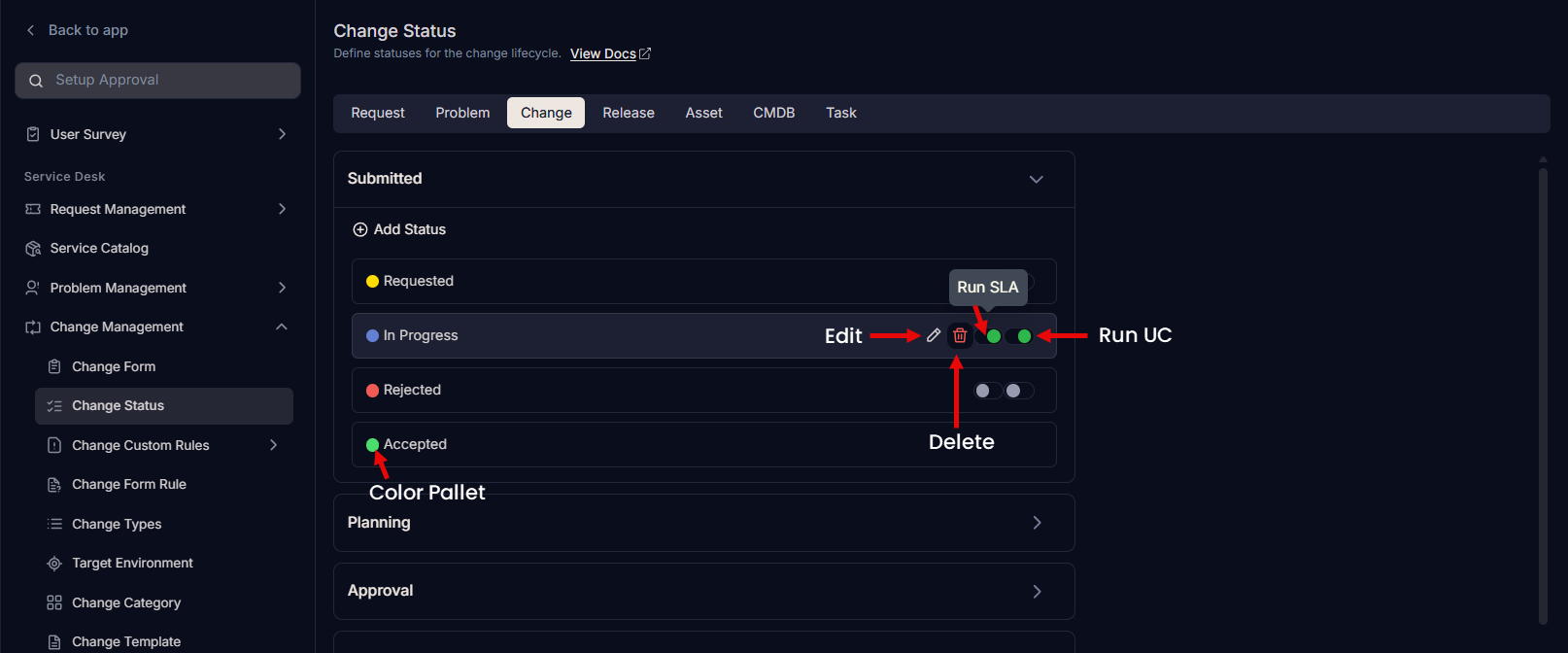
Here, you can do the following:
- Add and manage custom statuses for all stages.
- Enable or disable SLA for a status value using Run SLA.
- Enable or disable UC for a status value using Run UC. By default, UC is disabled. For example, if the status is "Pending", UC should pause.
note
You can enable both SLA and UC simultaneously for tickets.
- Change the status color.
Add Status
To add a custom status:
- Click Add Status.
- Enter the status Name.
- Select a color, or enter the hexadecimal code by clicking the color palette icon.
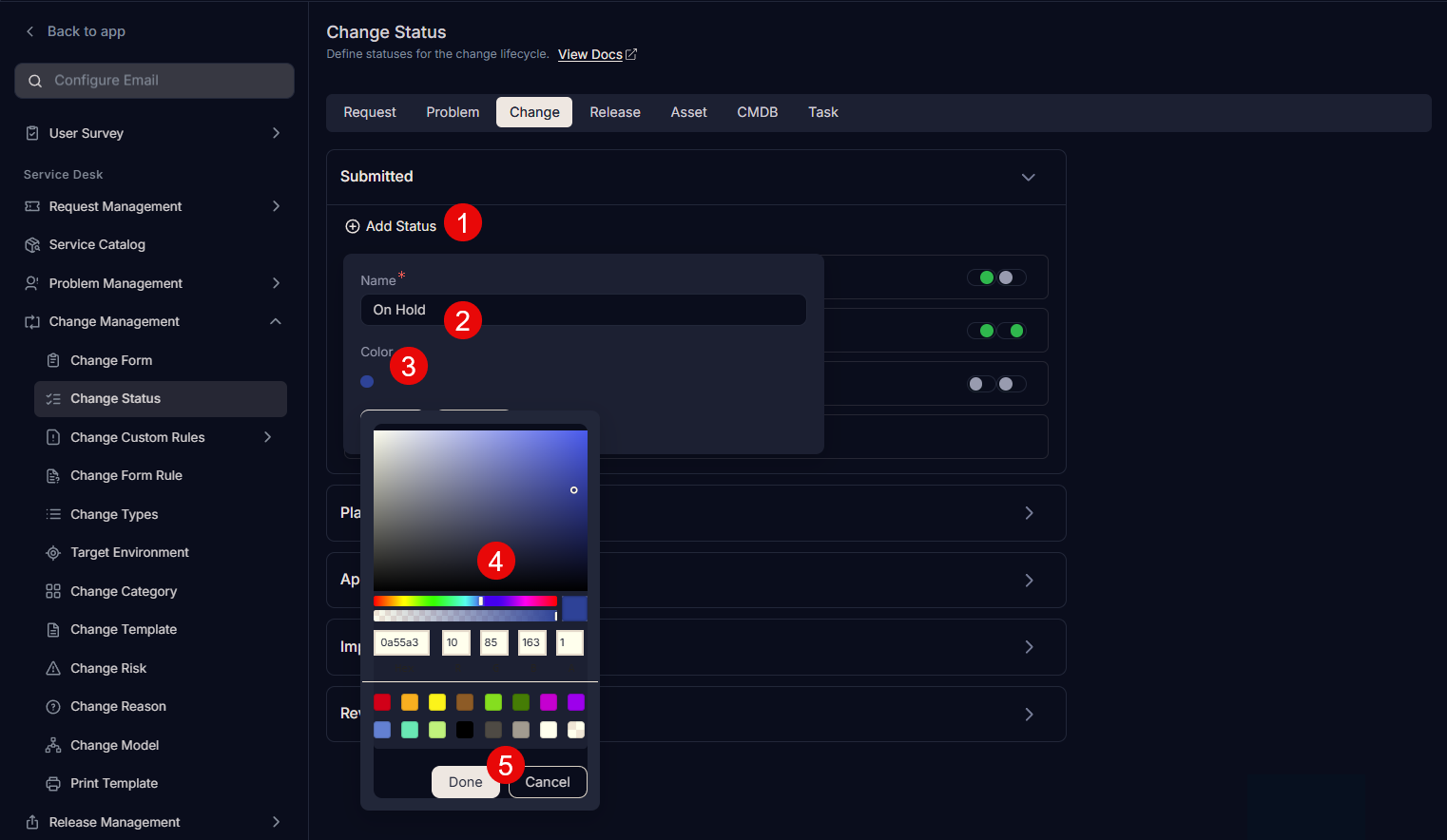
- Click Save.
- After you add a status, you can edit or delete the custom status. However, default statuses can be edited but not deleted.