Technician Groups
A Technician Group consists of technicians that perform similar tasks. These groups can be created for users who work either on similar projects or have a similar job role. For example: Support team can be added to a Technician Group for resolving customer issues (tickets). A group has many technicians and a technician can be a part of many groups. You can also add a technician group as a Change Advisory Board (CAB), Watcher, as well as for Approval.
This tab enables you to create and manage Technician Groups. To view the page, navigate to Admin > Users > Technician Groups, and the page appears.
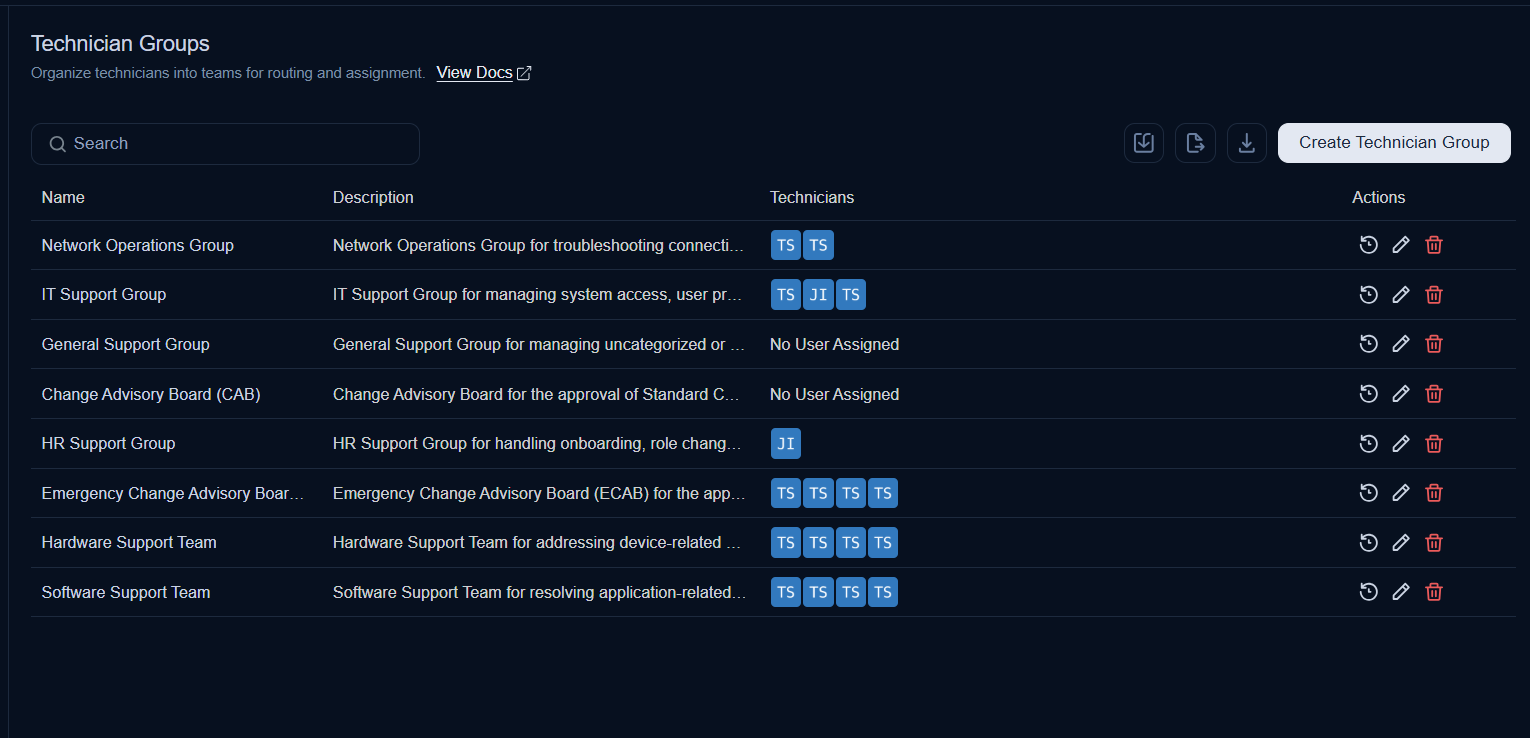
From this page, you can:
- Search: Search for a specific Technician Group by name.
- Export: Export the list of Technician Groups in Excel or CSV format.
- Import: Import Technician Groups in bulk using a CSV or Excel file.
- Download: Download the list of Technician Groups in Excel or CSV format.
- Create Technician Group: Create a new Technician Group.
- Grid: View the list of Technician Groups along with their details.
- View History: View the change history of a Technician Group.
- Edit: Edit the details of a Technician Group.
- Delete: Delete a Technician Group if no longer needed.
Default Technician Groups
On a fresh installation, the following groups are available by default:
- Network Operations Group – Troubleshooting connectivity and network-related issues.
- IT Support Group – Managing system access, user provisioning, and IT service support.
- General Support Group – Managing uncategorized or cross-functional support activities.
- Change Advisory Board (CAB) – Approval of Standard Changes.
- HR Support Group – Handling onboarding, role changes, and employee service requests.
- Emergency Change Advisory Board (ECAB) – Approval of Emergency Changes.
- Hardware Support Team – Addressing device-related issues and repairs.
- Software Support Team – Resolving application-related issues and installation support.
These can be modified or supplemented with custom groups as needed.
Create a Technician Group
To create a Technician Group,
- Click the Create Technician Group button on the top-right corner and the page appears.
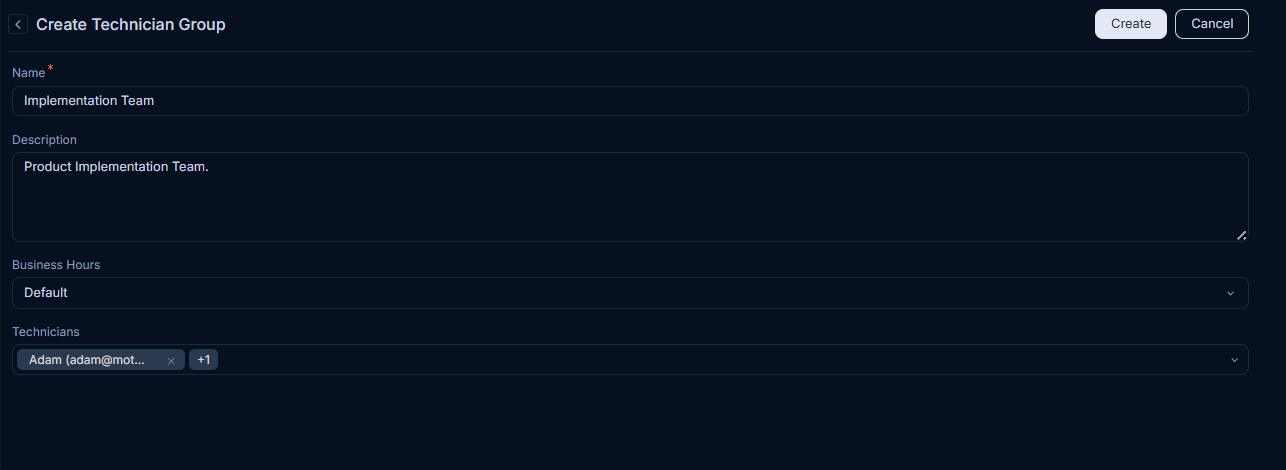
- Enter the following details:
| Parameter | Description |
|---|---|
| Name | Enter the name of the technician group. |
| Description | Enter the details about the technician group. |
| Business Hour | Select the business hour during which the technician group will be available to provide support. You can create and assign different business hours. For more details, click Business Hours. |
| Technicians | Select the technicians whom you want to assign to this group. You can select multiple technicians. |
- Once done, click Create, and the group will appear in the list. Similarly, you can create the CAB group and assign members to it.
Export Technician Group
To export the list,
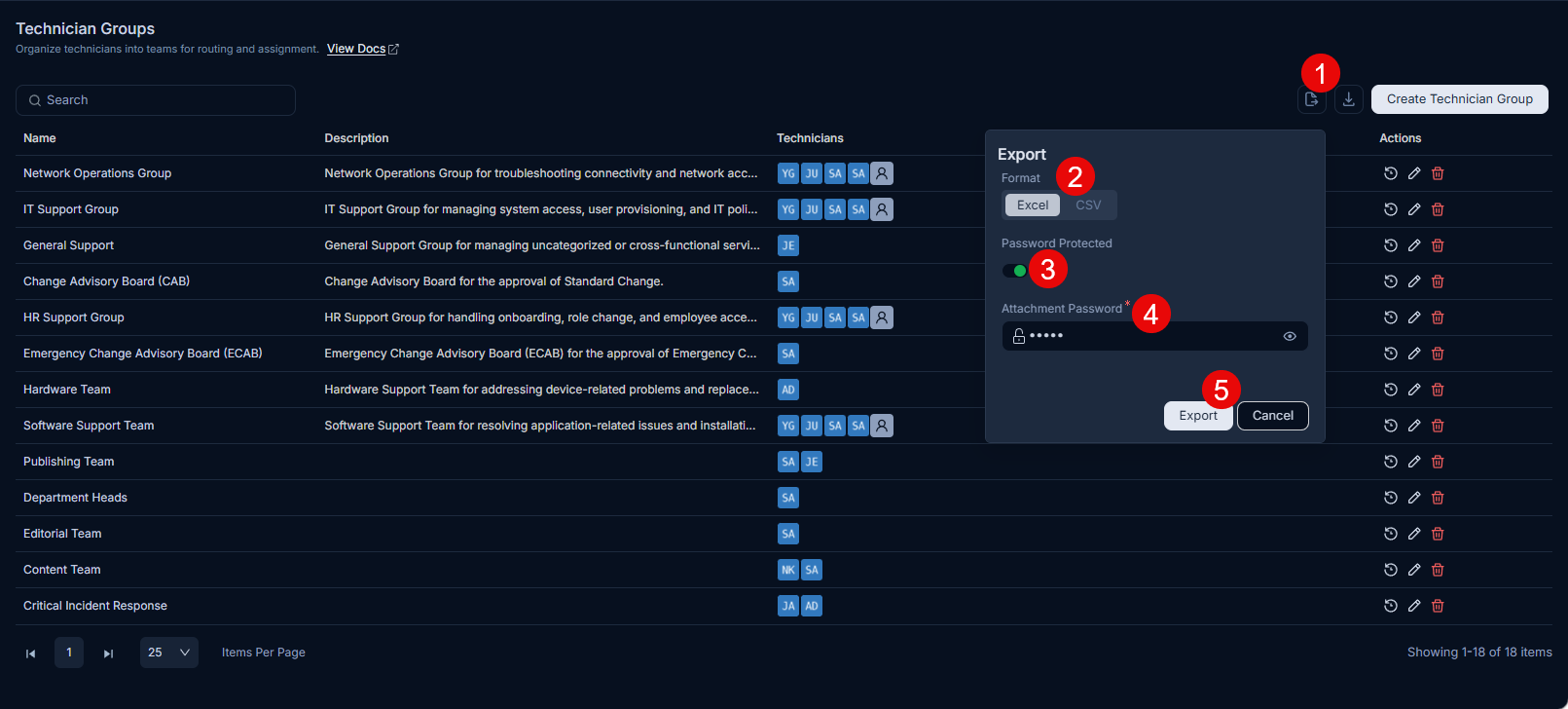
- Click the Export button.
- Select the format as Excel or CSV.
- If Excel is selected, you can further password protect it by enabling the field, and providing the Attachment Password.
- Once done, click Export, and the list will be exported via email.
Import Technician Group
To import Technician Groups,
- Click the Import button. The User Group Batches page appears.
- Click the Import Batch button.
- Select the Import File Type as CSV or Excel.
- Select the Date Format from the dropdown.
- Select the file to upload. If you do not have a file, click Click here to download the sample CSV file, fill in the required details, and upload it.
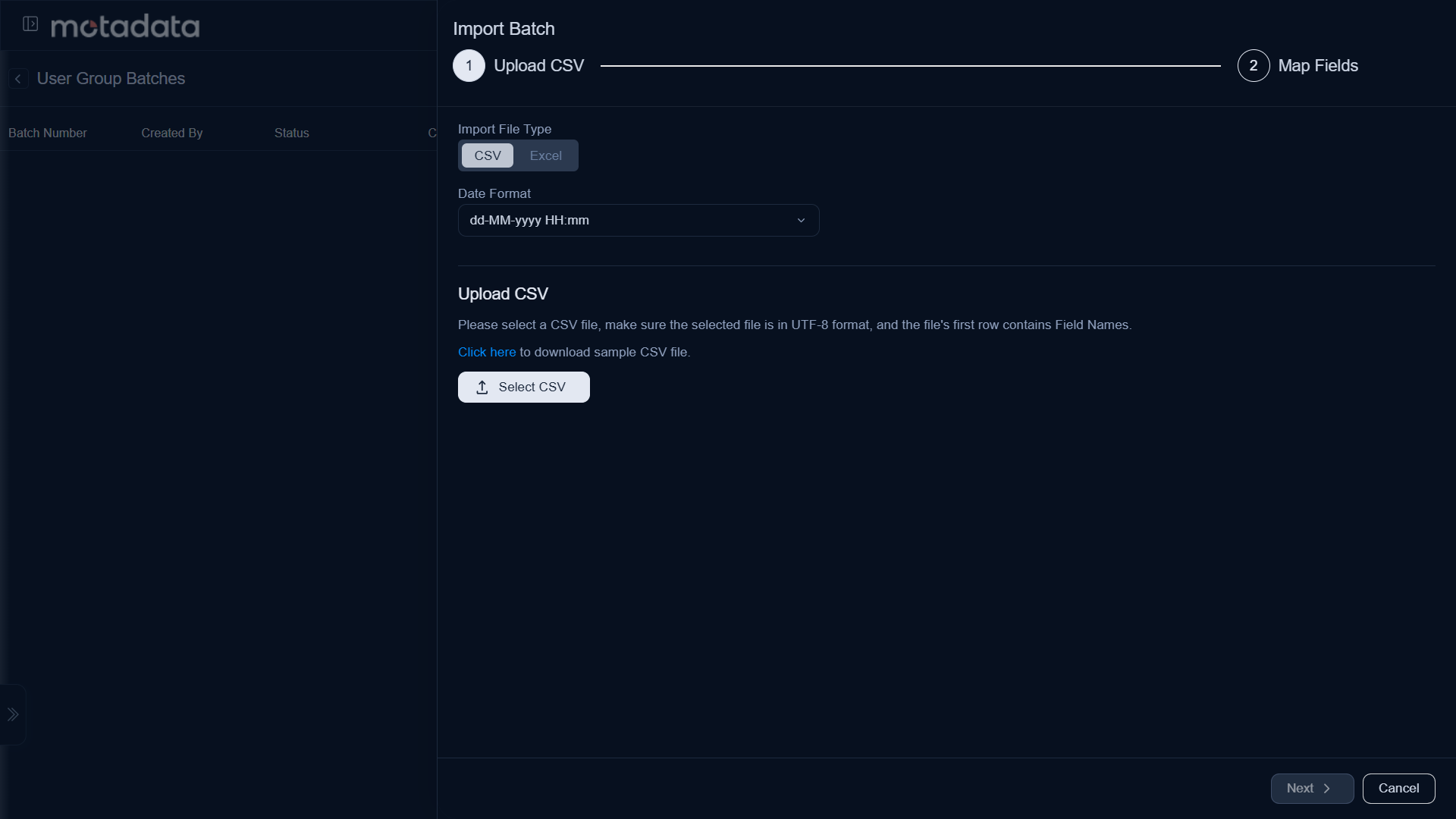
- Click Next.
- Map the fields as required and click Save Batch.
- The User Group Batches page displays the status of the import along with details such as processing time, total records, success records, and failed records.
Download Technician Group
To download the list,
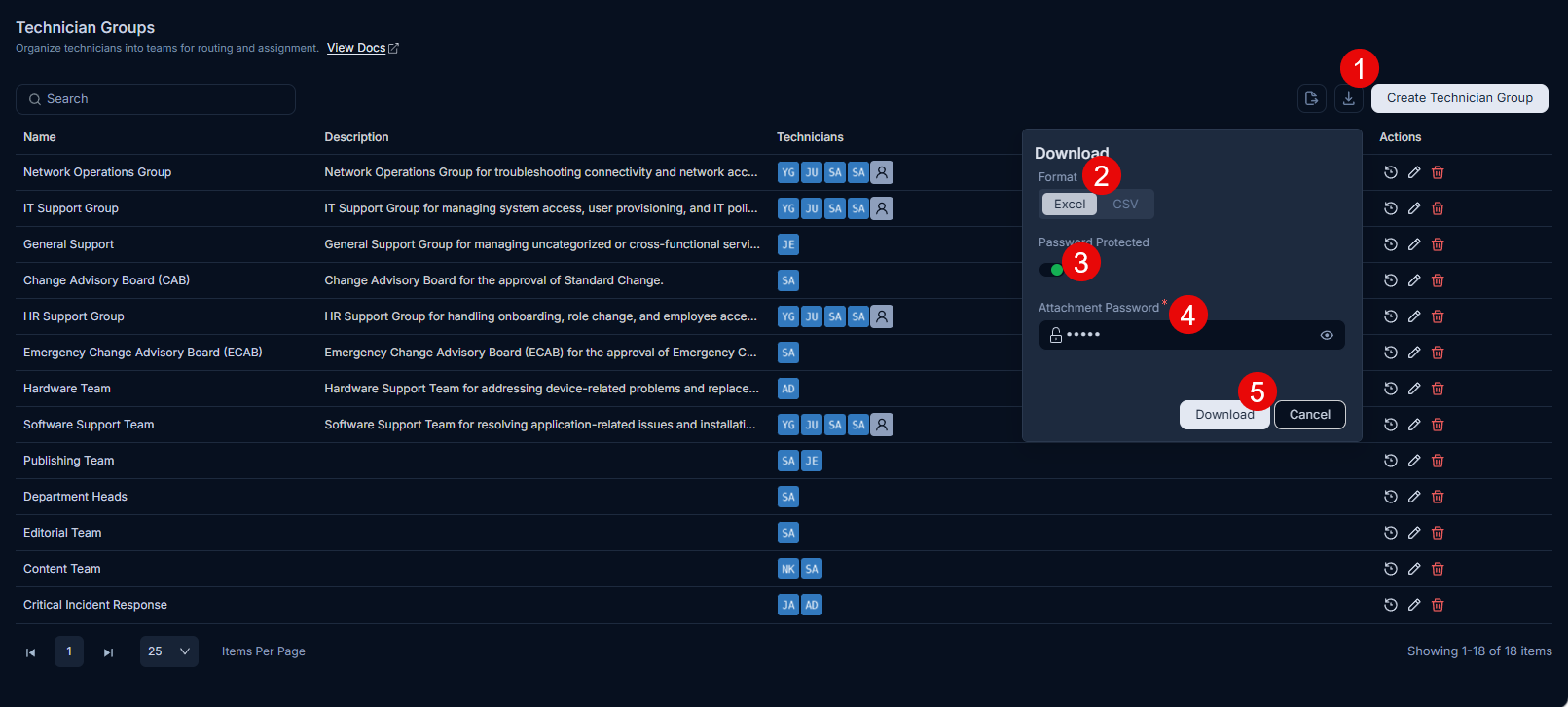
- Click the Download button.
- Select the format as Excel or CSV.
- If Excel is selected, you can further password protect it by enabling the field, and providing the Attachment Password.
- Once done, click Download, and the list will get downloaded.
View History
You can view the history of the Technician Group events. One can view the details by clicking the History icon on the Technician Group list page, and the popup will appear.
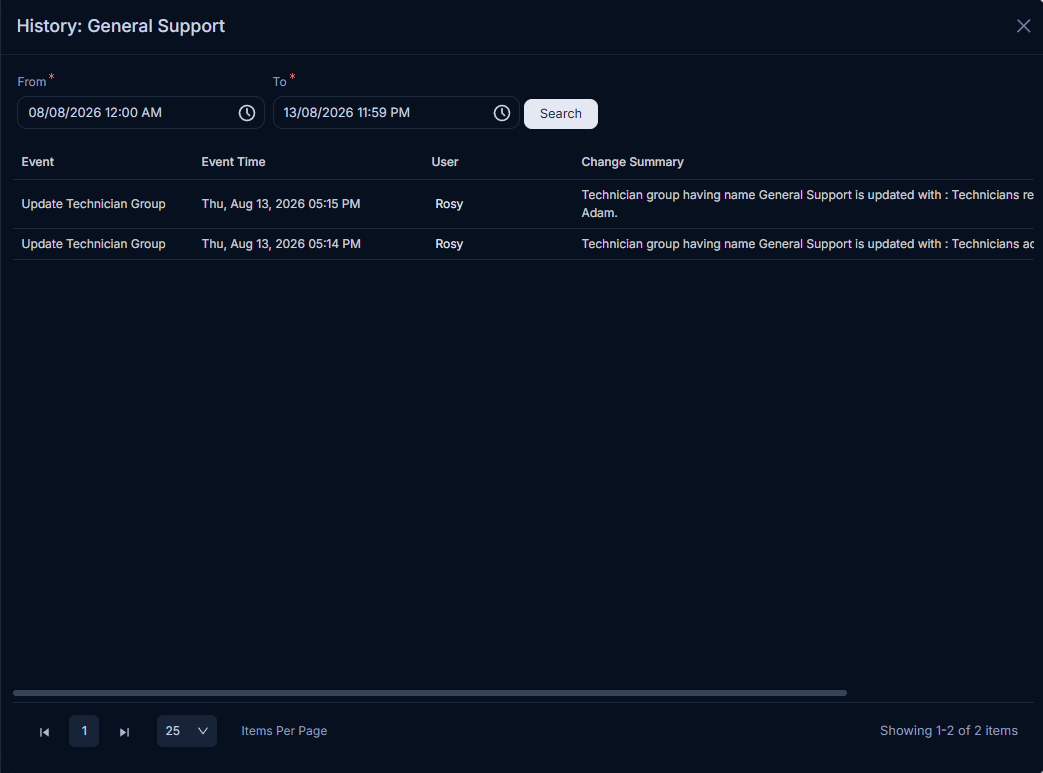
Here, you can view the details based on the selected time duration. Also, you can click the Username to view the user details.