Version Control - Managing Workflow History
ServiceOps Workflows provide robust version control capabilities, allowing administrators to track, view, and restore previous versions of their workflows. This ensures flexibility in managing changes, enabling rollbacks when necessary, and maintaining an auditable history of all modifications.
Viewing and Searching Workflows
The Workflow List Page provides an overview of all your workflows. You can easily view the latest version and status of each workflow directly from this page, offering a quick glance at their current state.
Version History Display Panel
To access the detailed version history of a specific workflow:
- Access the Version History Panel: In the workflow editor, locate and click the "Version History" button, typically found in the top right corner.
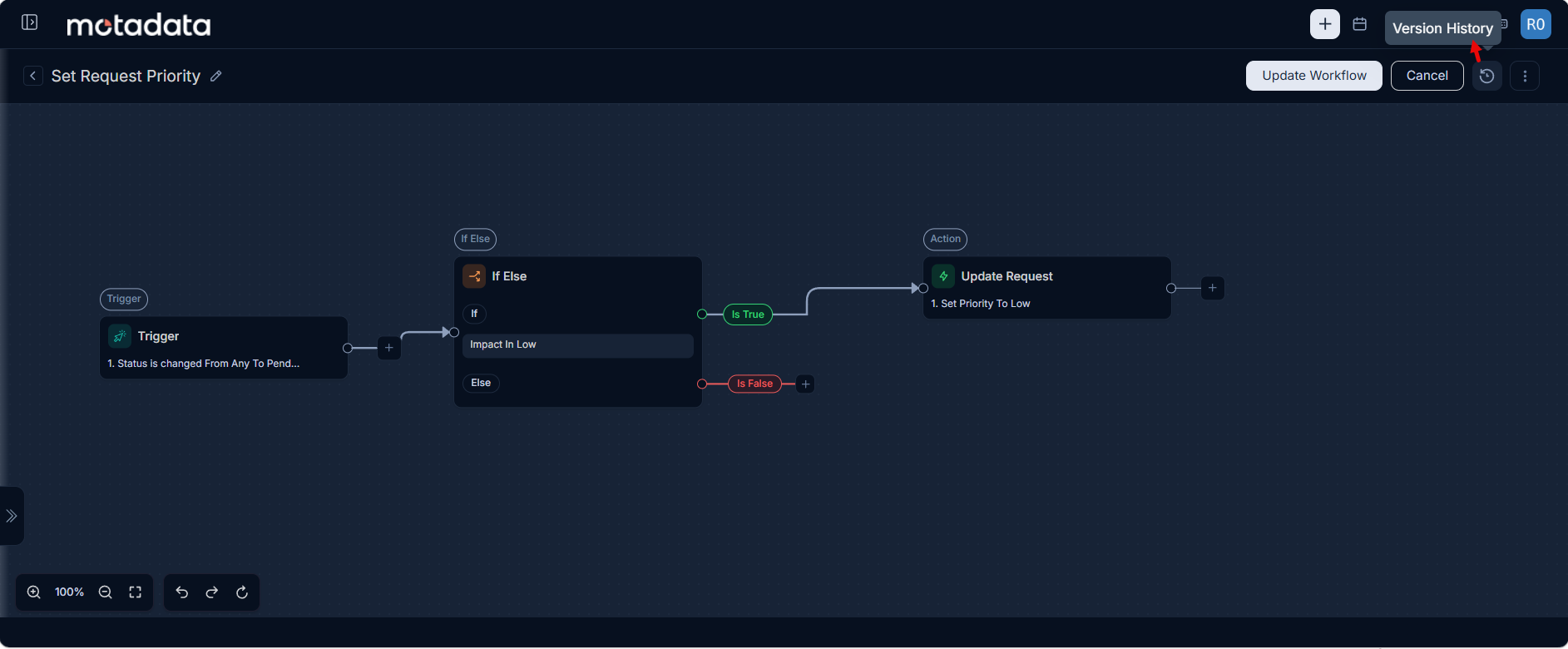
- Panel Display: The Version History panel will slide open, displaying a comprehensive list of all saved and published versions of the workflow. Versions are listed chronologically, with the latest version at the top.
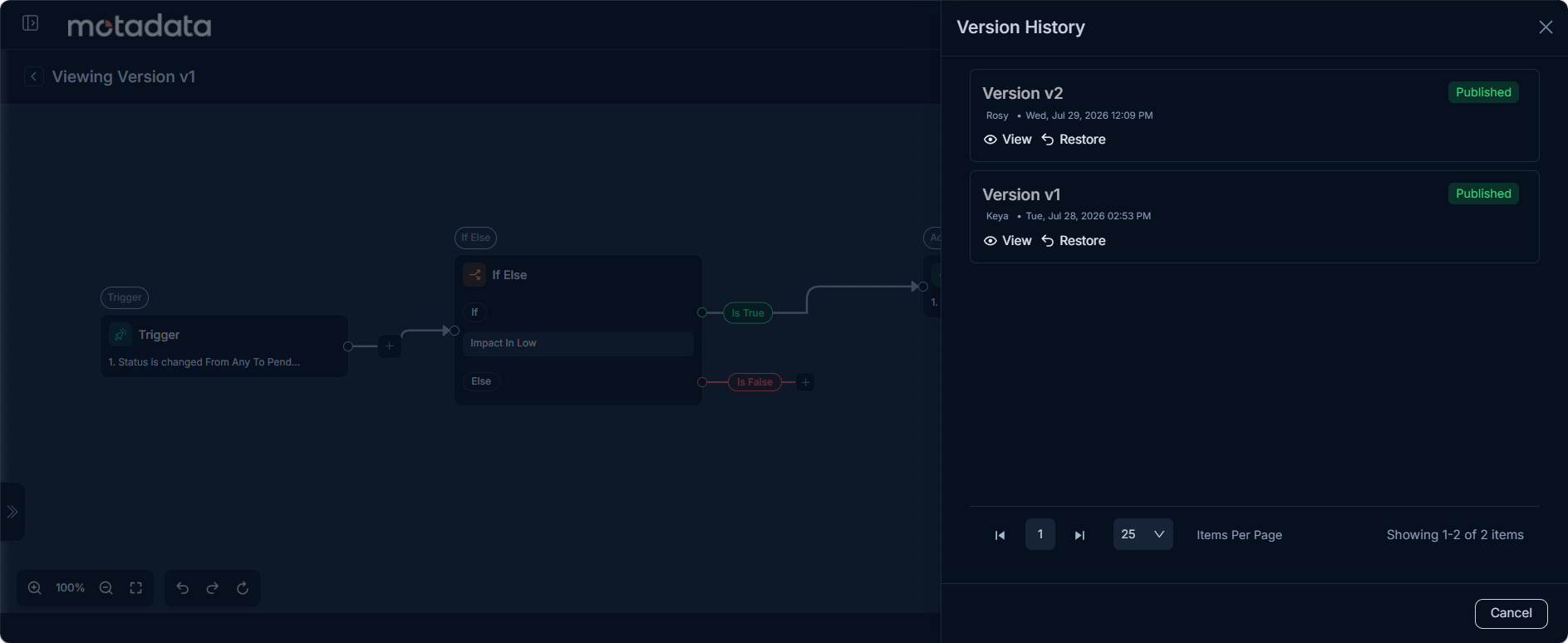
Each version entry in the panel provides the following critical information:
- Version Number: A sequential identifier (e.g., v1, v2, v3).
- Workflow Status:
- Draft: Indicates an editable version that has not yet been published.
- Published: Denotes a successfully published version.
- The latest draft version will show "Draft," while previously published versions will display "Published."
- Timestamp: The date and time when the version was last saved or published.
- Saved/Published By: The user who performed the last save or publish action for that version.
- Actions:
- View: Allows you to inspect the workflow in a read-only mode.
- Restore: Enables you to revert to a previous published version.
- Delete: (Available only for the latest draft version) Allows deletion of the most recent draft.
Versioning Logic
ServiceOps Workflows follow a clear versioning logic:
| Action | Resulting Version | Version State |
|---|---|---|
| First Save | v1 | Draft |
| First Publish | v1 | Published |
| Edit & Save | v2 | Draft |
| Publish Again | v2 | Published |
| Edit & Save Again | v3 | Draft |
| Continue Editing | v3 | Draft |
| Publish | v3 | Published |
- Initial Save: When a workflow is created and saved for the first time, it is logged as v1 with a "Draft" status.
- Publishing from Draft: When a draft is published, its status changes to "Published," but the version number remains the same.
- Subsequent Edits: Any subsequent edits followed by a save action will increment the version number and set its status to "Draft."
Viewing Previous Versions
The "View" action allows you to examine older workflow configurations:
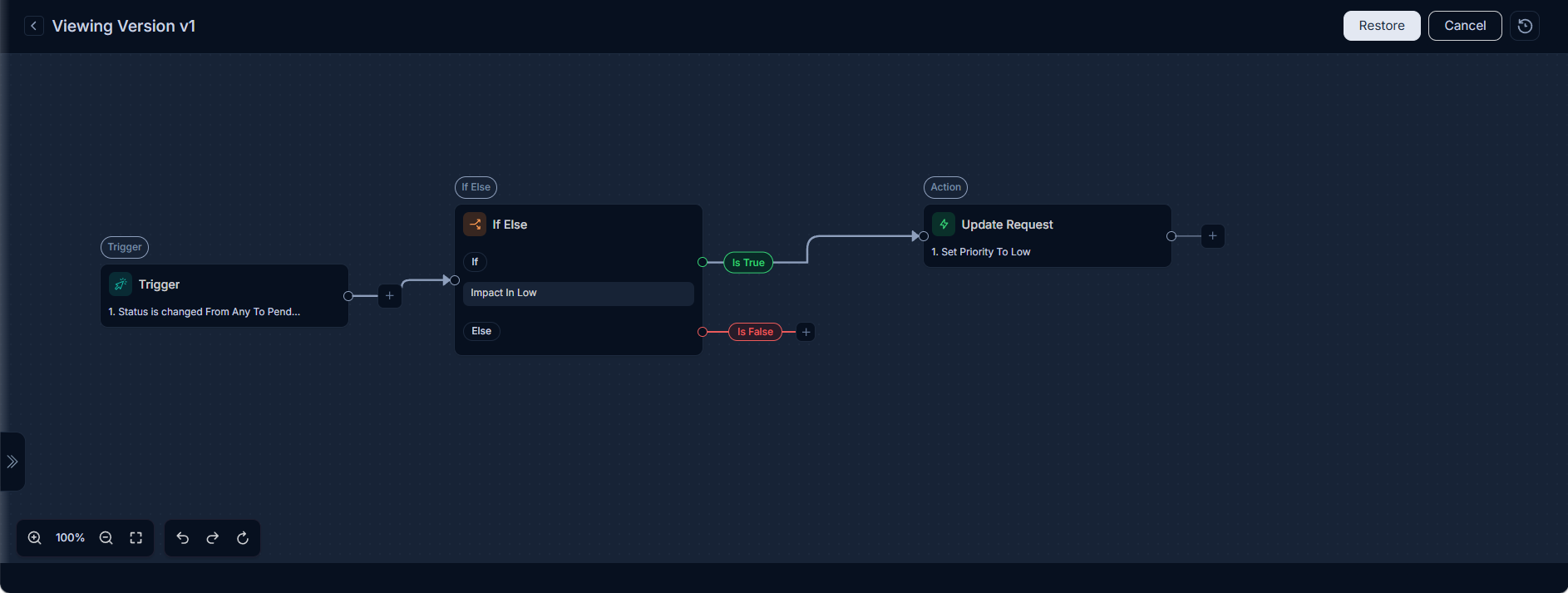
- Read-Only Mode: Clicking "View" opens the workflow in a non-editable mode. This allows you to:
- Inspect the workflow's structure and nodes.
- Review the configurations (conditions, actions, assignments, etc.) of all individual nodes.
- Viewing Interface:
- A clear banner at the top of the screen will indicate "Viewing Version vX," specifying the version you are currently inspecting.
- You can navigate through the workflow canvas and nodes.
- No Save, Edit, or Publish actions are available in this mode.
- Draft versions do not provide a "View" action.
Restoring Previous Versions
The "Restore" action facilitates rolling back to a stable, previously published workflow version:
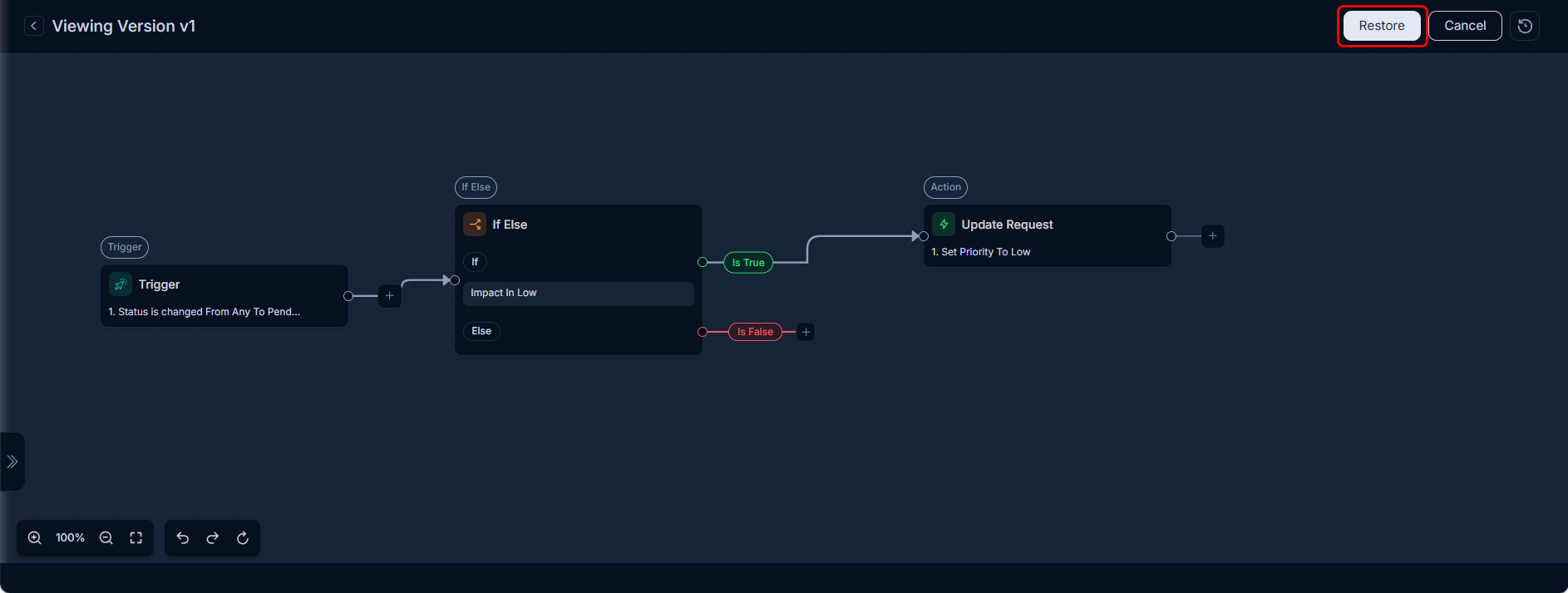
- Availability: The "Restore" action is only available for previously "Published" versions. It is not available for the current Draft or Published version.
- Confirmation: Before restoring, a confirmation pop-up will appear: "Restoring this version will open the workflow in draft mode. Do you want to continue?"
- Restoration Process: Upon confirming "Restore," the system loads the selected version's workflow structure and configurations into the editor.
- Redirect to Editor: After restoration, you are redirected to the Workflow Editor in edit mode with the restored content pre-loaded.
- Updating History: Once the restored version is saved, the version history will be updated to reflect this action, typically by creating a new draft version based on the restored content.