NCCM Overview & Explorer
The NCCM module in Motadata ObserveOps (formerly known as AIOps) provides a centralized interface to monitor, analyze, and manage network configurations across onboarded devices.
It combines high-level operational visibility with detailed device-level configuration analysis, helping administrators monitor backup status, detect configuration conflicts, compare versions, and take corrective actions when required.
NCCM Overview
The Overview tab provides a summarized view of your NCCM environment. It helps administrators quickly understand the current state of device distribution, backup execution, configuration conflicts, and firmware activity across managed devices.
Navigation
Go to Menu. Select NCCM  . The Overview is selected by default.
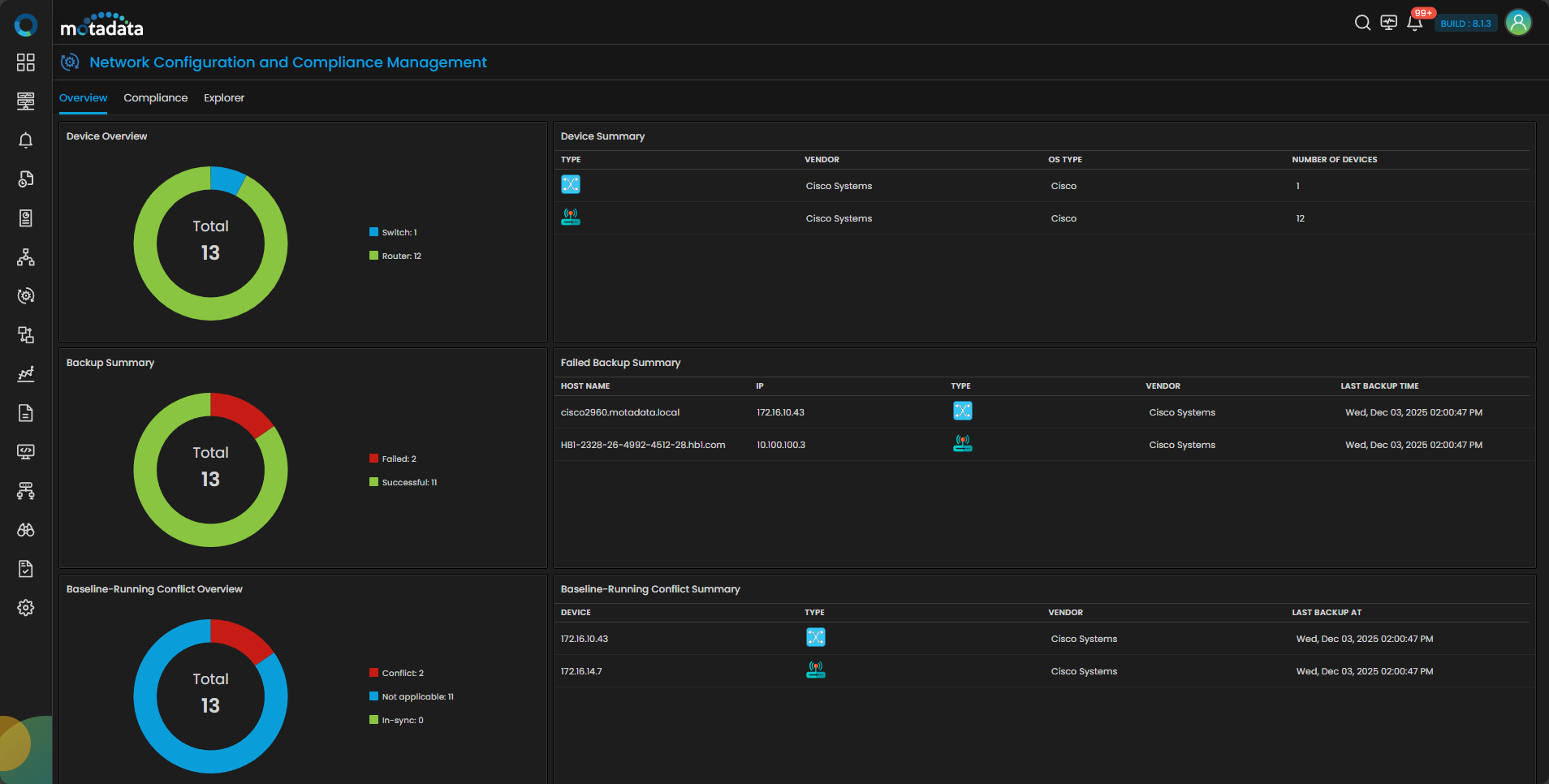
The Overview tab provides visibility into key operational indicators such as:
- Device distribution by type and vendor
- Backup success and failure summary
- Baseline-running configuration conflict summary
- Startup-running configuration conflict summary
- Firmware upgrade summary
This view helps administrators identify issues quickly and understand the overall configuration health of the managed environment.
NCCM Explorer
The Explorer tab provides a detailed, device-level view of NCCM-managed devices. Once the initial configuration backup is completed successfully, devices become available in the Explorer for further analysis and actions.
Navigation
Go to Menu. Select NCCM . After that, select the tab Explorer.
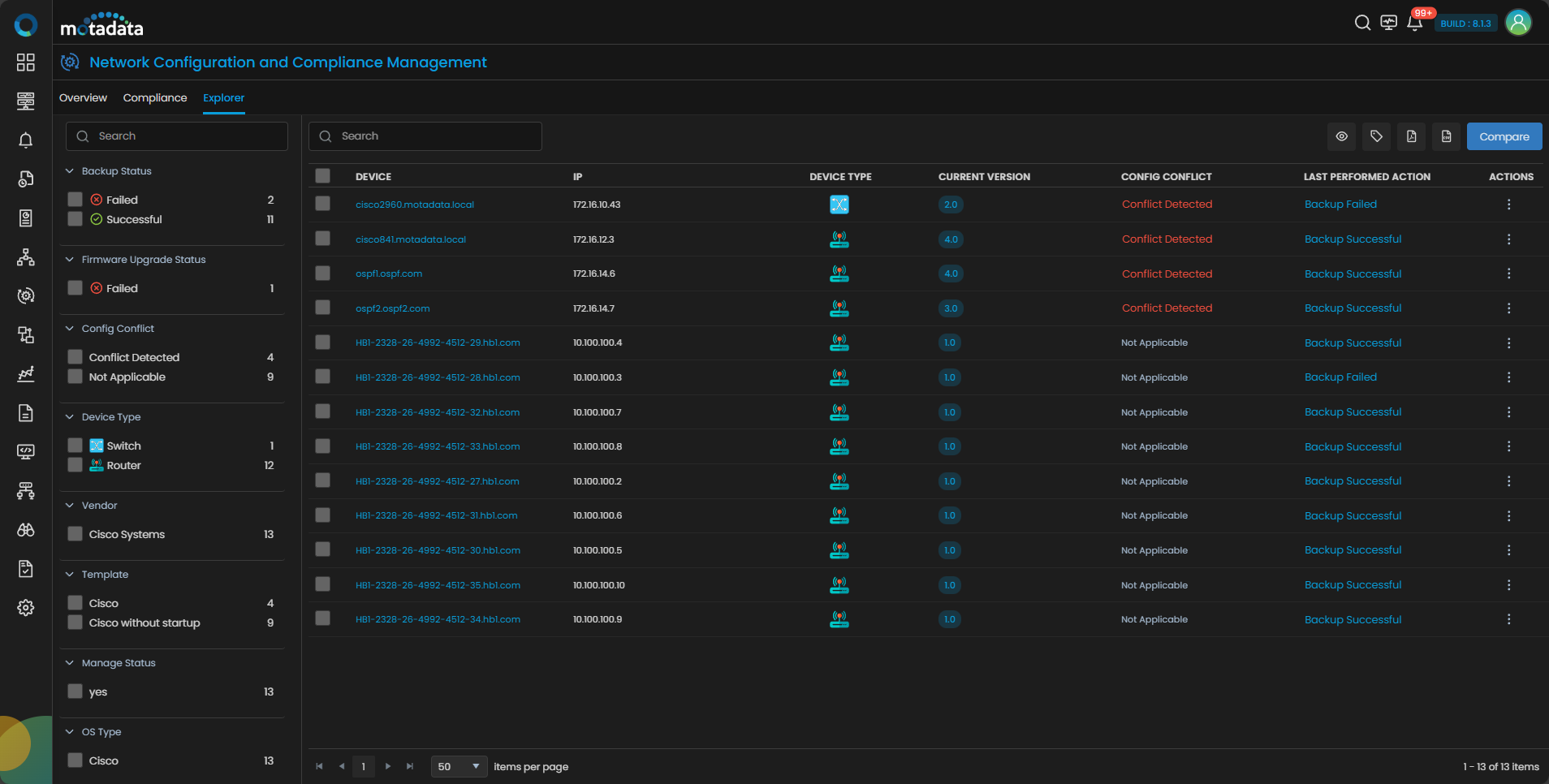
NCCM Explorer Screen
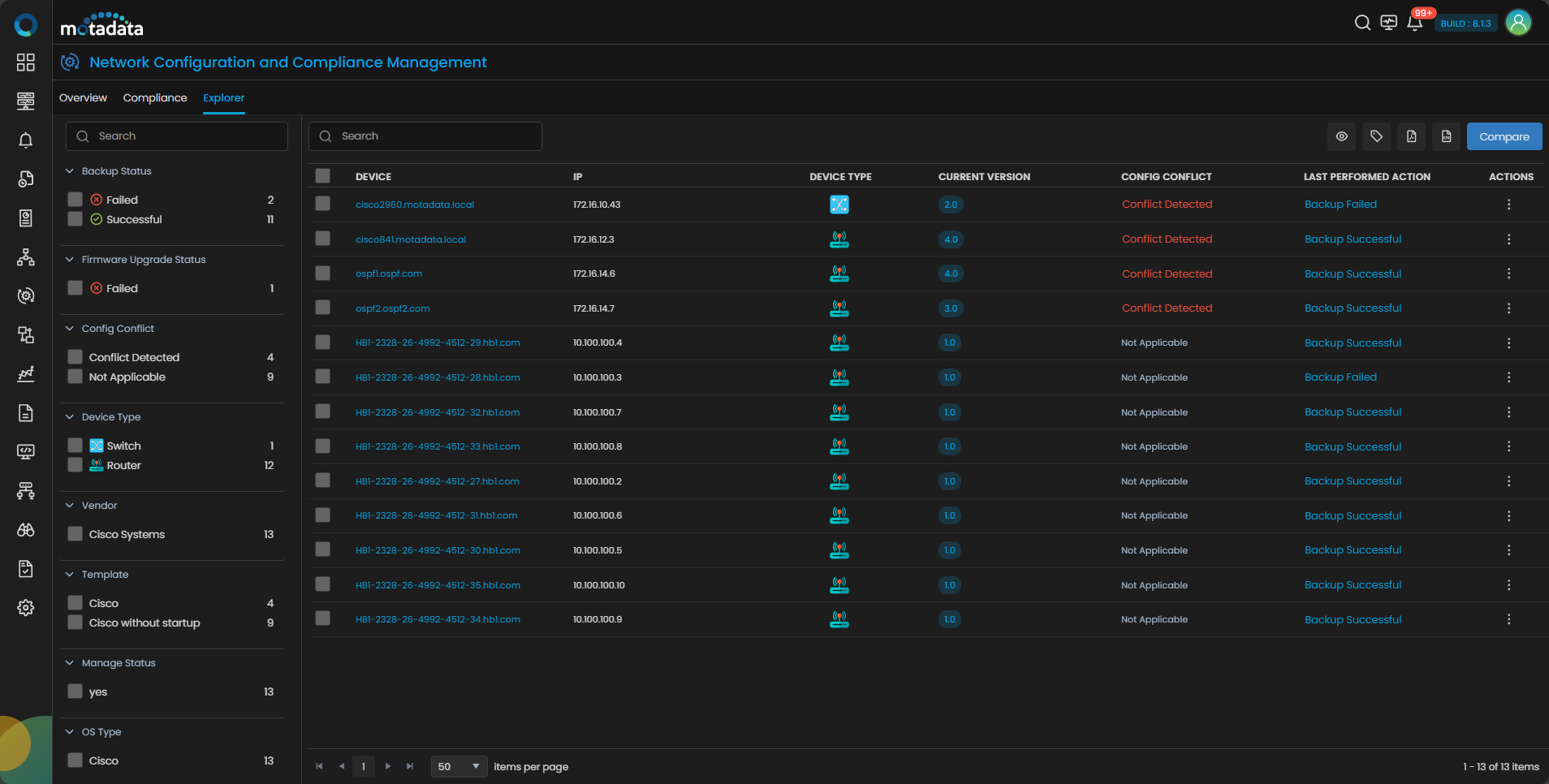
The following fields are available on the NCCM Explorer screen:
| Field | Description |
|---|---|
| Device | The name of the device. |
| IP | The IP of the device. |
| Device Type | The type of the device. |
| Vendor | Displays the name of the vendor of the device. |
| Current Version | The current version of running config of the device. |
| Config Conflict | This column shows the status of synchronization between Running Config and Startup Config files of the device. In case there is a conflict between running and startup config files, the status is shown as Conflict Detected. Select Conflict Detected to analyze the comparison between the two files. |
| Last Performed Action | Displays the last performed action for the device. Select the listed last performed action for the particular decive to view the remarks if any about the action. |
| Last Backup Status | The status of the last backup, whether Successfull or Failed. |
| Last Backup Time | The time of the last successful backup for the device. |
| Current Firmware | Displays the current firmware upgrade profile used. |
| Latest Firmware | Displays the latest available firmware upgrade profile. |
| Actions | Refer the content below to understand the actions available for the NCCM device. |
Actions on NCCM Explorer
Select  under the Actions column to display the permissible actions for the NCCM device in the NCCM Explorer. The following actions are available for the device:
Backup Now
Select this option to instantly take the backup of the NCCM device.
Compare
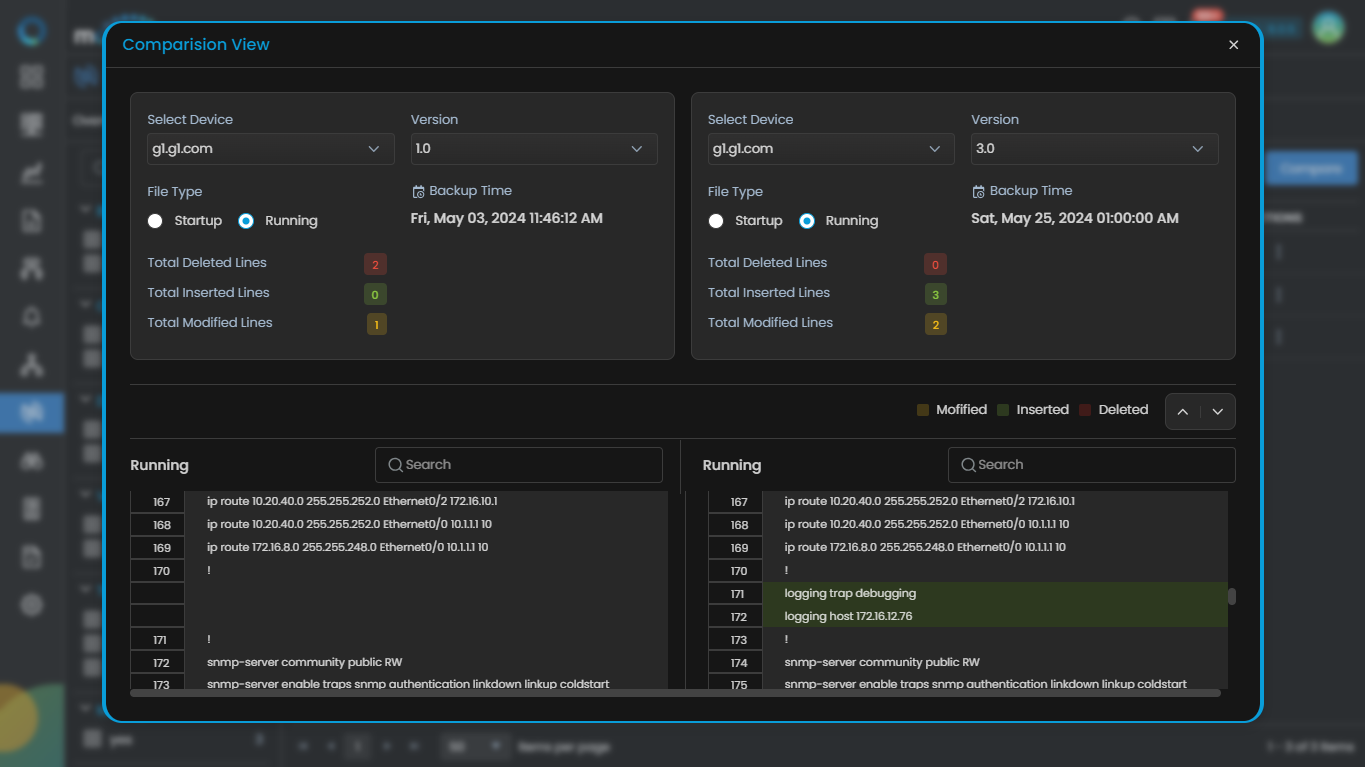
The Compare option allows administrators to perform side-by-side comparison of configuration files across devices or versions. It highlights inserted, modified, and deleted lines, making it easier to identify configuration differences and analyze changes.
Download Backup
Select this option to download the config files of the NCCM device on your system locally.
Set as Baseline
Select this option to configure a running config of the NCCM device as the baseline configuration. This helps identify a standard configuration for the device that can be used for future comparison and restoration.
The running config set as baseline will not be deleted even if it qualifies for deletion based on the data retention settings.
SSH Terminal
Select this option to open an SSH terminal for the selected NCCM device. This allows direct command-line interaction with the device from within the platform.
View
Select this option to take a deep dive into detailed insights about the selected NCCM device.
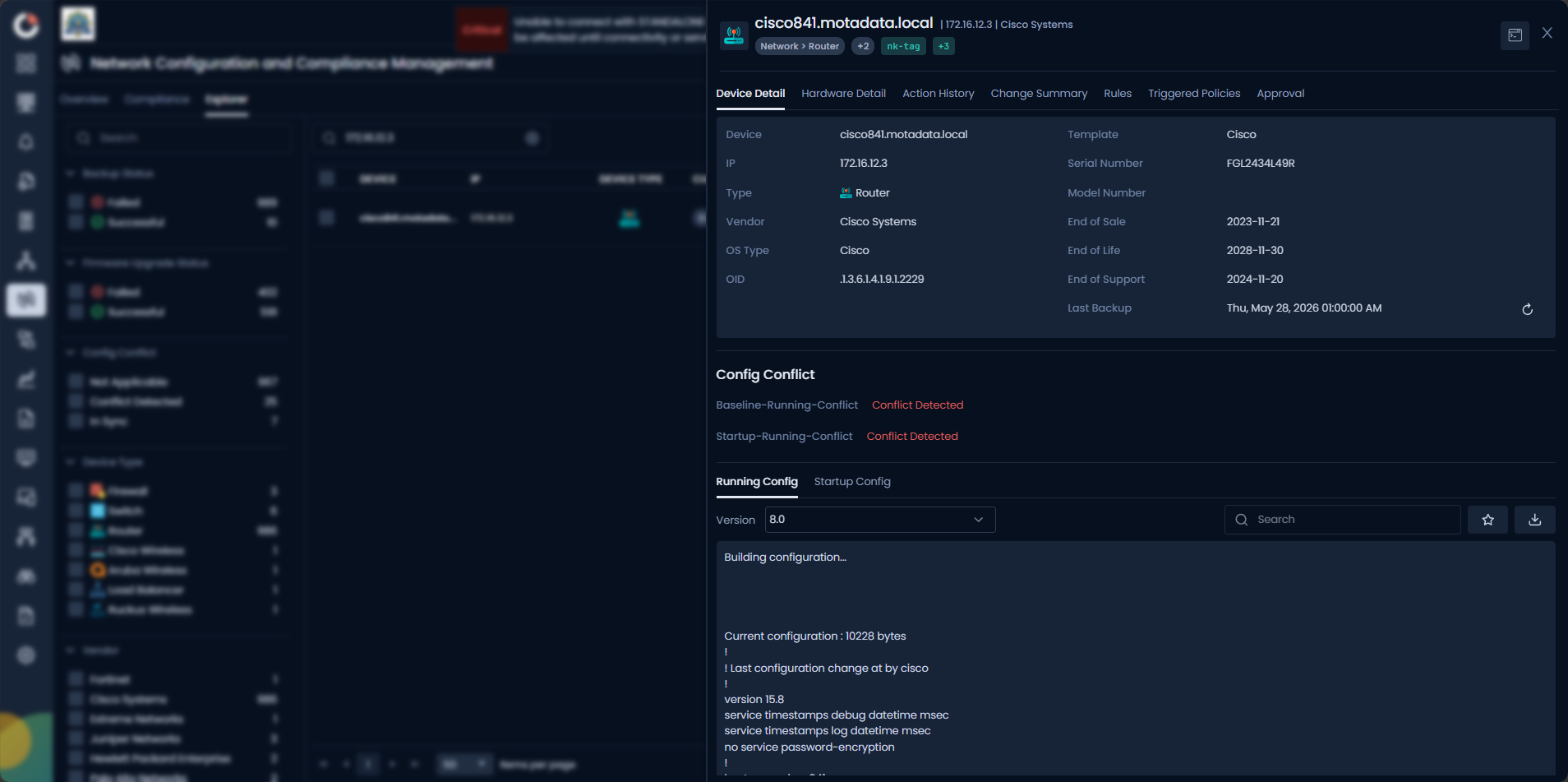
To know about NCCM Device Details in detail Click Here
Sync
Select this option to sync the running config and startup config files of the NCCM device.
If you have only the NCCM role, initiating Sync does not execute the action immediately. The system creates an approval request that must be reviewed and approved by a user with the NCCM Approval role. To learn more about the requester and approver roles in the NCCM approval workflow, see NCCM Approval Workflow.
Restore
Select this option to restore the running config file from the backups available for that NCCM device.
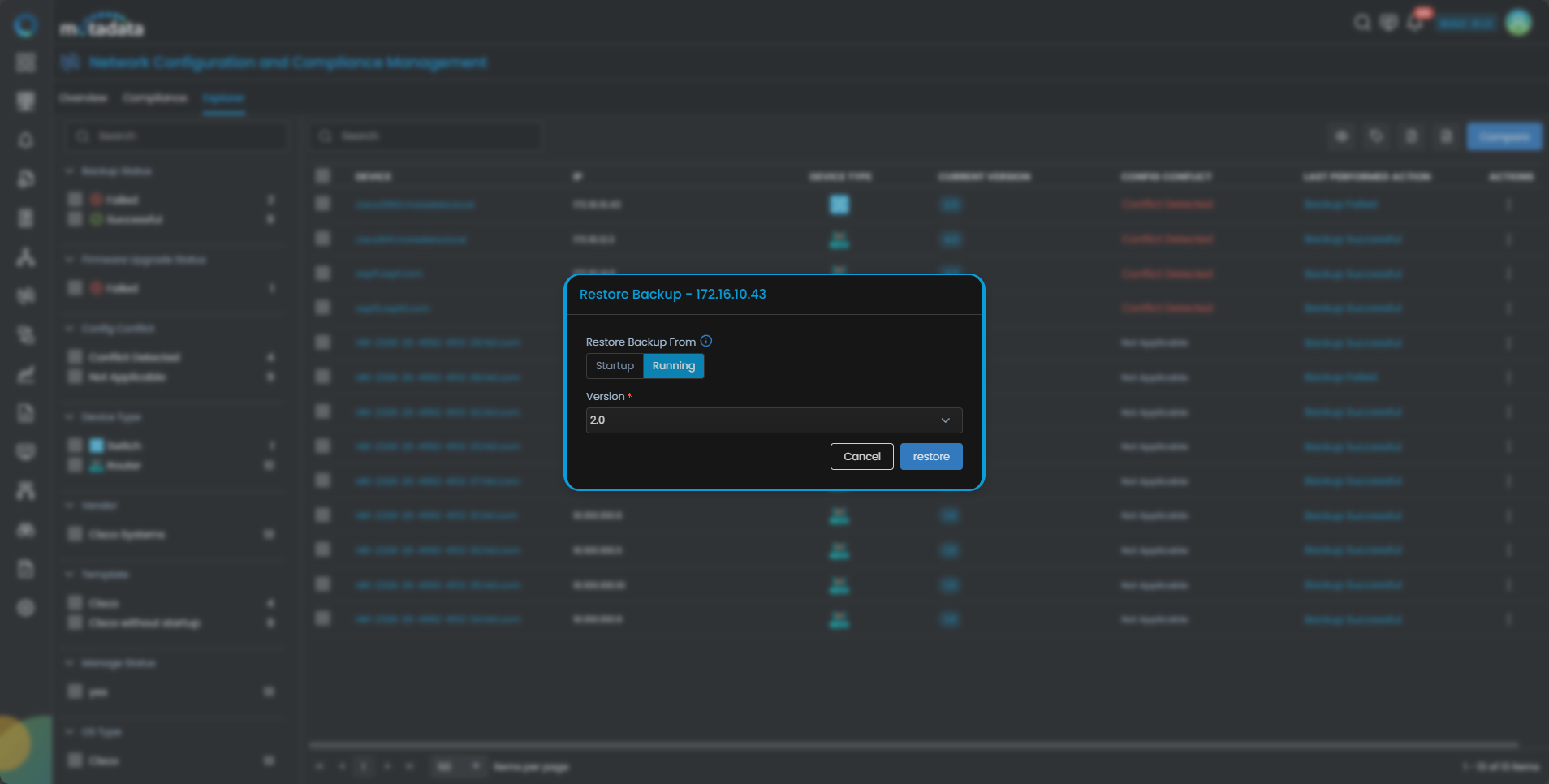
If you have only the NCCM role, initiating Restore does not execute the action immediately. The system creates an approval request that must be reviewed and approved by a user with the NCCM Approval role. To learn more about the requester and approver roles in the NCCM approval workflow, see NCCM Approval Workflow.
Execute Runbook
Select this option to attach an already configured runbook with the device. Selecting this option displays a menu to Execute Runbook from where you can attach a runbook from the Runbook drop-down menu. You can also Upload CSV for the runbook attachment and select the checkbox to backup running-configuration before and after executing this runbook.
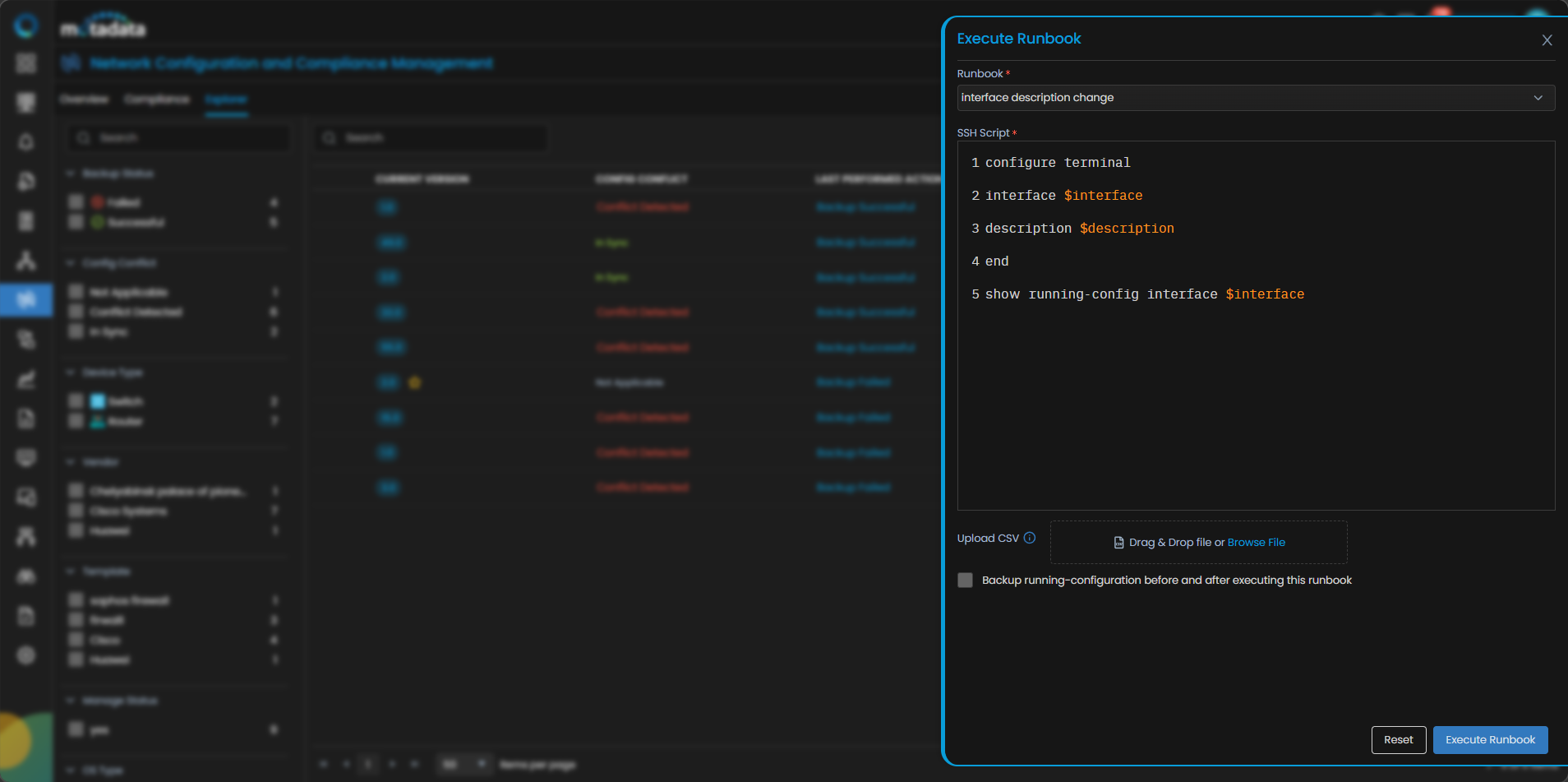
If you have only the NCCM role, initiating Execute Runbook does not execute the action immediately. The system creates an approval request that must be reviewed and approved by a user with the NCCM Approval role. To learn more about the requester and approver roles in the NCCM approval workflow, see NCCM Approval Workflow.
Get Hardware Details
Selecting this option will display details in the Hardware Details tab when selected the device for further analysis.
Firmware Upgrade
Select this option to upgrade the firmware using firmware image. Once you select this option from the action icon you will see a pop-up on the screen from which you can select the available firmware image from the drop-down menu or drag-and-drop/ browse from your system. Selecting the image will display the MD5 Hash value automatically.
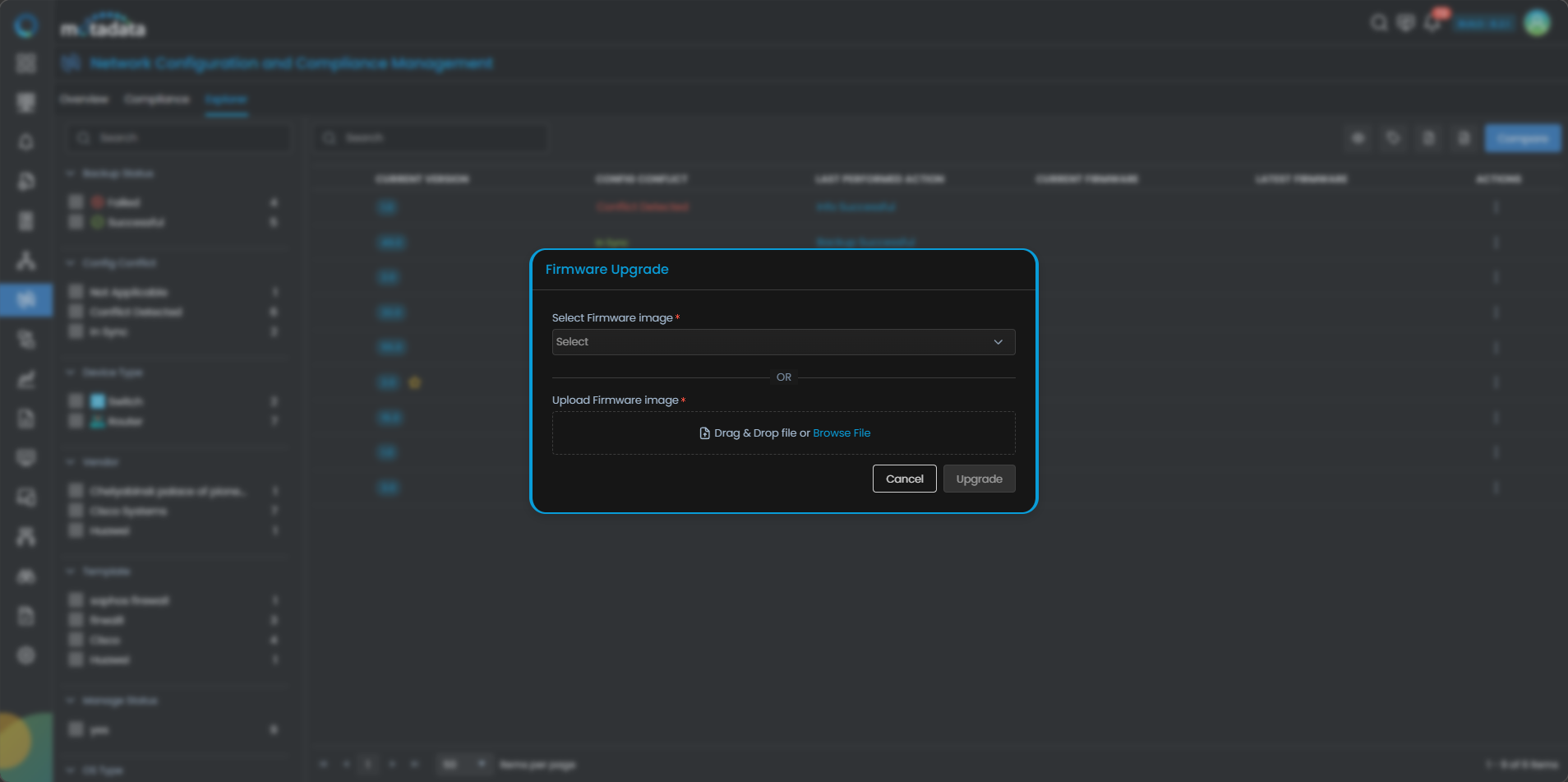
You can now upgrade firmware by clicking the Upgrade button or Schedule Upgrade if required.
If you have only the NCCM role, initiating Firmware Upgrade does not execute the action immediately. The system creates an approval request that must be reviewed and approved by a user with the NCCM Approval role. To learn more about the requester and approver roles in the NCCM approval workflow, see NCCM Approval Workflow.
To know about firmware upgrade in detail Click Here.
NCCM Device Details
By clicking on a device name in the NCCM Explorer, you can access a detailed view of the device. This view is organized into multiple tabs to make configuration analysis and device management easier.
Accessing Device Details
To access device details, navigate to the NCCM Explorer screen and click on the device name. This opens a detailed view of the device with the following tabs:
- Device Details
- Hardware Details
- Action History
- Change Summary
- Rules
- Triggered Policies
- Approvals
- EoX
To know more about each tab and EoX lifecycle details Click Here
Device Details
The Device Details tab provides information such as OS Type, Series, Model Number, OID, Template, and other basic device details.
It also displays all available versions of running and startup configuration files along with their content. From this tab, you can:
- Download a specific configuration file.
- Set a running configuration file as baseline.
This tab helps administrators understand both the current configuration state and configuration history of the device.
Hardware Details
The Hardware Details tab provides device-specific hardware information such as CPU, Flash Size, CPU Revision, Configuration Register, MAC Address, DRAM Size, and more.
To fetch hardware details, click on the Get Hardware Details option under the Actions column for the required device in the NCCM Explorer.
Ensure that the Get Hardware Details commands are available in the NCCM Device Template associated with the device.
Working with default templates
- If the device is associated with a pre-defined template, you cannot edit the template directly.
- In such cases, clone the template, add the required Get Hardware Details commands, and then associate the cloned template with the device.
- If the required commands are already available in the built-in template, the Get Hardware Details option will be enabled without further changes.
Working with custom templates
- If the device is associated with a custom template, you can add the required commands directly if they are not already available.
- After adding the commands, save the template to enable the Get Hardware Details option for the device.
Action History
The Action History tab displays a log of all actions performed on the NCCM device. This includes activities such as backup execution, runbook execution, and restoration of configuration files.
This tab is useful for tracking device-level activity and auditing configuration-related operations.
Change Summary
The Change Summary tab provides a summarized view of configuration changes detected through Syslog Change Detection. This tab becomes available in the device information panel after selecting a device from the NCCM Explorer.
The Change Summary tab displays data only after the required runbook is attached and executed on the NCCM-managed device.
When a valid configuration change is detected:
- The system automatically performs a backup to preserve the updated configuration.
- The change details are made available for analysis.
- Administrators can monitor configuration activity in near real time.
The tab displays key details such as:
- Timestamp
- User
- Remote IP
- Session
If no parser is assigned, the raw log data is displayed. The View in Log Explorer button allows direct access to the corresponding log.
Rules
The Rules tab provides a view of compliance rules assessed for the selected device. This tab becomes available when a compliance audit policy has been executed on the device using a benchmark.
This tab is useful for viewing rule-level results in the context of a specific device.
Triggered Policies
The Triggered Policies tab provides a list of triggered policy name(s) and its corresponding value associated with the selected device.
Approvals
The Approvals tab displays all approval requests associated with the selected device. This includes requests in all states (pending, approved, rejected, and cancelled), giving both requesters and approvers a complete approval history in the context of a specific device.
To learn more about the NCCM approval workflow, requester actions, and approver controls, see NCCM Approval Workflow.
Filter Network Devices
You can filter devices from the left panel of the Explorer screen to focus on the required subset of devices.
The available filters include:
- Backup Status
- Config Conflict
- Device Type
- Vendor
- Template
- Manage Status
- OS Type
- Tags
Versioning
NCCM tracks configuration changes through versioning. Each successful backup creates a new configuration version, allowing administrators to review how device configurations evolve over time.
Versioning helps in:
- Tracking historical changes.
- Comparing configurations across versions.
- Restoring specific versions when required.
Version retention is managed according to the configured data retention settings.
The NCCM Overview and Explorer together provide administrators with both high-level operational visibility and deep device-level configuration analysis. This enables efficient monitoring, faster troubleshooting, and better control over network configurations.