NCCM Device Template
In the Device Template section, administrators can manage the templates associated with NCCM devices. Each NCCM device is assigned a template based on its Object Identifier (OID). These templates define how Motadata executes configuration management operations such as backup, restore, and synchronization on the running and startup configuration files of network devices.
The NCCM device template, assigned based on the sysOID of the device, plays a key role in enabling essential operations such as configuration backup, restoration, synchronization, and hardware information retrieval. If a template is not automatically assigned to an NCCM device, administrators can manually map either a pre-defined template or a custom-created template from the NCCM Device Inventory.
Navigation
Go to Menu. Select Settings  . After that, select Network Config Settings
  . Select Device Template. The list of all NCCM Device Templates is displayed on the screen.

Device Template Screen
| Field | Description |
|---|---|
| Template | Displays the name of the template. |
| Vendor | Displays the vendor for which the template is created. |
| OS Type | Displays the operating system of the target device. |
| Devices | Displays the number of devices currently mapped to the template. Select the number in this field to view the mapped devices. |
| Actions | Select  to view the available actions for the device template: to view the available actions for the device template:- Edit: Allows you to modify device templates created by you. Default system templates cannot be edited. - Clone: Create a copy of the selected template. - Download JSON: Download the template in JSON format. - Delete: Remove the template from Motadata ObserveOps (formerly known as AIOps). |
Create Custom Template
Motadata ObserveOps allows administrators to create custom templates for NCCM devices. This is useful when a suitable pre-defined template is not available for a device or when a specific configuration workflow needs to be customized.
While creating a custom template, administrators can define commands for:
- Backup Running Configuration
- Backup Startup Configuration
- Backup Restore Configuration
- Backup Sync Configuration
- Get Hardware Information
These operations determine how Motadata interacts with the device during NCCM execution.
Clicking Create Template on the Device Template screen you can create a custom template.
To define a custom template for specific NCCM devices follow the below details.
| Field | Description |
|---|---|
| Device Template Name | Enter a unique name for the template. |
| Description | Enter a short description to explain the purpose of the template. |
| Vendor | Specify the vendor name of the target device. |
| OS Type | Specify the operating system of the target device. |
| Delay Time (ms) | Specify the delay in milliseconds after command execution and before Motadata reads the output. The default value is 1000 ms. |
| Protocol | Select the preferred transfer protocol to be used during configuration operations. |
After selecting the protocol, the next step is to define the required operations such as Backup Running Configuration, Backup Startup Configuration, Backup Restore Configuration, Backup Sync Configuration, and Get Hardware Information. By default, Backup Running Configuration is displayed first. You can use the Add Operation button to add additional operations as required.
Under each operation, you can define one or more commands to control how the operation is executed on the device.
Command Configuration
The following fields are available while defining commands under an operation:
| Field | Description |
|---|---|
| Command | Specify the command to be executed for the selected operation. You can also use pre-defined macros in this field to pass dynamic values during execution. |
| Timeout(ms) | Specify the time Motadata ObserveOps should wait for command output. The operation times out if no output is received within the defined time. |
| Prompt | Select the CLI prompt that Motadata ObserveOps should detect after executing the command. This helps the system identify when to process the next step. If the required prompt is not available in the list, you can add it by clicking  . . |
| Prompt Command | Select the prompt command to be executed after the specified prompt is detected. Refer to Prompt Commands for more details. |
Select  to add the next command under the same operation.
Select Add Operation to configure additional operations such as Backup Startup Configuration, Backup Restore Configuration, and Backup Sync Configuration.
| Field | Description |
|---|---|
| Firmware Upgrade | Turn the toggle button to ON to align your firmware upgrade sequence to enhance device performance and security. You can click here to know more about NCCM Firmware Upgrade. |
| Mapped Devices | Select the devices that should be associated with the template by clicking the Select From Catalog button. The defined commands will be used for backup, restore, synchronization, and related NCCM operations on the selected devices. |
Examples of Creating a Custom Template
Backup of Running Config File of a Cisco Device to a TFTP Server
Consider a scenario where you need to back up the running configuration file of a Cisco device to a TFTP server.
The example below maps the template configuration in Motadata with the actual command sequence executed on the device.
After clicking Create Template, enter the details for Device Template Name, Description, Vendor, OS Type, and Delay Time(ms) as required for the target Cisco device. Then select TFTP as the protocol.
Under Backup Running Configuration, define the command sequence using the Command, Timeout(ms), Prompt, and Prompt Command fields.
Enter
copy running-config tftp:in the Command field and specify an appropriate Timeout. Select]?from the Prompt dropdown and No Command from the Prompt Command dropdown.
This is equivalent to the following backend execution:

Motadata enters the command
copy running-config tftp:, presses Enter, and waits for the prompt]?.After the previous command is executed, the device prompts for the server address. Since the device displays
Address or name of the host []?, the prompt]?is used so that Motadata knows when to execute the next command.Click
to add the next command. Enter the macro &[TransferProtocolServerAddress]in the Command field to pass the TFTP server IP address. Specify an appropriate Timeout. Select]?from the Prompt dropdown and No Command from the Prompt Command dropdown.
This is equivalent to the following backend execution:

Motadata enters the macro value for
&[TransferProtocolServerAddress], presses Enter, and waits again for the prompt]?.Click
to add the next command. Enter the macro &[TransferFileName]in the Command field to provide the destination filename on the TFTP server. Specify an appropriate Timeout. Select#from the Prompt dropdown and No Command from the Prompt Command dropdown.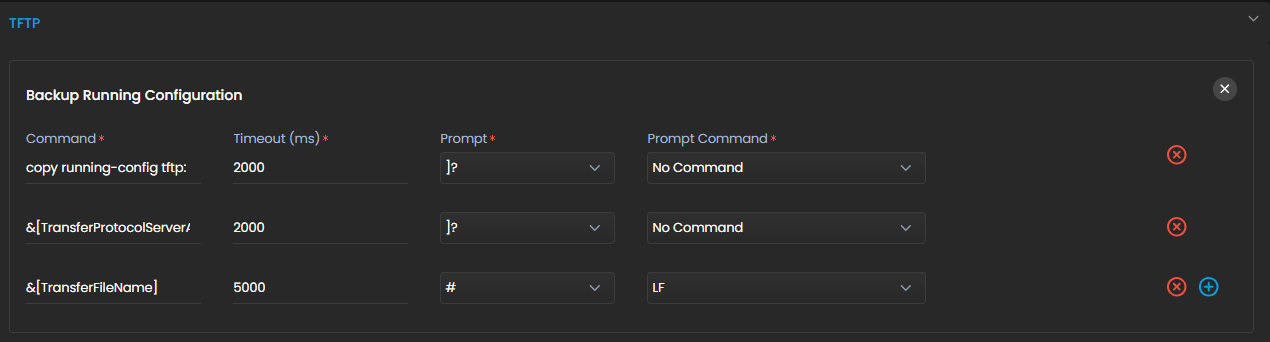
This is equivalent to the following backend execution:
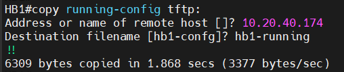
Motadata enters the macro value for
&[TransferFileName], presses Enter, and waits for the device prompt#.
In this way, you can create a custom template to back up the running configuration file of a Cisco device to a TFTP server. This example is provided to explain how custom template creation works. For commonly supported Cisco devices, a suitable template may already be available in Motadata ObserveOps by default.
Restoring a Running Config File of a Cisco Device from a TFTP Server
Consider a scenario where you need to restore the running configuration file of a Cisco device from a TFTP server.
The example below continues from the same custom template and shows how to define the restore operation.
After creating the template for backup, click Add Operation and select Backup Restore Configuration.
Under Backup Restore Configuration, define the required restore command sequence.
Enter
copy tftp: running-configin the Command field and specify an appropriate Timeout. Select]?from the Prompt dropdown and No Command from the Prompt Command dropdown.This is equivalent to the following backend execution:

Motadata enters the command
copy tftp: running-config, presses Enter, and waits for the prompt]?.After the command is executed, the device prompts for the TFTP server address. Since the prompt displayed is
Address or name of the host []?, the prompt]?is used to continue the sequence.Click
to add the next command. Enter the macro &[TransferProtocolServerAddress]in the Command field to pass the TFTP server IP address. Specify an appropriate Timeout. Select]?from the Prompt dropdown and No Command from the Prompt Command dropdown.
This is equivalent to the following backend execution:

Motadata enters the macro value for
&[TransferProtocolServerAddress], presses Enter, and waits for the prompt]?.Click
to add the next command. Enter the macro &[TransferFileName]in the Command field to pass the filename of the backup configuration stored on the TFTP server. Specify an appropriate Timeout. Select]?from the Prompt dropdown and No Command from the Prompt Command dropdown.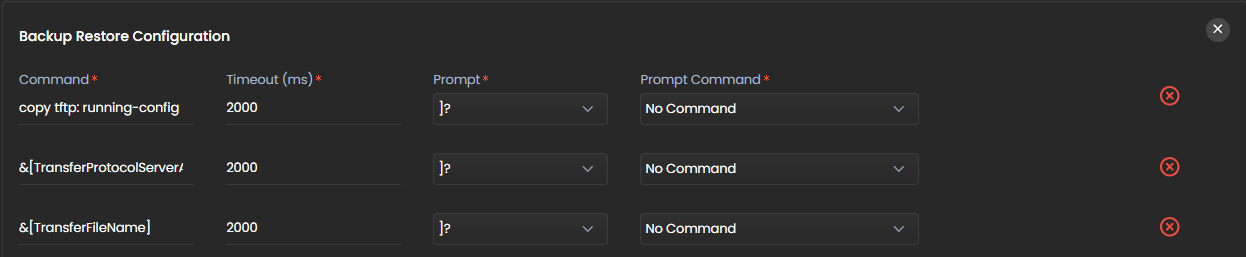
This is equivalent to the following backend execution:

Motadata enters the macro value for
&[TransferFileName], presses Enter, and waits for the next prompt.Click
to add the next command. Enter running-configin the Command field to specify that the backup should be restored to the running configuration. Specify an appropriate Timeout. Select#from the Prompt dropdown and LF from the Prompt Command dropdown.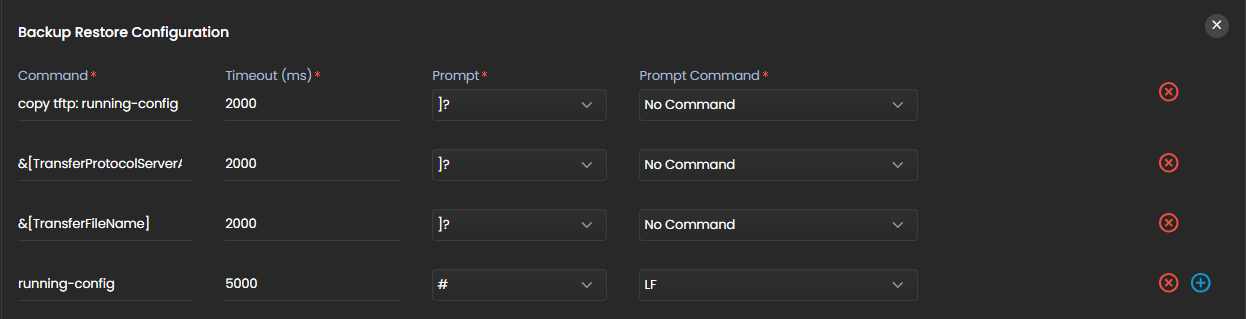
This is equivalent to the following backend execution:
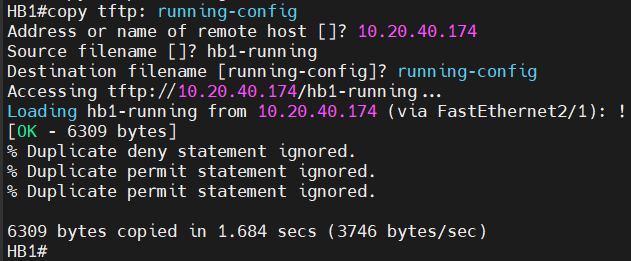
Motadata enters
running-config, presses Enter, and waits for the device prompt#.
The NCCM Device Template section in Motadata ObserveOps provides a structured way to define how configuration operations are executed on network devices. Whether using pre-defined templates or creating custom ones, administrators can control how backup, restore, synchronization, and related NCCM operations are performed.
This ensures consistent execution across supported devices and gives administrators the flexibility to tailor configuration management workflows to device-specific requirements.