Backup and Restore for NCCM device
Efficient backup and restore operations are core to Network Configuration and Compliance Management (NCCM) in Motadata ObserveOps (formerly known as AIOps). These capabilities ensure that device configurations are continuously captured, versioned, and available for recovery whenever required.
This section explains how administrators can schedule backups, store configuration data, and restore configurations for individual devices or in bulk.
NCCM Device Backup
Go to Menu. Select Settings  . After that, select Network Config Settings
  . Select Device Inventory. Navigate to the device for which you want to schedule the backup. From the Actions tab, select Schedule Backup.
A tab to schedule the backup is displayed.
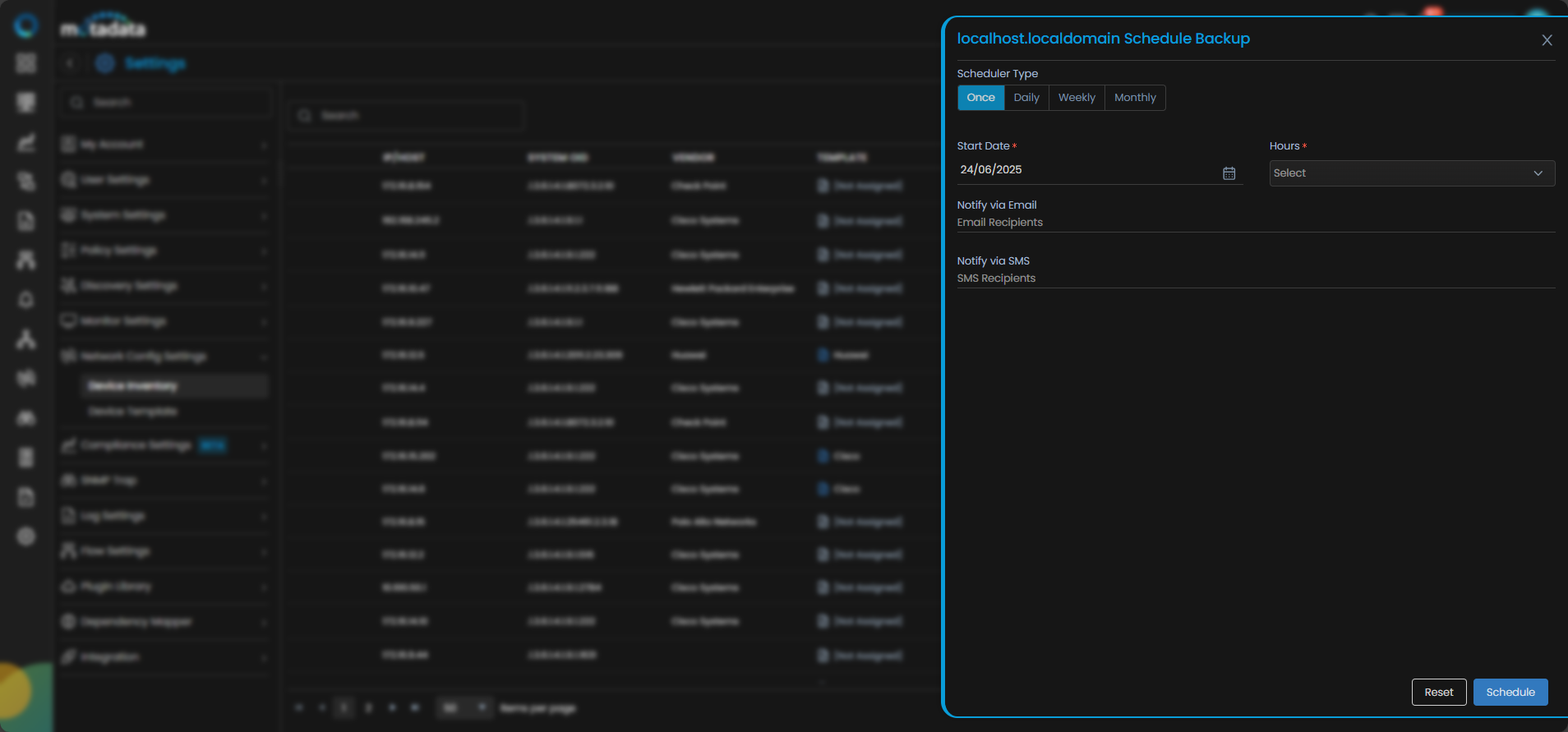
Fill the details in the pop-up to create a scheduler.
| Field | Description |
|---|---|
| Scheduler Type | Select the frequency at which the backup should be executed. |
| Start Date | Select the date from which the scheduler should begin execution. |
| Hours | Select the time at which the backup should run. |
| Notify via Email | Enter email addresses to receive notifications after execution. |
| Notify via SMS | Enter phone numbers to receive notifications after execution. |
| Days | Select the days for execution. Available when Scheduler Type is set to Weekly. |
| Months | Select the months for execution. Available when Scheduler Type is set to Monthly. |
| Dates | Select specific dates for execution. Available when Scheduler Type is set to Monthly. |
Select Schedule to configure the backup based on the defined schedule.
Scheduling Backup to External Server
In addition to storing backups locally, administrators can configure external storage to ensure data redundancy.
To store backups externally, attach a Storage Profile to the NCCM device.
Go to Menu. Select Settings . After that, select Network Config Settings . Select Device Inventory. Navigate to the device for which you want to attach a storage profile. From the Actions tab, select Attach Storage Profile.
Select the required Storage Profile and assign it to the device. Once the scheduled backup is executed, the configuration will be stored both locally and in the configured external storage destination.
Bulk Backup of NCCM Devices
You can trigger configuration backup for multiple devices directly from the NCCM Explorer.
Select the devices that you want to back up using the checkbox in front of each device in the NCCM Explorer. To select all devices, use the checkbox available at the top of the list.
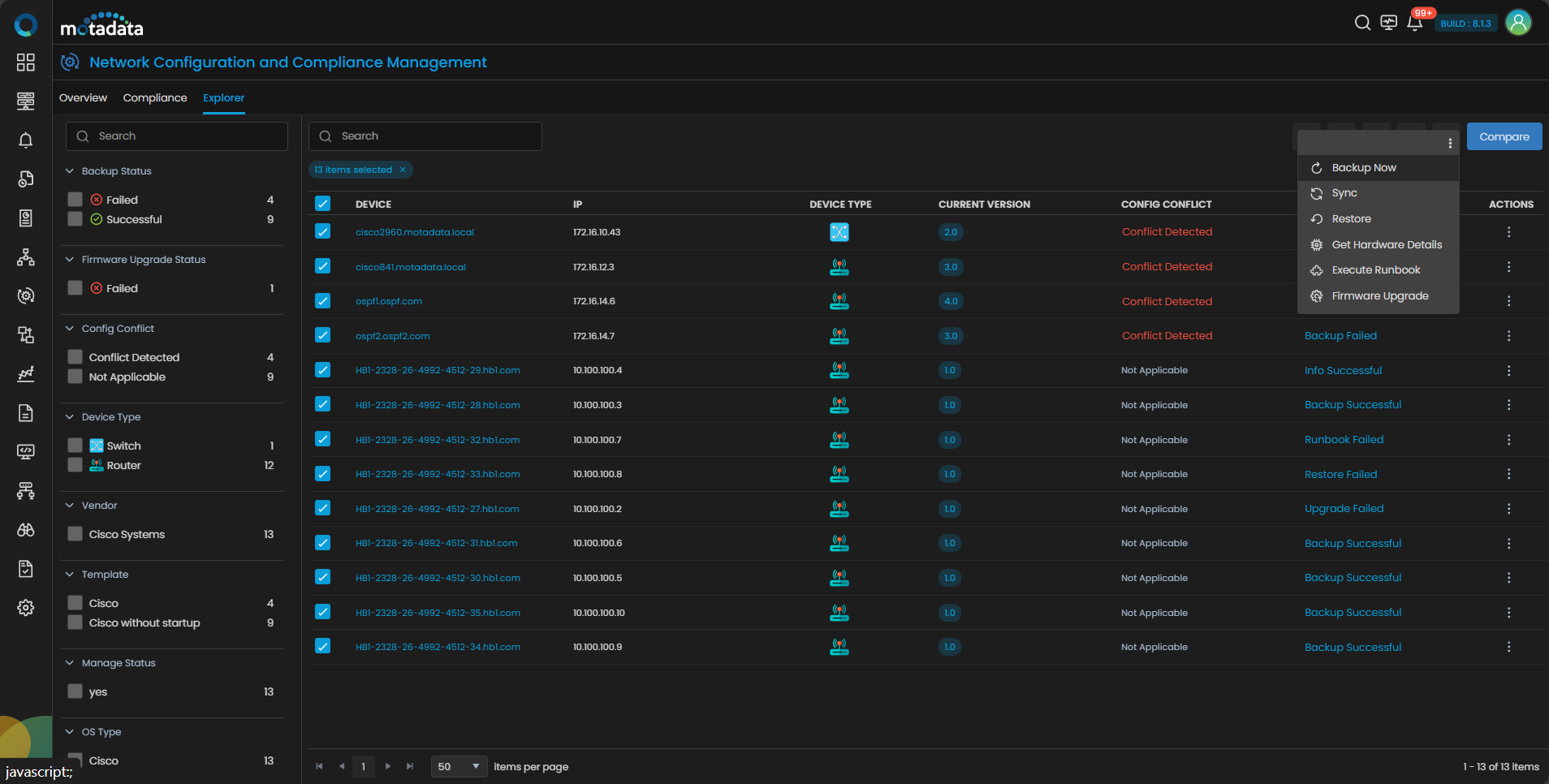
After selecting the devices:
- Click the
 button
 - Select Backup Now
The backup process is executed in the backend. You can monitor the status of each device under the Last Backup Status column.
NCCM Device Restore
Go to Menu. Select NCCM . After that, select the tab Explorer. Navigate to the device for which you want to restore the configuration. From the Actions tab, select Restore  .
.
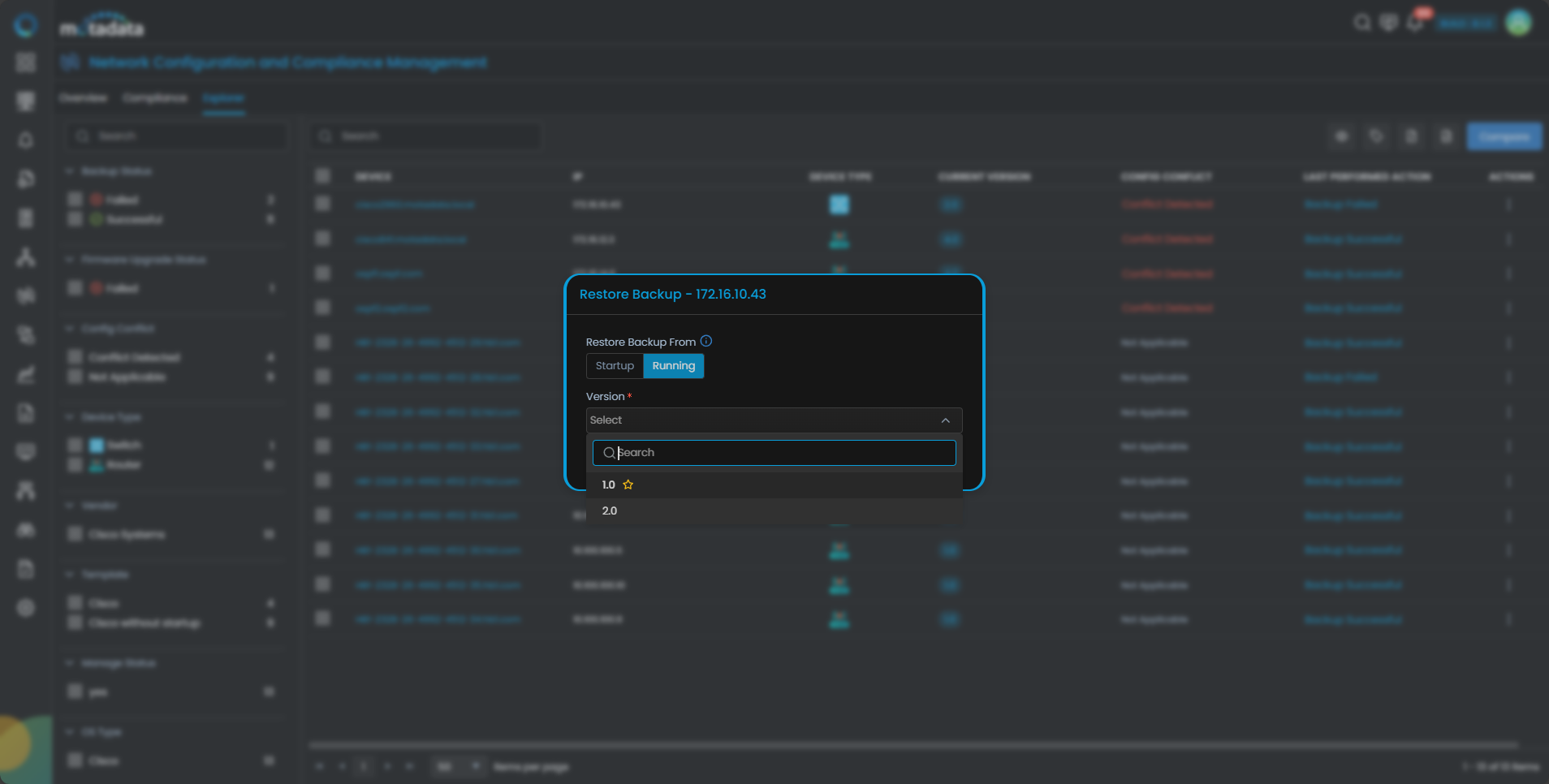
The system prompts you to select the configuration file to restore.
If you have only the NCCM role, submitting a Restore operation does not execute the action immediately. The system creates an approval request that must be reviewed and approved by a user with the NCCM Approval role before the restore is carried out. To learn more about requester and approver roles in the NCCM approval workflow, see NCCM Approval Workflow.
| Field | Description |
|---|---|
| Restore Backup From | Select the source configuration type (Running config or Startup config). |
| Version | Select the configuration version to restore. |
Bulk Restore of NCCM Devices
You can restore configurations for multiple devices directly from the NCCM Explorer.
Select the devices that you want to restore using the checkbox in front of each device. To restore all devices, use the checkbox at the top of the list.
After selecting the devices:
- Click the button
- Select Restore
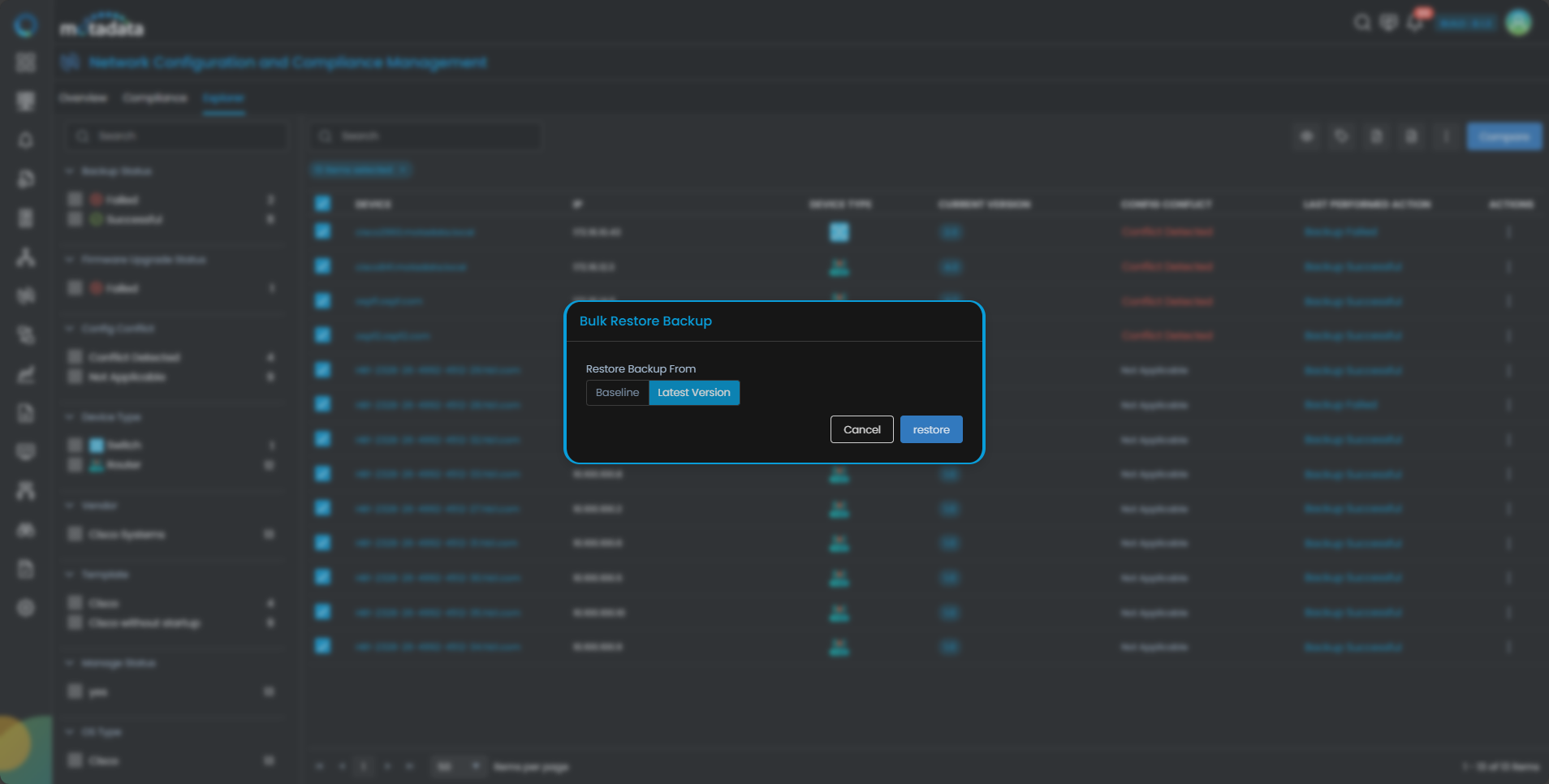
Choose one of the following restore options:
- Baseline – Restores the configuration to the baseline version
- Latest Version – Restores the configuration to the most recent version
After selecting the required option, click Restore to execute the operation.
If you have only the NCCM role, submitting a Bulk Restore does not execute the action immediately. The system creates an approval request for each selected device that must be reviewed and approved by a user with the NCCM Approval role. To learn more about requester and approver roles in the NCCM approval workflow, see NCCM Approval Workflow.
With support for scheduled backups, external storage, version-based restore, and bulk operations, administrators can maintain configuration consistency, recover from failures quickly, and manage large-scale environments efficiently.
External Storage File and Folder Structure
When ObserveOps transfers configuration backup files to an external storage server, it organizes them in a structured folder hierarchy. This makes backups easy to browse, identify, and restore by device and configuration type.
This folder structure works only with storage protocols that support directories and file metadata such as SFTP, FTP, and Local. It does not work over TFTP, since TFTP has no folder hierarchy or file listing support.
Folder Structure
ObserveOps creates the following directory structure on the external storage server:
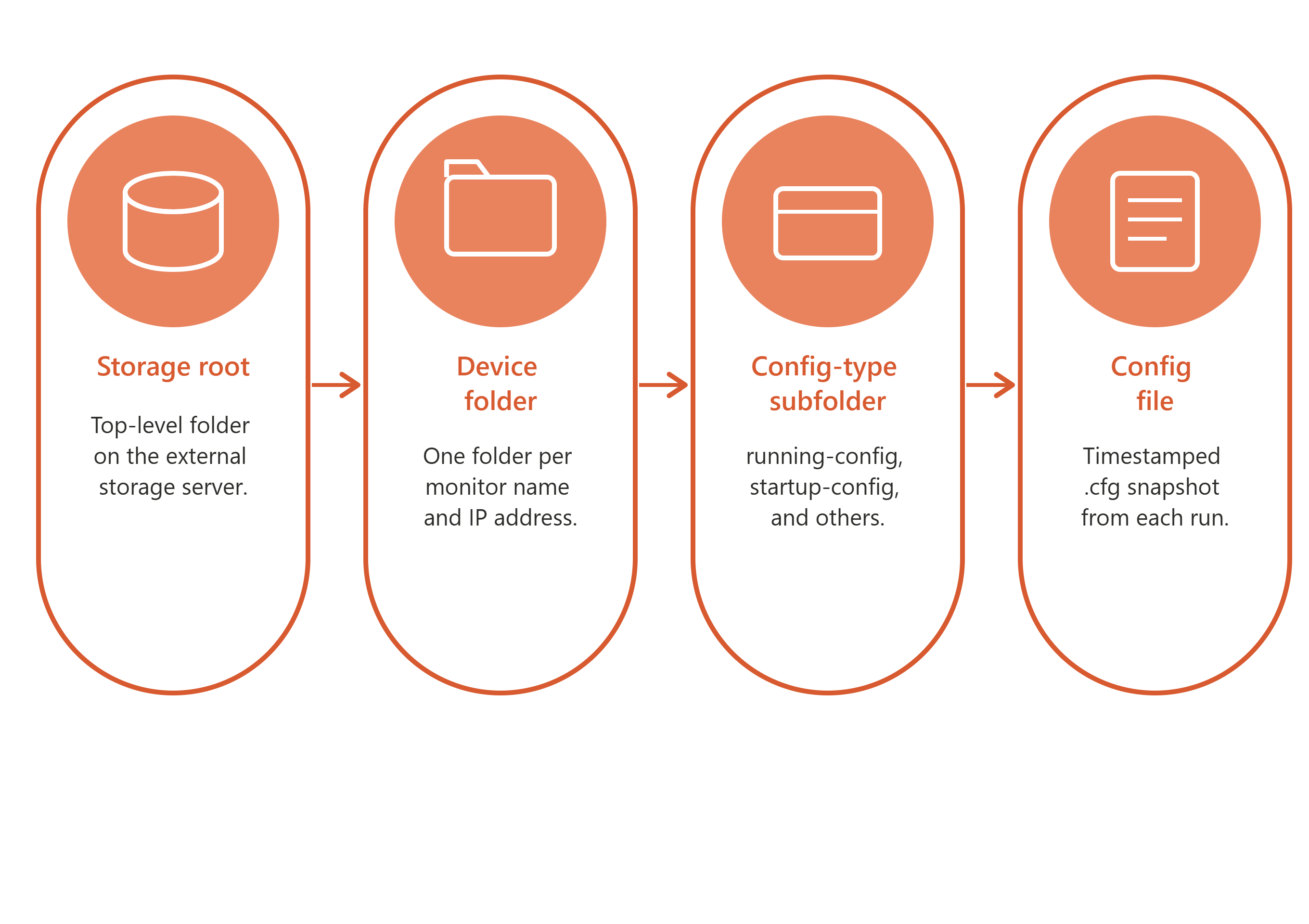
This hierarchy helps you find the right configuration fast. Each device gets its own folder, and each backup file carries a timestamp, so you can go straight to the device and date you need without opening files one by one.
Naming Rules
| Level | Format | Example |
|---|---|---|
| Device folder | <monitor-name>_<ip> | core-switch-01_192.168.1.1 |
| Config type folder | One folder per config type | running-config, startup-config |
| Backup file | <monitor-name>_<ip>_<config-type>_<timestamp>.cfg | core-switch-01_192.168.1.1_running-config_2026-06-11_02-00-00.cfg |
Why This Structure Matters
Each device gets its own top-level folder, so backups from different devices never mix. Running and startup configs are stored in separate sub-folders, which keeps them distinct when you need to restore. The timestamp in every filename tells you exactly when that backup was taken, so you can pick the right version without opening files. And because the device name appears in both the folder and filename, you can navigate straight to what you need without searching.
ObserveOps creates the folder structure automatically on the first backup. You do not need to pre-create directories on the external storage server.