NCCM Device Inventory
In Motadata ObserveOps (formerly known as AIOps), the NCCM Device Inventory serves as the central location for managing and monitoring devices enabled for Network Configuration and Compliance Management (NCCM). It provides a consolidated view of all network devices configured as monitors and allows administrators to control their configuration lifecycle.
This inventory enables administrators to track device-level configuration status, manage NCCM enablement, assign templates, schedule backups, and perform bulk operations across devices.
Overview
The NCCM Device Inventory displays all network devices (such as routers, switches, firewalls, and other infrastructure components) that are configured as monitors in Motadata ObserveOps.
From this view, administrators can:
- Enable or disable NCCM for devices
- Monitor credential and onboarding status
- Assign or update device templates
- Schedule configuration backups and firmware operations
- Perform bulk configuration management actions
This ensures centralized control over configuration management across multi-vendor environments.
Navigation
Go to Menu. Select Settings  . After that, select Network Config Settings
  . Select Device Inventory. The list of all the network monitors is displayed on the screen.
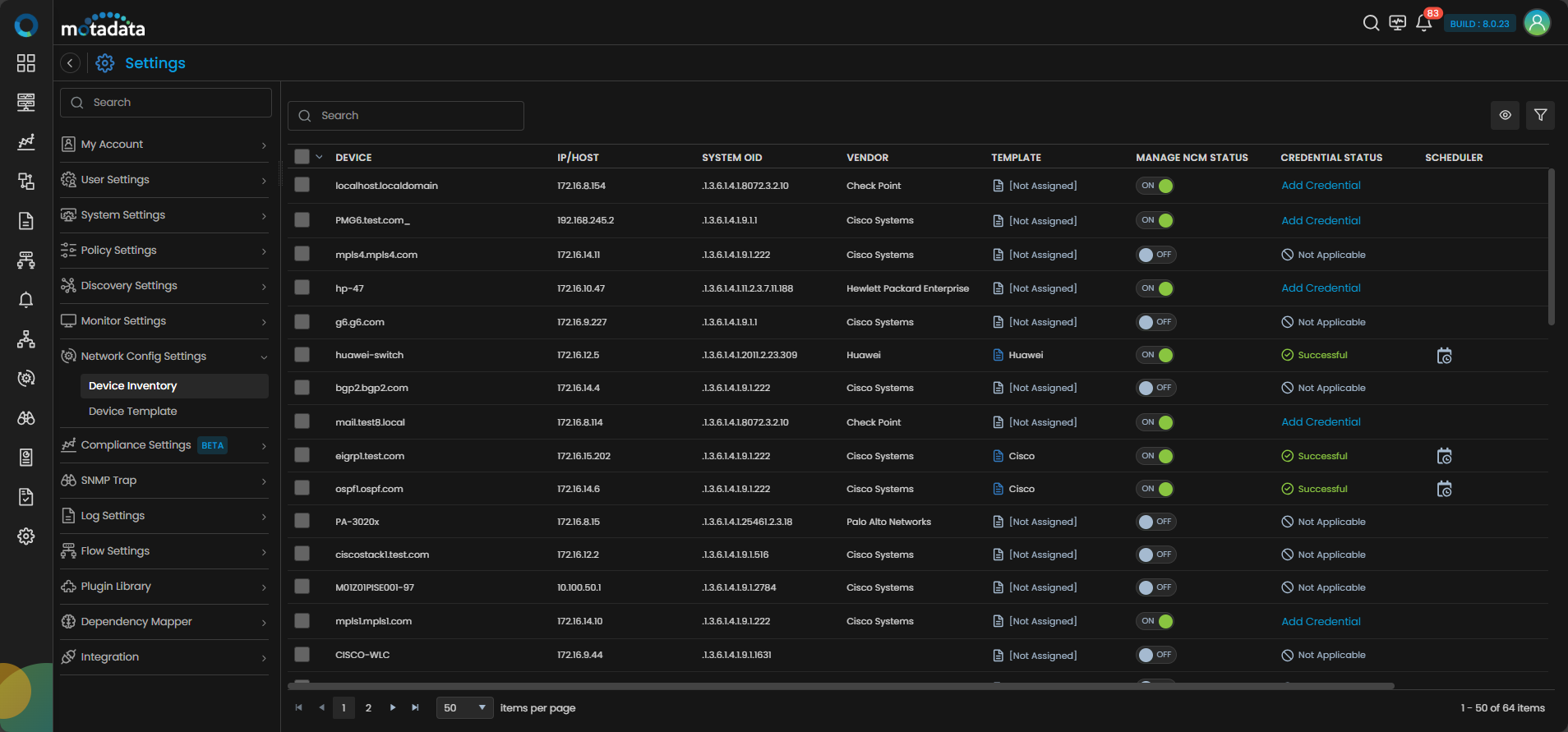
Device Inventory Screen
The following fields are available on the Device Inventory screen:
| Field | Description |
|---|---|
| Device | Displays the name or identifier of the network device configured as a monitor. |
| IP/Host | Specifies the IP address or hostname of the device. |
| System OID | Represents the System Object Identifier (OID), used to identify the device type and assign templates. |
| Vendor | Indicates the vendor or manufacturer of the device. |
| Template | Displays the NCCM device template assigned based on the device OID. The template defines how backup, restore, and synchronization operations are executed. |
| Manage NCCM Status | Toggle to enable or disable NCCM for the device. When enabled, NCCM discovery is triggered and configuration management becomes active after the initial backup. When disabled, configuration backup operations are stopped. |
| Credential Status | Provides insights into the credential-related status for enabling NCCM for a device. It indicates whether the credentials used for discovery were successful or if failures occurred at a specific stage of setting up the device as a NCCM device. Clicking on the status allows administrators to review and update credentials if needed. You can also click the Add Credential to add the SSH/ Telnet Protocol based credential profile. |
| Scheduler | Displays scheduler details for configuration backup and firmware operations. |
| Type | Specifies the device type, such as router, switch, or firewall. |
| Actions | Refer the content below to read about the actions available for a NCCM device. |
You can customize the columns displayed in the grid using the eye icon. Use the filter and tag icons to refine the list based on specific criteria.
By selecting multiple devices, you can perform bulk operations using the action icon. The inventory also provides options to export the list in CSV or PDF format.
Actions in NCCM Device Inventory
The following actions are available for devices listed in the NCCM Device Inventory:
| Action | Description |
|---|---|
| Schedule Backup | Allows administrators to schedule periodic configuration backups for the device. This ensures that running and startup configurations are captured regularly. |
| Update Credential | Enables updating the credential profile associated with the device. This is useful when authentication details change or onboarding fails due to incorrect credentials. |
| Update Template | Allows administrators to change the assigned device template, ensuring correct command execution for configuration operations. |
| Attach Storage Profile | Associates a storage profile with the device to define where configuration backups are stored. This supports secure and external storage of configuration data. |
Enabling Network Configuration and Compliance Management from Device Inventory
If NCCM was not enabled during device discovery, it can be activated directly from the Device Inventory.
To enable NCCM:
- Locate the device in the inventory
- Toggle the Manage NCCM Status option to ON
This step activates the NCCM discovery for the device, and functionalities become accessible after the initial backup.
By combining device visibility, configuration control, template management, and scheduling capabilities, it enables administrators to efficiently manage configuration workflows and maintain consistency across the network infrastructure.