Adding Devices for Network Configuration and Compliance Management
In Motadata ObserveOps (formerly known as AIOps), Network Configuration and Compliance Management (NCCM) is integrated with the device discovery process. When a network or wireless device is discovered, it is created as a Monitor and is also listed in the NCCM Device Inventory.
However, devices in the NCCM Device Inventory are not automatically enabled for configuration management.
A device becomes eligible for NCCM operations only when the Enable NCCM option is activated for that monitor either during device discovery or later on through the the Manage NCCM Status option in the NCCM device inventory. The device is considered fully onboarded after the initial configuration backup is completed successfully.
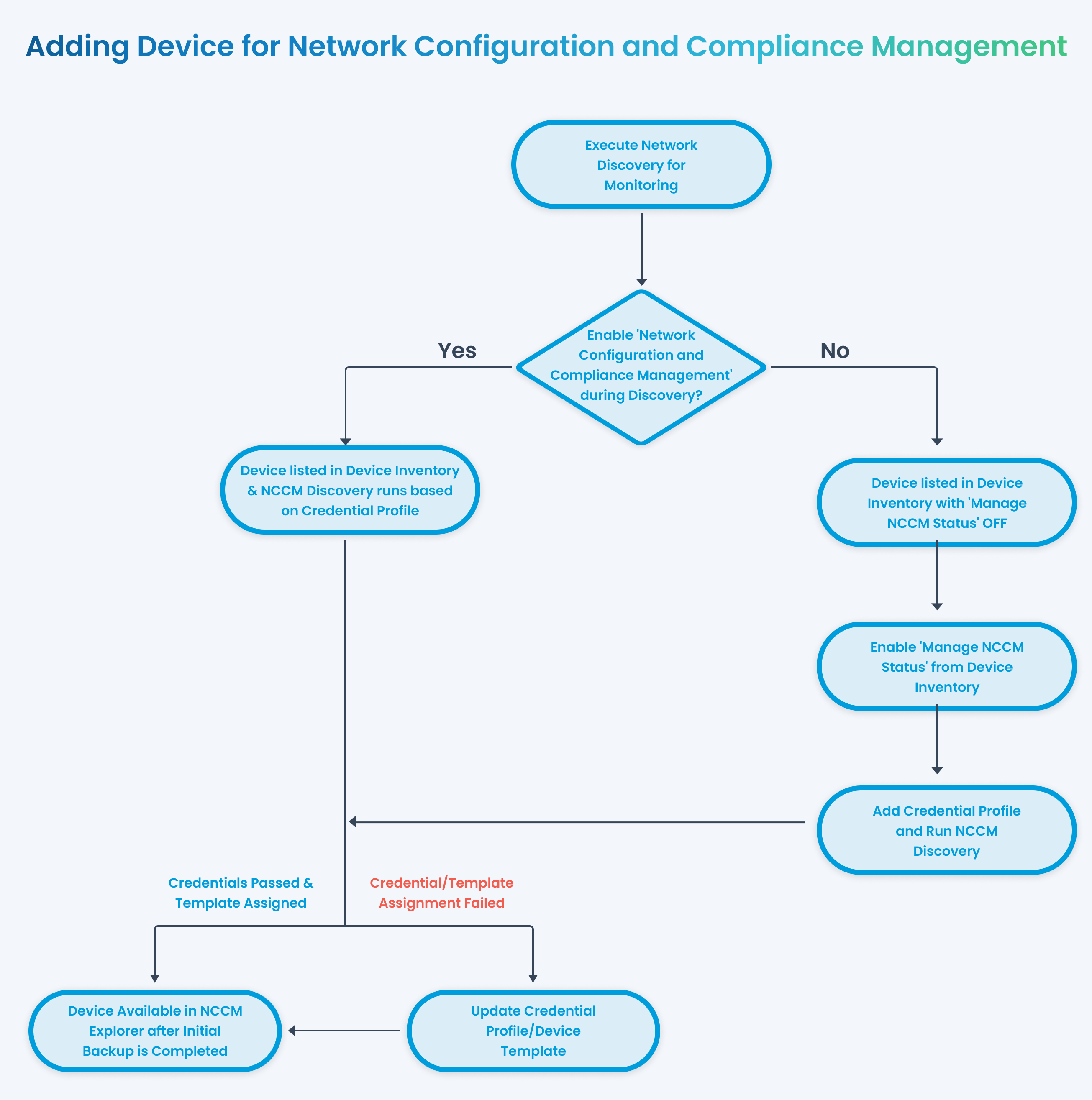
Let us understand the two ways how the device can be enabled for network configuration and compliance management in Motadata ObserveOps.
1. Enable NCCM during Device Discovery
NCCM can be enabled while creating the discovery profile. This ensures that eligible network devices are onboarded for configuration management immediately after they are discovered for monitoring in Motadata ObserveOps.
When the Enable NCCM toggle is turned on in the discovery profile, Motadata ObserveOps runs an additional back-end process to register the discovered device in NCCM after it is added as a monitor. Once the initial configuration backup is completed successfully, the device becomes available in the NCCM Explorer for further analysis.
If the Credential Status for a device in the NCCM device inventory shows Failed, it means the monitoring discovery completed successfully, but the NCCM discovery failed due to credential issues. To identify the exact failure stage, click Failed in the Credential Status column and update the credentials as required.
Navigation
Go to Menu. Select Settings  . After that, Go to Discovery Settings
  and select Discovery Profile. The discovery profile screen is displayed. Select Create Discovery Profile to create a new discovery profile.
The list of all the created discovery profiles is now displayed on this screen.
Steps to Enable NCCM during Discovery
Refer Adding Network devices for Monitoring for details on how to enable a network device for network configuration and compliance management. The same steps need to be followed while creating a credential profile for a wireless device to enable then for network configuration and compliance management.
2. Enable NCCM from Device Inventory
Once a network device is discovered and added as a Monitor, it appears in the NCCM device inventory. If Enable NCCM was not selected during discovery, the device remains listed in the inventory, but NCCM is not enabled for it.
You can enable NCCM later from the NCCM device inventory using Manage NCCM Status. After NCCM is enabled, Motadata ObserveOps runs the required onboarding process and performs the initial configuration backup. The device becomes available in the NCCM Explorer only after the backup completes successfully.
Navigation
Go to Menu. Select Settings . After that, select Network Config Settings  . Select Device Inventory. The list of all the network monitors is displayed on the screen.

Steps to Enable NCCM from Device Inventory
Here, you can see a column Manage NCCM Status with a toggle button. You can switch ON the toggle button to enable the network configuration and compliance management for that device.
Once you switch the toggle button ON, the monitor will now be enabled for network configuration and compliance management and the NCCM discovery for that device will run in the backend. Once the initial backup for this device is successfully completed, it is available for analysis in the NCCM Explorer
The integration of NCCM discovery with discovery for monitoring ensures a smooth transition from monitoring to comprehensive network configuration and compliance management in Motadata ObserveOps. Administrators gain fine-grained control over NCCM settings, allowing them to harness the full potential of configuration and compliance management, backup, and restore capabilities.
Onboarding Requirements
Ensure the following configurations are correctly defined before enabling NCCM:
Credential Profile Required for CLI access (SSH/Telnet with privilege mode)
Template Mapping Ensures correct command execution for backup and restore
Macros and Prompts Required for handling device-specific CLI responses
Incorrect configuration may result in onboarding failure or incomplete configuration data.