Tomcat
This guide explains how to instrument a Java application running on Apache Tomcat by selecting a Linux agent or Windows agent for trace ingestion.
- Linux
- Windows
Prerequisites
- The Motadata Agent must be installed and running on the server where the Tomcat-based application is deployed. Also, the otelcol should be running as part of the Motadata Agent. To check the agent status, open a Linux terminal and run:
service motadata-agent status
- Java version must be 8 or higher:
java -version
- The Tomcat installation directory (i.e.,
CATALINA_HOME) is available, and you have permission to edit Tomcat startup configuration and restart Tomcat. - Confirm how Tomcat is started in your environment (script-based startup is assumed in this guide).
Configuration Steps
Step1: Register the Application Service in Motadata ObserveOps (formerly known as AIOps)
Go to Menu > Settings > APM > Application Registration. Clicking the Application Registration button, you can register a new application.
From the application registration screen, select the instrumentation type Host/VM or Docker.
- Host/VM
- Docker
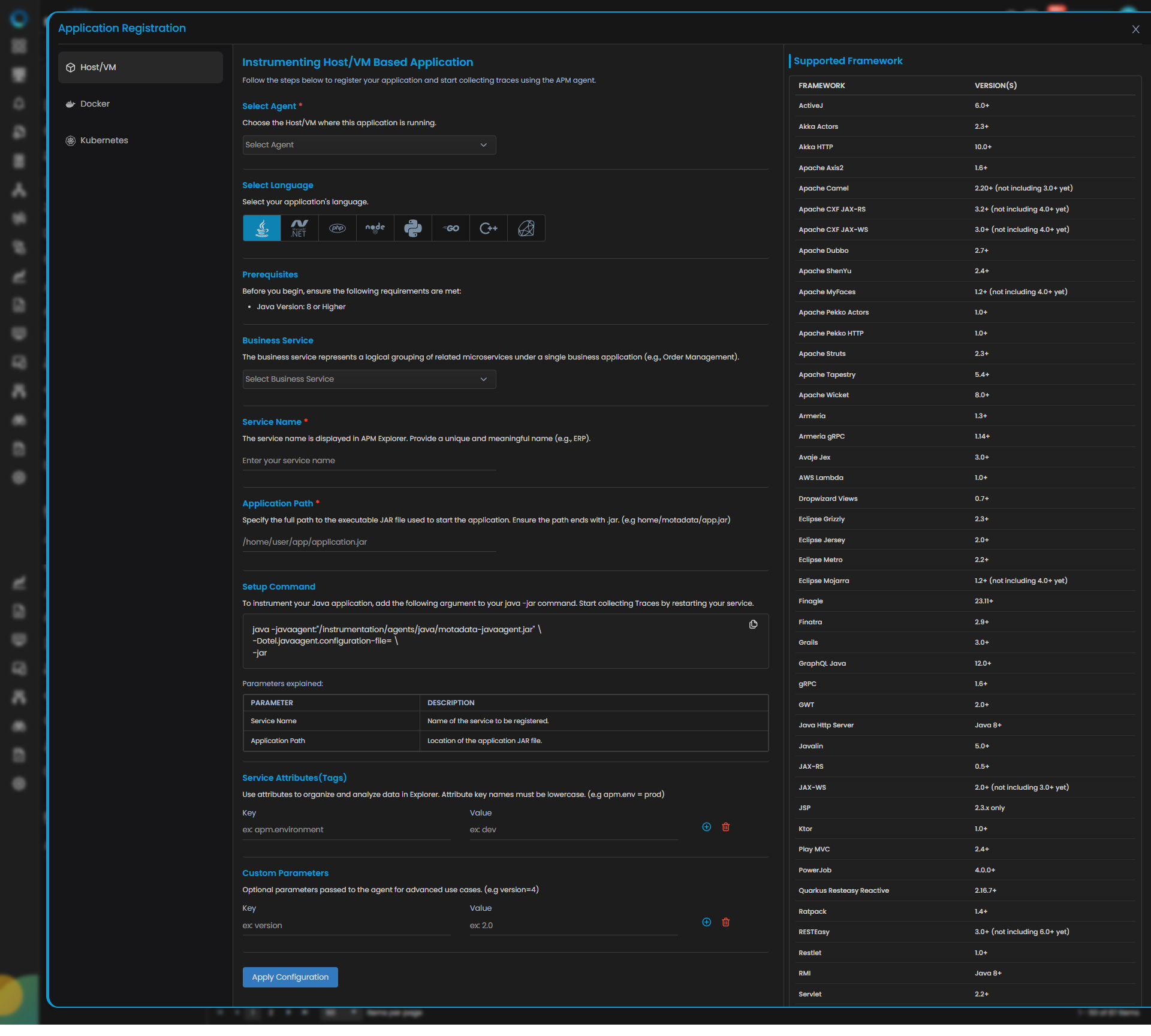
Java Trace Configuration
| Field | Description |
|---|---|
| Select Agent | Select the Host/VM where this application is running. |
| Select Language | Select Java from the language icons. |
| Business Service | The business service represents a logical grouping of related microservices under a single business application (e.g., Order Management). Adding or selecting the available service group from the drop-down will add your application service to the dedicated business service group. |
| Service Name | Provide a unique and meaningful name (for example, ERP). |
| Application Path | Specify the full path to the executable file used to start the application (for example, your Tomcat startup path if required by your internal standard). |
| Service Attributes(Tags) | Add key–value tags to your application for better filtering and organizing data in Explorer. Attribute keys must be in lowercase (for example, apm.env = prod). To add multiple Key-Value pairs you can click the add icon. |
| Add Custom Parameters | Allows you to define custom sampling or tagging parameters for advanced use cases. These optional parameters are passed to the agent (for example, version=4). |
Clicking the Apply Configuration button, you need to run the displayed Setup Command to instrument your Java application. Add the displayed argument to your java -jar command and restart the service to collect Traces.
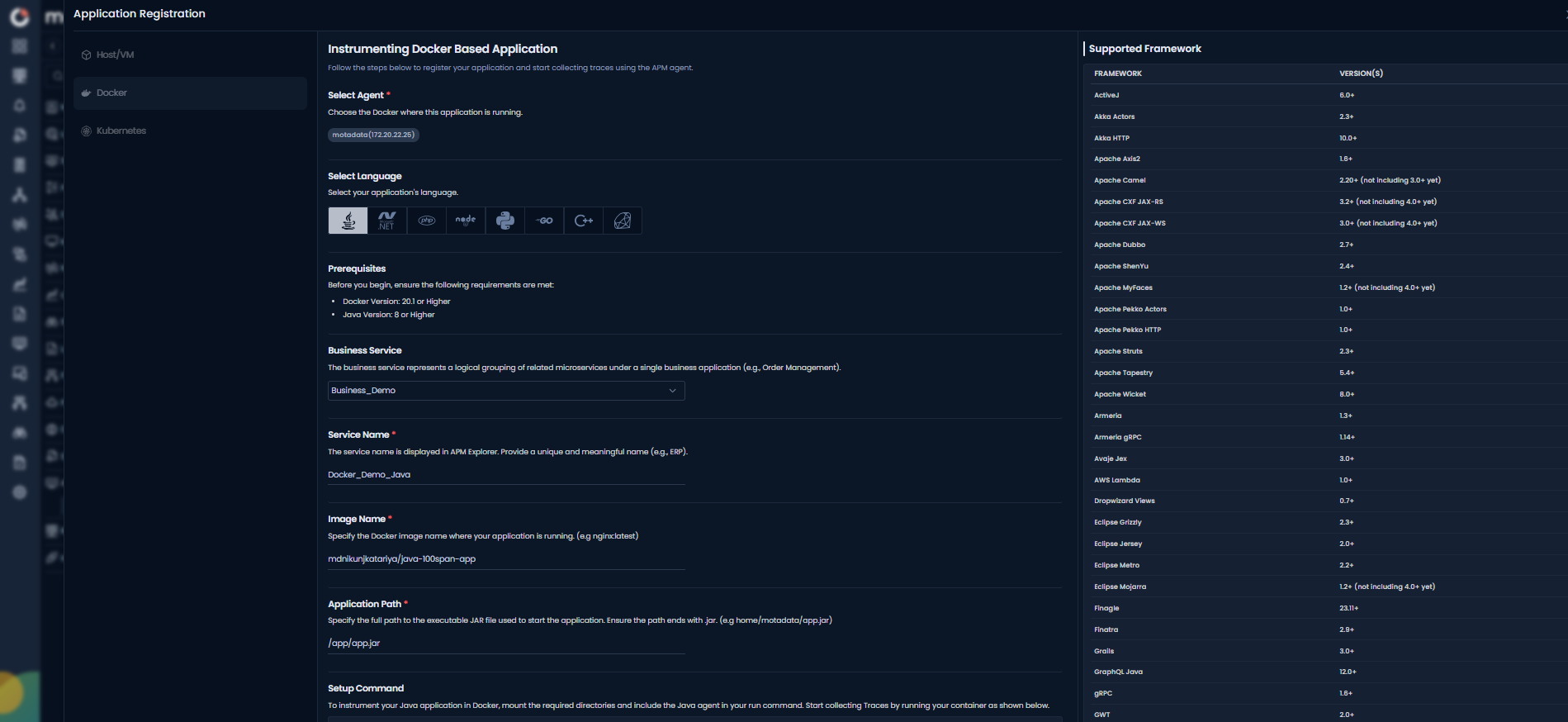
Java Trace Configuration
| Field | Description |
|---|---|
| Select Agent | Select the Linux agent that can access the Docker host where Tomcat is running. |
| Language | Select Java from the language icons. |
| Service Name | Provide a unique and meaningful name (for example, ERP). |
| Application Path | Specify the container-side path as per your runtime standard. |
| Service Attributes(Tags) | Add key–value tags to your application for better filtering and organizing data in Explorer. Attribute keys must be in lowercase (for example, apm.env = prod). To add multiple Key-Value pairs you can click the add icon. |
| Add Custom Parameters | Allows you to define custom sampling or tagging parameters for advanced use cases. These optional parameters are passed to the agent (for example, version=4). |
Clicking the Apply Configuration button, you need to run the displayed Setup Command to instrument your Java application. Add the displayed argument to your java -jar command and restart the service to collect Traces.
Step2: Configure Tomcat for Instrumentation
Tomcat instrumentation can be done using different methods. Follow the instructions based on how Tomcat is started in your environment.
- setenv.sh Method
- catalina.sh Method
Tomcat Started Using Standard Scripts (Recommended)
This method keeps agent settings isolated and upgrade-safe by using setenv.sh.
Locate or Create setenv.sh
Go to:
<CATALINA_HOME>/bin/
If setenv.sh does not exist, create it:
vi <CATALINA_HOME>/bin/setenv.sh
Replace <CATALINA_HOME> with your Tomcat installation path.
Stop Tomcat
Use your standard stop method. If you use Tomcat scripts:
<CATALINA_HOME>/bin/shutdown.sh
Add Motadata Java Agent Configuration
Add the following near the top of setenv.sh:
CATALINA_OPTS="${CATALINA_OPTS} \
-javaagent:/motadata/motadata/instrumentation/agents/java/motadata-javaagent.jar \
-Dotel.javaagent.configuration-file=/motadata/motadata/config/<ServiceName>.properties"
Replace <ServiceName> with the exact service name you registered in Motadata ObserveOps.
Make the file executable:
chmod +x <CATALINA_HOME>/bin/setenv.sh
Start Tomcat
<CATALINA_HOME>/bin/startup.sh
Tomcat Started Using catalina.sh (Fallback)
Use this only if setenv.sh is not viable in your environment.
Locate catalina.sh
<CATALINA_HOME>/bin/catalina.sh
Stop Tomcat
<CATALINA_HOME>/bin/shutdown.sh
Modify catalina.sh
Open the file:
vi <CATALINA_HOME>/bin/catalina.sh
Add/export the CATALINA_OPTS before the exec line (the line that launches Java):
CATALINA_OPTS="$CATALINA_OPTS \-javaagent:/motadata/motadata/instrumentation/agents/java/motadata-javaagent.jar \-Dotel.javaagent.configuration-file=/motadata/motadata/config/<ServiceName>.properties"
Replace <ServiceName> with the exact service name you registered in Motadata ObserveOps.
Start Tomcat
<CATALINA_HOME>/bin/startup.sh
Ensure Tomcat starts successfully and the Java agent is loaded without errors.
Step3: Verify APM Trace Ingestion
Once the application is running, verify the below points:
- Confirm that the service has been registered successfully.
- On the service registration screen, the Service Trace Collection Status should display Running.
- Generate traffic on the application (open UI pages / call APIs) and confirm traces appear in APM Explorer.
Prerequisites
- The Motadata Agent must be installed and running on the server where the Tomcat-based application is deployed. To verify agent status: press Win+R and open:
service.msc
- Java version must be 8 or higher (run from Command Prompt):
java -version
- The Tomcat installation directory (i.e.,
CATALINA_HOME) is available. - You have permission to edit Tomcat startup configuration (
.bat) and restart Tomcat.
Configuration Steps
Step1: Register the Application Service in Motadata ObserveOps
Go to Menu > Settings > APM > Application Registration. Clicking the Application Registration button, you can register a new application.
From the application registration screen, select the instrumentation type as Host/VM.
Java Trace Configuration
| Field | Description |
|---|---|
| Select Agent | Select the Host/VM where this application is running. |
| Select Language | Select Java from the language icons. |
| Business Service | The business service represents a logical grouping of related microservices under a single business application (e.g., Order Management). Adding or selecting the available service group from the drop-down will add your application service to the dedicated business service group. |
| Service Name | Provide a unique and meaningful name (for example, ERP). |
| Application Path | Specify the full path as per your environment standard (if required by your setup). |
| Service Attributes(Tags) | Add key–value tags to your application for better filtering and organizing data in Explorer. Attribute keys must be in lowercase (for example, apm.env = prod). To add multiple Key-Value pairs you can click the add icon. |
| Add Custom Parameters | Allows you to define custom sampling or tagging parameters for advanced use cases. These optional parameters are passed to the agent (for example, version=4). |
Clicking the Apply Configuration button, you need to run the displayed Setup Command to instrument your Java application. Add the displayed argument to your java -jar command and restart the service to collect Traces.
Step2: Configure Tomcat for Instrumentation
Tomcat instrumentation on Windows can be done using multiple methods. Follow the instructions based on how Tomcat is started in your environment. Choose one method only.
- setenv.bat Method
- Package-Managed Tomcat
- Windows Service Method
Tomcat Started Using Standard Scripts (Recommended)
Locate or Create setenv.bat
Go to:
<TOMCAT_HOME>\bin\
Check if setenv.bat exists. If not exist create a new file named:
To create or edit:
<TOMCAT_HOME>\bin\setenv.bat
Stop Tomcat
Stop Tomcat using your standard approach (Windows Service / scripts / your enterprise wrapper).
Add Motadata Java Agent Configuration
Open setenv.bat using Notepad as Administrator and add:
rem === Motadata APM Java Agent Configuration === set CATALINA_OPTS=%CATALINA_OPTS% ^ -javaagent:C:\motadata\motadata\instrumentation\agents\java\motadata-javaagent.jar ^ -Dotel.javaagent.configuration-file=C:\motadata\motadata\config\<ServiceName>.properties
Replace <ServiceName> with the exact service name you registered in Motadata ObserveOps.
Do not remove existing CATALINA_OPTS.
Start Tomcat
Start Tomcat using your standard method.
Tomcat Installed Using a Package-Managed Setup
If Tomcat was installed through a package-style setup and uses a .conf file for runtime options, configure the Java agent in that file.
Locate the Configuration File
Look for files such as:
C:\tomcat\conf\tomcat*.conf
Stop Tomcat
Stop Tomcat before making configuration changes.
Add Motadata Java Agent Configuration
Open the applicable .conf file and add:
JAVA_OPTS=%JAVA_OPTS% -javaagent:C:\motadata\motadata\instrumentation\agents\java\motadata-javaagent.jar -Dotel.javaagent.configuration-file=C:\motadata\motadata\config\<ServiceName>.properties
Replace <ServiceName> with the exact service name you registered in Motadata ObserveOps.
Start Tomcat
Start Tomcat using your standard method.
Tomcat Installed as a Windows Service
If Tomcat runs as a Windows Service, configure the Java agent from the Tomcat Windows service manager instead of setenv.bat.
Open Tomcat Service Configuration
Go to:
<TOMCAT_HOME>\bin\
Run the service manager executable based on your Tomcat version:
tomcat9w.exe
Or:
tomcat8w.exe
Or:
tomcat10w.exe
Add Java Agent in the Service UI
- Open the Java tab.
- In Java Options, add:
-javaagent:C:\PROGRA~1\Motadata\MOTADA~1\instrumentation\agents\java\motadata-javaagent.jar
-Dotel.javaagent.configuration-file=C:\PROGRA~1\Motadata\MOTADA~1\config\PROD_APP_Infor_Sunsystem02.properties
- Add another option:
-Dotel.javaagent.configuration-file=C:\motadata\motadata\config\<ServiceName>.properties
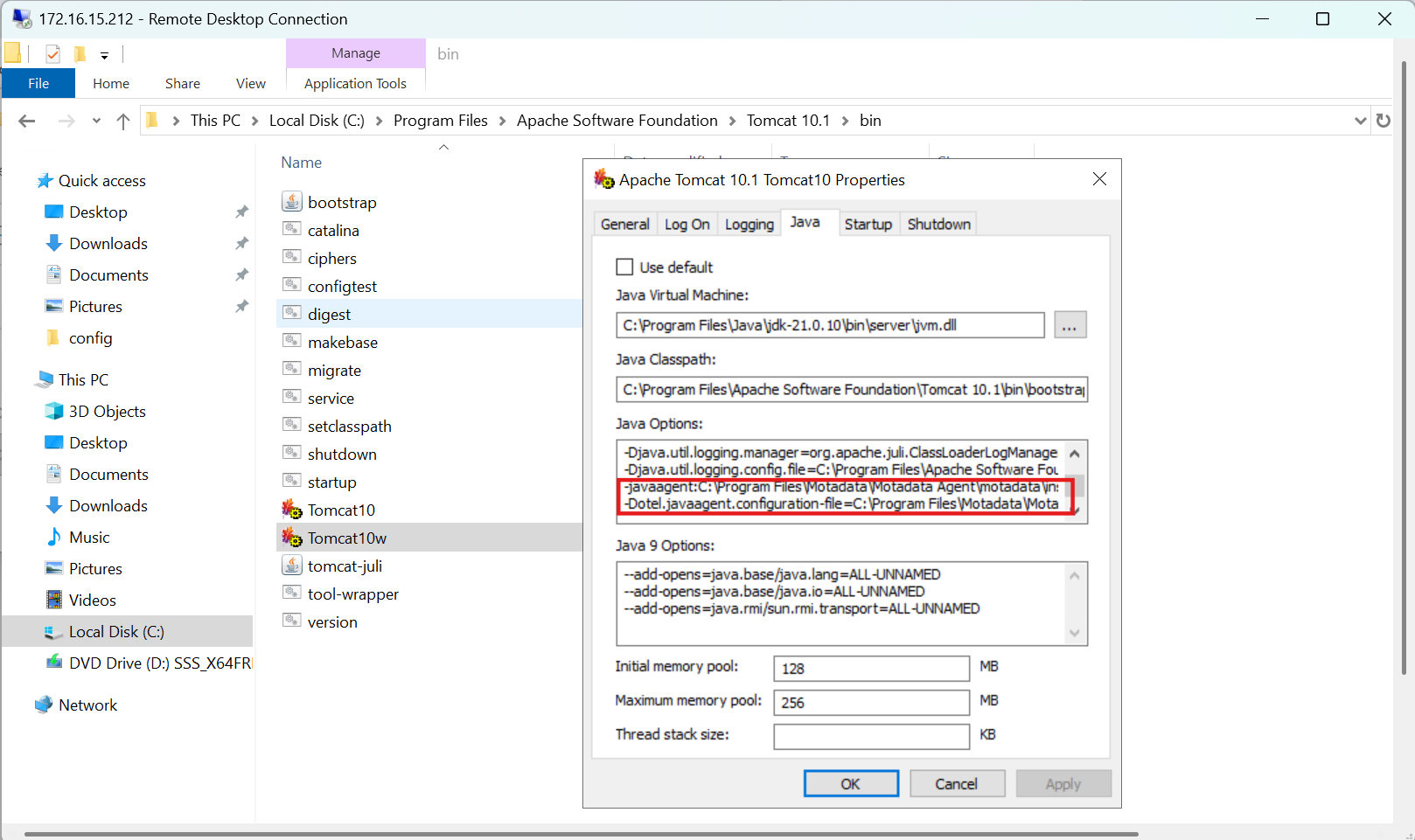
- Click Apply.
- Click OK.
Replace <ServiceName> with the exact service name you registered in Motadata ObserveOps.
Restart Tomcat Service
- Open Services (
services.msc) - Locate the Apache Tomcat service
- Restart the service
Restart Apache Tomcat
Restart Tomcat based on how it is installed.
Script-Based Startup
<TOMCAT_HOME>\bin\startup.bat
Windows Service Startup
Restart the Tomcat service from Services (services.msc).
Tomcat will now start with the Motadata Java Agent enabled.
Ensure Tomcat starts successfully and the Java agent loads without errors.
Step3: Verify APM Trace Ingestion
Once the application is running, verify the below points:
- Confirm that the service has been registered successfully.
- On the service registration screen, the Service Trace Collection Status should display Running.
- Generate traffic on the application (open UI pages / call APIs) and confirm traces appear in APM Explorer.