Trace Ingestion
Overview
Trace ingestion is the first step in enabling Application Performance Monitoring (APM) in Motadata. This setup allows your services and applications to send trace data to the Motadata ObserveOps (formerly known as AIOps) platform, where it can be analyzed and visualized. Trace data is sent through the MotaAgent captures and forwards spans and metrics from your running applications.
Motadata supports trace ingestion from multiple languages, including Java, .NET, PHP, Node.js, Python, Go, C++, and Ruby. All configurations are managed from the Agent Monitor screen in the platform.
Once trace ingestion is configured correctly, you can begin viewing detailed trace flows, identifying bottlenecks, and analyzing service behavior.
Prerequisites
Before configuring trace ingestion, make sure of the following:
- MotaAgent is installed and running on your host machine. If you have not installed then kindly refer Installation Guide for MotaAgent.
- The application service you want to ingested has to be running.
- Ensure that TCP port 9474 and 9433 is open in the Motadata ObserveOps application with bidirectional access. To know more about each ports and its dependencies Click Here
Configuration Steps
Go to the Main Menu, Select Settings  . After that, go to APM
  . Then, select the Application Registration option.
This will display the already registered applications on the screen.
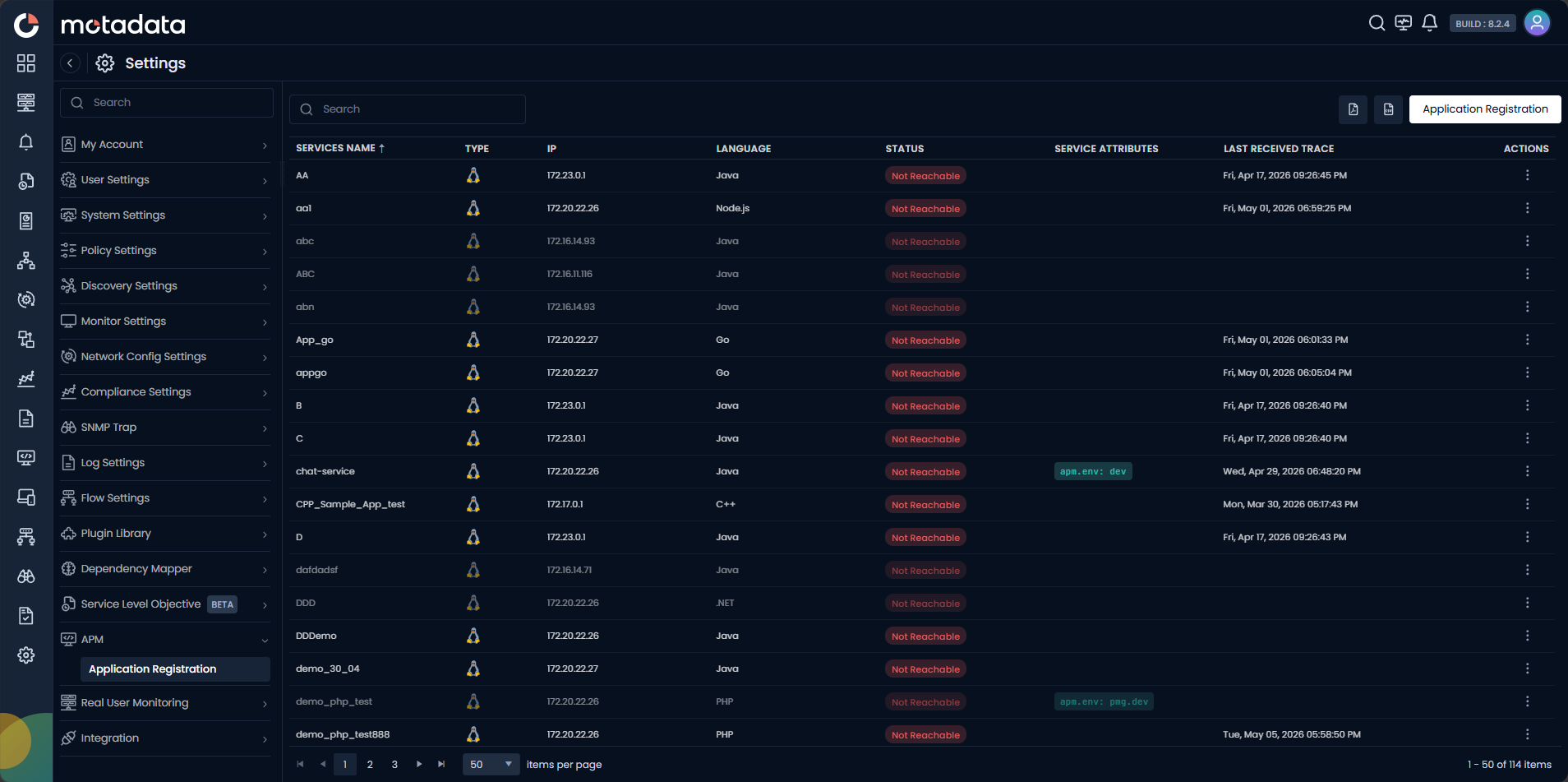
The screen displays the below fields:
| Field | Description |
|---|---|
| Service Name | Displays the unique name assigned while registering the application service. |
| Type | Indicates the operating system or host environment where the service is deployed (i.e., Linux, Windows). |
| IP | Shows the IP address of the host machine where the service is running. |
| Language | Displays the programming language used by the registered service. |
| Status | Indicates whether the service is actively sending trace data (Running) or not reachable (Not Reachable). |
| Service Attributes | Displays the key–value tags associated with the service (e.g., env:prod, env:qa, distributed:true). |
| Last Received Trace | Shows the timestamp when the most recent trace was received from the service. |
| Actions | Allows you to manage the registered service. You can select options such as - Edit: Allows you to edit the registered application service for trace ingestion. Specifically you can edit the Application Path, Service Attributes and Custom Parameters using this option. - Stop: Allows you to turn off the trace collection. Clicking this option displays you a pop-up to confirm the activity. - View Command: Clicking this option you can see the setup command for the registered application service. - Delete: Allows you to delete the registered application service for trace ingestion. - Restore: If you have deleted a service and wish to bring it back for ingestion, you can restore it using this option. |
Clicking the Application Registration button, you can register a new application for trace ingestion.
Agent selection is required in the first step while registering an application for trace ingestion. To enable an agent for trace ingestion, go to Main Menu > Settings > Monitor Settings > Agent Monitor Settings. The Agent Monitor Settings grid is displayed on the screen.
From the action icon of the running agent, select Enable Trace.
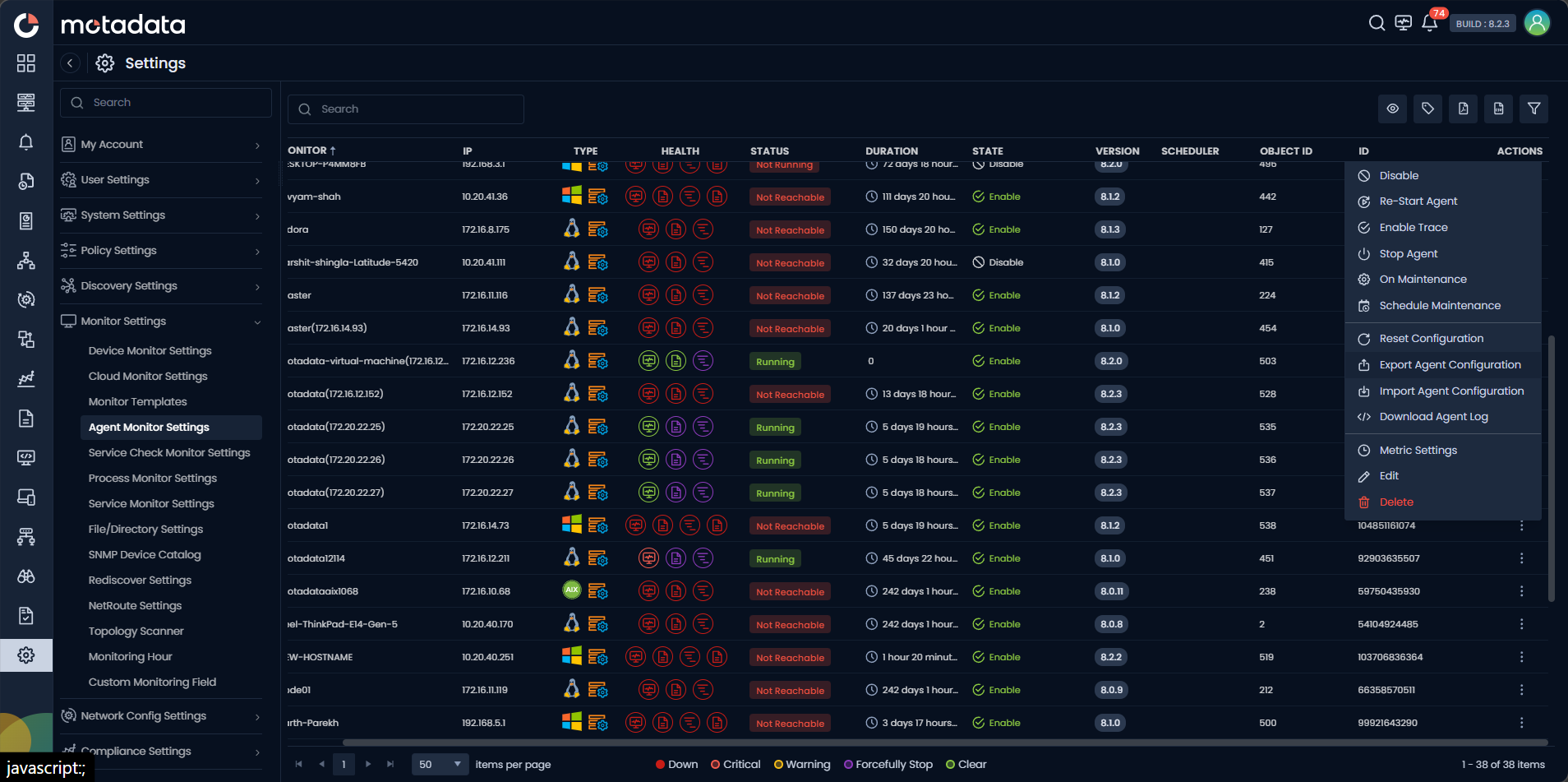
A confirmation prompt appears asking you to restart the agent. Click Yes to continue.
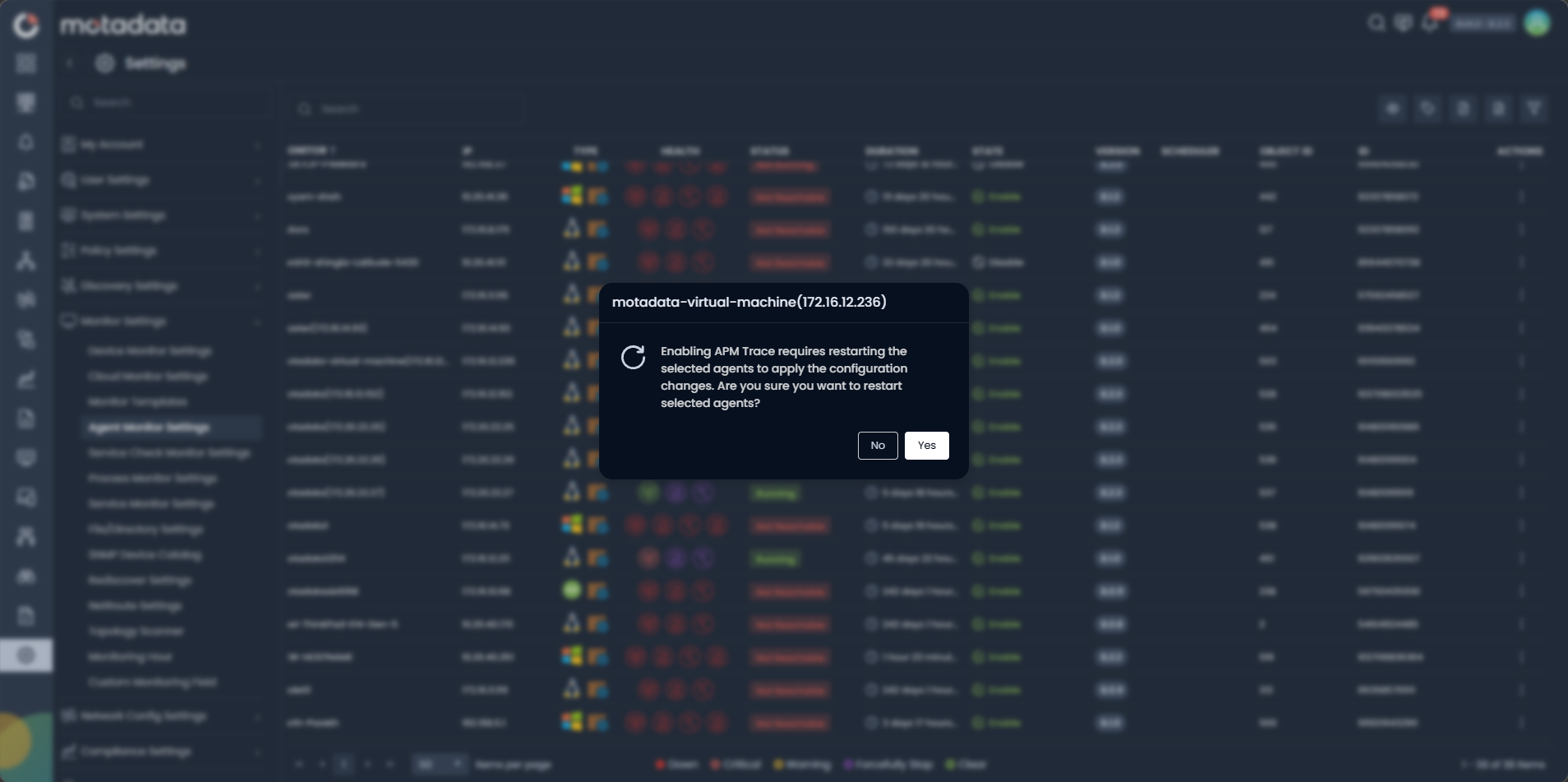
Once enabled, the agent becomes available in the trace ingestion registration list.
Also, you can export the list as pdf or csv by selecting the Export As PDF and Export As CSV icons.
Distributed tracing is disabled by default. To enable trace ingestion for distributed applications, set "distributed.tracing.enabled": "yes" in the ObserveOps Server motadata/motadata/config/motadata.json file.
Select Instrumentation Type
Selecting the particular instrumentation type(i.e. Host/VM, Docker, and Kubernetes), you can configure the further required details.
After selecting the instrumentation type, you need to first select the agent of the application where the application is running. Further configurations are based on the language you select from the Select Language option. The supported languages are listed below. To learn how to configure applications based on each language and its supported frameworks, follow the corresponding links: