Troubleshooting with APM
Overview
Troubleshooting application issues can be tricky, especially in modern apps made up of many microservices and backend systems. Traditional logs might show you that something failed, but not why, where, or how to fix it quickly. This is where Motadata APM comes in.
With Motadata’s Application Performance Monitoring, you can track every request, follow its entire journey across services, and zoom into slow or failing steps. Whether you’re a developer fixing a bug, a DevOps engineer monitoring post-deployment, or an SRE dealing with incidents, APM gives you the full picture, clearly and in real time.
This page explains how you can troubleshoot a real-world problem using Motadata APM, from setting up trace ingestion to finding the root cause in Explorer.
Troubleshooting Your Application Using Motadata APM
Motadata APM allows IT teams to track down performance issues and application-level errors in real time by analyzing how traces flow across services. In this example, we walk through a real troubleshooting scenario using APM Explorer, Trace Drill-down, and Span-level diagnostics.
Step 1: Monitor Error Patterns in APM Explorer
The troubleshooting journey begins in the APM Explorer. After trace ingestion is active, you’ll see tiles representing each ingested service. One of the services (let’s say notification-core-service) shows a high Error Count and an above-normal Response Time.
For example:
- Response Time: 659.8 ms (higher than average)
- Error Count: 5834 errors in the last hour
This hints at a possible performance degradation.
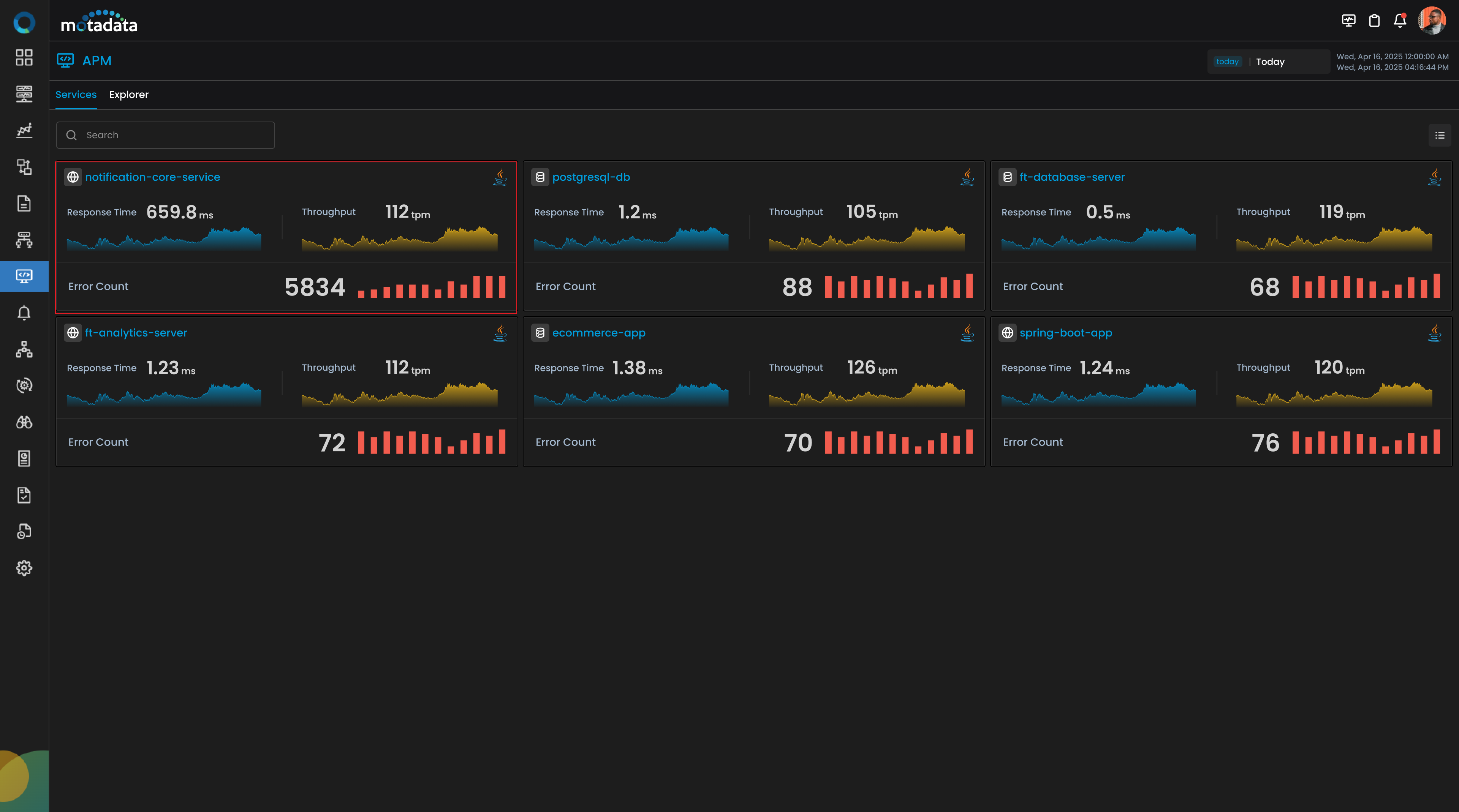
Click on the tile to investigate further.
Step 2: Analyze Trends and Drill Into Problem Areas
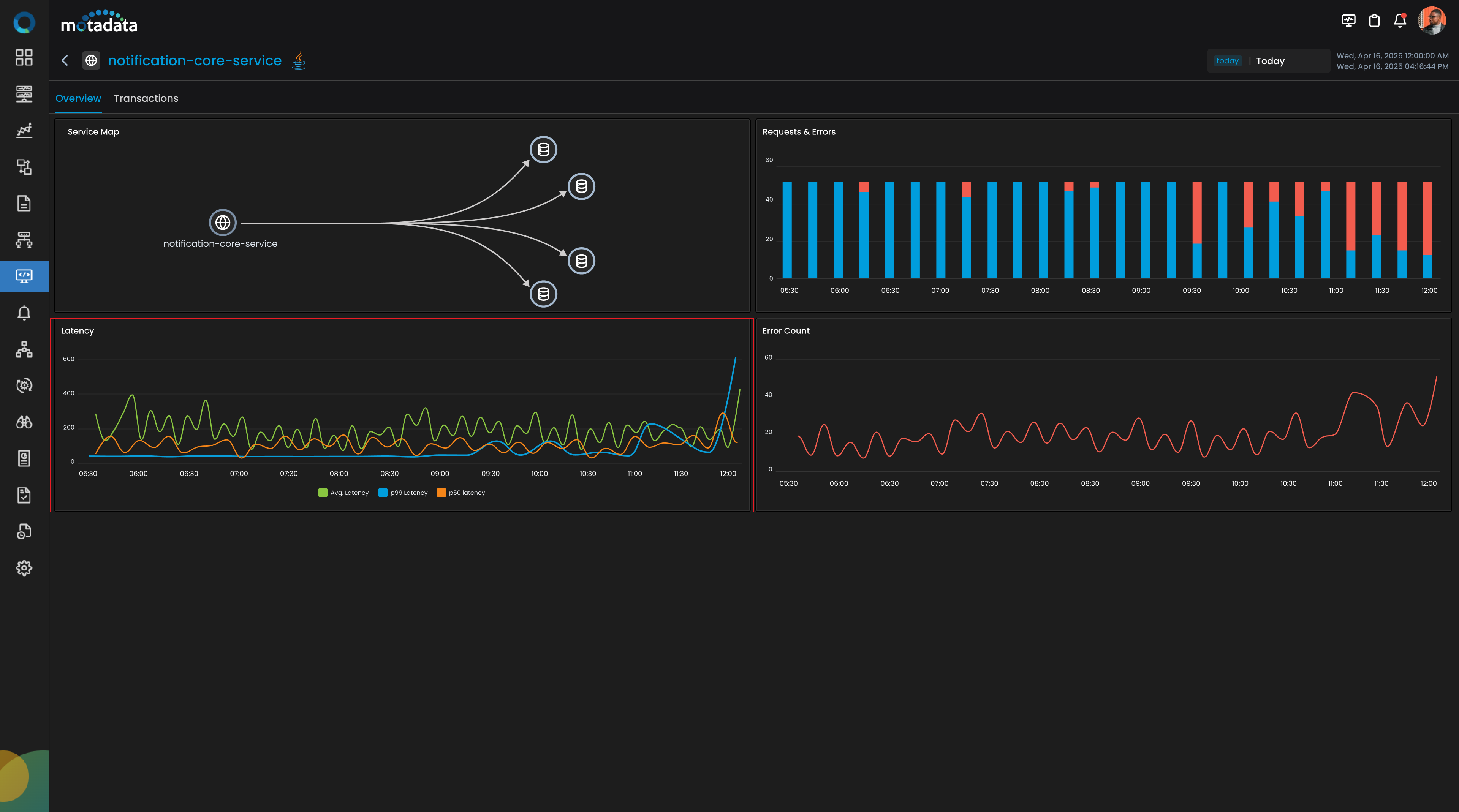
Inside the service details screen, the Overview tab highlights:
- A spike in Latency over time
- A continuous rise in Error Count
- Noticeable degradation in Request & Error Ratio
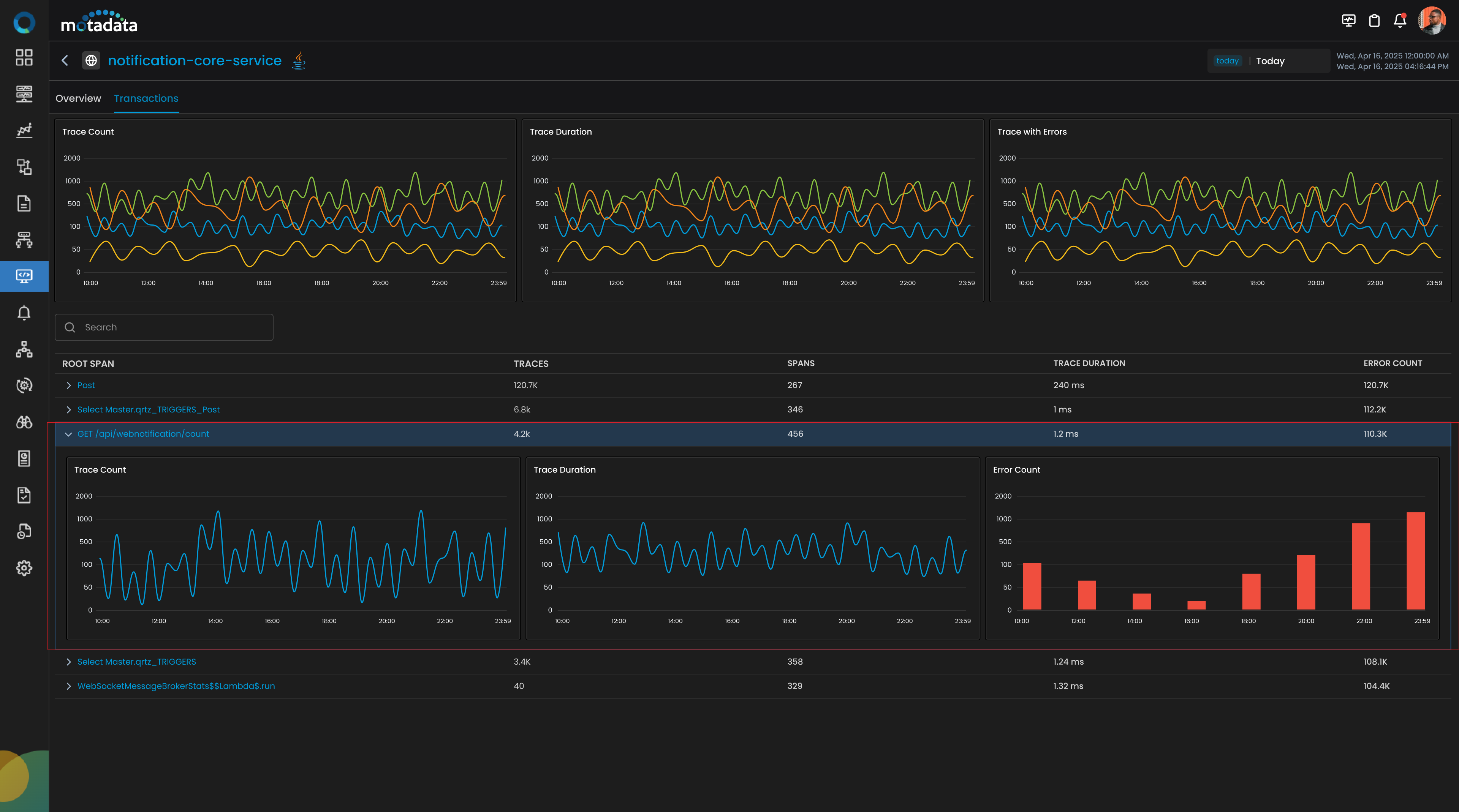
To isolate the problematic operations, switch to the Transactions tab. Sort the root span list by the Error Count column. You'll likely find one span dominating the error logs, for instance: GET /api/webnotification/count.
This span has both high error count and elevated trace durations, making it the prime candidate for root cause analysis.
Step 3: Open the Trace List from Root Span
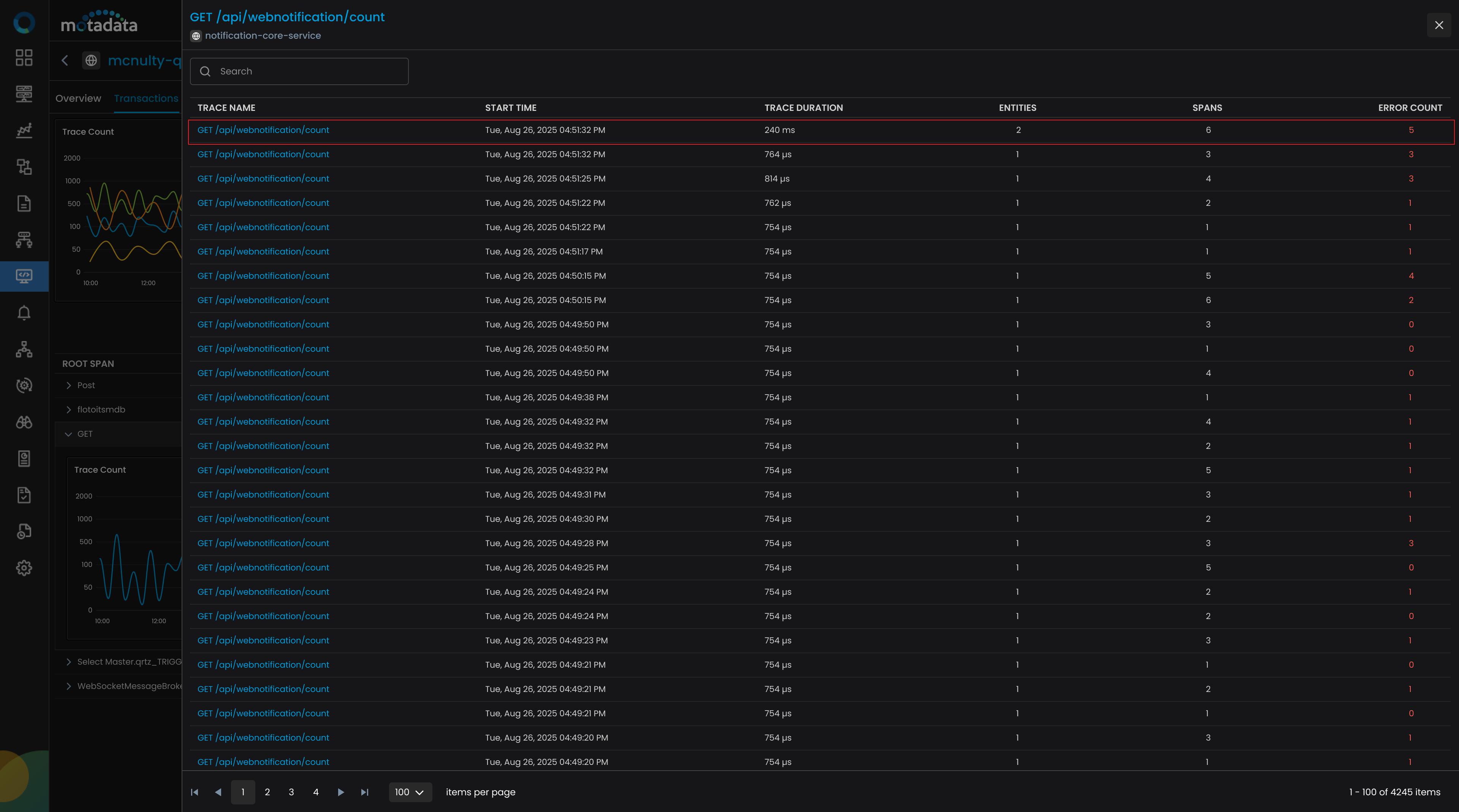
Clicking on the GET /api/webnotification/count span opens a Trace List View.
Step 4: Inspect the Trace List
Sort the list again by Error Count and identify traces that show both high error occurrences and longer execution durations.
Select one of these problematic trace to dive deeper.
Step 5: Inspect the Trace in Flame Chart
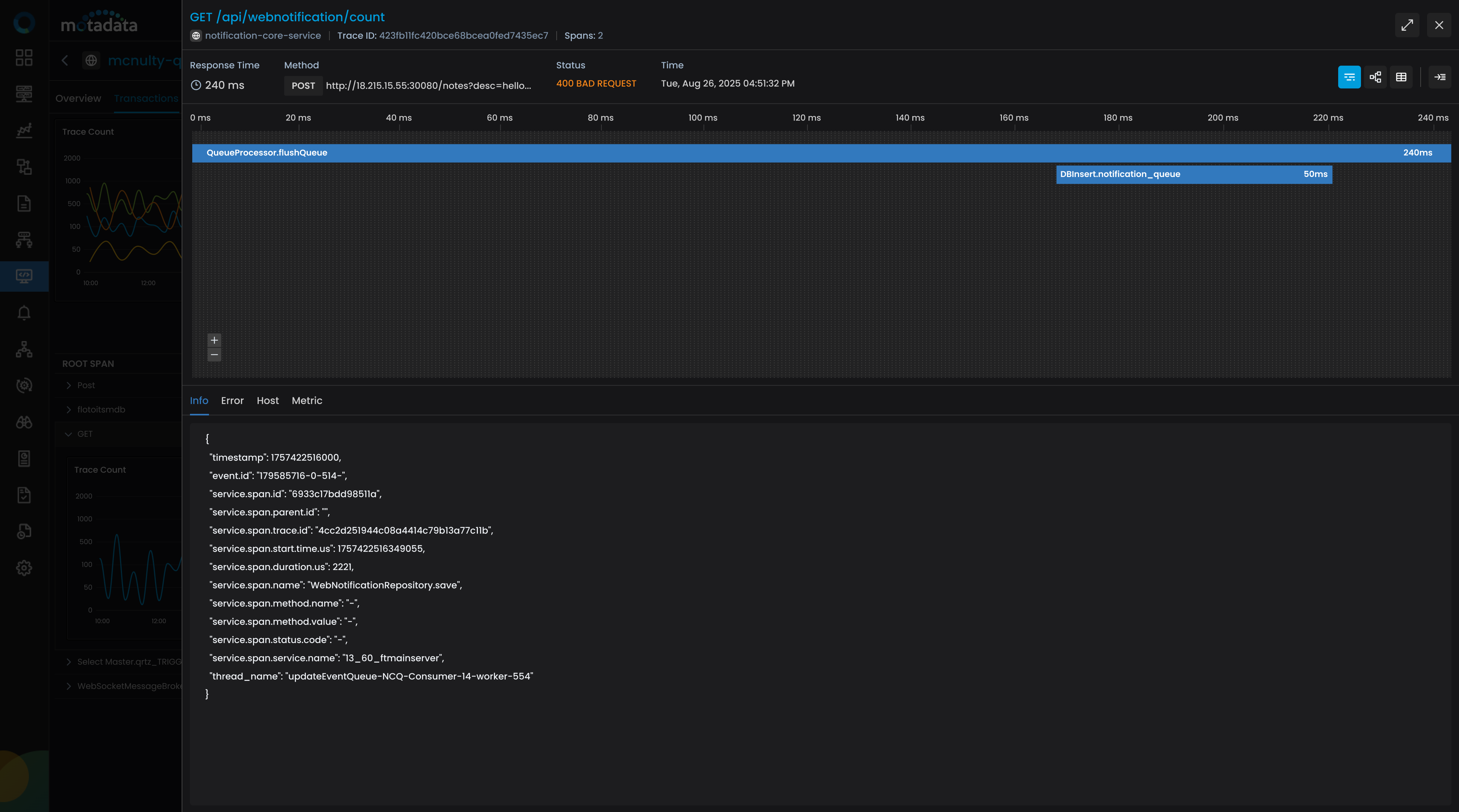
Now, open the selected trace. The Flame Chart provides a complete breakdown of how the trace flowed through spans. This visual timeline helps identify which part of the request is taking the longest.
In our case:
- The
GET /api/webnotification/countis the root span - A child span:
QueueProcessor.flushQueue - Another child span:
DBInsert.notification_queue
You notice the QueueProcessor.flushQueue span took longer time in execution due to pending requests.
Step 5: Identify Root Cause with Drilldown Tabs
Click on the QueueProcessor.flushQueue span to open span-level diagnostics.
- In the Info Tab, you see method details like
QueueProcessor.flushQueue() - In the Error Tab, an error code appears:
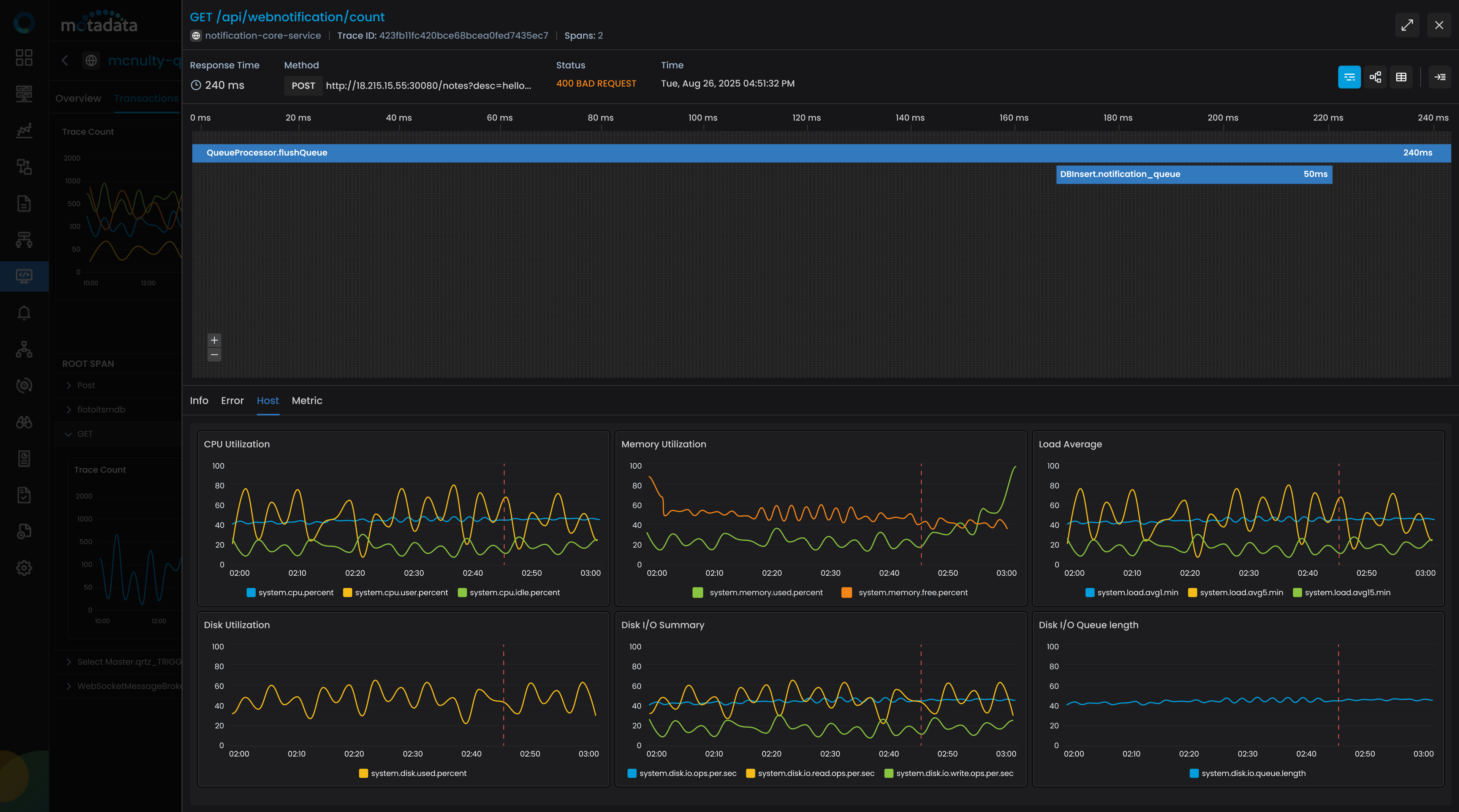
ERR_MEM_LIMIT_REACHED - In the Host Tab, memory metrics show that server memory was completely utilized at the time of the trace
This confirms the RCA: Excess memory consumption on the host server is causing trace execution failures. Due to the lack of available memory, processes get queued, delayed, or dropped, which explains the spike in latency and errors.
Step 6: Take Action and Confirm Resolution
The server team identifies an unnecessary background process (backup-daemon.sh) that was consuming high memory. After killing the process and freeing up resources, the trace pipeline clears up.
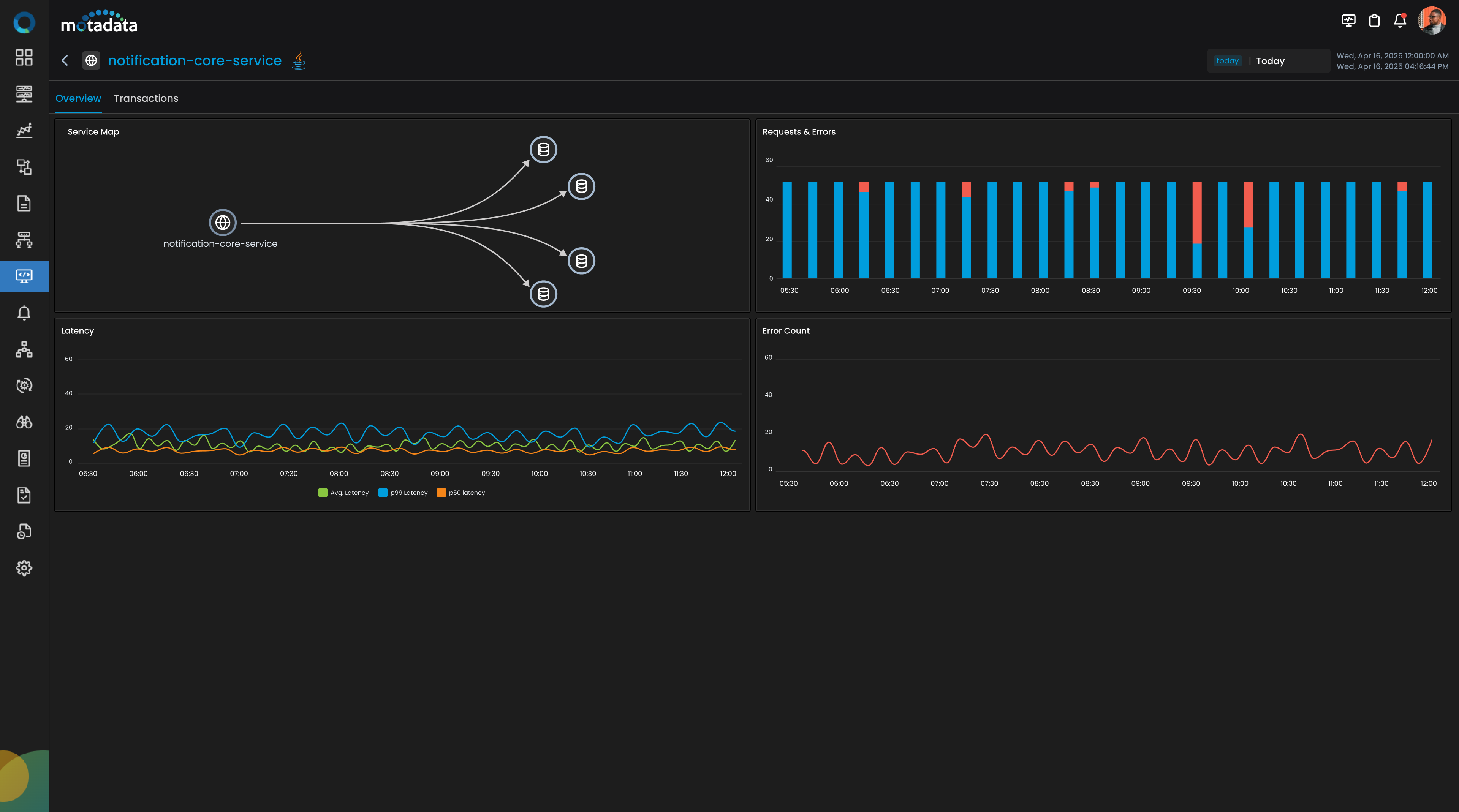
A few minutes later, you revisit the notification-core-service:
- Response time has reduced significantly
- Error Count has reduced significantly
- Flame Charts now show smooth execution with no long queues or memory bottlenecks
Key Takeaways
| Field | Description |
|---|---|
| Live Error Visibility | APM Explorer shows real-time spikes in errors and response time. |
| Root Span Sorting | Sorting by error count and latency helps prioritize problem spans. |
| Trace Drilldown | Inspect span info, host metrics, and error codes with one click. |
| Host-Level Diagnosis | Memory spikes or host issues directly tied to trace delays. |
| Actionable RCA | Identified unnecessary process consuming memory on the DB host. |
| Faster Resolution | Teams resolved the issue quickly by correlating trace + host data. |
By using Motadata APM, you not only detect problems but also gain deep, trace-level observability that ties application performance to infrastructure metrics, allowing faster resolution, fewer escalations, and better system reliability.