Compare Services Side-by-Side in ObserveOps APM
The Compare tab in APM Explorer lets you place two monitored services side-by-side and instantly spot differences in latency, throughput, and error rate. You can use it to validate releases, detect regressions, troubleshoot service-level differences without switching between screens, etc.
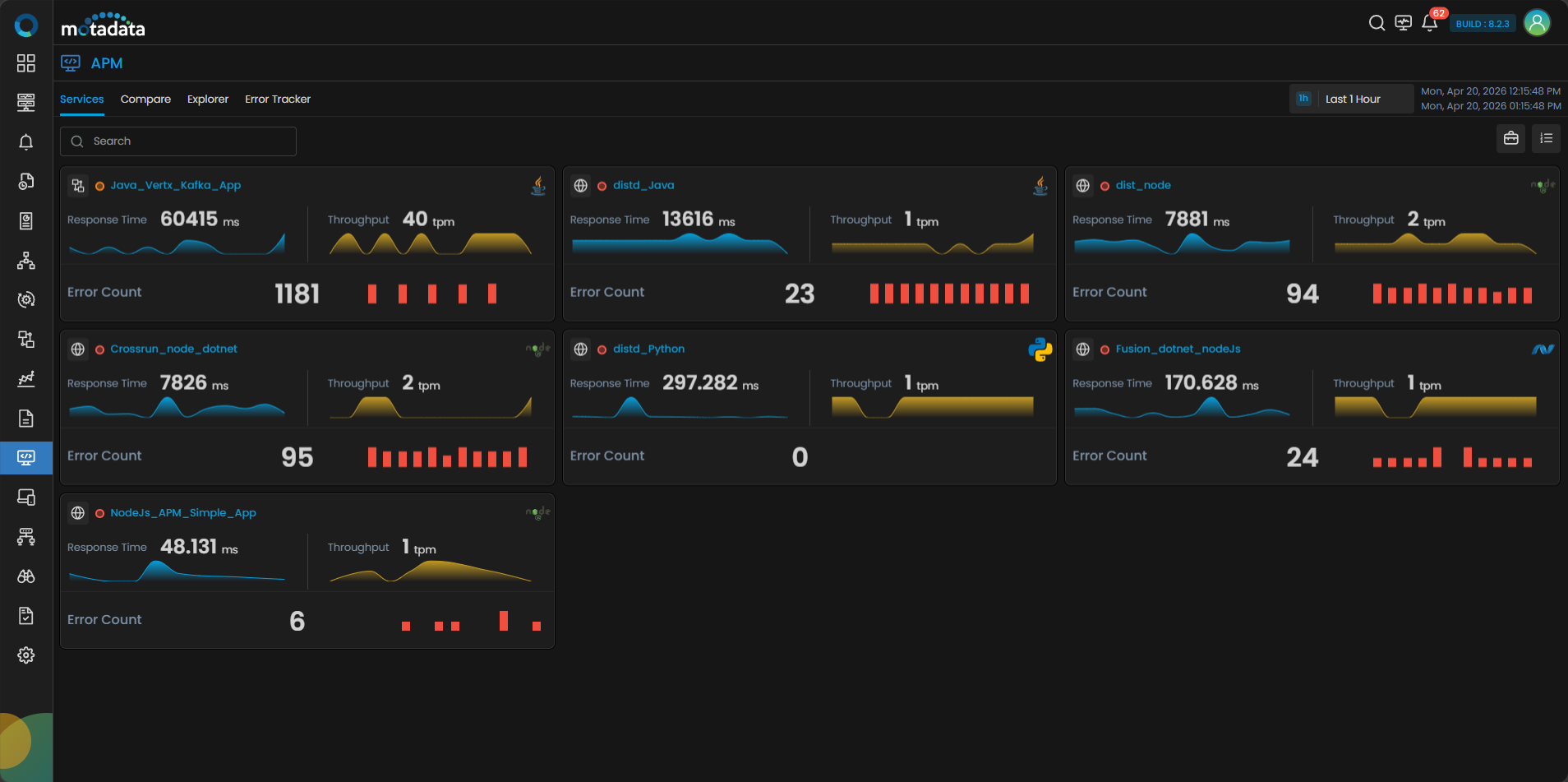
Prerequisites
Before you use Compare, make sure you have:
- At least two services instrumented and actively sending traces to ObserveOps
- APM access permissions for both services you want to compare
- Trace data available within the selected time range
How Compare Works
When you select a Type (Business Services or Services) and a Name for each side along with a time range, APM queries trace data for both selections independently and renders the results in two synchronized panels. A summary strip at the top shows the percentage delta between the two services for each key metric. Trend charts share the same time axis so you can align spikes and drops visually. The Breakdown Analysis section lists API endpoints from each side so you can find which specific endpoint is driving a difference.
Open the Compare Tab
Go to APM from the left navigation and select the Compare tab from the top tab bar.
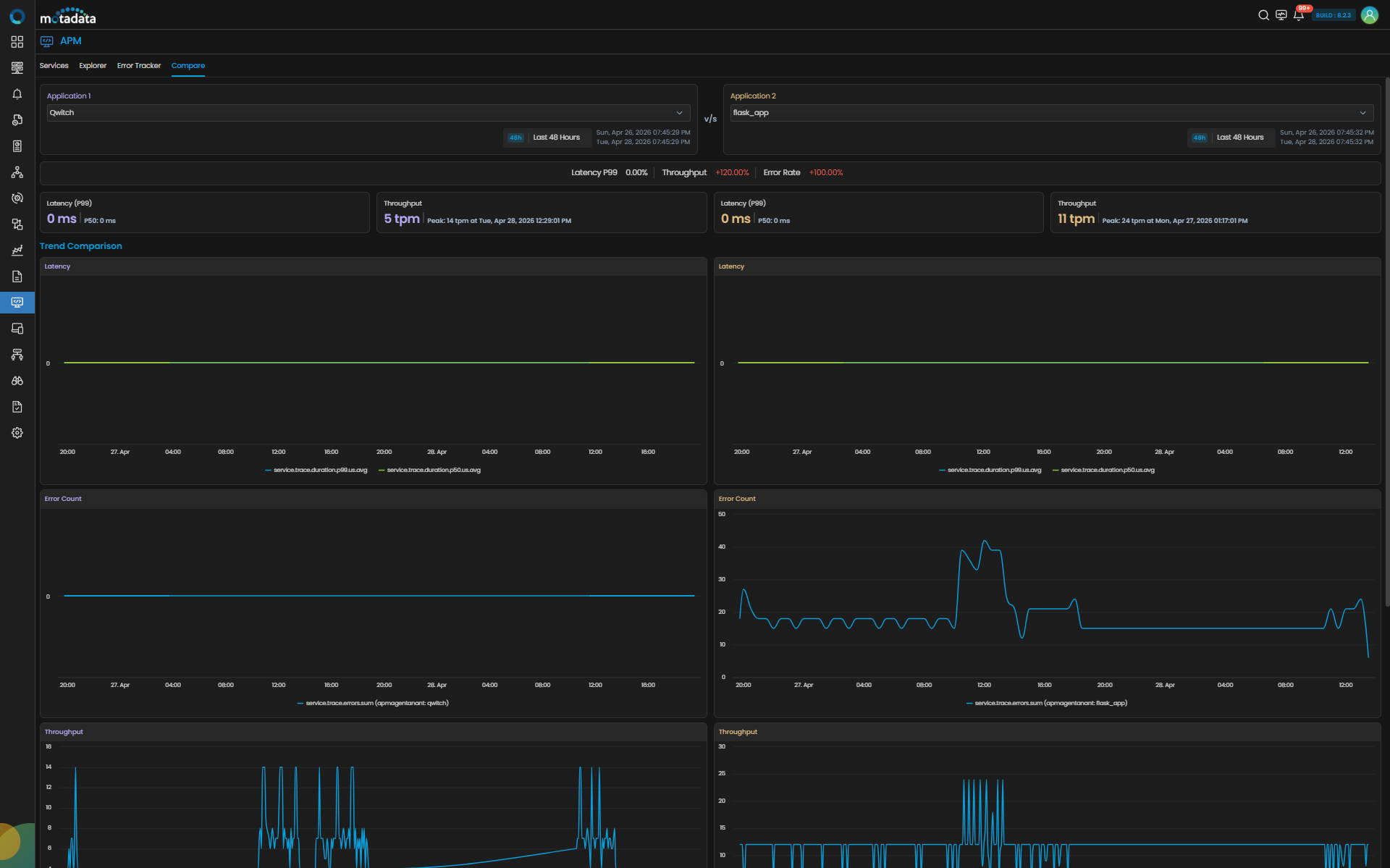
The page loads with two empty panels Application 1 on the left and Application 2 on the right.
Configure Application 1 and Application 2
Each panel has its own independent selector. Fill in Application 1 first. The left panel loads its data as soon as you make your selection. Then fill in Application 2 to load the right panel and activate the delta calculations.
For each panel, select in order:
| Field | What to Select |
|---|---|
| Type | Choose Business Services to compare at the business service level, or Services to compare individual instrumented services. |
| Name | The name of the Business Service or Service you want to compare, based on the Type selected above. |
| Time Range | The time window for both sides. |
Both panels must use the same Type. You cannot mix Business Services on one side with Services on the other in a single comparison.
To compare the same service across two environments or two deployed versions, create separate services per environment or version at ingestion time. ObserveOps stores environment and version as string metadata. If the same service sends data with different environment or version values, the system retains only the last stored value.
Read the Summary Strip
The summary strip appears between the two panel headers after both sides load. It shows the percentage delta for three key metrics.
| Metric | What It Shows |
|---|---|
| Latency P99 | Percentage difference in 99th-percentile response time between the two services. |
| Throughput | Percentage difference in requests per minute. |
| Error Rate | Percentage difference in error rate. |
Delta formula: ObserveOps calculates percentage difference as:
Percentage Delta = ((App-2 Value − App-1 Value) / App-2 Value) × 100
A positive value means Application 2 is higher. A negative value means Application 2 is lower. When Application 2's value is zero, the percentage delta shows as N/A. The absolute difference is still shown.
Read the Trend Comparison Charts
Each panel shows three synchronized time-series charts below the summary metric cards:
| Chart | What It Shows |
|---|---|
| Latency | Response time over the selected time range with P50, P95, and P99 percentile lines. |
| Error Count | Number of errors over time. |
| Throughput | Requests per minute over time. |
Both panels share the same time axis. Align a spike on the left with the same time window on the right to confirm whether the same event affected both services.
Each metric card in the panel also shows the peak value and the timestamp when it occurred.
Read the Breakdown Analysis
Breakdown Analysis is only available when the Type is set to Services. When comparing Business Services, the Breakdown Analysis section is not shown.
The Breakdown Analysis section appears at the bottom of each panel when the Type is Services. It lists the API endpoints detected for that service within the selected time range.
| Column | What It Shows |
|---|---|
| Endpoint Name | The API path or operation name. |
| Hits | Total number of requests to that endpoint. |
| Success Count | Number of successful responses. |
| Failure Count | Total number of failed responses. |
| 4xx Count | Client error responses. |
| 5xx Count | Server error responses. |
| Failure Rate | Percentage of requests that failed. |
| Success Rate | Percentage of requests that succeeded. |
If no endpoint data exists for the selected service and time range, the table shows No records available.
Example
Your team deployed payment-service v2.9.0 to production this morning. You want to confirm it performs similarly to checkout-service running in the same environment.
Set the Type to Services on both sides. Set Application 1 Name to payment-service and Application 2 Name to checkout-service with a Last 1 Hour time range. If the Latency P99 delta shows a large positive value, checkout-service has higher latency. Drill into its Breakdown Analysis table to find which endpoint is the cause.
Troubleshooting
Both panels load but the delta strip shows N/A for all metrics
Cause: One or both services returned zero values for the selected time range.
Fix: Expand the time range or verify that both services are actively sending traces. Check APM → Services to confirm both services show recent activity.
A name does not appear in the Name dropdown
Cause: No trace data exists in ObserveOps for that Business Service or Service, or your account does not have access to it.
Fix: Confirm the correct Type is selected first. If using Services, confirm the service is instrumented and MotaAgent is running. Check your APM access permissions with your administrator.
Endpoint breakdown shows "No records available" on one side
Cause: Breakdown Analysis is only shown when the Type is Services. If the Type is set to Business Services, the section will not appear. If the Type is Services but the table is empty, the selected service had no API endpoint data for the chosen time range. The service may have received no traffic, or tracing is not capturing span-level endpoint data.
Fix: Confirm the Type is set to Services. Then verify the service received requests during the selected window. Check MotaAgent configuration to confirm endpoint-level tracing is enabled.
The percentage delta shows a very large or unexpected value
Cause: When Application 2's value is very small, the formula amplifies small absolute differences into large percentage values.
Fix: Check the absolute values shown in each panel's metric card to confirm the actual difference before acting on the percentage.