GlassFish/ Payara
This guide explains how to instrument a Java application deployed on GlassFish/ Payara server by selecting a Linux agent or Windows agent for trace ingestion.
- Linux
- Windows
Prerequisites
- The Motadata Agent must be installed and running on the server where the GlassFish/ Payara-based application is deployed. Also, the otelcol should be running as part of the Motadata Agent.
To check the agent status open a Linux terminal and run the below command:
service motadata-agent status
- Java version must be 8 or higher. To check the version you can use the below command:
java -version
The GlassFish/ Payara installation directory (i.e.,
GlassFish/ Payara_HOME) is available.Required permissions to edit GlassFish/ Payara configuration and restart the domain.
Ensure the method used to start GlassFish/ Payara such as:
asadmincommand, or- Domain configuration (
domain.xml)
Application should be developed on GlassFish/ Payara Framework version 5.x and 6.x.
Configuration Steps
Step1: Register the Application Service in Motadata ObserveOps (formerly known as AIOps)
Go to Menu > Settings > APM > Application Registration. Clicking the Application Registration button, you can register a new application.
From the application registration screen, select the instrumentation type Host/VM or Docker.
- Host/VM
- Docker
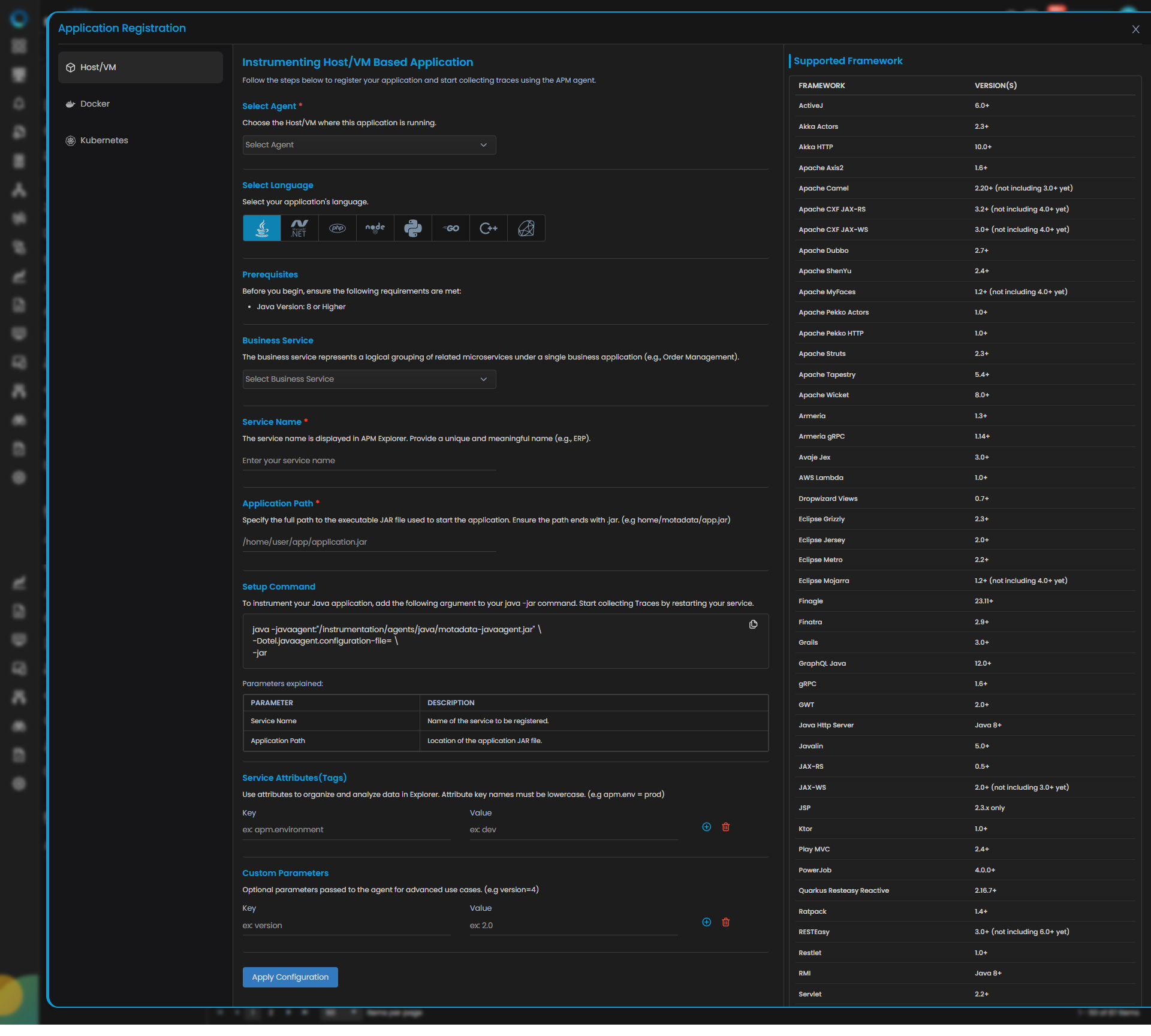
Java Trace Configuration
| Field | Description |
|---|---|
| Select Agent | Select the Host/VM where this application is running. You can configure Java application service for both Windows and Linux type agent. |
| Select Language | Select Java from the language icons. |
| Business Service | The business service represents a logical grouping of related microservices under a single business application (e.g., Order Management). Adding or selecting the available service group from the drop-down will add your application service to the dedicated business service group. |
| Service Name | Provide a unique and meaningful name (e.g., ERP). |
| Application Path | Specify the application entry path used for the deployment. |
| Service Attributes(Tags) | Add key–value tags to your application for better filtering and organizing data in Explorer. Attribute keys must be in lowercase (for example, apm.env = prod). To add multiple Key-Value pairs you can click the add icon. |
| Add Custom Parameters | Allows you to define custom sampling or tagging parameters for advanced use cases. These optional parameters are passed to the agent (for example, version=4). |
Clicking the Apply Configuration button, you need to run the displayed Setup Command to instrument your Java application. Add the displayed argument to your java -jar command and restart the service to collect Traces.
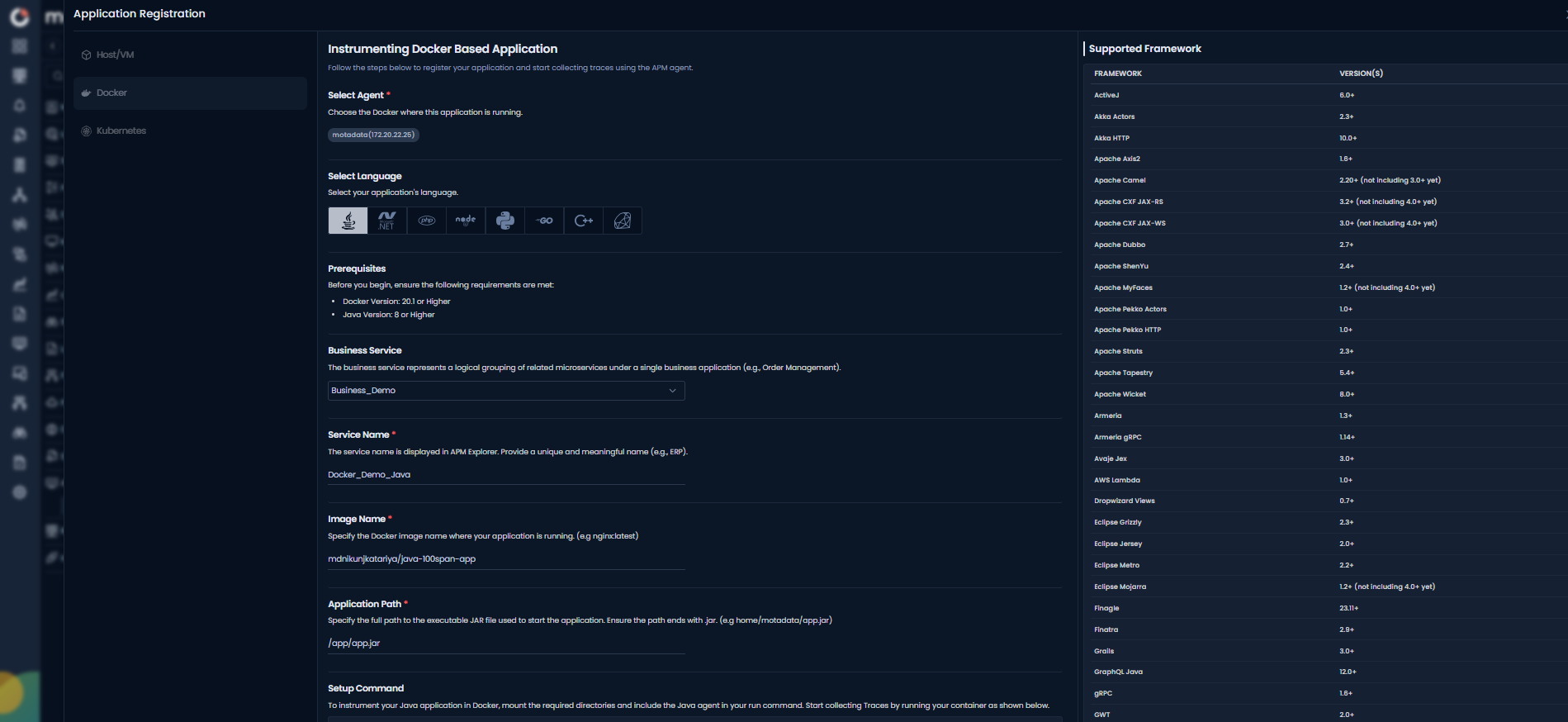
Java Trace Configuration
| Field | Description |
|---|---|
| Select Agent | Select the Docker where this application is running. You can configure Java application service for Linux type agent. |
| Select Language | Select Java from the language icons. |
| Business Service | The business service represents a logical grouping of related microservices under a single business application (e.g., Order Management). Adding or selecting the available service group from the drop-down will add your application service to the dedicated business service group. |
| Service Name | Provide a unique and meaningful name (e.g., ERP). |
| Application Path | Specify the application entry path used inside the container. |
| Service Attributes(Tags) | Add key–value tags to your application for better filtering and organizing data in Explorer. Attribute keys must be in lowercase (for example, apm.env = prod). To add multiple Key-Value pairs you can click the add icon. |
| Add Custom Parameters | Allows you to define custom sampling or tagging parameters for advanced use cases. These optional parameters are passed to the agent (for example, version=4). |
Clicking the Apply Configuration button, you need to run the displayed Setup Command to instrument your Java application. Add the displayed argument to your java -jar command and restart the service to collect Traces.
Step2: Configure GlassFish/ Payara for Instrumentation
GlassFish/ Payara instrumentation can be done using different methods. Follow the instructions based on how GlassFish/ Payara is started in your environment using CLI.
- asadmin Method
- Configuration Method
- Docker Method
GlassFish/ Payara Started Using asadmin (Recommended)
Locate asadmin
Find the GlassFish/ Payara admin utility at:
<GlassFish/ Payara_HOME>/bin/asadmin
Replace the <GlassFish/ Payara_HOME> with your directory path.
for example, if GlassFish/ Payara is installed at /opt/GlassFish/ Payara5/ path then,
/opt/GlassFish/ Payara5/bin/asadmin
Stop GlassFish/ Payara Domain
Use the below command to stop the domain:
<GlassFish/ Payara_HOME>/bin/asadmin stop-domain <domainName>
Replace <domainName> with your domain name (for example, domain1).
Add Motadata Java Agent JVM Options
Run the following commands:
<GlassFish/ Payara_HOME>/bin/asadmin create-jvm-options "-javaagent:/motadata/motadata/instrumentation/agents/java/motadata-javaagent.jar"
<GlassFish/ Payara_HOME>/bin/asadmin create-jvm-options "-Dotel.javaagent.configuration-file=/motadata/motadata/config/<ServiceName>.properties"
Replace the <ServiceName> part with the exact service name, you have registered in Motadata ObserveOps.
Alternatively, you can paste the command snippet copied from the Instrumenting Java Application card. Ensure while pasting, your snippet starts with -javaagent: and ends with .properties".
Start GlassFish/ Payara Domain
Use the below command to start the domain:
<GlassFish/ Payara_HOME>/bin/asadmin start-domain <domainName>
GlassFish/ Payara Started Using domain.xml
Locate domain.xml
The domain.xml file is typically located at:
<GlassFish/ Payara_HOME>/GlassFish/ Payara/domains/<domainName>/config/domain.xml
Replace <GlassFish/ Payara_HOME> and <domainName> with your paths.
for example:
/opt/GlassFish/ Payara5/GlassFish/ Payara/domains/domain1/config/domain.xml
Stop GlassFish/ Payara Domain
<GlassFish/ Payara_HOME>/bin/asadmin stop-domain <domainName>
Modify domain.xml
Open domain.xml and locate the java-config section.
Add the following JVM options under jvm-options:
-javaagent:/motadata/motadata/instrumentation/agents/java/motadata-javaagent.jar
-Dotel.javaagent.configuration-file=/motadata/motadata/config/<ServiceName>.properties
Replace the <ServiceName> part with the exact service name, you have registered in Motadata ObserveOps.
Start GlassFish/ Payara Domain
<GlassFish/ Payara_HOME>/bin/asadmin start-domain <domainName>
GlassFish/ Payara Running Inside Docker
If GlassFish/ Payara runs inside a container, apply the Java agent options at container startup.
Apply Agent Options
Add the following environment variable to your Docker run/compose setup:
JAVA_TOOL_OPTIONS="-javaagent:/motadata/motadata/instrumentation/agents/java/motadata-javaagent.jar -Dotel.javaagent.configuration-file=/motadata/motadata/config/<ServiceName>.properties"
Replace the <ServiceName> part with the exact service name you registered in Motadata ObserveOps.
Restart Container
Restart the container using your standard deployment method.
Ensure GlassFish/ Payara starts successfully and the Java agent is loaded without errors.
Step3: Verify Trace Ingestion
Once the Application is Running, you need to verify the below points:
- Confirm that the service has been registered successfully.
- On the service registration screen, the Service Trace Collection Status should display "Running."
- The traces will start appearing in the APM Explorer screen.
Prerequisites
- The Motadata Agent must be installed and running on the server where the GlassFish/ Payara-based application is deployed. To check the agent status open a press Win+R and run the below field:
service.msc
- Java version must be 8 or higher. To check the version you can use the below command using Command Prompt:
java -version
- The GlassFish/ Payara installation directory (i.e.
GlassFish/ Payara_HOME) is available. - Required permissions to edit GlassFish/ Payara configuration and restart the GlassFish/ Payara domain.
- Ensure the method used to start GlassFish/ Payara (for example, using
asadmin.bator updatingdomain.xml).
Configuration Steps
Step1: Register the Application Service in Motadata ObserveOps
Go to Menu > Settings > APM > Application Registration. Clicking the Application Registration button, you can register a new application.
From the application registration screen, select the instrumentation type as Host/VM.
Java Trace Configuration
| Field | Description |
|---|---|
| Select Agent | Select the Host/VM where this application is running. |
| Select Language | Select Java from the language icons. |
| Business Service | The business service represents a logical grouping of related microservices under a single business application (e.g., Order Management). Adding or selecting the available service group from the drop-down will add your application service to the dedicated business service group. |
| Service Name | Provide a unique and meaningful name (e.g., ERP). |
| Application Path | Specify the application entry path used for the deployment. |
| Service Attributes(Tags) | Add key–value tags to your application for better filtering and organizing data in Explorer. Attribute keys must be in lowercase (for example, apm.env = prod). To add multiple Key-Value pairs you can click the add icon. |
| Add Custom Parameters | Allows you to define custom sampling or tagging parameters for advanced use cases. These optional parameters are passed to the agent (for example, version=4). |
Clicking the Apply Configuration button, you need to run the displayed Setup Command to instrument your Java application. Add the displayed argument to your java -jar command and restart the service to collect Traces.S
Step2: Configure GlassFish/ Payara for Instrumentation
GlassFish/ Payara instrumentation on Windows can be done using multiple methods. Follow the instructions based on how GlassFish/ Payara is started in your environment. Choose one method only.
- asadmin.bat Method
- Configuration Method
GlassFish/ Payara Started Using asadmin.bat (Recommended)
Locate asadmin.bat
The admin utility is typically located at:
%GlassFish/ Payara_HOME%\\bin\\asadmin.bat
Replace the %GlassFish/ Payara_HOME% with your GlassFish/ Payara installation path.
Stop GlassFish/ Payara Domain
%GlassFish/ Payara_HOME%\\bin\\asadmin.bat stop-domain <domainName>
Add Motadata Java Agent JVM Options
%GlassFish/ Payara_HOME%\\bin\\asadmin.bat create-jvm-options "-javaagent:C:\\motadata\\motadata\\instrumentation\\agents\\java\\motadata-javaagent.jar"
%GlassFish/ Payara_HOME%\\bin\\asadmin.bat create-jvm-options "-Dotel.javaagent.configuration-file=C:\\motadata\\motadata\\config\\<ServiceName>.properties"
Replace the <ServiceName> part with the exact service name you registered in Motadata ObserveOps.
Start GlassFish/ Payara Domain
%GlassFish/ Payara_HOME%\\bin\\asadmin.bat start-domain <domainName>
GlassFish/ Payara Started Using domain.xml
Locate domain.xml
The file is typically located at:
%GlassFish/ Payara_HOME%\\GlassFish/ Payara\\domains\\<domainName>\\config\\domain.xml
Stop GlassFish/ Payara Domain
%GlassFish/ Payara_HOME%\\bin\\asadmin.bat stop-domain <domainName>
Modify domain.xml
Open domain.xml and locate the java-config section.
Add the following JVM options under jvm-options:
-javaagent:C:\\motadata\\motadata\\instrumentation\\agents\\java\\motadata-javaagent.jar
-Dotel.javaagent.configuration-file=C:\\motadata\\motadata\\config\\<ServiceName>.properties
Replace the <ServiceName> part with the exact service name you registered in Motadata ObserveOps.
Start GlassFish/ Payara Domain
%GlassFish/ Payara_HOME%\\bin\\asadmin.bat start-domain <domainName>
Ensure GlassFish/ Payara starts successfully and the Java agent loads without errors.
Step3: Verify Trace Ingestion
Once the Application is Running, you need to verify the below points:
- Confirm that the service has been registered successfully.
- On the service registration screen, the Service Trace Collection Status should display "Running."
- The traces will start appearing in the APM Explorer screen.