Real User Monitoring (RUM) Policy
Overview
Once you have configured RUM (if not configured yet, Click Here), you can create policies that leverage application performance indicators to generate actionable alerts and notify users. Creating the RUM policy ensures a proactive monitoring mechanism, enabling efficient real user monitoring and rapid troubleshooting, which further minimizes potential application performance degradation.
Navigation
Go to Menu and select Settings  . After that, Go to Policy Settings
  . Then, select RUM Policy.
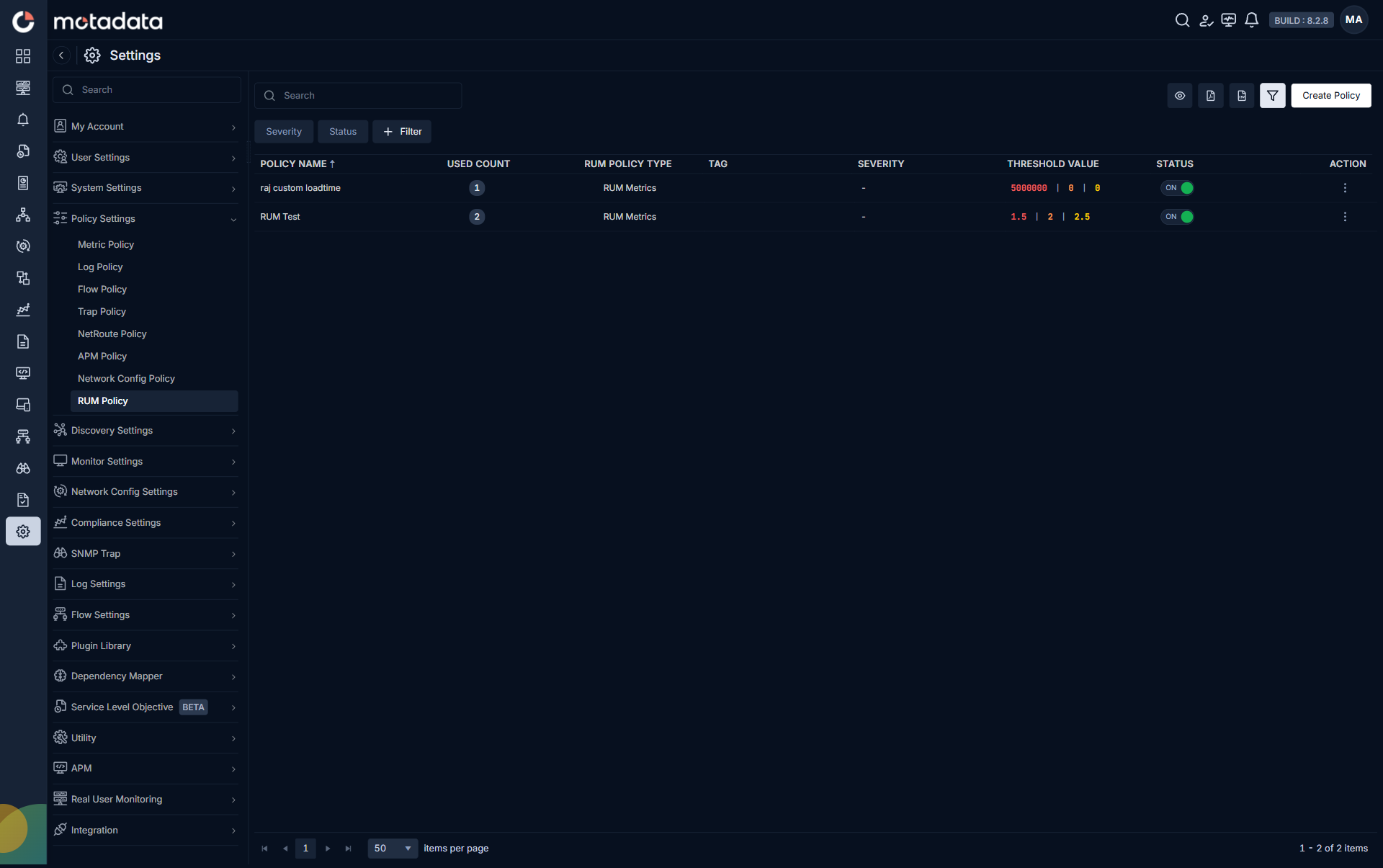
RUM Policy Screen
List of created RUM policies will be displayed on this screen. Below is the list of fields displayed in the RUM Policy grid:
| Field | Description |
|---|---|
| Policy Name | Name of the configured policy. |
| Used Count | Displays the number of registered applications associated with the policy. |
| RUM Policy Type | Displays the type of configured policy. |
| Tag | Displays the assigned tag(s) of the policy. |
| Severity | Displays the current severity level of the RUM policy. |
| Threshold Value | Displays the configured policy threshold value. |
| Metric | Displays the metric name associated with the policy. |
| Create/Modify Time | Displays the timestamp, when the policy was created or last modified. |
| Status | Displays the policy activation status. You can use the toggle button to enable or disable the specific policy. |
| Actions | Click on the Ellipsis icon to access the below actions for RUM policy: - Edit Policy: Allows you to edit parameters of the policy. - Delete Policy: You can delete the policy using the delete option. |
You can click the eye icon for selecting the columns to display in the grid. You can also export the grid as PDF or CSV. Clicking the Filter icon allows you to filter the grid.
Create RUM Policy
You can create a RUM policy by clicking on the Create Policy button. Below-mentioned parameters will be displayed on the screen to configure the policy.
| Field | Description |
|---|---|
| Policy Name | Provide a name for policy. |
| Tag | Provide Tag(s) for the policy. You can create new tag(s) or select tag(s) from the drop-down. |
Since configurations for different RUM Policy Types differ, let's look at them separately:
- RUM Metrics
- RUM Analytics
If you select RUM Metrics as RUM Policy Type, it can be further divided as:
| Field | Description |
|---|---|
| Threshold Alert | Triggers when the selected metric crosses a fixed value you define. |
| Baseline Alert | Alerts when current behavior deviates from its usual historical pattern. |
| Anomaly | Detects unexpected behavior automatically without requiring strict thresholds. |
| Forecast | Predicts future breaches based on trends and alerts before limits are hit. |
- Threshold Alert
- Baseline Alert
Use-Case
Suppose you are monitoring the user experience of your e-commerce web application and you want to ensure that the page load time stays within acceptable limits for real users. You want Motadata ObserveOps to raise an alert whenever the page load time for a registered application exceeds a fixed threshold, for example 3 seconds, indicating a degraded user experience. You can create a RUM Metrics Threshold Alert policy to do the same.
Set Conditions
| Field | Description |
|---|---|
| RUM Policy Type | Select RUM Metrics as RUM Policy Type and further select the Threshold Alert card. |
| Counter | Use the dropdown to select the counter for which you want to create the policy. |
| Source Filter | Use the dropdown to either select a Tag or an Application. |
| Source | List of Tag(s) or Application(s) will be available based on the Source Filter selection. |
| Critical/Major/Warning | Provide a numerical threshold value for each severity level respectively. You can also change the operator suitable to your needs using the dropdown. |
| Notify if threshold value breach within | Specifies the minimum time duration for which a metric must continuously exceed the defined threshold to be considered a valid breach. |
| Abnormality occurrence | Defines the number of threshold breach instances required before triggering an alert. |
| Auto clear | Select the time duration to auto clear the alert. |
Assumption Based Scenarios
To understand how Abnormality occurrence and Notify if threshold value breach within work together, consider the following assumptions:
- The polling period is 1 minute.
- Notify if threshold value breach within is set to 5 minutes.
- Abnormality occurrence is set to 3. ObserveOps checks for 3 consecutive threshold breaches within the 5-minute window before firing an alert. The window resets every time the metric returns within the threshold.
The threshold values set for this example are:
- Warning: Page load time exceeds 3000ms
- Major: Page load time exceeds 5000ms
- Critical: Page load time exceeds 8000ms
Scenario 1: No Alert Triggered
Page load time breaches the threshold at 10:00 and 10:01, but returns within the normal range at 10:02. No alert fires because 3 consecutive breaches did not occur within the 5-minute window.
Scenario 2: Alert Triggered
Page load time exceeds the threshold at 10:00, 10:01, and 10:02, three consecutive breaches within 5 minutes. ObserveOps fires an alert at 10:02. The severity depends on which threshold was crossed:
- If page load time crossed 3000ms each time: Warning alert fires.
- If page load time crossed 5000ms each time: Major alert fires.
- If page load time crossed 8000ms each time: Critical alert fires.
Scenario 3: Alert Triggered After Window Reset
Page load time exceeds the threshold at 10:00 and 10:01, then returns to normal at 10:02. The 5-minute evaluation window resets. Page load time then breaches the threshold again at 10:03, 10:04, and 10:05, three consecutive times. ObserveOps fires an alert at 10:05.
If the metric crosses multiple severity thresholds at the same time, ObserveOps raises the alert at the highest applicable severity. For example, a page load time of 9000ms qualifies for both Major and Critical. ObserveOps raises the alert as Critical because it is the highest qualified severity.
Set Alert Message
| Field | Description |
|---|---|
| Subject | Modify the subject-line for the alert message. |
| Message | Modify the alert message from here. |
For a list of default supported Macros to modify the default set message, Please visit: Alert Macros
Notification
| Field | Description |
|---|---|
| To | Add every recipient that should receive the alert. Type an entry, then select from the picker or press Enter to add it as a tag. Supported entry formats: @User (registered ObserveOps user, delivered by their profile channels), @email@example.com (direct email address), /Handle (Microsoft Teams or Slack handle from a saved integration profile), #UserProfile (saved user profile that fans out to every user inside it), !Profile (Syslog Forwarder or SNMP Trap Forwarder integration profile that forwards the alert to an external destination). |
| + Bcc | Select + Bcc at the end of the To field to open a BCC field below it. Recipients you add in the BCC field stay hidden from every other recipient. Applies to email notifications only. |
| If severity is | Select the severity level using individual checkboxes in the dropdown.You can select multiple, all, or a single option as per your requirement. You can also have different recipients notified at different severity levels. For instance, you can notify johndoe@motadata.com when severity level hits Critical and send an alert notification to janedoe@motadata.com when severity level is Major. |
| Play Sound | Activate this toggle to enable sound notifications when an alert is triggered. |
| If Severity is | Choose the severity level at which the sound notification should be triggered. This option becomes visible only when the Play Sound toggle is switched ON. |
| Renotification | Turning on the toggle will resend the alert at a specific interval defined by you. If turned off, Motadata ObserveOps will not renotify about the alert. |
| Renotify | Similar to the To field, enter the username, handle, user profile or email address of the recipient. Also choose duration for renotification along with the severity level at which the system will renotify you if the alert severity is not changed. |
| Do not renotify if acknowledged | If the toggle is turned on, Motadata ObserveOps will not send a renotification to the recipient if they mark the alert as acknowledged. |
The first recipient in To goes into the email To header and is visible to every other recipient. Set it to a team or distribution address such as noc@company.com for privacy. See Notification for the full BCC behaviour.
Declare Incident
| Field | Description |
|---|---|
| Select Integration Profile to Trigger | Choose an Integration profile to be executed from the dropdown when the chosen alert severity is triggered. |
| When Alert Severity is | Select an Alert severity from the dropdown. |
| Create Integration Profile | Select this button to start creating a new Integration profile that you might want to assign to the policy you are creating. |
You can click on  to define a new Alert severity and Integration Profile combination. You can have separate Integration profile triggered at different levels of Alert severity.
The Baseline Alert for RUM Metrics is a powerful feature within Motadata ObserveOps that enables proactive monitoring of real user experience by comparing real-time RUM metric values to a dynamically generated baseline. By analyzing historical data and establishing a baseline range, this alerting mechanism helps identify deviations in end-user experience, allowing organizations to detect potential performance degradation and take preventive action.
With the Baseline Alert, organizations gain deeper insights into the normal behavior of their real user metrics by leveraging historical data from the past 15 days. By dynamically adjusting the baseline range using advanced statistical techniques, the alerting mechanism adapts to changes in user behavior and application performance, ensuring accurate detection of deviations in real-time.
Use-Case
Suppose you are monitoring a retail web application where the average page load time for real users typically stays around 1.5 seconds based on historical patterns. Rather than setting a rigid threshold, you want Motadata ObserveOps to alert you whenever the page load time deviates significantly from this established baseline, for example if it increases 40% above the expected range during a high-traffic event, indicating potential user experience degradation. You can create a RUM Metrics Baseline Alert policy to do the same.
Baseline RUM Policy Mechanism
- Policy Evaluation
The Baseline policy evaluations start as soon as the policy is created. During each evaluation, the system considers the RUM metric data from the last 15 days to create a baseline range.
- Baseline Calculation
To generate the baseline range, the system utilizes advanced statistical methods. These techniques analyze the historical data points within the last 15 days and produce a dynamically adjusted baseline.
- Baseline Threshold Violation
Baseline threshold violation occurs when a RUM metric's data point deviates from the expected behavior, surpassing the predefined acceptable range known as the baseline threshold. This violation triggers an alert based on the configured parameters within the baseline policy.
In the baseline policy configuration, users set the criteria for triggering an alert by specifying the number of times a data point can deviate from the baseline threshold within a defined time window, as configured in the Abnormality Occurrence and Notify if the Threshold value breach within fields, respectively.
- Actions on Baseline Policy Triggering
Once the baseline alert is triggered, you can define specific actions to be taken, such as sending notifications to relevant stakeholders.
By leveraging the Baseline Alert, organizations can proactively monitor real user experience metrics, detect unusual patterns in application performance, and take prompt action to minimize user impact and ensure optimal application performance.
Set Conditions
| Field | Description |
|---|---|
| RUM Policy Type | Select RUM Metrics as RUM Policy Type and further select the Baseline Alert card. |
| Counter | Use the dropdown to select the counter for which you want to create the policy. |
| Source Filter | Use the dropdown to either select a Tag or an Application. |
| Source | List of Tag(s) or Application(s) will be available based on the Source Filter selection. |
| Absolute/Relative | - Select Absolute to define specific numerical values. When selecting this option, users specify the exact values that metrics should deviate from the baseline to trigger an alert. - Select Relative to set thresholds based on percentages. This option allows users to define deviations from the baseline as a percentage, triggering alerts when metrics deviate by the specified percentage. |
| Critical/Major/Warning | Provide a numerical threshold value for each severity level respectively. You can also change the operator suitable to your needs using the dropdown. |
| Notify if threshold value breach within | Use the dropdown to select the duration for repeat notification. |
| Abnormality occurrence | Select the number of occurrences you wish to be notified for when threshold value has been breached. |
| Auto clear | Select the time duration to auto clear the abnormality alert. This does not clear the base alert. |
Set Alert Message
| Field | Description |
|---|---|
| Subject | Modify the subject-line for the alert message. |
| Message | Modify the alert message from here. |
For a list of default supported Macros to modify the default set message, Please visit: Alert Macros
Notification
| Field | Description |
|---|---|
| To | Add every recipient that should receive the alert. Type an entry, then select from the picker or press Enter to add it as a tag. Supported entry formats: @User (registered ObserveOps user, delivered by their profile channels), @email@example.com (direct email address), /Handle (Microsoft Teams or Slack handle from a saved integration profile), #UserProfile (saved user profile that fans out to every user inside it), !Profile (Syslog Forwarder or SNMP Trap Forwarder integration profile that forwards the alert to an external destination). |
| + Bcc | Select + Bcc at the end of the To field to open a BCC field below it. Recipients you add in the BCC field stay hidden from every other recipient. Applies to email notifications only. |
| If severity is | Select the severity level using individual checkboxes in the dropdown.You can select multiple, all, or a single option as per your requirement. You can also have different recipients notified at different severity levels. For instance, you can notify johndoe@motadata.com when severity level hits Critical and send an alert notification to janedoe@motadata.com when severity level is Major. |
| Play Sound | Activate this toggle to enable sound notifications when an alert is triggered. |
| If Severity is | Choose the severity level at which the sound notification should be triggered. This option becomes visible only when the Play Sound toggle is switched ON. |
| Renotification | Turning on the toggle will resend the alert at a specific interval defined by you. If turned off, Motadata ObserveOps will not renotify about the alert. |
| Renotify | Similar to the To field, enter the username, handle, user profile or email address of the recipient. Also choose duration for renotification along with the severity level at which the system will renotify you if the alert severity is not changed. |
| Do not renotify if acknowledged | If the toggle is turned on, Motadata ObserveOps will not send a renotification to the recipient if they mark the alert as acknowledged. |
The first recipient in To goes into the email To header and is visible to every other recipient. Set it to a team or distribution address such as noc@company.com for privacy. See Notification for the full BCC behaviour.
Declare Incident
| Field | Description |
|---|---|
| Select Integration Profile to Trigger | Choose an Integration profile to be executed from the dropdown when the chosen alert severity is triggered. |
| When Alert Severity is | Select an Alert severity from the dropdown. |
| Create Integration Profile | Select this button to start creating a new Integration profile that you might want to assign to the policy you are creating. |
You can click on to define a new Alert severity and Integration Profile combination. You can have separate Integration profile triggered at different levels of Alert severity.
Set Conditions
| Field | Description |
|---|---|
| RUM Policy Type | Select RUM Analytics as RUM Policy Type. |
| Counter | Use the dropdown to select a counter. |
| Aggregation | Use the dropdown to apply an aggregation type for the selected counter. |
| Operator | Use the dropdown menu to select an operator best suitable for your requirements. |
| Value | Provide a numerical threshold value for the severity level. |
| Source Filter | Use the dropdown to either select a Service or Source Host. |
| Source | List of Source Host(s) or Service(s) will be available based on the Source Filter selection. |
| Result By | Define what constitutes an alert. |
| Filters | You can configure pre-filters to further filter the condition. |
| Severity | Select a severity level to associate with the configured threshold value. You can only select single severity level. |
| Notify if Threshold value breach within | Use the dropdown to select the duration for repeat notification if the threshold value is breached again within stipulated time. |
Set Alert Message
| Field | Description |
|---|---|
| Subject | Modify the subject-line for the alert message. |
| Message | Modify the alert message from here. |
For a list of default supported Macros to modify the default set message, Please visit: Alert Macros
Notification
| Field | Description |
|---|---|
| To | Add every recipient that should receive the alert. Type an entry, then select from the picker or press Enter to add it as a tag. Supported entry formats: @User (registered ObserveOps user, delivered by their profile channels), @email@example.com (direct email address), /Handle (Microsoft Teams or Slack handle from a saved integration profile), #UserProfile (saved user profile that fans out to every user inside it), !Profile (Syslog Forwarder or SNMP Trap Forwarder integration profile that forwards the alert to an external destination). |
| + Bcc | Select + Bcc at the end of the To field to open a BCC field below it. Recipients you add in the BCC field stay hidden from every other recipient. Applies to email notifications only. |
| Play Sound | Activate this toggle to enable sound notifications when an alert is triggered. |
The first recipient in To goes into the email To header and is visible to every other recipient. Set it to a team or distribution address such as noc@company.com for privacy. See Notification for the full BCC behaviour.
Select the Create Policy button to create the policy based on the details entered.
Select the Reset button to erase all the current field values, if required.