Network Config Policy in ObserveOps
Overview
NCCM (network configuration and compliance management) Policies allow you to define proactive rules that monitor configuration changes or enforce network actions on your managed network devices. These policies help in detecting unauthorized config changes, enforcing security standards, and triggering automated responses like email/SMS alerts or remediation scripts.
Once you configure your NCCM devices(newlink), you can create a policy to track changes, compare versions, or trigger alerts/actions based on set conditions.
Navigation
Go to Menu and select Settings  . After that, go to Policy Settings
  . Then, select Network Config Policy.
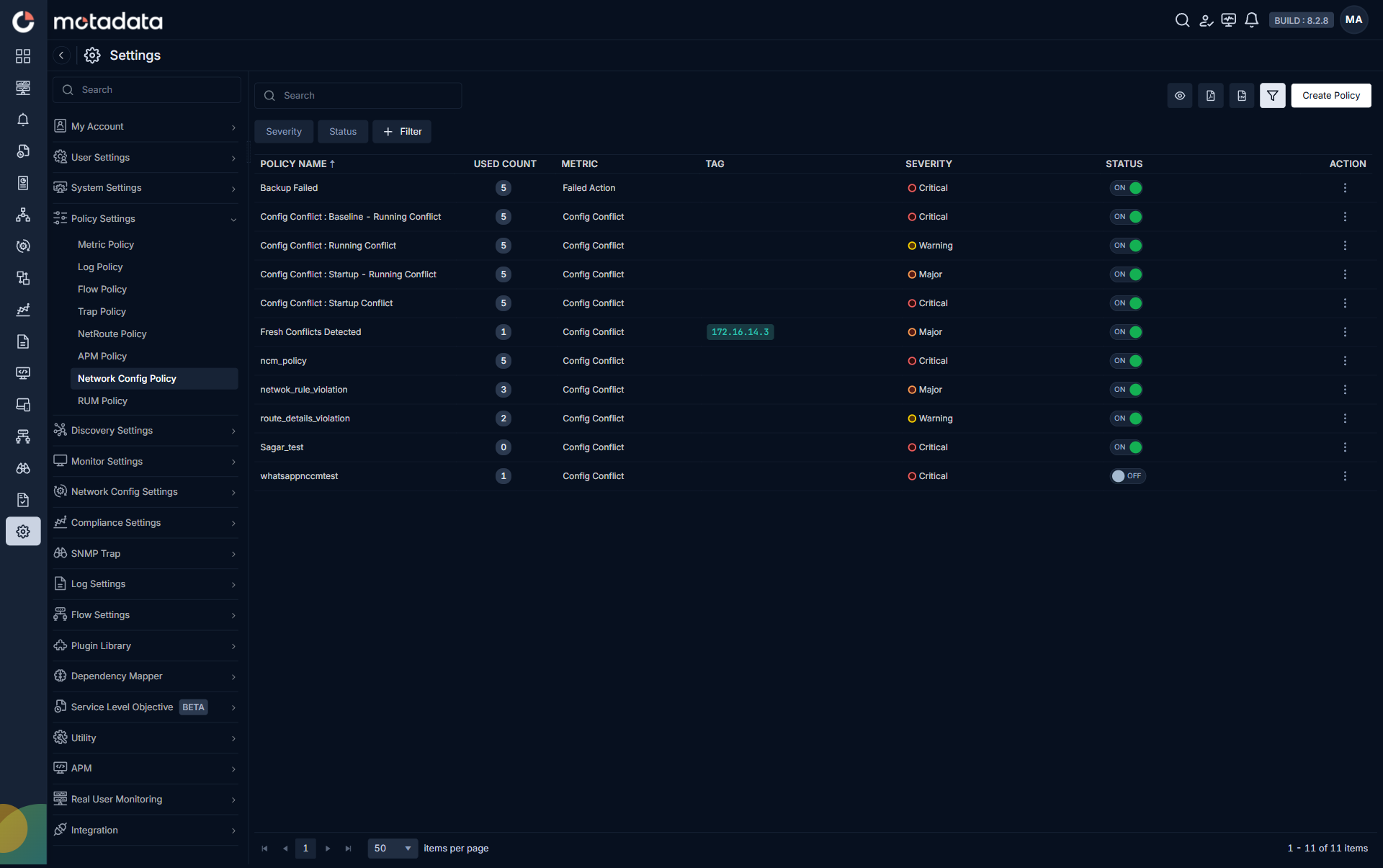
From the policy list, you can Edit, Delete, or Clone any Network Config policy. Clone copies the source policy's configuration into a new policy so you can adjust a few fields instead of building the policy from scratch. See Policy List Actions for details.
Create NCCM Policy
Click on Create Policy to launch the configuration page.
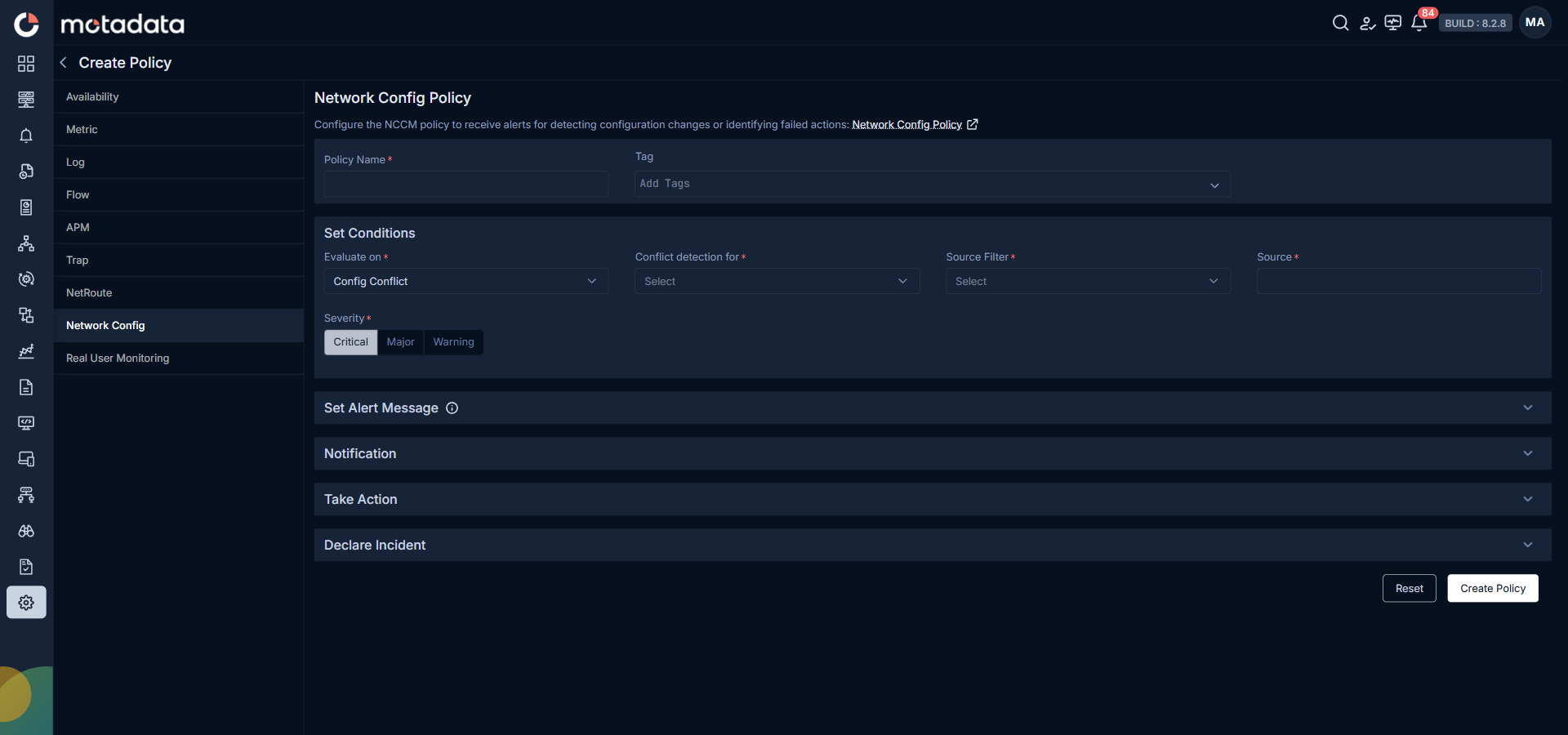
Fill in the fields as described below:
| Field | Description |
|---|---|
| Policy Name | Provide a name that clearly defines the purpose of the policy. |
| Tag | Add tags to categorize and filter policies more efficiently. |
| Evaluate On | Choose between Config Conflict or Failed Action. |
If Evaluate On is set to Config Conflict, you'll be able to choose from available comparison types in the Conflict Detection For dropdown (e.g., BAseline-Running Conflict, Startup-Running Conflict, Running Conflict, Startup Conflict). If set to Failed Action, you will configure the type of Action monitored on the NCCM device.
Set Conditions
| Field | Description |
|---|---|
| Conflict Detection For / Action Type | Depending on your selection in Evaluate On, you will either select change types or NCCM actions like Backup, Upload, Execute Script, etc. |
| Source Filter | Choose source filter from the drop-down list. You can filter by Network Config Device, Group or Tag. |
| Source | Populated based on your Source Filter. |
| Severity | Choose alert severity: Critical, Major, or Warning. |
Set Alert Message
| Field | Description |
|---|---|
| Subject | Modify the subject-line for the alert message. |
| Message | Modify the alert message from here. |
For a list of default supported Macros to modify the default set message, Please visit: Alert Macros
Notification
Configure how alerts from this policy are sent to your team.
| Field | Description |
|---|---|
| To | Add every recipient that should receive the alert. Type an entry, then select from the picker or press Enter to add it as a tag. Supported entry formats: @User for a registered ObserveOps user (delivered by their profile channels), @email@example.com for a direct email address, /Handle for a Microsoft Teams or Slack handle from a saved integration profile, #UserProfile for a saved user profile that fans out to every user inside it, !Profile for a Syslog Forwarder or SNMP Trap Forwarder integration profile that forwards the alert to an external destination. |
| + Bcc | Select + Bcc at the end of the To field to open a BCC field below it. Recipients you add in the BCC field stay hidden from every other recipient. Applies to email notifications only. |
| Play Sound | Activate this toggle to enable sound notifications when an alert is triggered. |
The first recipient in To goes into the email To header and is visible to every other recipient. Set it to a team or distribution address such as noc@company.com for privacy. See Notification for the full BCC behaviour.
Take Action
ObserveOps (formerly known as AIOps) allows you to execute scripts or commands automatically as a response to policy violations. You can select actions from the drop-down menu.
When you select a Top 10 Process runbook (Linux, Windows, or Solaris variant) as the action, ObserveOps first sends the standard alert notification email using the current template, then sends a separate follow-up email that contains the Top 10 Process details returned by the runbook. Both emails go to the recipients listed under Notification.
Declare Incident
| Field | Description |
|---|---|
| Select Integration Profile to Trigger | Choose an Integration profile to be executed from the dropdown when the chosen alert severity is triggered. |
| Create Integration Profile | Select this button to start creating a new Integration profile that you might want to assign to the policy you are creating. |
Once all fields are configured, click Create Policy to apply the policy.