Steps to Increase the Connection Limit
Optimize your ServiceOps environment for high-performance workloads by increasing connection limits on your Linux, Nginx, and MeshCentral servers.
Effectively managing system resources is essential to ensure the performance and stability of applications, particularly those handling numerous concurrent connections or large datasets. By default, the ServiceOps server supports a fixed number of open files or connections, which may be insufficient for high-performance or resource-intensive applications.
When the RDP Server and ServiceOps Server are co-hosted on the same machine, the system may require an increased RDP connection limit to accommodate concurrent administrative and operational sessions. To address these limitations, increasing the open file or connection limit is necessary.
This document applies to Linux, Nginx, and MeshCentral servers.
Overview
To increase the connection limit and enhance performance, you must perform configurations from the Linux, Nginx, and MeshCentral servers. This guide provides step-by-step instructions for each component.
Linux Server Configuration
To increase the limit from the Linux OS side:
Step 1: Backup System Configuration
- Login to the Terminal server.
- Navigate to the etc. folder and copy or take the backup of the "sysctl.conf" file using the below command:
cp /etc/sysctl.conf /etc/sysctl.conf.bkp
Step 2: Edit System Configuration
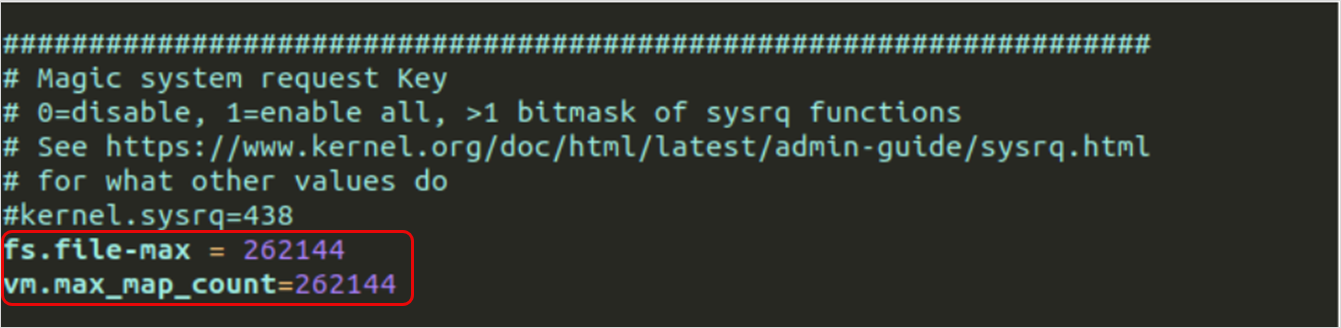
- Edit the "sysctl.conf" file and add the following two parameters towards the end of the file. Here, the maximum limit is set.
vim /etc/sysctl.conf
Add these lines to the end of the file:
fs.file-max = 262144
vm.max_map_count=262144
Step 3: Apply Configuration Changes
- Save and exit the file.
- To replicate the immediate changes, apply the below command:
sysctl –p
OR
sudo sysctl -w vm.max_map_count=262144
sudo sysctl -w fs.file-max=262144
If you face any issue in accessing the Nginx server or MeshCentral server via GUI, kindly revert the changes on the sysctl.conf file.
Step 4: Verify Current Limits
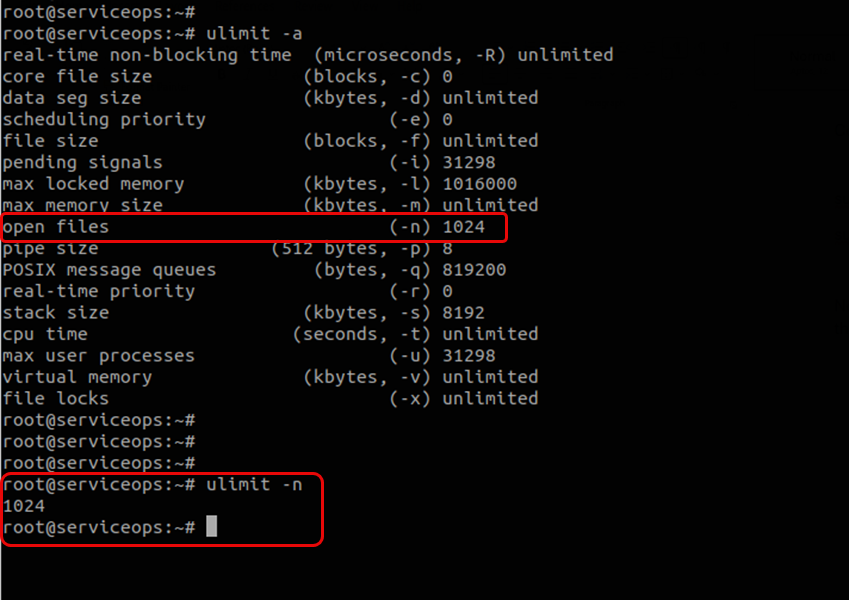
Check the current open limit from the Linux machine side using the below commands:
ulimit –a
ulimit -n
Step 5: Update User Limits
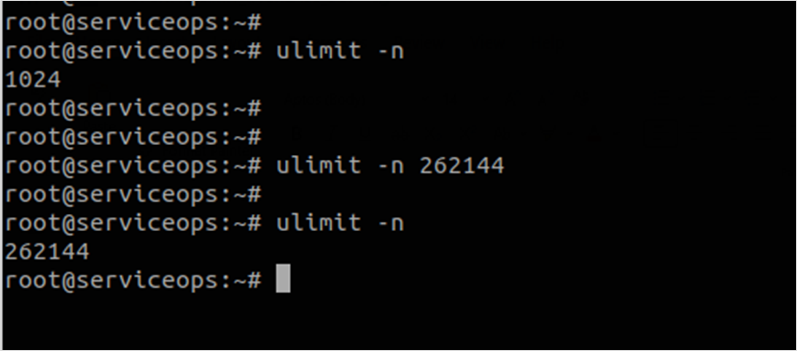
Update the limit using the below commands:
ulimit -n 262144Make the change permanent by adding it to the bash profile:
echo "ulimit -n 262144" >> ~/.bashrc
The root user is required to apply the commands.

Nginx Server Configuration
To increase the limit from the Nginx server:
Step 1: Backup Nginx Service File
Login to the Terminal server.
Navigate to the "/lib/systemd/system/nginx.service" file path.
Copy and take the backup of the nginx.service file using the below command:
cp /lib/systemd/system/nginx.service /backupfolder/nginx.service
Step 2: Edit Nginx Service Configuration
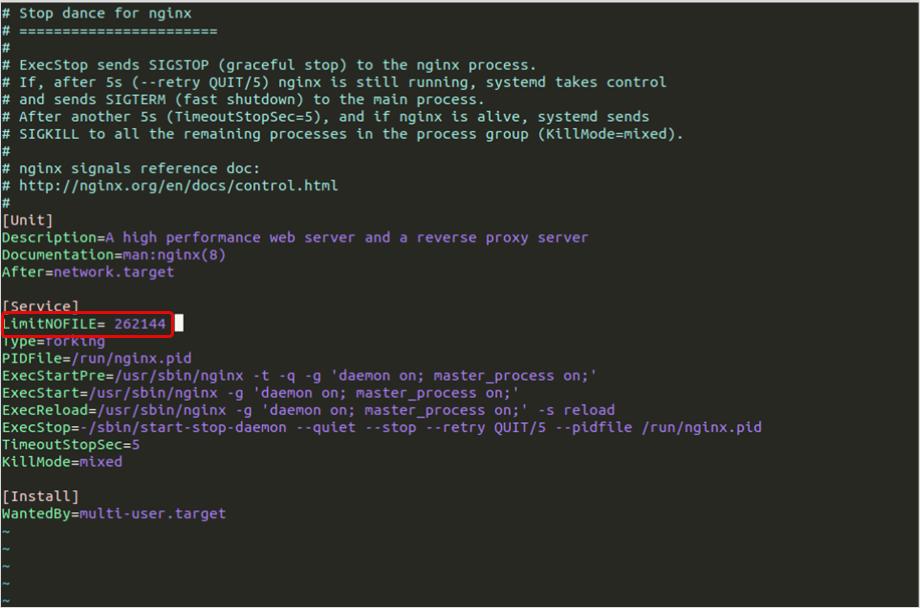
Edit the "nginx.service" file and add the below line:
LimitNOFILE= 262144
Step 3: Reload and Restart Nginx
Apply the below commands:
sudo systemctl daemon-reload
sudo systemctl restart nginx
Nginx Configuration File
To increase the limit from the Nginx configuration file:
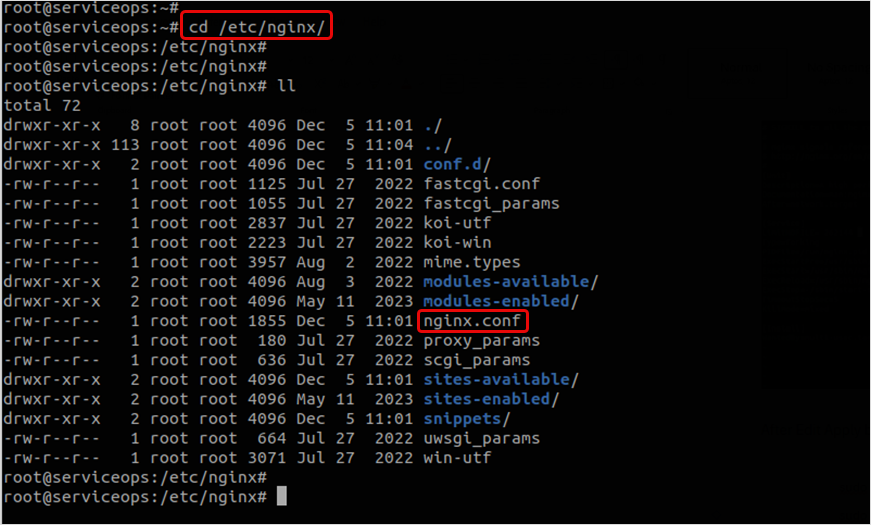
Step 1: Access Nginx Configuration
- Navigate to the "/etc/nginx/nginx.conf" file path.
Step 2: Backup and Edit Configuration
Take the backup of the nginx.conf file.
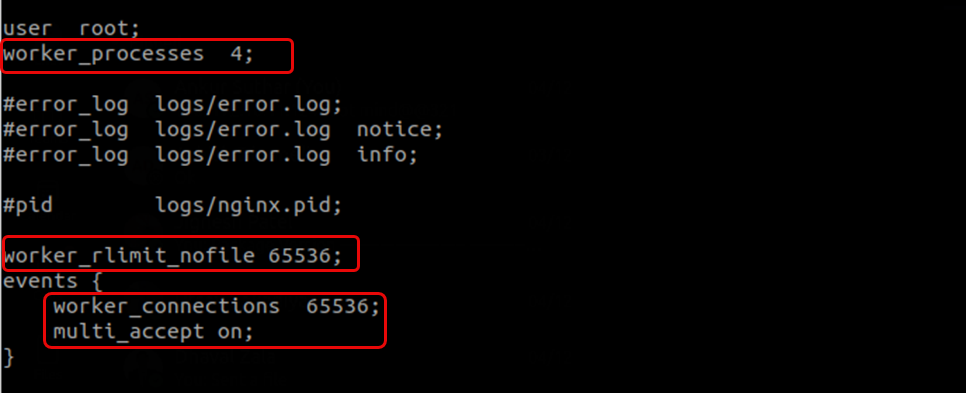
Edit the "nginx.conf" file and add the below lines:
worker_processes 4;
worker_rlimit_nofile 65536;
events {
   worker_connections 65536;
   multi_accept on;
}
Step 3: Verify and Restart
- Once done, save the file, and verify the file using the below command:
nginx -t
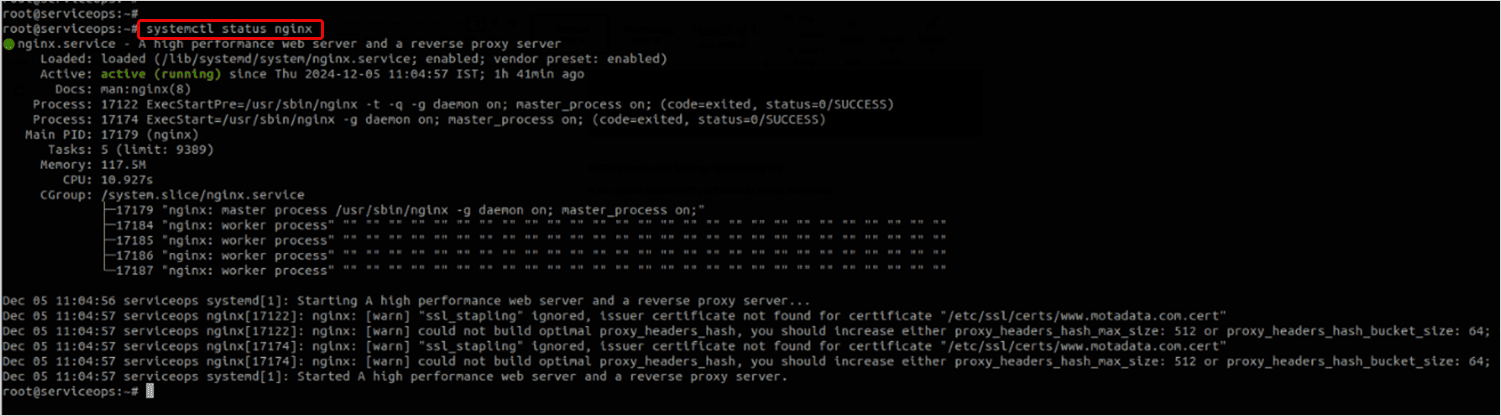
- Restart the nginx service using the below command:
sudo systemctl restart nginx
sudo systemctl status nginx
MeshCentral Server Configuration
MeshCentral server configuration for connection limits is typically handled through the Nginx configuration when MeshCentral is deployed behind Nginx. The Linux system-level changes above will also benefit MeshCentral connections.
Additional MeshCentral Considerations
SSL Certificate Configuration: Ensure proper SSL certificate configuration for MeshCentral as outlined in the SSL configuration guide.
Service Restart: After making system-level changes, restart the MeshCentral service:
systemctl restart meshcentralVerification: Check MeshCentral service status:
systemctl status meshcentral
Verification and Testing
After completing all configurations:
Step 1: Verify System Limits
# Check file descriptor limits
ulimit -n

# Check system-wide limits
cat /proc/sys/fs/file-max

# Check current open files
lsof | wc -l
Step 2: Test Nginx Configuration
# Test nginx configuration
nginx -t

# Check nginx status
systemctl status nginx
Step 3: Monitor Performance
- Monitor system performance after changes
- Check for any error messages in logs
- Verify that RDP connections work properly
- Test concurrent user access
Troubleshooting
Common Issues
- Permission Denied Errors: Ensure you're running commands as root or with sudo privileges
- Nginx Won't Start: Check the nginx configuration syntax with
nginx -t - Service Failures: Review system logs for specific error messages
Rollback Procedure
If issues occur after making changes:
Restore the backup files:
cp /etc/sysctl.conf.bkp /etc/sysctl.conf
cp /backupfolder/nginx.service /lib/systemd/system/nginx.service
Reload system configuration:
sysctl -p
systemctl daemon-reload
Restart services:
systemctl restart nginx
systemctl restart meshcentral
Best Practices
- Backup Before Changes: Always create backups before modifying system configurations
- Test in Staging: Test configuration changes in a staging environment first
- Monitor Performance: Continuously monitor system performance after changes
- Document Changes: Keep a record of all configuration changes made
- Regular Review: Periodically review and adjust limits based on actual usage patterns