RHEL Build
This guide walks you through the complete process of installing ServiceOps on RHEL systems using the build installer method. This approach is ideal for organizations using Red Hat Enterprise Linux 9.4, 9.6, 9.8 and 10.2 as their preferred enterprise Linux distribution.
The RHEL Build installation method offers several advantages for enterprise environments:
- Enterprise Grade: Optimized for Red Hat Enterprise Linux environments
- Security Focused: Leverages RHEL's security features and compliance standards
- Production Ready: Includes all necessary components for enterprise deployment
- Flexible Deployment: Supports both bare metal and virtual machine installations
- Enterprise Support: Compatible with Red Hat support and subscription models
Prerequisites
Before beginning the installation, ensure your system meets the System Requirements and Pre-Installation Checklist.
Installation Process
Step 1: Download and Prepare Installer
Download Product Installer: Download the appropriate ServiceOps installer for your RHEL version from the Latest Download Links.
Prepare Installation:
Copy the installer to your target RHEL machine.
Set execute permissions:
Syntax:
sudo chmod 777 service_desk_master_rhelx_vxxx_CIExample:
sudo chmod 777 service_desk_master_rhel9_v834_CI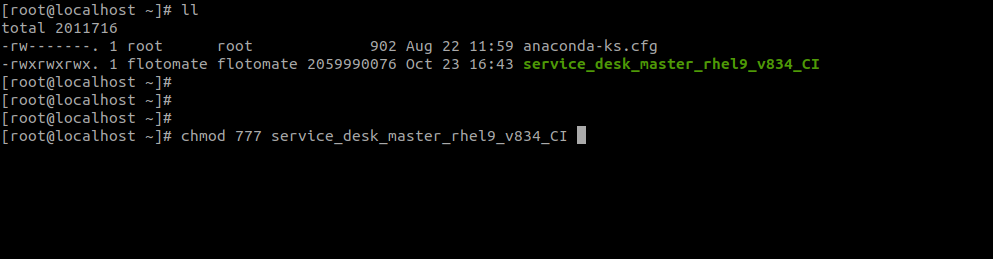
Step 2: Run the Installer
Execute the installer with sudo privileges:
Syntax: sudo ./service_desk_master_rhelx_vxxx_CI
Example: sudo ./service_desk_master_rhel9_v834_CI
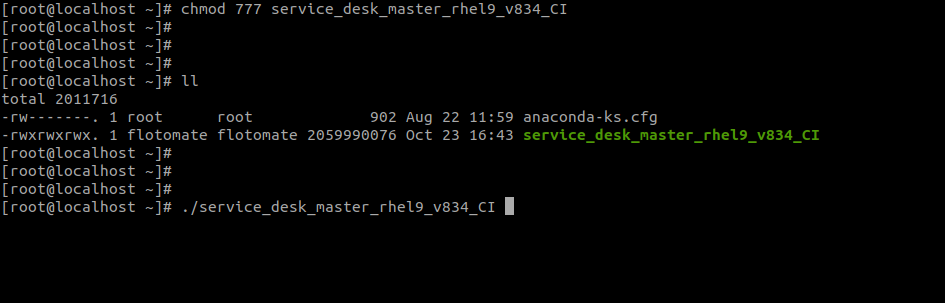
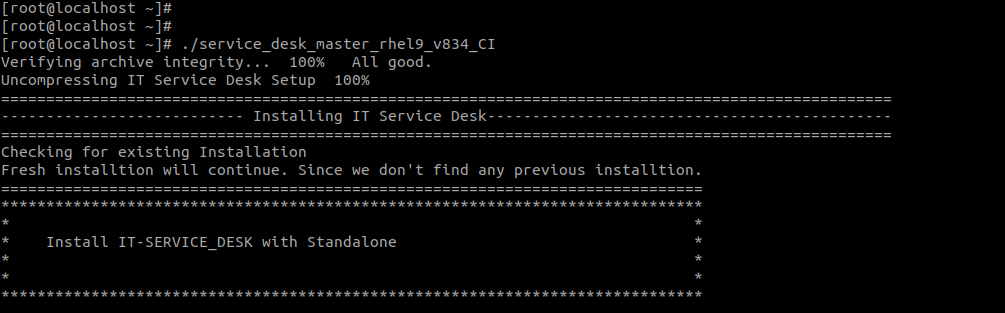
The installation process will begin automatically.
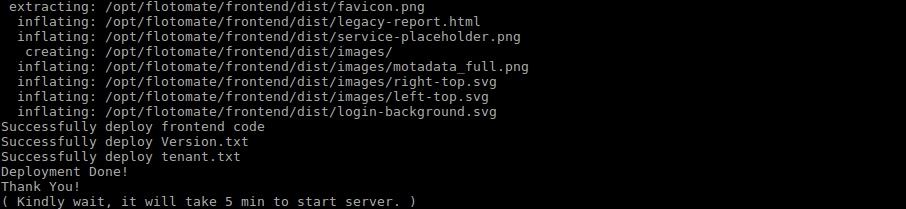
Step 3: Verify Installation and Login
Verify Services: After installation completes, verify the services are running.
# Check Main Server service
systemctl status ft-main-server
```bash
# Check Analytics Server service
systemctl status ft-analytics-server
```
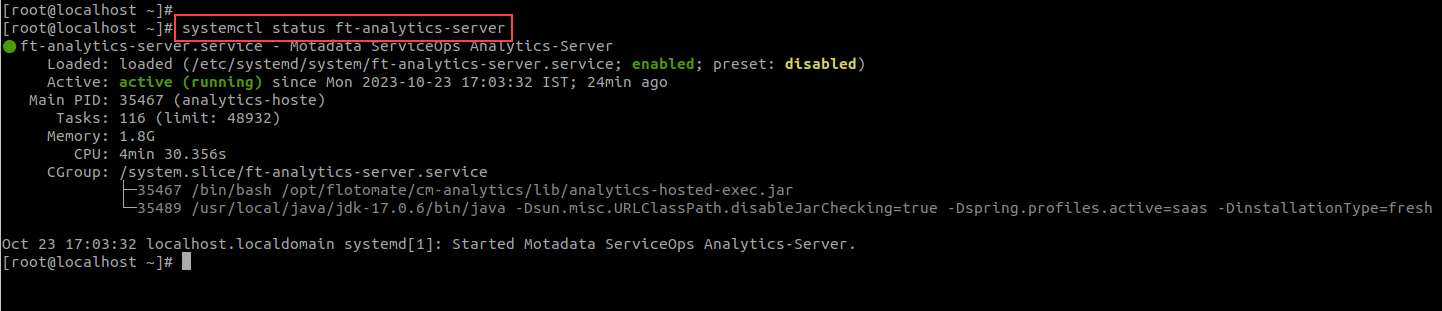
Both services should show as active (running).
- Initial Setup:
After installation, wait for five minutes. Navigate to
http://{server_IP}/register, it will open the Registration form as below :
The registration form is for the first user, who is by default the Super Admin who has all the rights. Register the user, and use the credentials to login to the ServiceOps Portal.
Click on ‘Register’ once the form is filled. It will redirect you to the Login Page.
First Login:
After registration, access the portal at
http://{server_IP}/login.Use the tabs to switch between the Support and Technician portals.

Operations and Maintenance
This section covers post-installation configuration and maintenance tasks for your ServiceOps environment on RHEL.
Port Configuration
| Service | Port | Description |
|---|---|---|
| HTTP/HTTPS | 80/443 | Web interface access |
| Main Server | 8080-8082 | Core application services |
| Analytics Server | 8080-8082 | Reporting and analytics |
| Plugin Server | 5050 | Plugin functionality |
| Mesh RDP Server | 8443 | Remote desktop access |
| Internal Mesh RDP | 4430 | Internal RDP communication |
| SSH | 22 | Secure shell access |
| SMTP | 25/465/587 | Email communication |
| LDAP/LDAPS | 389/636 | Directory services |
Advanced Configuration
Configure API rate limits by editing /opt/flotomate/main-server/config/flotomate_rate_limit.yaml.
API rate limits can only be configured from the backend and are not adjustable through the user interface.
Service Management
Manage ServiceOps services using systemctl:
# Start, stop, restart, or enable services
sudo systemctl restart ft-main-server
sudo systemctl restart ft-analytics-server
Security Considerations
SELinux Configuration
Configure SELinux for ServiceOps:
# Check SELinux status
sestatus
# Set SELinux context for ServiceOps directories
sudo semanage fcontext -a -t httpd_exec_t "/opt/flotomate(/.*)?"
sudo restorecon -Rv /opt/flotomate/
# Allow necessary ports through SELinux
sudo semanage port -a -t http_port_t -p tcp 8080-8082
Firewall Configuration
Configure RHEL firewall (firewalld) to allow necessary ports:
# Enable firewall and add services
sudo systemctl enable --now firewalld
sudo firewall-cmd --permanent --add-service=ssh
sudo firewall-cmd --permanent --add-service=http
sudo firewall-cmd --permanent --add-service=https
# Add custom ports
sudo firewall-cmd --permanent --add-port=8080-8082/tcp
sudo firewall-cmd --reload
SSL/TLS Configuration
For production deployments, configure SSL certificates:
sudo dnf install certbot python3-certbot-nginx
sudo certbot --nginx -d your-domain.com
Performance Optimization
System Tuning
Optimize RHEL system for ServiceOps by tuning kernel parameters in /etc/sysctl.conf.
Backup and Recovery
Backup Strategy
Implement regular backups by creating a script that uses pg_dump for the database and tar for configuration files. Schedule this script as a cron job.
Recovery Procedures
Document and test your recovery steps, which should include restoring the database from a dump and extracting configuration files from your backup.
Monitoring and Maintenance
Health Checks
Implement regular health checks using a script to monitor service status, disk space, memory usage, and log file sizes.
Scheduled Maintenance
Set up automated maintenance tasks (health checks, backups, log rotation) using crontab.
Enterprise Features and Version Notes
Red Hat Subscription Management
Manage RHEL subscriptions for ServiceOps:
sudo subscription-manager status
sudo subscription-manager repos --enable rhel-9-for-x86_64-appstream-rpms
Compliance and Security
Leverage RHEL security features like OpenSCAP for security scans.
System Updates
Manage system updates for production stability, installing security updates as a priority.
Version-Specific Notes
- RHEL 9.x: Offers enhanced security, better performance, and native container support.
- RHEL 8.x: Maintains compatibility with older applications and has a longer support lifecycle.
Troubleshooting
Installation Fails
Problem: Installer fails to execute.
Solution: Ensure the installer script has execute permissions (chmod 777) and that all software prerequisites were installed successfully.
Services Not Starting
Problem: Main Server or Analytics Server services fail to start.
Solution: Check the service logs for errors using journalctl -u <service-name> -f and verify all dependencies are met.
Registration Page Not Accessible
Problem: Cannot access the registration page after installation.
Solution: Verify that both ft-main-server and ft-analytics-server are active (running) and wait at least 5 minutes for them to initialize fully before trying to access the page.
Log Files
  - /opt/flotomate/main-server/logs/main-server.log
  - /opt/flotomate/analytics-server/logs/analytics-server.log
  - /var/log/serviceops-installation.log
Use tail -f <log-file-path> to monitor logs in real-time.
Related Topics
Next Steps
After the initial setup, you can further configure and secure your ServiceOps installation. Below are some recommended next steps:
- SSL Certificate Configuration: Secure your installation with SSL/TLS certificates.
- Change Ports: Modify the default ports for the main and Nginx servers.
- Configure API Rate Limit: Set limits on API usage to prevent abuse.
- Configure Memory and Connection Pool: Optimize performance by adjusting memory and database connection settings.
- Enable HTTPS: Enforce secure connections by enabling HTTPS.
- Increase Connection Limit: Adjust the maximum number of concurrent connections.