Accessing Your SaaS Instance
Follow these steps to seamlessly activate your account and log in for the first time, enabling you to begin configuring your Motadata SaaS environment.
Once your SaaS instance has been provisioned by the Motadata team, you can access it securely through your web browser. Follow the steps below to activate and log in to your account:
Account Creation by Motadata
After your organization signs up, the Motadata team creates an admin account using the details shared by the organization’s owner.
This admin account will act as the primary point of access and can later invite additional users.
Activation Email
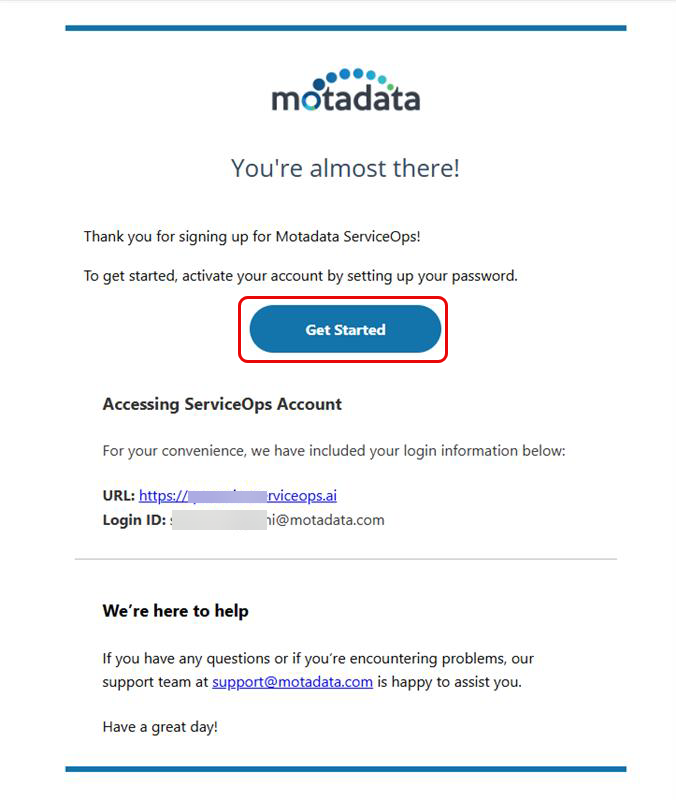
Once the account is created, you will receive an activation email at your registered email address. The email contains a unique activation link that is valid for a limited period.
Activate Your Account
- Open the activation email and click Getting Started as shown below.
- You will be redirected to the Reset Password page.
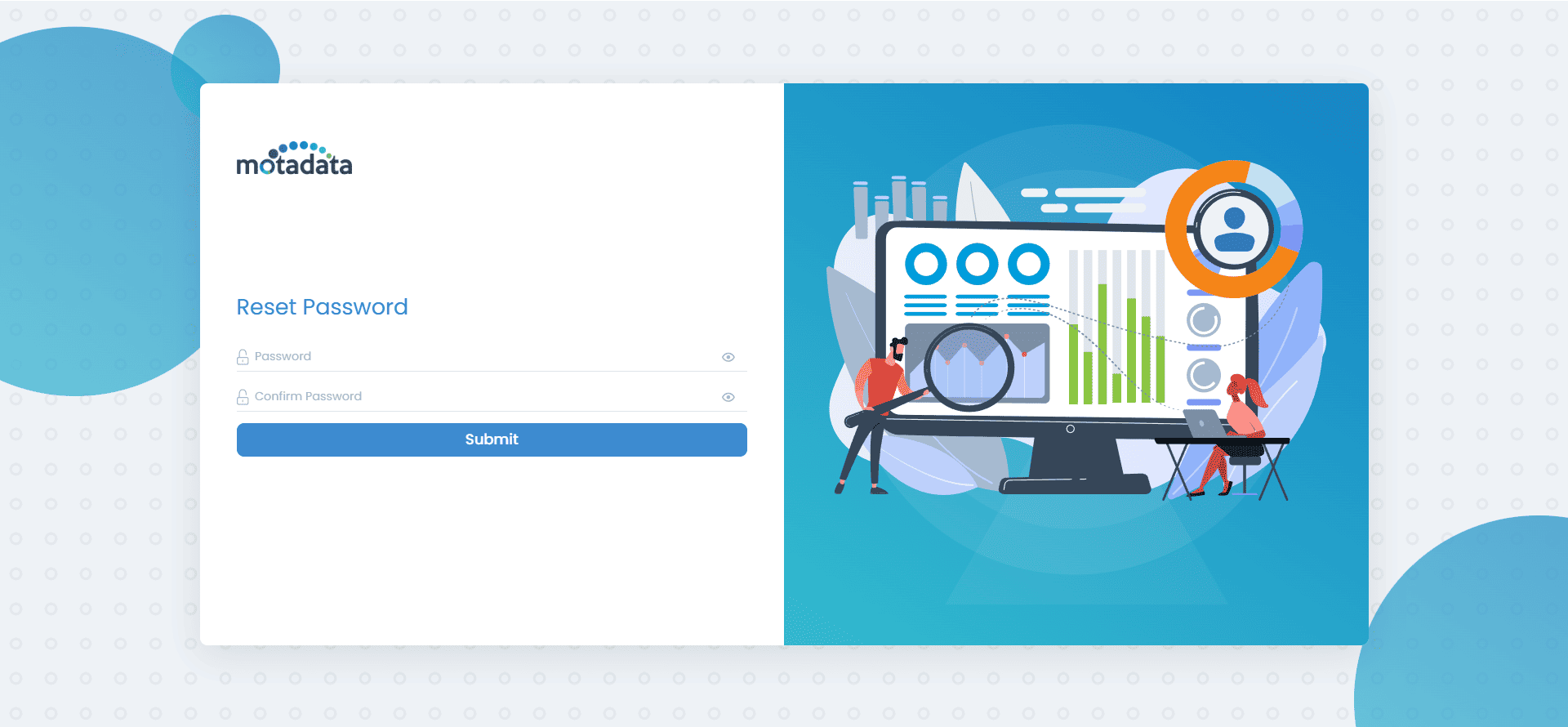
- Set a secure password for your account.
- Complete any additional verification steps, if prompted (e.g., MFA setup).
Logging In
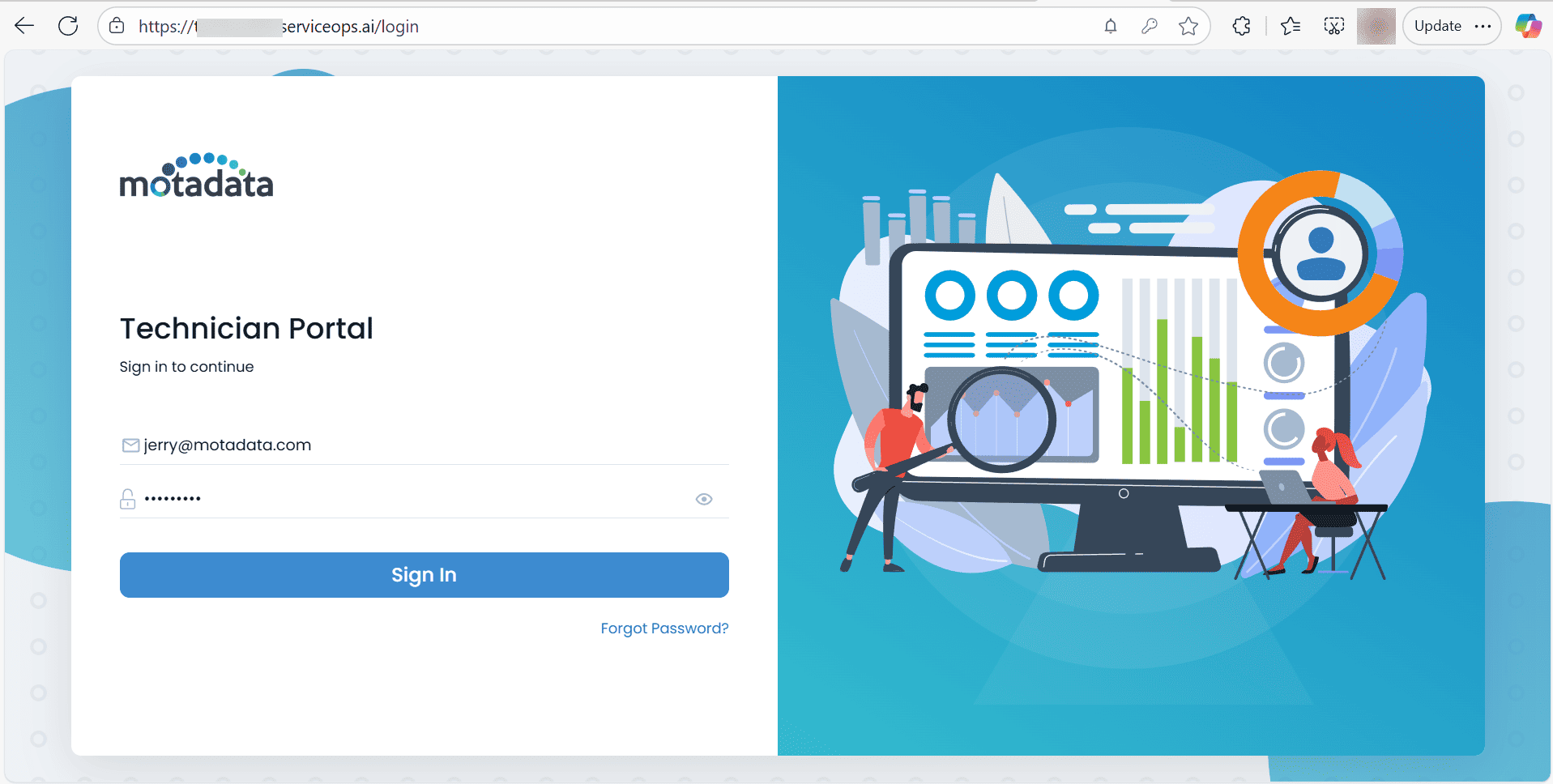
After activation, navigate to your instance login URL, which will be included in your activation email.
- Enter your registered email address and the password you just set.
- Click Sign In to access your Motadata SaaS dashboard.
First-Time Access
On first login, you will be signed in as the Organization (Tenant) Admin. From here, you can:
- Configure your organization settings.
- Invite team members.
- Assign roles and permissions.
Troubleshooting Access
- Didn’t receive the email? Check your spam/junk folder or contact Motadata Support.
- Activation link expired? Request a new activation email via the login page.
- Forgot password? Use the Forgot Password option on the login screen to reset it.