How to Change the Port of Main and Nginx Server?
Customize your ServiceOps deployment and avoid port conflicts by learning how to change the default ports for the main application and Nginx servers.
ServiceOps uses default ports for its main server (Tomcat) and Nginx web server. The main server typically runs on port 8080, while Nginx serves HTTP on port 80 and HTTPS on port 443. This guide provides step-by-step instructions for changing these default ports to accommodate custom deployment requirements, network configurations, or security policies.
Changing ports may be necessary when:
- Port conflicts with other applications
- Security requirements mandate non-standard ports
- Load balancer configurations require specific ports
- Network policies restrict standard ports
- Multiple ServiceOps instances on the same server
Prerequisites
Before changing ports, ensure you have:
- Administrative access to the ServiceOps server
- Backup of current configuration files
- Understanding of network requirements and port availability
- Service status knowledge - verify which services are currently running
- Firewall configuration access for new port rules
Main Server (Tomcat) Port Change
The main server runs on Tomcat and handles core ServiceOps application logic. By default, it uses port 8080.
Step 1: Backup Current Configuration
Create backup of current configuration:
cp /opt/flotomate/main-server/config/application-custom.properties /opt/flotomate/main-server/config/application-custom.properties.backupVerify backup creation:
ls -la /opt/flotomate/main-server/config/application-custom.properties*
Step 2: Navigate to Configuration Directory
Access the main server config folder:
cd /opt/flotomate/main-server/config/Verify current configuration:
cat application-custom.properties
Step 3: Configure New Port
Option A: Using Text Editor
Edit the configuration file:
vi application-custom.properties
# or
nano application-custom.properties
Add or modify the port configuration:
server.port=YOUR_PORT_NUMBERExample: To change to port 8082:
server.port=8082
Option B: Using Command Line
Add port configuration using echo:
echo "server.port=YOUR_PORT_NUMBER" >> application-custom.propertiesExample: To change to port 8082:
echo "server.port=8082" >> application-custom.propertiesVerify the configuration:
cat application-custom.properties
Step 4: Restart Services
Stop the main server service:
systemctl stop ft-main-serverStop the analytics server service:
systemctl stop ft-analytics-serverRestart Nginx service:
systemctl restart nginxStart the main server service:
systemctl start ft-main-serverStart the analytics server service:
systemctl start ft-analytics-server
Step 5: Verify Port Change
Check if the service is listening on the new port:
netstat -tlnp | grep :8082
# or
ss -tlnp | grep :8082
Test connectivity to the new port:
curl -I http://localhost:8082
Nginx Server Port Change
Nginx serves as the web server and reverse proxy for ServiceOps. By default, it runs on port 80 (HTTP) and 443 (HTTPS).
Step 1: Backup Nginx Configuration
Create backup of current Nginx configuration:
cp /etc/nginx/conf.d/fmt_nginx.conf /etc/nginx/conf.d/fmt_nginx.conf.backupVerify backup creation:
ls -la /etc/nginx/conf.d/fmt_nginx.conf*
Step 2: Locate Nginx Configuration
Navigate to Nginx configuration directory:
cd /etc/nginx/conf.d/List configuration files:
ls -la *.conf
Step 3: Edit Nginx Configuration
Open the main Nginx configuration file:
vi fmt_nginx.conf
# or
nano fmt_nginx.conf
Locate the server block that contains the listen directives
Modify the port numbers as needed:
For HTTP port change (default: 80):
server {
    listen 8080;
    listen [::]:8080;
    # ... other configuration
}
For HTTPS port change (default: 443):
server {
    listen 8443 ssl;
    listen [::]:8443 ssl;
    # ... SSL configuration
}
Complete example for both HTTP and HTTPS:
server {
    listen 8080;
    listen [::]:8080;
    server_name your-domain.com;

    # ... other HTTP configuration
}

server {
    listen 8443 ssl;
    listen [::]:8443 ssl;
    server_name your-domain.com;

    ssl_certificate /etc/ssl/your-cert.crt;
    ssl_certificate_key /etc/ssl/your-key.key;

    # ... other HTTPS configuration
}
Once done, save the config file.
Step 4: Test Nginx Configuration
Validate Nginx configuration syntax:
nginx -tCheck for configuration errors:
nginx -T | grep -E "(listen|server_name)"
Step 5: Restart Nginx Service
Restart Nginx to apply changes:
systemctl restart nginxVerify Nginx is running:
systemctl status nginxCheck if Nginx is listening on new ports:
netstat -tlnp | grep nginx
# or
ss -tlnp | grep nginx
Firewall Configuration
After changing ports, update firewall rules to allow traffic on the new ports.
Ubuntu/Debian (ufw)
Allow new HTTP port:
ufw allow 8080Allow new HTTPS port:
ufw allow 8443Verify firewall rules:
ufw status numbered
CentOS/RHEL (firewalld)
Allow new HTTP port:
firewall-cmd --permanent --add-port=8080/tcpAllow new HTTPS port:
firewall-cmd --permanent --add-port=8443/tcpReload firewall rules:
firewall-cmd --reloadVerify firewall rules:
firewall-cmd --list-ports
URL Configuration
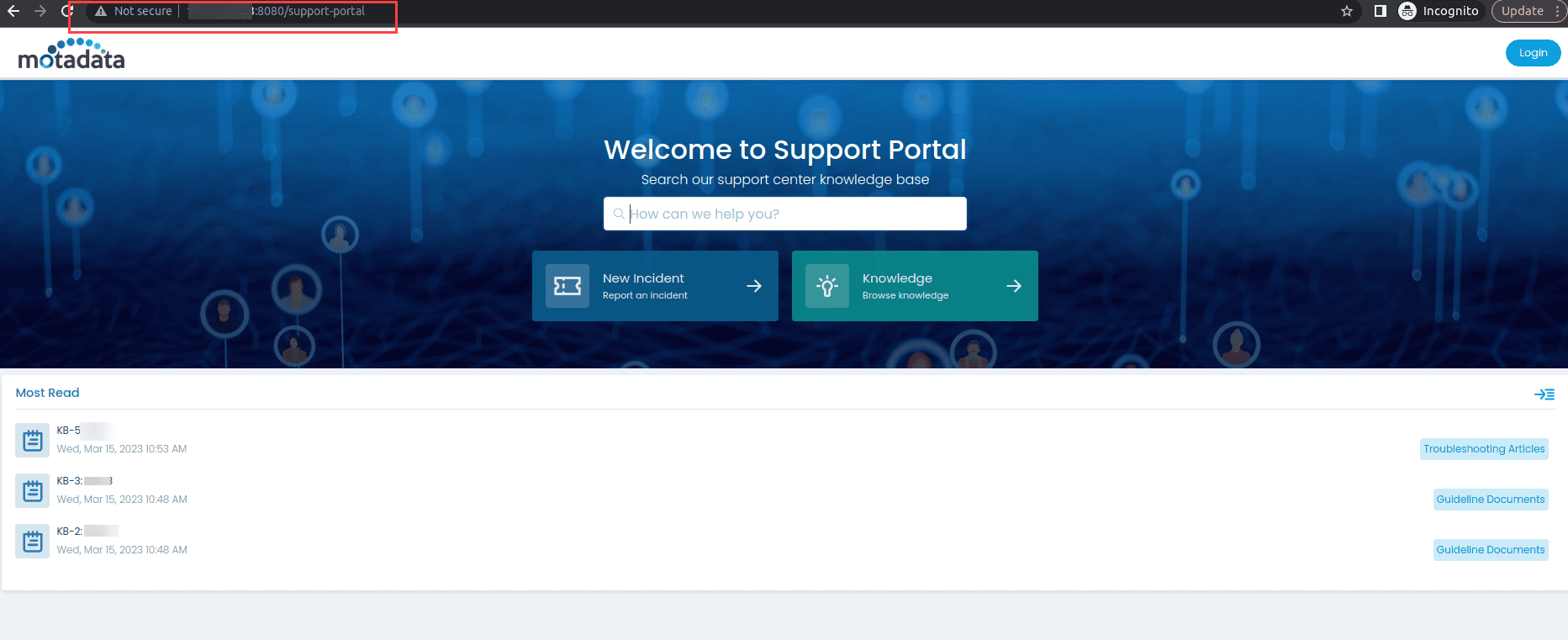
After changing ports, update ServiceOps URLs to reflect the new port configuration.
Example URLs
HTTP URLs:
- Before:
http://your-domain.com/ - After:
http://your-domain.com:8080/
HTTPS URLs:
- Before:
https://your-domain.com/ - After:
https://your-domain.com:8443/
Update ServiceOps Configuration
- Access ServiceOps Admin Console using the new URL
- Navigate to Admin > Organization > System Preference > Application Settings.
- Update Base URL to reflect the new port configuration.
- Save configuration changes.
Verification and Testing
Step 1: Test Service Connectivity
Test main server connectivity:
curl -I http://localhost:8082Test Nginx HTTP connectivity:
curl -I http://localhost:8080Test Nginx HTTPS connectivity:
curl -I https://localhost:8443
Step 2: Verify Application Functionality
- Access ServiceOps through web browser using new URLs
- Test login functionality
- Verify all modules are accessible:
- Incident Management
- Service Request Management
- Asset Management
- Change Management
- Check file upload/download functionality
- Test API endpoints if applicable
Step 3: Monitor Service Logs
Check main server logs:
tail -f /opt/flotomate/main-server/logs/application.logCheck Nginx logs:
tail -f /var/log/nginx/access.log
tail -f /var/log/nginx/error.log
Troubleshooting
Common Issues
Port Already in Use:
# Check what's using the port
netstat -tlnp | grep :8082
lsof -i :8082

# Kill process if necessary
kill -9 <PID>
Nginx Configuration Errors:
# Test configuration
nginx -t

# Check syntax
nginx -T

# View error logs
tail -f /var/log/nginx/error.log
Service Start Failures:
# Check service status
systemctl status ft-main-server
systemctl status nginx

# View service logs
journalctl -u ft-main-server -f
journalctl -u nginx -f
Firewall Issues:
# Check firewall status
ufw status
# or
firewall-cmd --state

# Test port connectivity
telnet localhost 8082
Rollback Procedure
If issues occur, you can rollback to the original configuration:
Restore main server configuration:
cp /opt/flotomate/main-server/config/application-custom.properties.backup /opt/flotomate/main-server/config/application-custom.propertiesRestore Nginx configuration:
cp /etc/nginx/conf.d/fmt_nginx.conf.backup /etc/nginx/conf.d/fmt_nginx.confRestart services:
systemctl restart ft-main-server
systemctl restart ft-analytics-server
systemctl restart nginx
Best Practices
Before Port Change
- Document current configuration and port assignments
- Verify port availability and check for conflicts
- Plan maintenance window to minimize user impact
- Test port changes in non-production environment first
During Port Change
- Follow proper service restart order (stop main server, restart nginx, start main server)
- Monitor service logs during restart process
- Test connectivity after each configuration change
- Keep backup files for quick rollback if needed
After Port Change
- Update documentation with new port assignments
- Notify users of new URL configurations
- Update monitoring tools to use new ports
- Test all functionality thoroughly
- Monitor performance to ensure no degradation
Related Topics
Next Steps
After successfully changing ports:
- Update network documentation with new port assignments
- Configure monitoring tools to use new ports
- Update load balancer configurations if applicable
- Test disaster recovery procedures with new port configuration
- Schedule regular port availability monitoring
[!NOTE] Important: Always backup configuration files before making changes and test port changes in a non-production environment first.