How to Install SSL on the ServiceOps Poller
Secure your ServiceOps Poller and protect all monitoring data in transit by enabling HTTPS with a valid SSL certificate.
This guide walks you through installing an SSL certificate on the Motadata ServiceOps Poller. The configuration approach is identical on Windows and Linux. The only difference is the path syntax used in appsettings.json and the service restart command.
Prerequisites
| Requirement | Description |
|---|---|
| SSL Certificate | A valid certificate file with the .crt extension. |
| Private Key | The matching private key file with the .key extension. |
| Admin Access | Local administrator rights on Windows, or root/sudo access on Linux. |
| Poller Installed | The Motadata ServiceOps Poller must be installed and running before you configure SSL. |
How It Works
The poller reads the certificate and key file paths from appsettings.json at startup. By default, the CertificateFilePath and KeyFilePath keys carry a leading underscore (_), which disables them. To activate SSL, you remove the underscore from both keys, supply the file paths, and restart the poller service.
The poller automatically serves HTTPS on the port that is one higher than the configured HTTP port. If the HTTP port is 8080, HTTPS runs on 8081. If the HTTP port is 8090, HTTPS runs on 8091.
HTTP port + 1 = HTTPS port. This applies to both Windows and Linux pollers. Confirm your configured HTTP port in appsettings.json before verifying the HTTPS port.
- Windows
- Linux
Step 1: Place the SSL Files on the Local Disk
Copy your certificate and key files to a local folder on the poller machine.
- Create the directory
C:\NEWFILE\if it does not already exist. - Copy your
.crtfile intoC:\NEWFILE\. - Copy your
.keyfile intoC:\NEWFILE\.
Do not place the certificate and key files on a shared or network drive. The poller service must read them locally at all times. A network path that becomes unavailable will prevent the poller from starting.
Step 2: Navigate to the Poller Installation Directory
Open the directory where the Motadata Poller is installed on the Windows machine. This folder contains the appsettings.json file.
Step 3: Open appsettings.json
Open appsettings.json in a text editor with administrator privileges (for example, Notepad++).
The default file contains entries that look like this:
{
  "ServerIp": "",
  "_CertificateFilePath": "",
  "_KeyFilePath": ""
}
Note that _CertificateFilePath and _KeyFilePath are prefixed with an underscore. The underscore acts as a placeholder or comment, which means the property is currently inactive. The poller ignores it until the underscore is removed.
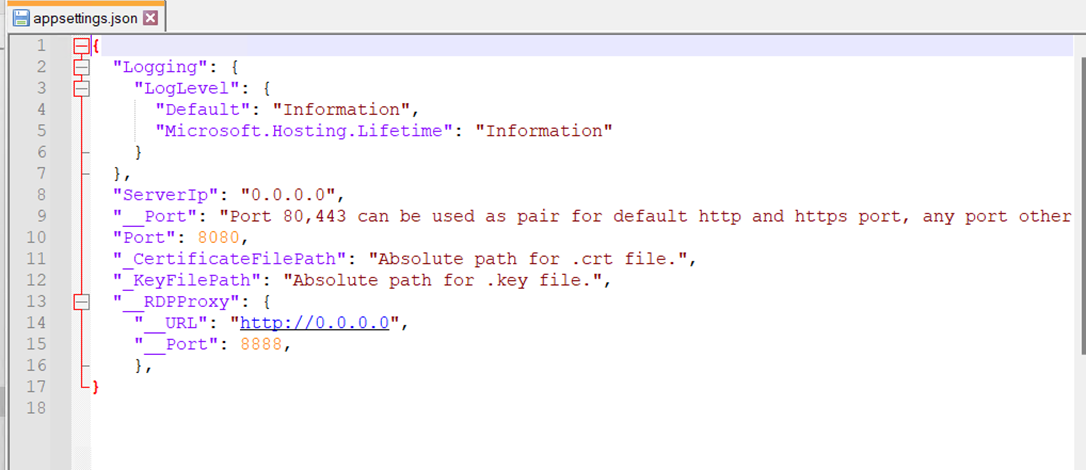
Step 4: Update the Configuration
Make the following edits to appsettings.json:
- Set
ServerIpto the IP address of the poller machine. - Remove the leading
_from_CertificateFilePathso it readsCertificateFilePath. - Remove the leading
_from_KeyFilePathso it readsKeyFilePath. - Enter the full path to your
.crtfile as the value forCertificateFilePath. Use double backslashes as path separators. - Enter the full path to your
.keyfile as the value forKeyFilePath. Use double backslashes as path separators.
After your edits, the file should look like this:
{
  "ServerIp": "192.168.1.100",
  "CertificateFilePath": "C:\\NEWFILE\\STAR.crt",
  "KeyFilePath": "C:\\NEWFILE\\STAR.key"
}
- Save the file.
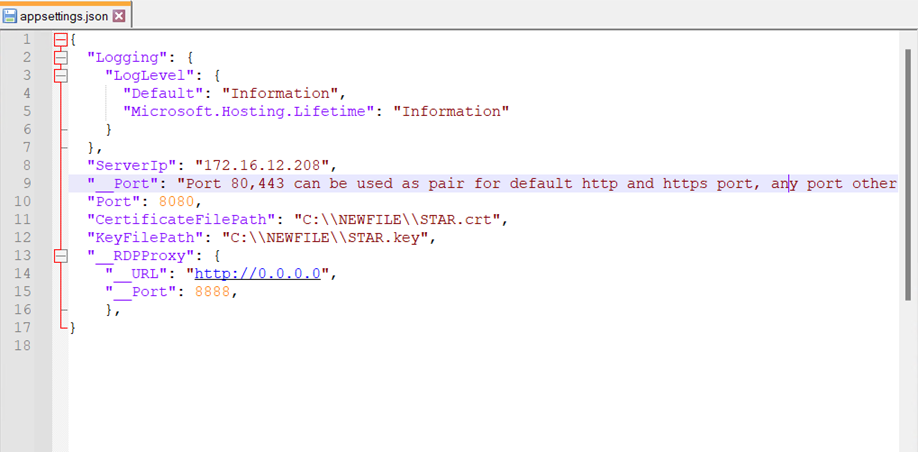
Step 5: Restart the Poller Service
- Open Services (
services.msc). - Locate the Motadata Poller service in the list.
- Right-click the service and select Restart.
The poller now serves HTTPS on the port that is one higher than the configured HTTP port (for example, port 8081 if the HTTP port is 8080).
Verify the SSL Installation on Windows
Open a Command Prompt with administrator privileges and run the following commands. Replace 8080 and 8081 with your actual HTTP and HTTPS ports.
Check the HTTP port:
netstat -ano | findstr :8080
Check the HTTPS port:
netstat -ano | findstr :8081
Both commands must return at least one row with the state LISTENING. Cross-check the PID with the poller service using:
tasklist /FI "PID eq <pid>"
Step 1: Place the SSL Files on the Local Filesystem
Copy your certificate and key files to a directory on the poller machine's local filesystem.
- Create a directory for the certificate files, for example
/root/ssl/. - Copy your
.crtfile into that directory. - Copy your
.keyfile into that directory. - Confirm the user account that runs the poller service has read access to both files.
Step 2: Navigate to the Poller Installation Directory
cd /opt/MotadataPoller/
Step 3: Edit appsettings.json
Open appsettings.json in a text editor:
sudo nano appsettings.json
The default file contains entries that look like this:
{
  "ServerIp": "",
  "_CertificateFilePath": "",
  "_KeyFilePath": ""
}
Step 4: Update the Configuration
Make the following edits:
- Set
ServerIpto the IP address of the Linux poller machine. - Remove the leading
_from_CertificateFilePathso it readsCertificateFilePath. - Remove the leading
_from_KeyFilePathso it readsKeyFilePath. - Enter the full path to your
.crtfile as the value forCertificateFilePath. Use single forward slashes as path separators. - Enter the full path to your
.keyfile as the value forKeyFilePath. Use single forward slashes as path separators.
After your edits, the file should look like this:
{
  "ServerIp": "192.168.1.200",
  "CertificateFilePath": "/root/ssl/STAR.crt",
  "KeyFilePath": "/root/ssl/STAR.key"
}
- Save the file.
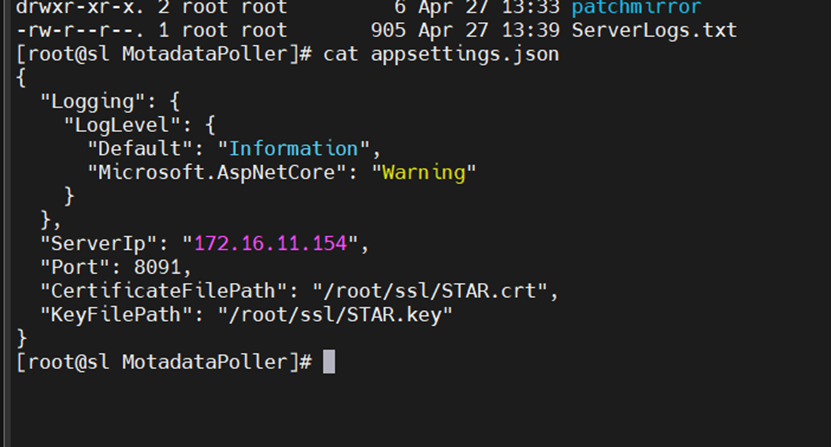
Step 5: Restart the Poller Service
sudo systemctl restart ft-poller-server
The poller now serves HTTPS on the port that is one higher than the configured HTTP port (for example, port 8091 if the HTTP port is 8090).
Verify the SSL Installation on Linux
On the Linux poller, log in as root user (or use sudo) and confirm that the poller is listening on both ports.
Replace 8090 and 8091 with your actual HTTP and HTTPS ports.
Check both ports using ss (recommended):
ss -tulpn | grep -E ':8090|:8091'
Or use netstat:
netstat -tulpn | grep -E ':8090|:8091'
Both commands must return two entries, one for the HTTP port and one for the HTTPS port, with the process name pointing to the poller binary.
Confirm the poller service is active:
systemctl status ft-poller-server
The service must show active (running).
Troubleshooting
The HTTPS port is not in the LISTENING or active state after restart
Re-open appsettings.json and confirm that the leading underscore is removed from both CertificateFilePath and KeyFilePath, the file paths point to the actual certificate and key files, and the path separator style matches the OS (double backslashes on Windows, single forward slashes on Linux). Save the file and restart the poller service, then run the verification commands again.
The poller service fails to start after the configuration change
The certificate path or key path is incorrect, or the poller service account cannot read the files. Confirm the files exist at the specified paths and that the service account has read permissions. On Linux, run journalctl -u ft-poller-server --no-pager -n 50 to view the error details.
`ServerIp` was not updated
The poller may bind to the wrong interface. Set ServerIp to the actual IP address of the poller machine, save appsettings.json, and restart the service.
Quick Reference
| Item | Windows Poller | Linux Poller |
|---|---|---|
| Installation directory | Default Windows poller install path | /opt/MotadataPoller/ |
| Default HTTP port | 8080 | 8090 |
| HTTPS port | HTTP port + 1 (e.g., 8081) | HTTP port + 1 (e.g., 8091) |
| Path separator in JSON | Double backslash \\ | Single forward slash / |
| Example certificate path | C:\\NEWFILE\\STAR.crt | /root/ssl/STAR.crt |
| Activate cert keys | Remove leading _ from _CertificateFilePath and _KeyFilePath | Remove leading _ from _CertificateFilePath and _KeyFilePath |
| Restart service | Services (services.msc) > Motadata Poller > Restart | sudo systemctl restart ft-poller-server |