How to Install SSL on the File Server
Secure your ServiceOps file server and protect all file attachments and transfers by enabling HTTPS with a valid SSL certificate.
This guide walks you through installing an SSL certificate on the ServiceOps file server. It covers the Windows service and the external Linux file server. The internal Linux file server uses the same SSL procedure as the main application server. Follow the main application SSL guide for that setup.
Prerequisites
| Requirement | Description |
|---|---|
| SSL Certificate | A valid certificate file with the .crt (or .pem) extension. |
| Private Key | The matching private key file with the .key extension. |
| Admin Access | Local administrator rights on Windows, or root/sudo on Linux. |
| File Server Running | The ServiceOps file server service must be installed before you configure SSL. |
How It Works
The ServiceOps file server uses Nginx as a reverse proxy to handle HTTPS traffic. You place your SSL certificate and private key in the correct directory, update the Nginx configuration to reference those files, then restart both Nginx and the file server service. Nginx terminates the SSL connection and forwards requests to the file server internally on HTTP.
- Windows
- Linux (External File Server)
Step 1: Place the SSL Files on the Local Disk
Copy your certificate and private key files to a local folder on the file server machine.
- Create the directory
C:\NEWFILE\if it does not already exist. - Copy your certificate file (
.crtor.pem) intoC:\NEWFILE\. - Copy your private key file (
.key) intoC:\NEWFILE\.
Do not place the certificate and key files on a shared or network path. Nginx must read them locally on the file server at all times. A network path that becomes unavailable will prevent Nginx from starting.
Step 2: Navigate to the Nginx Configuration Folder
Open the Nginx folder inside the file server installation path. The default location is:
C:\Program Files\motadata\serviceops\package\nginx
From there, open the conf subfolder. This folder contains nginx.conf.
Step 3: Open and Inspect nginx.conf
Open nginx.conf in a text editor with administrator privileges (for example, Notepad++).
In the default file, the SSL-related directives are commented out with a leading # character:
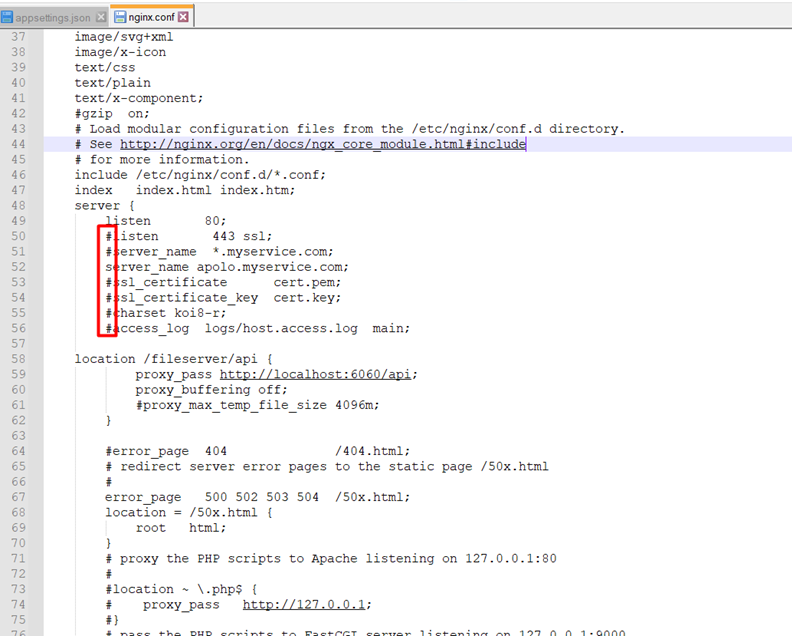
Step 4: Update the Configuration
Apply the following edits inside the SSL block:
- Remove the leading
#from the highlighted lines to uncomment the HTTPS listener and the SSL directives. - Set
ssl_certificateto the absolute path of your.crtfile. - Set
ssl_certificate_keyto the absolute path of your.keyfile. - Use double backslashes as path separators and wrap each path in double quotes.
After your edits, the SSL block should look like this:
listen 443 ssl;
ssl_certificate      "C:\\NEWFILE\\STAR.crt";
ssl_certificate_key  "C:\\NEWFILE\\STAR.key";
- Save the file.
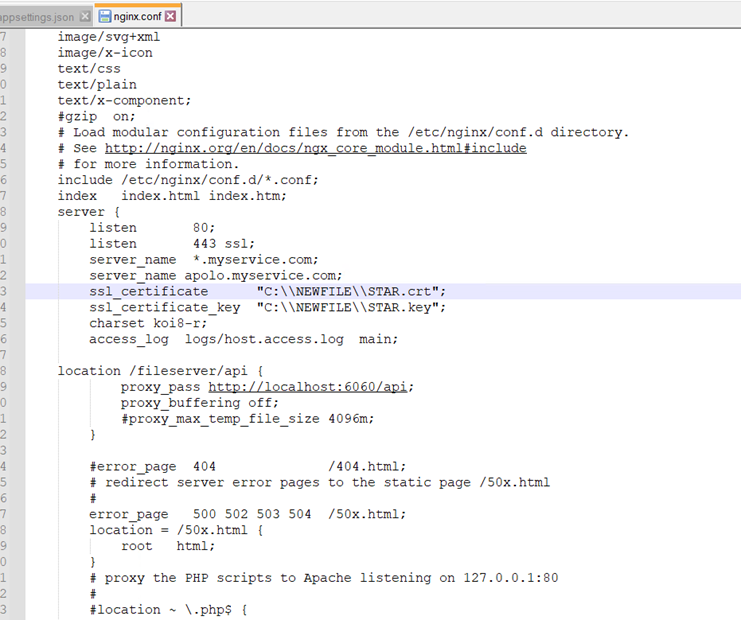
Step 5: Restart the Nginx Service
- Open Services (
services.msc). - Locate nginxservice in the list.
- Right-click nginxservice and select Restart.
If the restart succeeds, the Nginx configuration is valid and SSL is now active. If the restart fails, the configuration is not valid. Re-open nginx.conf, confirm the correct lines are uncommented and the certificate paths are correct, then restart again.
Step 6: Restart the File Server Service
Once nginxservice restarts successfully, restart the file server service so it picks up the new SSL configuration.
- In Services, locate motadata-fileserver-server.
- Right-click motadata-fileserver-server and select Restart.
Verify the SSL Installation on Windows
Open a Command Prompt with administrator privileges and run the following commands.
Check that port 443 is listening:
netstat -ano | findstr :443
The output must show at least one row with the state LISTENING. Cross-check the PID against the Nginx process:
tasklist /FI "PID eq <pid>"
Check the Nginx service status:
sc query nginxservice
Check the file server service status:
sc query motadata-fileserver-server
Both services must show RUNNING state.
These steps apply to the external Linux file server only. For an internal file server that ships pre-installed with the ServiceOps application, follow the same SSL configuration steps used for the main application. The same certificate configuration applies to the internal file server.
Step 1: Navigate to the Nginx Configuration Directory
Log in to the Linux file server and switch to the Nginx configuration directory:
cd /etc/nginx/conf.d
This directory contains fmt_nginx.conf, the Nginx configuration file for the file server.
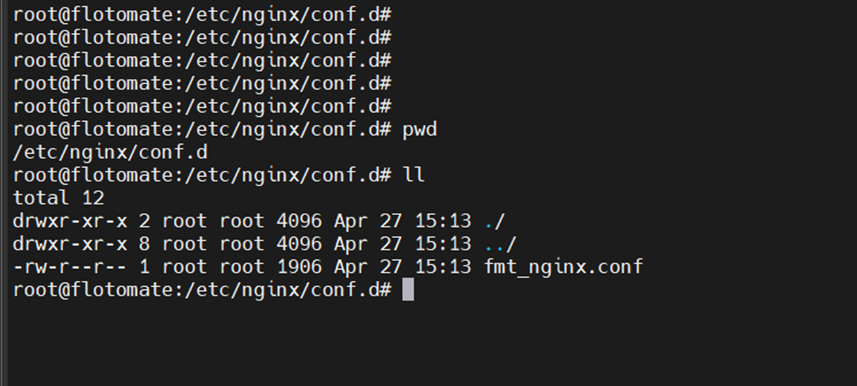
Step 2: Edit fmt_nginx.conf
Open fmt_nginx.conf in a text editor:
sudo nano fmt_nginx.conf
Locate the ssl_certificate and ssl_certificate_key directives inside the server block. Set them to the full absolute paths of your certificate and key files using single forward slashes:
ssl_certificate     /root/ssl/STAR.crt;
ssl_certificate_key /root/ssl/STAR.key;
Save the file.
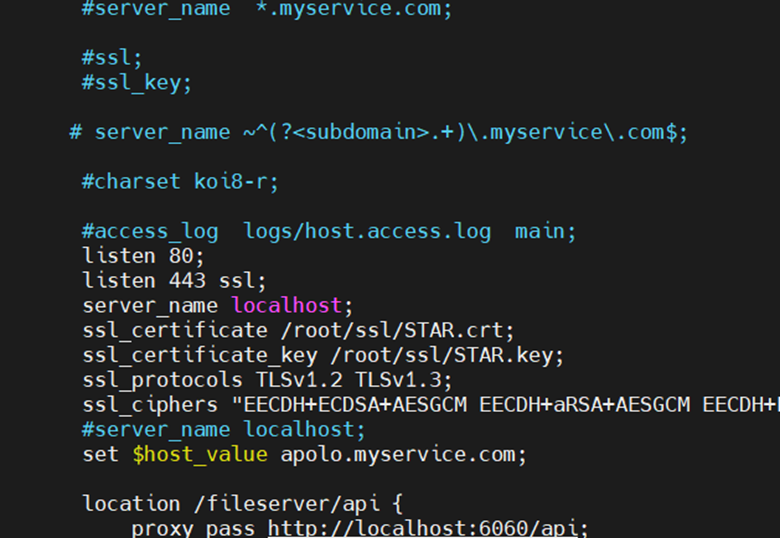
Step 3: Restart the Nginx Service
sudo systemctl restart nginx
Run nginx -t before restarting to validate the configuration. If the test reports errors, fix them before restarting the service.
Step 4: Restart the File Server Service
Once Nginx restarts successfully, restart the file server service so it picks up the new configuration:
sudo systemctl restart ft-file-server
Verify the SSL Installation on Linux
Check that ports 80 and 443 are listening (using ss, recommended):
ss -tulpn | grep -E ':80|:443'
Or using netstat:
netstat -tulpn | grep -E ':80|:443'
Both commands must return entries pointing to the nginx process.
Confirm both services are active:
systemctl status nginx
systemctl status ft-file-server
Both services must show active (running).
Troubleshooting
Port 443 is not in the LISTENING or active state after restart:
Nginx fails to restart after configuration changes.
Quick Reference
| Item | Windows File Server | Linux File Server (External) |
|---|---|---|
| Nginx config file located at default path | C:\Program Files\motadata\serviceops\package\nginx\conf\nginx.conf | /etc/nginx/conf.d/fmt_nginx.conf |
| Default HTTP port | 80 | 80 |
| HTTPS port | 443 | 443 |
| Path separator in config | Double backslash inside double quotes, e.g. "C:\\NEWFILE\\STAR.crt" | Single forward slash, e.g. /root/ssl/STAR.crt |
| Activate SSL directives | Uncomment the marked block in nginx.conf (remove leading #) | Already active in fmt_nginx.conf - update the certificate paths only |
| Restart Nginx | Services (services.msc) > nginxservice > Restart | sudo systemctl restart nginx |
| Restart file server | Services > motadata-fileserver-server > Restart | sudo systemctl restart ft-file-server |